
Setting up Laravel, Nginx, and MySQL with Docker Compose allows you to create a fully containerized development environment that is consistent, portable, and easy to manage. Instead of installing PHP, a web server, and a database directly on your system, Docker runs each service in isolated containers while Docker Compose coordinates them as a single application stack. In this guide, you will learn how to use Docker Compose to set up a complete development stack for Laravel, Nginx, and MySQL.
Steps to Install Docker on Ubuntu (or your server OS)
First, let's install Docker on your server. Docker allows you to run applications in isolated containers.
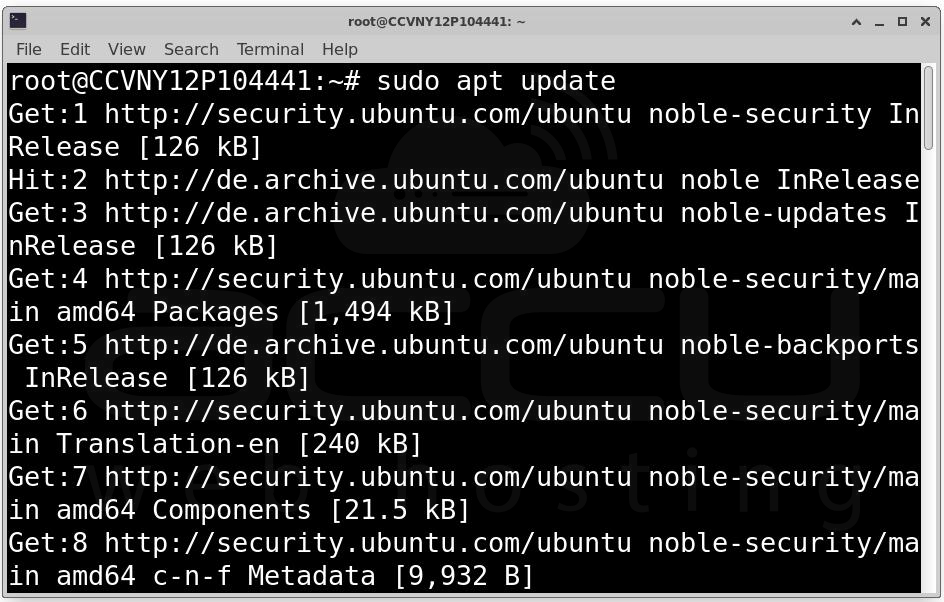
Update your system:
sudo apt update
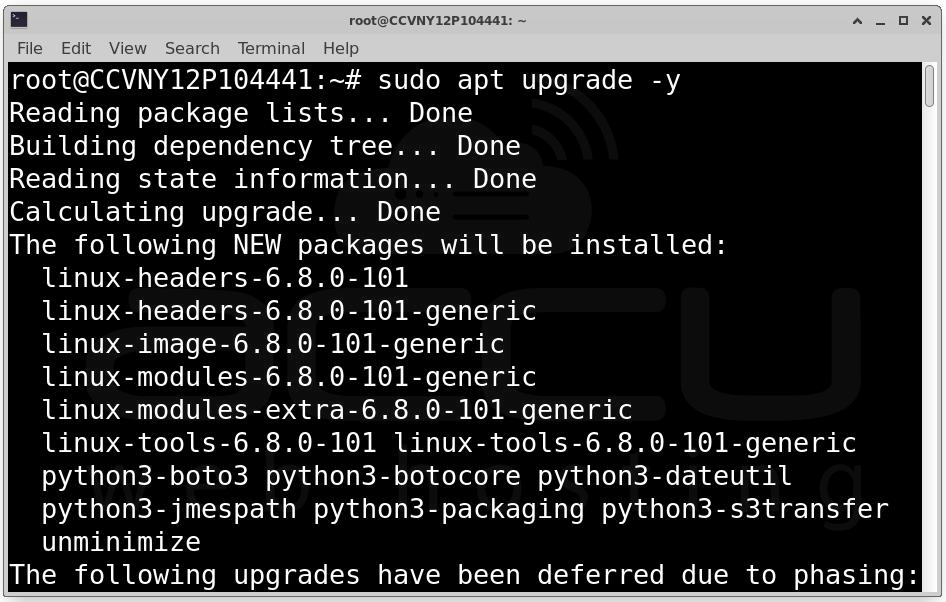
sudo apt upgrade -y
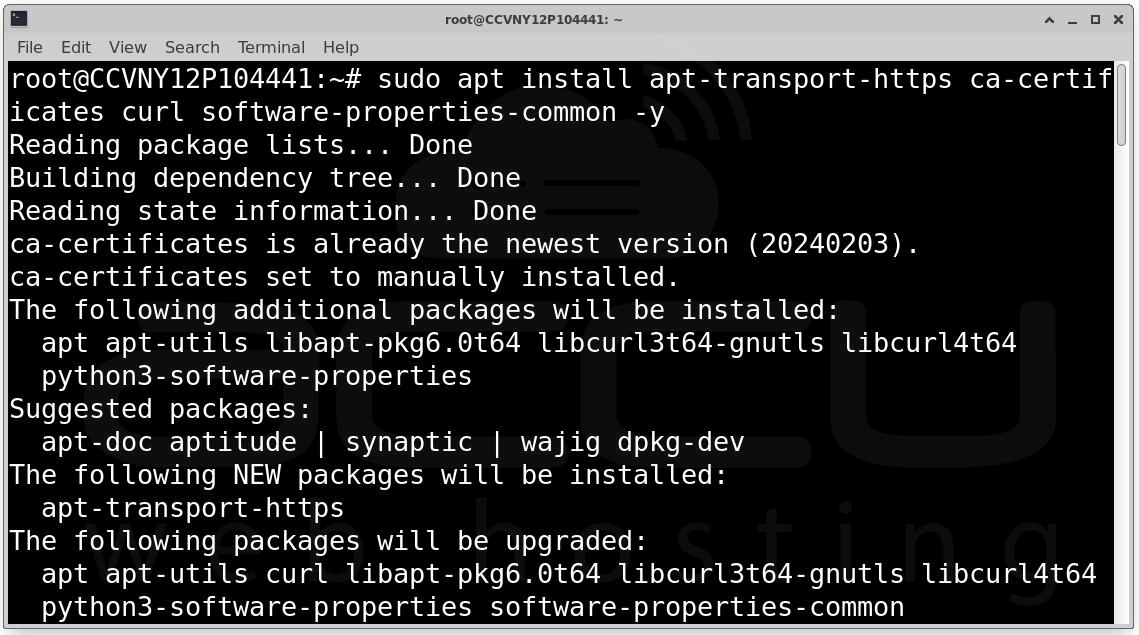
Install Docker dependencies:
sudo apt install apt-transport-https ca-certificates curl software-properties-common -y
Add Docker's official GPG key:
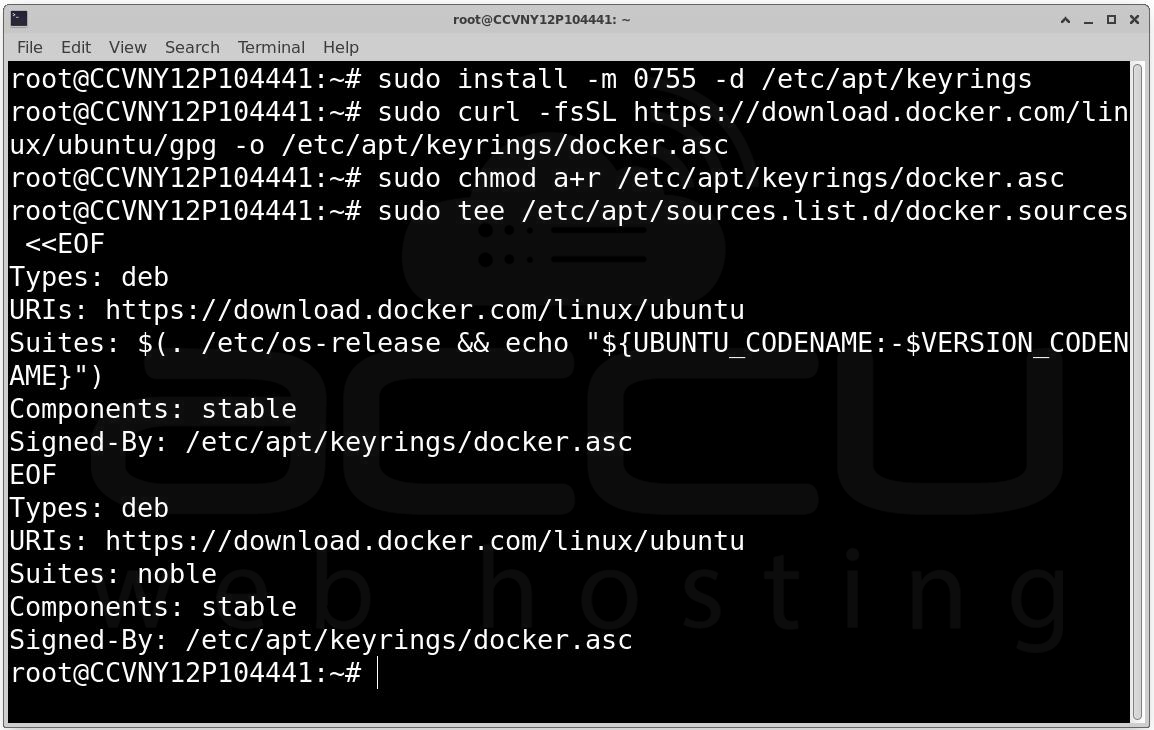
sudo install -m 0755 -d /etc/apt/keyrings
sudo curl -fsSL https://download.docker.com/linux/ubuntu/gpg -o /etc/apt/keyrings/docker.asc
sudo chmod a+r /etc/apt/keyrings/docker.asc
Add the repository to Apt sources:
sudo tee /etc/apt/sources.list.d/docker.sources <<EOF
Types: deb
URIs: https://download.docker.com/linux/ubuntu
Suites: $(. /etc/os-release && echo "${UBUNTU_CODENAME:-$VERSION_CODENAME}")
Components: stable
Signed-By: /etc/apt/keyrings/docker.asc
EOF
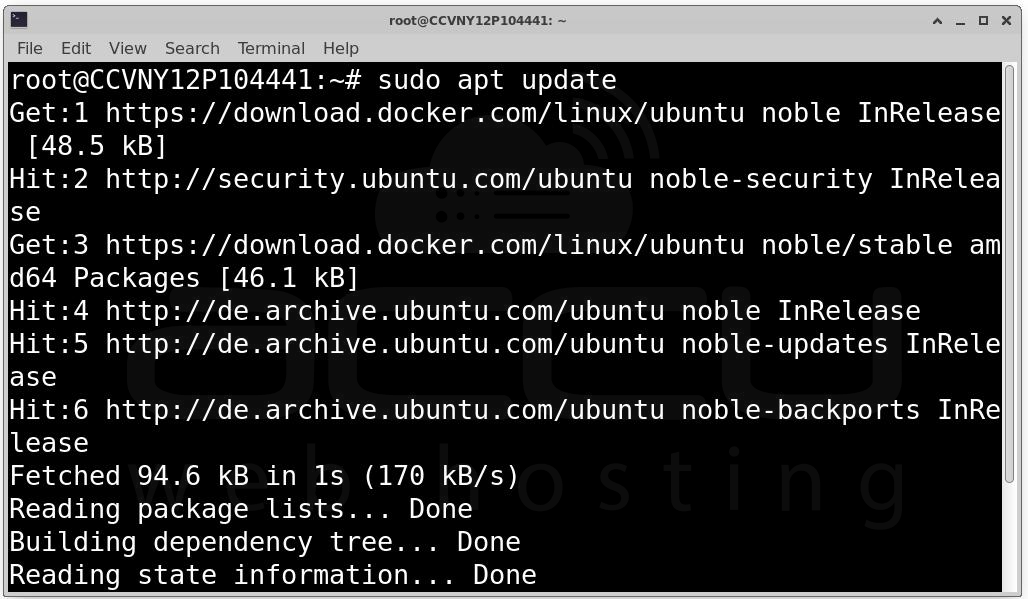
Update apt and install Docker:
sudo apt update
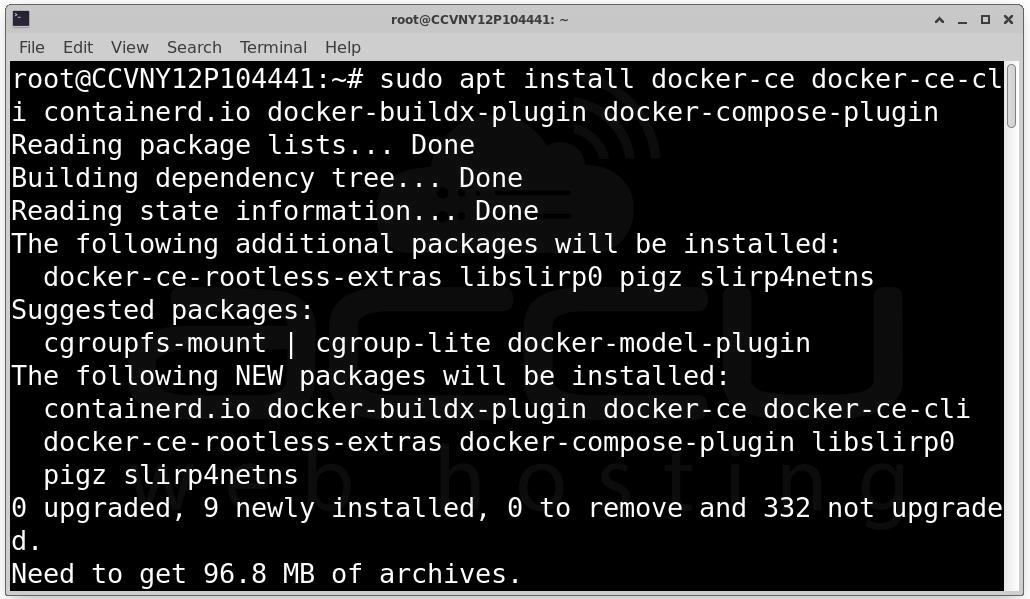
sudo apt install docker-ce docker-ce-cli containerd.io docker-buildx-plugin docker-compose-plugin
Verify Docker installation:
docker --version
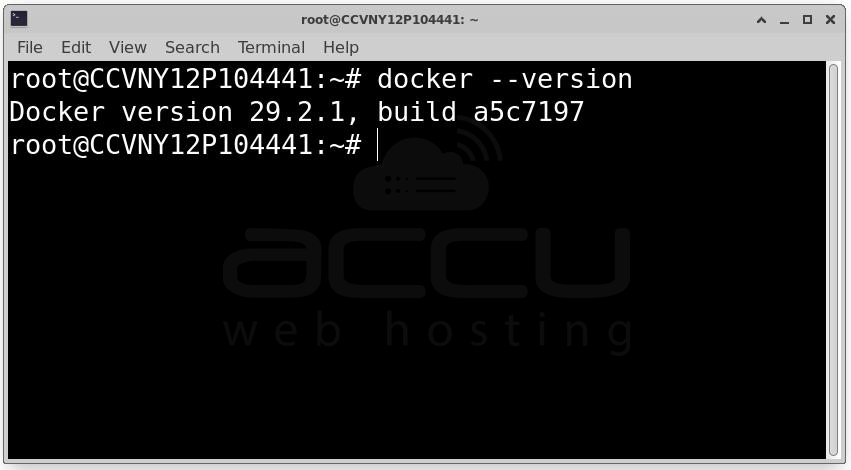
You should see the version of Docker you just installed.
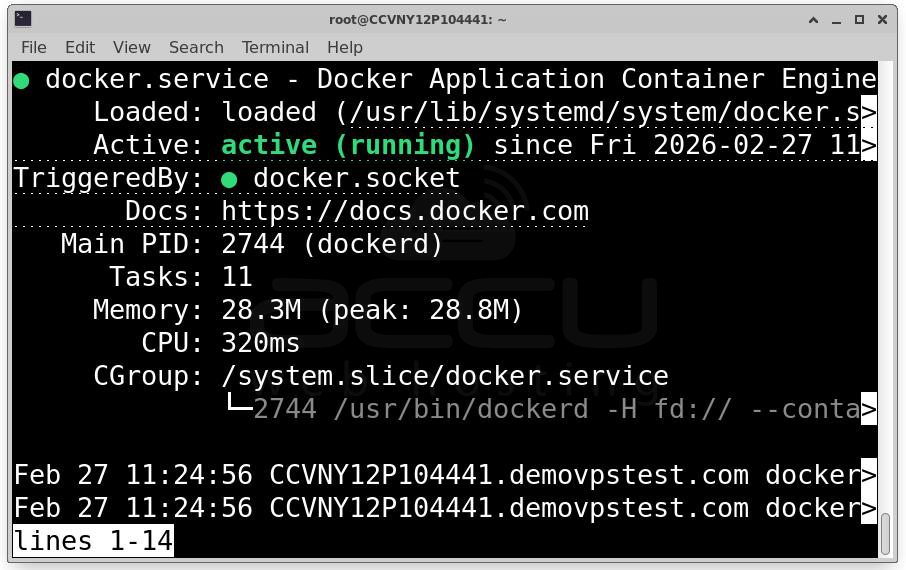
Start and enable Docker:
sudo systemctl start docker
sudo systemctl enable docker
Add your user to the Docker group (optional):
sudo usermod -aG docker $USER
Log out and back in to apply the group change.
Steps to Install Docker Compose
Docker Compose is a tool for defining and running multi-container Docker applications. It uses a YAML file to configure the application’s services.
Install Docker Compose:
sudo curl -L "https://github.com/docker/compose/releases/download/1.29.2/docker-compose-$(uname -s)-$(uname -m)" -o /usr/local/bin/docker-compose
Set the permissions:
sudo chmod +x /usr/local/bin/docker-compose
Verify Docker Compose installation:
docker-compose --version
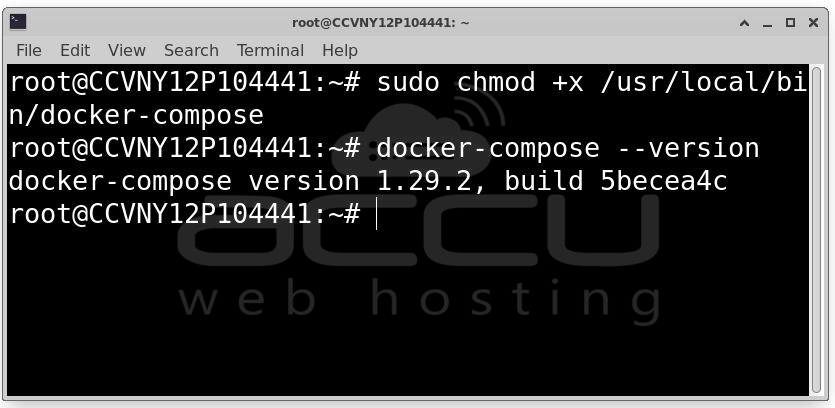
You should see the version of Docker Compose you installed.
Set Up Docker Compose for Laravel, Nginx, and MySQL
Now, let’s set up the Docker Compose configuration file. This will include all the necessary services for Laravel, Nginx, and MySQL.
Create the project directory:
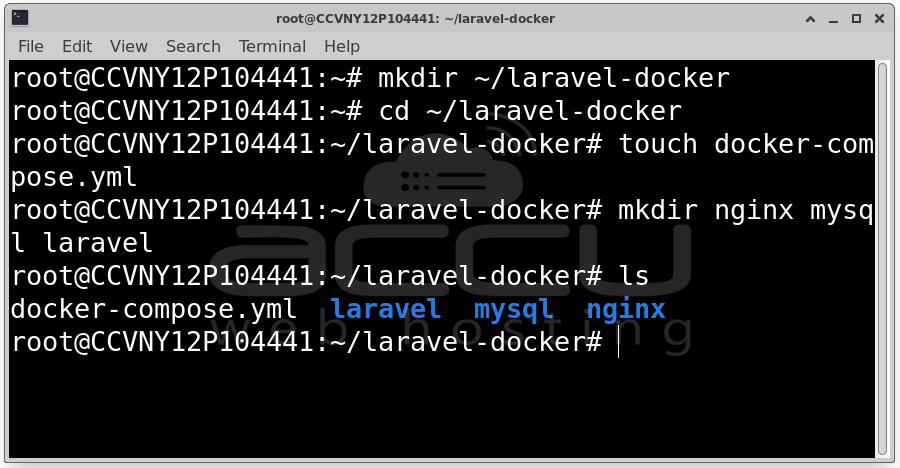
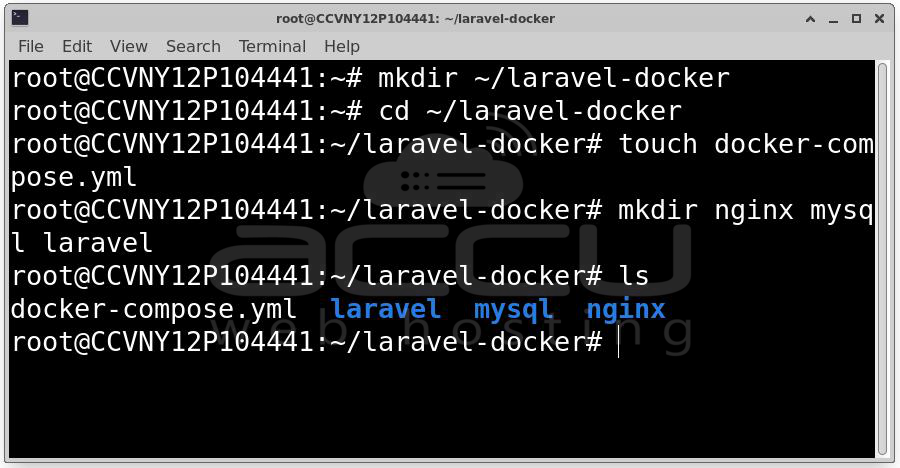
mkdir ~/laravel-docker
cd ~/laravel-docker
Inside this directory, create a Docker Compose YAML file and the necessary folders for your project.
touch docker-compose.yml
mkdir nginx mysql laravel
Create the Laravel Application
In this step, we’ll generate a fresh Laravel project that will run inside the Docker container.
Install Composer (for Laravel) on the server:
sudo apt install composer -y
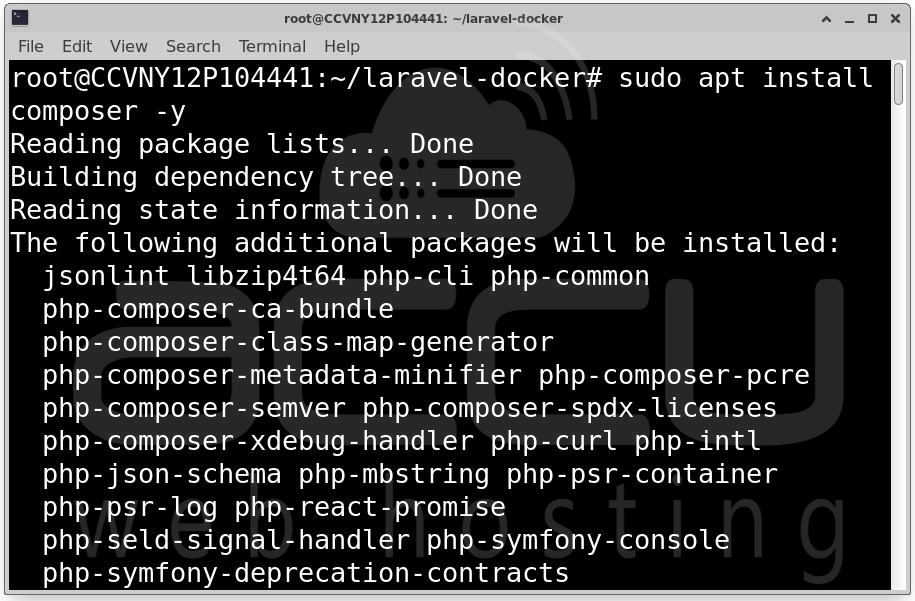
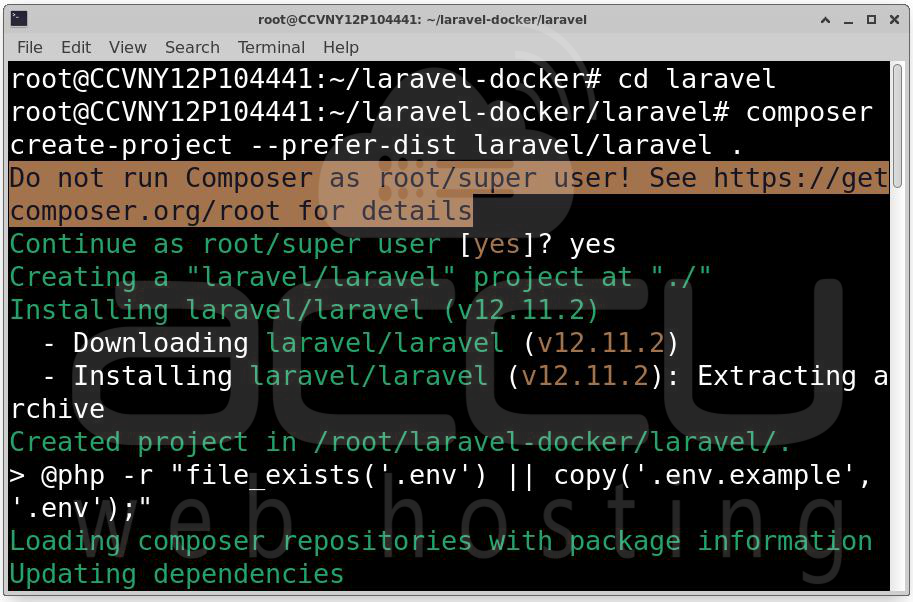
Once Composer is installed, you can create a new Laravel project inside the laravel folder.
cd laravel
composer create-project --prefer-dist laravel/laravel .
Configure Nginx for Laravel
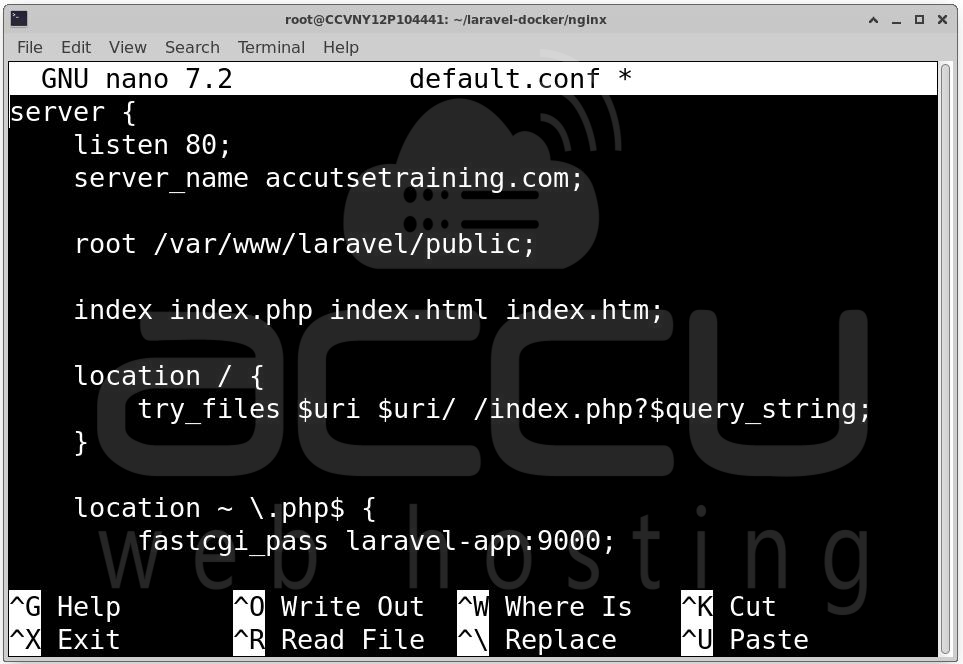
Create a configuration file for Nginx in the nginx directory. We’ll point Nginx to the Laravel public directory.
Create an Nginx config file:
cd ../nginx
touch default.conf
Open default.conf with your favorite editor and add the following configuration:
server {
listen 80;
server_name yourdomain.com;
root /var/www/laravel/public;
index index.php index.html index.htm;
location / {
try_files $uri $uri/ /index.php?$query_string;
}
location ~ \.php$ {
fastcgi_pass laravel-app:9000;
fastcgi_index index.php;
fastcgi_param SCRIPT_FILENAME /var/www/laravel/public$fastcgi_script_name;
include fastcgi_params;
}
location ~ /\.ht {
deny all;
}
}
Make sure to replace yourdomain.com with your actual domain.
Set Up the MySQL Database
We will use the official MySQL Docker image for the database. In the docker-compose.yml file, we will define a MySQL container.
Configure Docker Compose YAML File: The next step is to configure the docker-compose.yml file. This file will define the services: Laravel, Nginx, and MySQL.
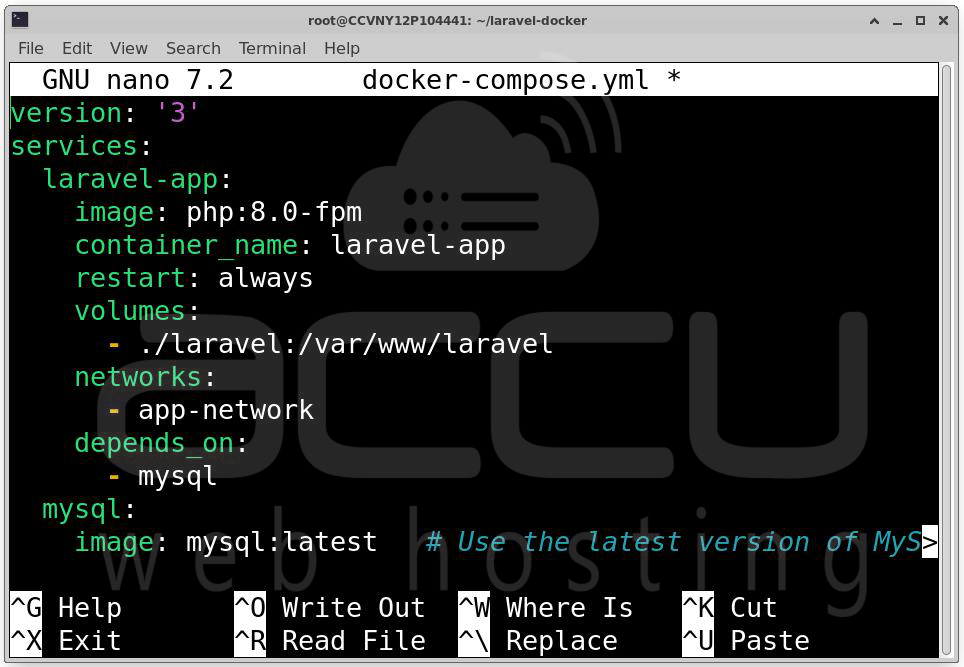
Here’s the content for the docker-compose.yml:
version: '3'
services:
laravel-app:
image: php:8.4-fpm
container_name: laravel-app
restart: always
volumes:
- ./laravel:/var/www/laravel
networks:
- app-network
depends_on:
- mysql
mysql:
image: mysql:latest # Use the latest version of MySQL
container_name: mysql
restart: always
environment:
MYSQL_ROOT_PASSWORD: rootpassword # Set your root password here
MYSQL_DATABASE: laravel # Default database to create
MYSQL_USER: laraveluser # User for the database
MYSQL_PASSWORD: laravelpassword # Password for the user
volumes:
- ./mysql:/var/lib/mysql # Persist MySQL data
networks:
- app-network
nginx:
image: nginx:alpine
container_name: nginx
restart: always
ports:
- "80:80"
volumes:
- ./nginx/default.conf:/etc/nginx/conf.d/default.conf
- ./laravel:/var/www/laravel
networks:
- app-network
depends_on:
- laravel-app
networks:
app-network:
driver: bridge
This docker-compose.yml file defines three services:
- laravel-app: A PHP 8.4 FPM container for running the Laravel app.
- mysql: A MySQL 8 container for the database.
- nginx: An Nginx Alpine container to serve the Laravel application.
Important notes:
- Change rootpassword, laraveluser, and laravelpassword to secure passwords.
- Replace yourdomain.com in the Nginx configuration with your actual domain.
Connect Laravel with MySQL
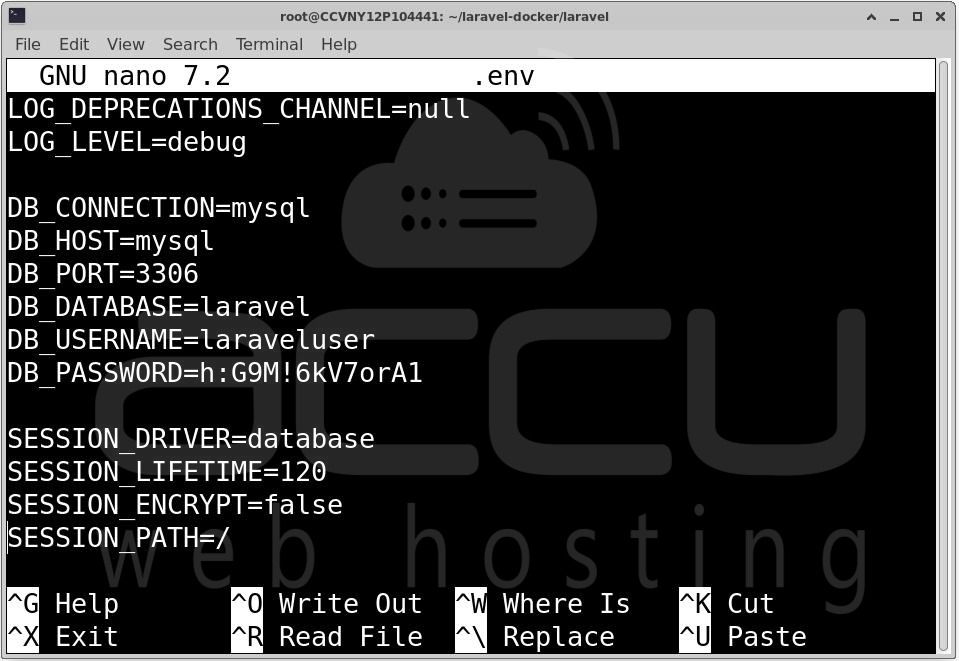
Now, let's configure Laravel to connect to the MySQL database in Docker. Laravel uses environment variables to configure its database connection.
Open .env file in the laravel directory and update the database settings:
DB_CONNECTION=mysql
DB_HOST=mysql
DB_PORT=3306
DB_DATABASE=laravel
DB_USERNAME=laraveluser
DB_PASSWORD=laravelpassword
This will point Laravel to the mysql container.
Build and Run the Containers
Now that we’ve configured the Docker Compose YAML file and the Laravel application, it's time to build and run the containers.
Build the Docker containers:
docker-compose up --build -d
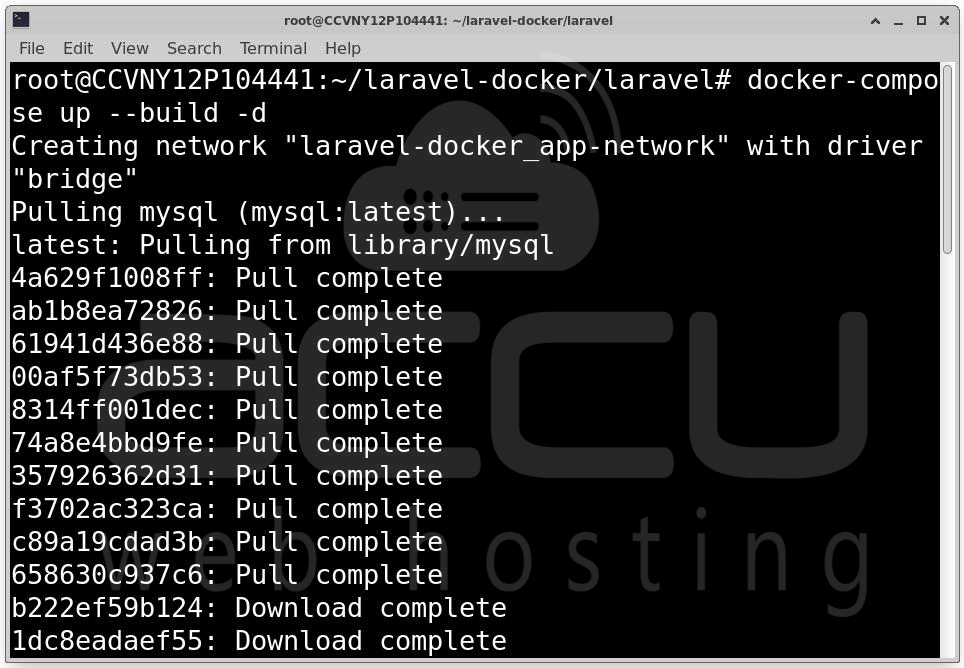
This command will build the containers in the background (-d flag).
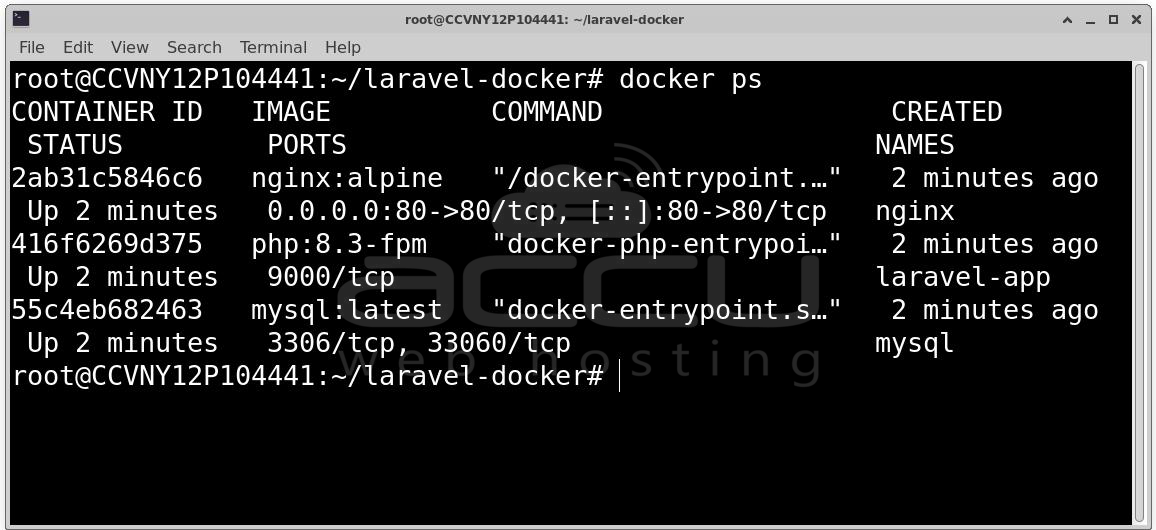
Check if the containers are running:
docker ps
Test and Access the Application on Your Domain
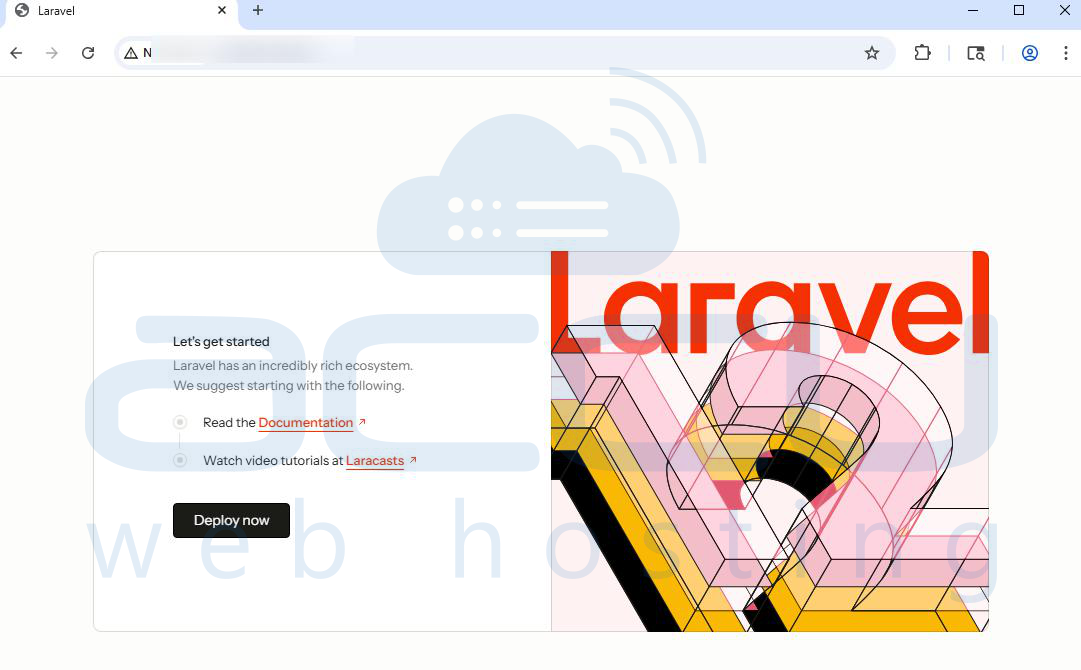
After running the containers, the Laravel app should be available at your domain. Set up your domain’s DNS to point to your server’s IP address. Open a browser and visit http://yourdomain.com. You should see the Laravel welcome page.
Conclusion
Congratulations! You've successfully set up Laravel, Nginx, and MySQL using Docker Compose. This setup allows you to quickly spin up a development or production environment with Laravel, leveraging the power of Docker for isolation and easy configuration.
By following this guide, you can now scale your application or integrate additional services as needed.


