
Introduction:
Managing NTFS permissions is one of the most important tasks for Windows Server administrators. Properly configured permissions help protect sensitive data, prevent unauthorized access, and ensure users can perform only the actions required for their roles.
This article explains the different NTFS permission levels, how they work, and how to assign permissions on a Windows Server manually.
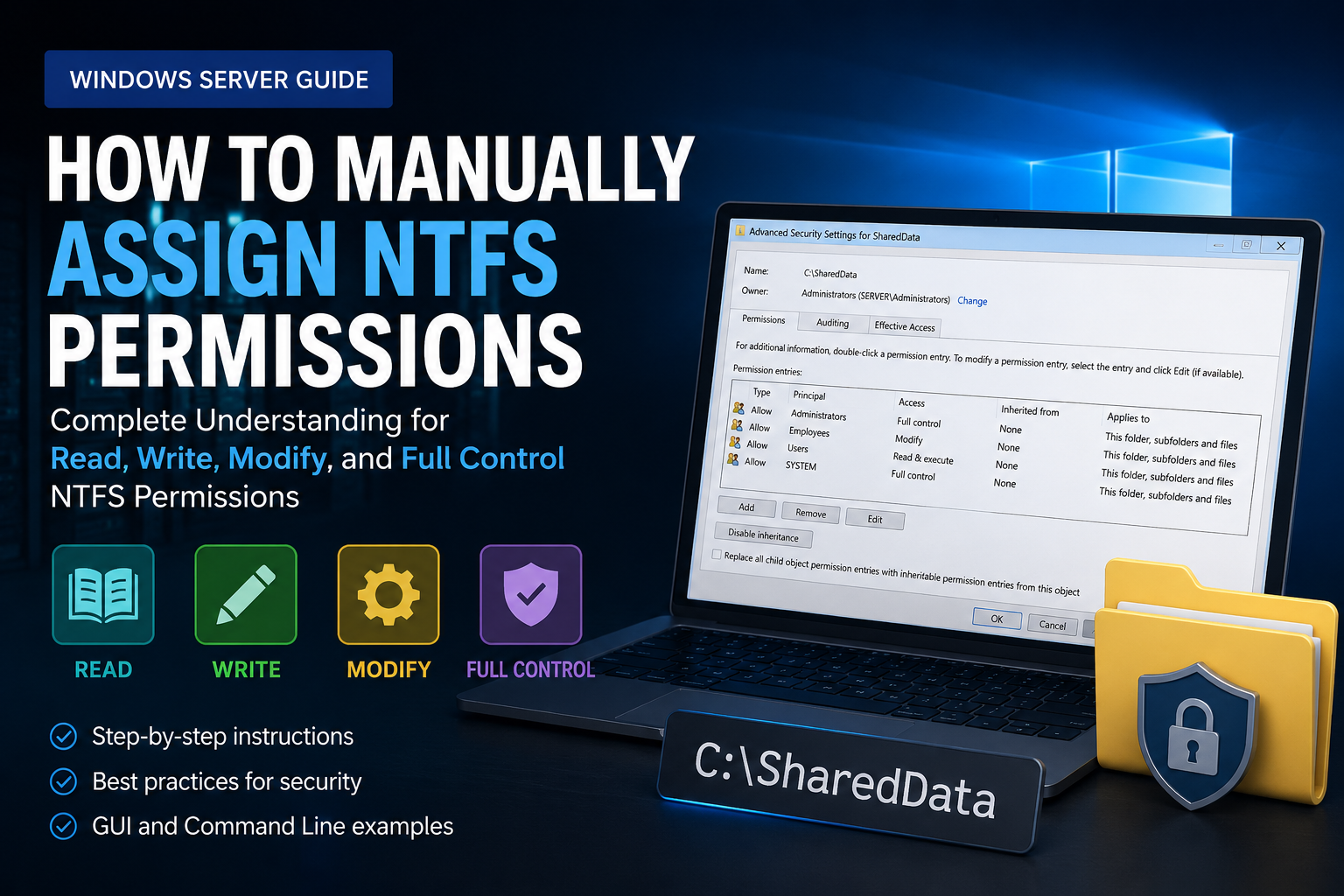
What Are NTFS Permissions?
NTFS (New Technology File System) permissions control which users and groups can access files and folders stored on an NTFS-formatted drive.
These permissions determine whether a user can:
- View files and folders
- Create new files
- Modify existing content
- Delete files and folders
- Change permissions
- Take ownership of data
NTFS permissions are applied directly to files and folders and remain effective regardless of how users access the data (locally or through a network share).
Understanding Common NTFS Permission Levels
1. Read Permission
The Read permission allows users to view and open files and folders without making any changes.
Allowed Actions
- View folder contents
- Open files
- Read file attributes
- View permissions
Restricted Actions
- Create files or folders
- Modify file contents
- Delete files or folders
- Change permissions
- Take ownership
Common Use Case:
A department needs access to company policies, manuals, or documentation but should not be able to modify them.
2. Read & Execute Permission
The Read & Execute permission includes all Read permissions and additionally allows users to run executable files and scripts.
Allowed Actions:
- View folder contents
- Open files
- Run applications and executable files
- Read file attributes
- View permissions
Restricted Actions:
- Create files or folders
- Modify file contents
- Delete files or folders
- Change permissions
- Take ownership
Common Use Case:
Users need to run applications installed on a server or workstation but should not be able to modify the application files.
3. Write Permission:
The Write permission allows users to create new files and folders and write data to files, but it does not grant permission to delete files or manage security settings.
Allowed Actions:
- Create new files
- Create new folders
- Write data to files
- Append data to existing files
- Modify file attributes
Restricted Actions:
- Delete files or folders
- Change permissions
- Take ownership
Common Use Case
Users need to upload reports, logs, or documents to a shared folder but should not be able to remove existing files.
4. Modify Permission
The Modify permission combines Read, Read & Execute, and Write permissions while adding the ability to delete files and folders.
Allowed Actions:
- Read files and folders
- Create files and folders
- Edit file contents
- Rename files and folders
- Delete files and folders
- Run applications
Restricted Actions:
- Change NTFS permissions
- Take ownership
Common Use Case
A shared departmental folder where users need full editing capabilities but should not manage security settings.
5. Full Control Permission
Full Control provides all available NTFS permissions, including the ability to manage security settings and ownership.
Allowed Actions
- Read files and folders
- Create and modify files
- Delete files and folders
- Run applications
- Change permissions
- Take ownership
- Manage security settings
Common Use Case
System administrators, server administrators, or designated folder owners responsible for managing both access and security.
NTFS Permission Comparison Table
|
Permission |
Read Files |
Run Programs |
Create Files |
Write Data |
Delete Files |
Change Permissions |
Take Ownership |
|
Read |
Yes |
No |
No |
No |
No |
No |
No |
|
Read & Execute |
Yes |
Yes |
No |
No |
No |
No |
No |
|
Write |
Yes* |
No |
Yes |
Yes |
No |
No |
No |
|
Modify |
Yes |
Yes |
Yes |
Yes |
Yes |
No |
No |
|
Full Control |
Yes |
Yes |
Yes |
Yes |
Yes |
Yes |
Yes |
How to Manually Assign NTFS Permissions
Method 1: Using Windows File Explorer
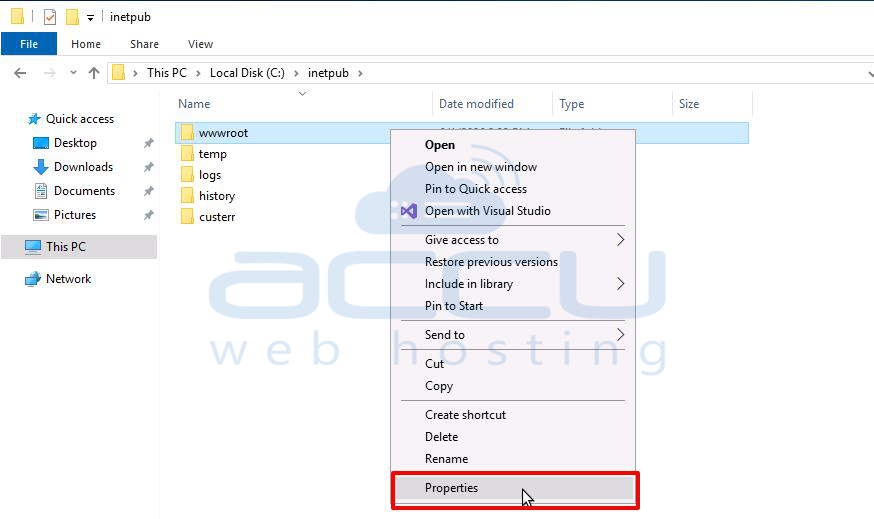
Step 1: Open Folder Properties
- Locate the folder you want to secure.
- Right-click the folder.
- Select Properties.
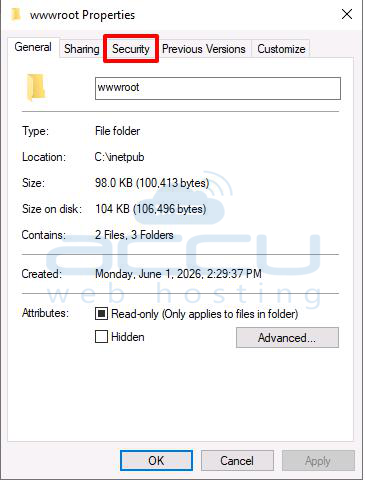
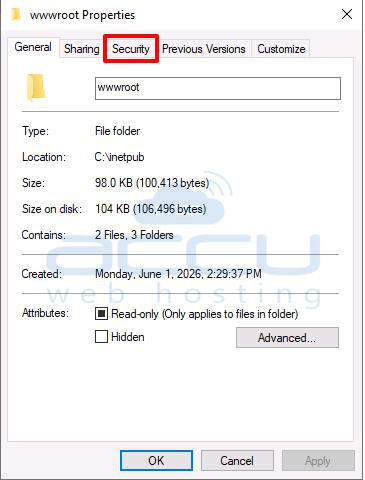
Step 2: Open the Security Tab
-
Click the Security tab.
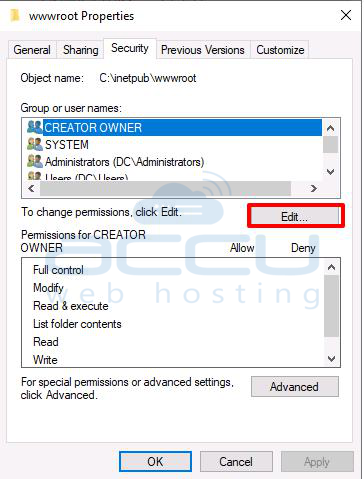
2. Click Edit to modify permissions.
Step 3: Add a User or Group
-
Click Add.
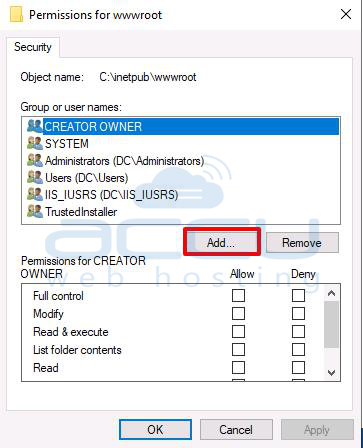 2. Enter the username or group name.
3. Click Check Names.
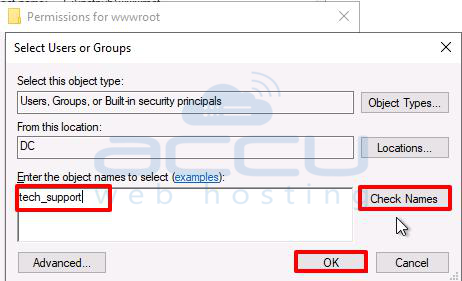 4. Click OK.
Step 4: Assign Permissions
Select the user or group and choose the appropriate permission level:
-
Read
-
Write
-
Modify
-
Full Control
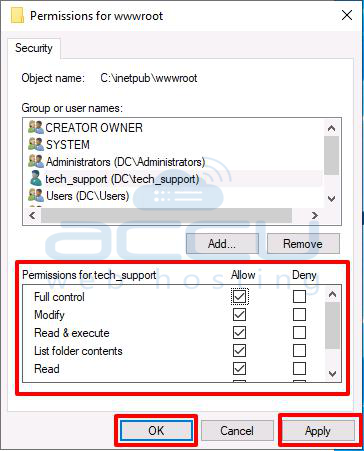
You can use the Allow checkboxes for standard permission assignments.
Step 5: Apply Changes
-
Click Apply.
-
Click OK.
The permissions will be applied to the selected folder and, depending on inheritance settings, may also apply to subfolders and files.
Method 2: Using Advanced Security Settings
For more granular control:
-
Open Properties → Security.
2. Click Advanced.
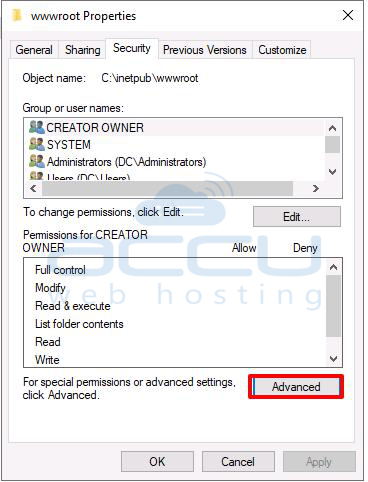
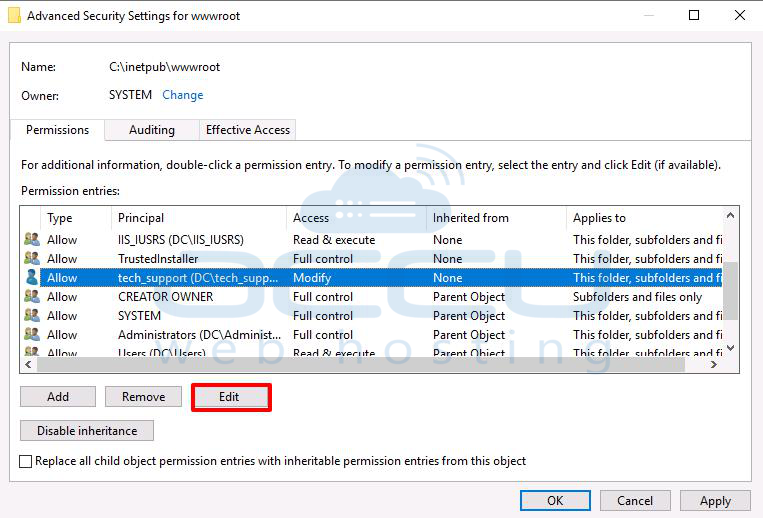
Here you can:
-
Enable or disable inheritance
-
Configure permissions for specific files or folders
-
Apply permissions only to subfolders
-
Modify ownership
-
Audit access attempts
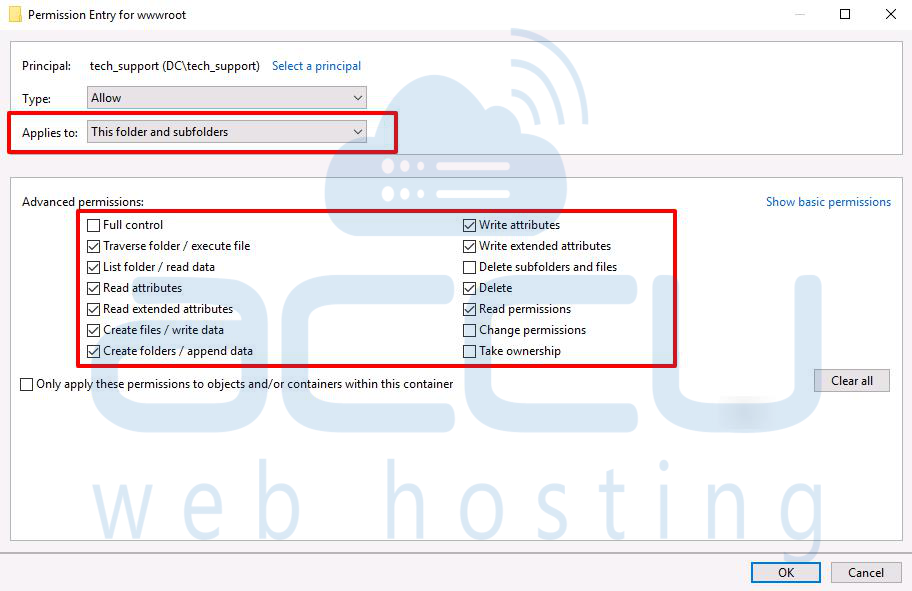
Understanding Permission Inheritance:
By default, child files and folders inherit permissions from their parent folder.
Example:
C:\CompanyData
├── HR
├── Finance
└── Projects
If CompanyData grants Modify access to a group, all subfolders typically inherit those permissions automatically.
Benefits of Inheritance:
-
Simplifies administration
-
Maintains consistent security
-
Reduces configuration errors
When to Disable Inheritance
Disable inheritance when a specific folder requires unique access rules that differ from its parent folder.
Assigning Permissions Using Command Line (ICACLS)
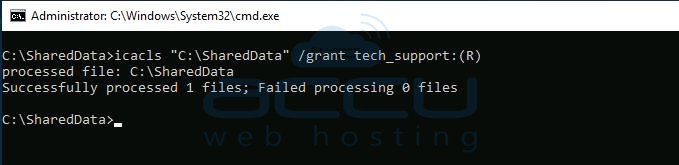
Windows includes the ICACLS utility for managing NTFS permissions.
Note: Replace User1 with the actual Windows user or group name.
Grant Read Permission
icacls "C:\SharedData" /grant User1:(R)
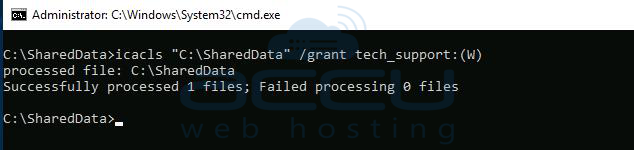
Grant Write Permission
icacls "C:\SharedData" /grant User1:(W)
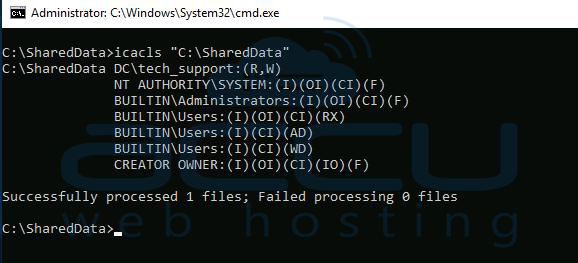
View Existing Permissions
icacls "C:\SharedData"
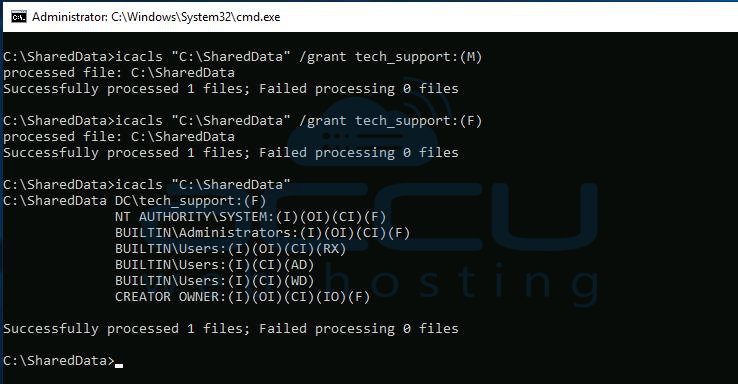
Grant Modify Permission
icacls "C:\SharedData" /grant User1:(M)
Grant Full Control
icacls "C:\SharedData" /grant User1:(F)
Apply Permissions to All Existing Files and Subfolders
To grant Modify permission recursively:
icacls "C:\SharedData" /grant User1:(OI)(CI)M /T
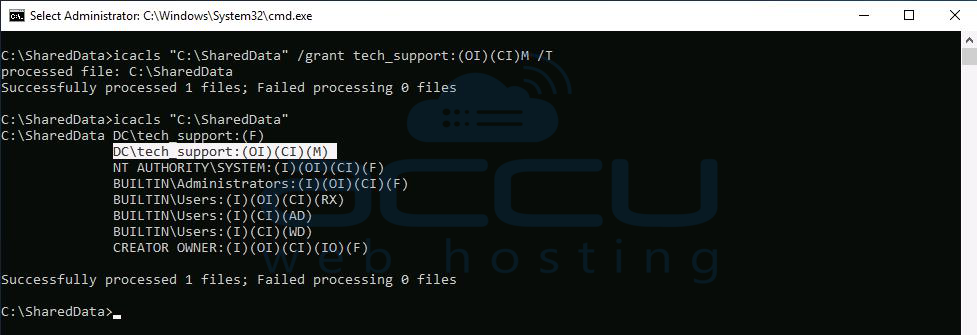
Where:
-
(OI) = Object Inherit (files)
-
(CI) = Container Inherit (folders)
-
/T = Traverse all subfolders and files
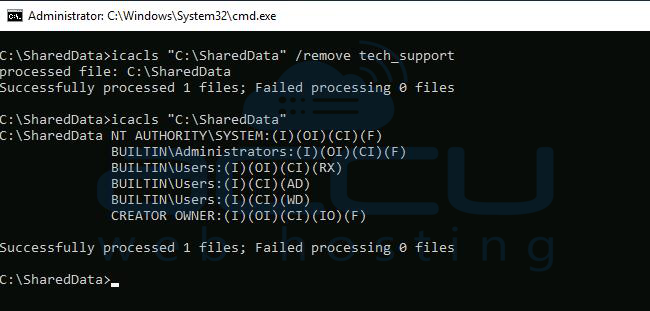
Remove a User's Permission
icacls "C:\SharedData" /remove User1
Common Permission Codes
|
Code |
Permission |
|
F |
Full Control |
|
M |
Modify |
|
RX |
Read & Execute |
|
R |
Read |
|
W |
Write |
Best Practices for NTFS Permission Management
Use Groups Instead of Individual Users
Assign permissions to security groups whenever possible rather than individual user accounts.
Follow the Principle of Least Privilege
Grant only the minimum permissions required for users to perform their tasks.
Avoid Excessive Full Control Assignments
Reserve Full Control for administrators and designated data owners.
Review Permissions Regularly
Periodically audit folder permissions to remove unnecessary access.
Document Permission Changes
Maintain records of significant permission modifications for troubleshooting and compliance purposes.
Conclusion:
NTFS permissions provide powerful control over who can access and manage files on a Windows Server. Understanding the differences between Read, Write, Modify, and Full Control is essential for maintaining a secure and well-organized environment.
For most business scenarios:
-
Read is suitable for view-only access.
-
Write allows users to create and update files.
-
Modify enables full file management without security administration rights.
-
Full Control should generally be reserved for administrators and trusted folder owners.
By carefully assigning permissions and leveraging inheritance appropriately, administrators can improve security, simplify management, and ensure users have the correct level of access to organizational data.