
Introduction:
Managing your VPS (Virtual Private Server) requires keeping track of important details like the amount of RAM, the allocated disk space, CPU cores, bandwidth, and more. Fortunately, Virtualizor, a popular VPS management platform, makes it easy to access these details with just a few clicks. In this article, we'll walk you through the steps to find essential information about your VPS, including the IP address, hostname, and other resources.
Step 1: Log in to Virtualizor
Log in to the Virtualizor panel using the VPS management panel credentials provided to you via email, along with your server login credentials.
Step 2: Navigate to "List VPS"
Once logged in, go to the left-hand panel and click on the "List VPS" tab. This will display all your VPS instances.
Step 3: Look for VPS Details
Under the INFORMATION section of each VPS, you'll be able to view the following details: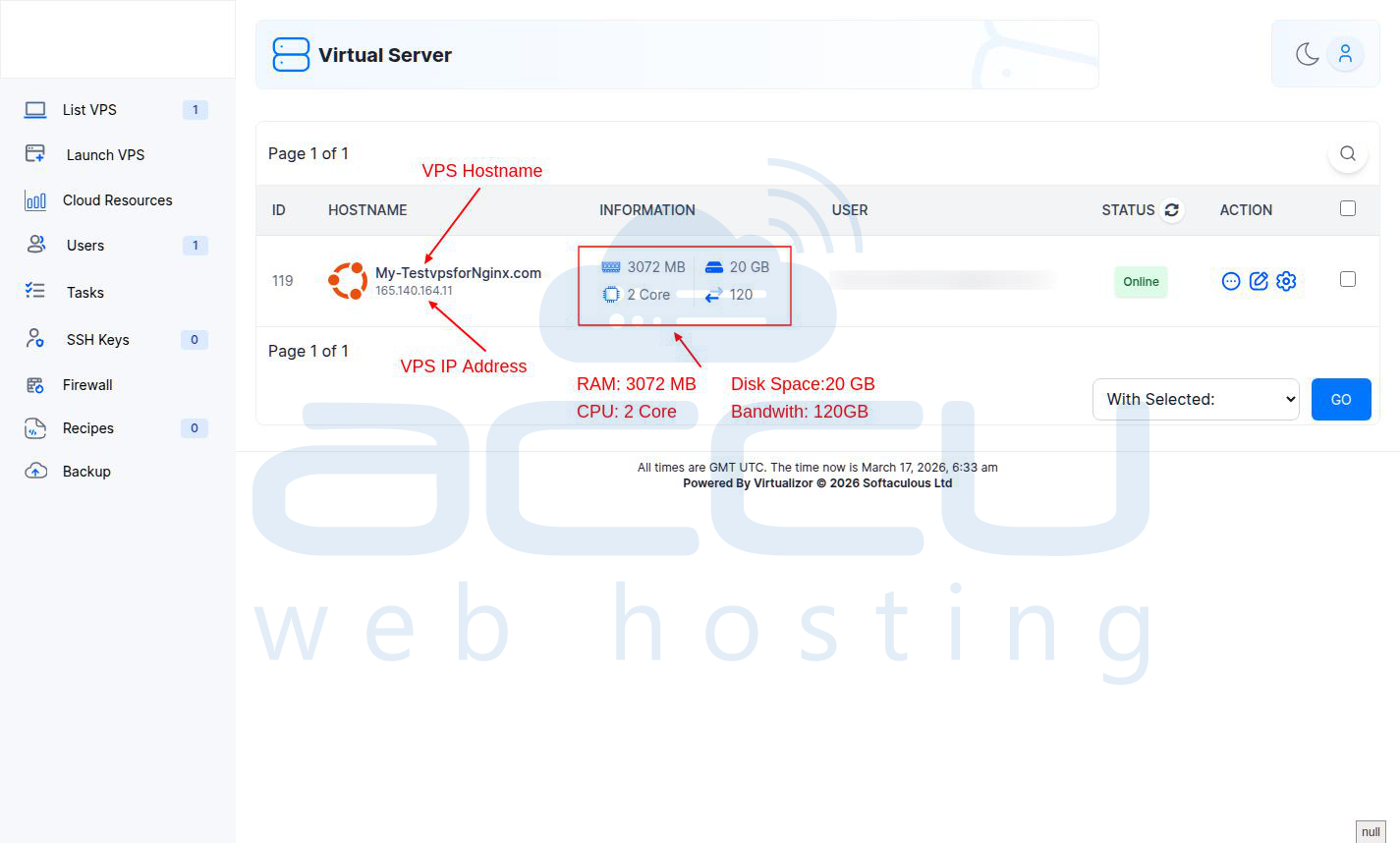
-
RAM: The allocated memory for the VPS.
-
Disk Space: The available disk space for your VPS.
-
CPU: The number of CPU cores allocated to the VPS.
-
Bandwidth: The bandwidth available for data transfer.
Additionally, the VPS Hostname is displayed in the HOSTNAME section, and the VPS IP Address is listed below the hostname.
Conclusion:
By following these simple steps, you can easily access key information about your VPS, helping you manage your resources more effectively. Regularly checking your VPS details ensures smooth operation and allows you to make necessary adjustments when required. Virtualizor makes this process easy and user-friendly, ensuring you have all the important information right at your fingertips.


