
Introduction:
Virtualizor is a powerful VPS management panel that enables administrators and users to manage virtual servers easily. Whether you're managing a VPS for personal use, as part of a hosting service, or for a business, knowing how to stop, start, and restart a VPS is essential.
In this article, we will explain how to stop, start, and restart a VPS in Virtualizor.
How to Stop a VPS in Virtualizor?
Stopping a VPS shuts it down completely. This action is useful when you need to temporarily halt a server, perform maintenance, or free up system resources.
Step 1: Log in to Virtualizor
Open your web browser and navigate to the Virtualizor login page: https://vmaster.accuwebhosting.com:4083/
Enter your credentials (username and password) to log in. These details can be found in your VPS login email.
Step 2: Navigate to the VPS Management Page
Once logged in, you'll see a list of all your VPS instances under the List VPS tab.
Step 3: Select the VPS
Find the VPS you want to stop and click the Manage Icon under the ACTION column for that VPS. This will open the VPS details page.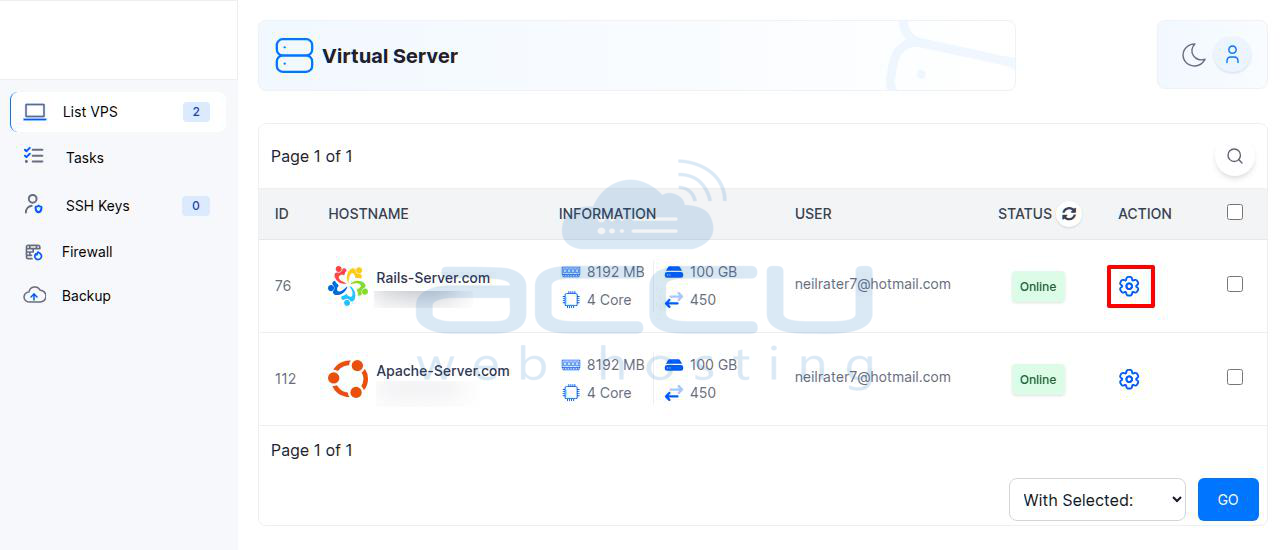
Step 4: Stop the VPS
-
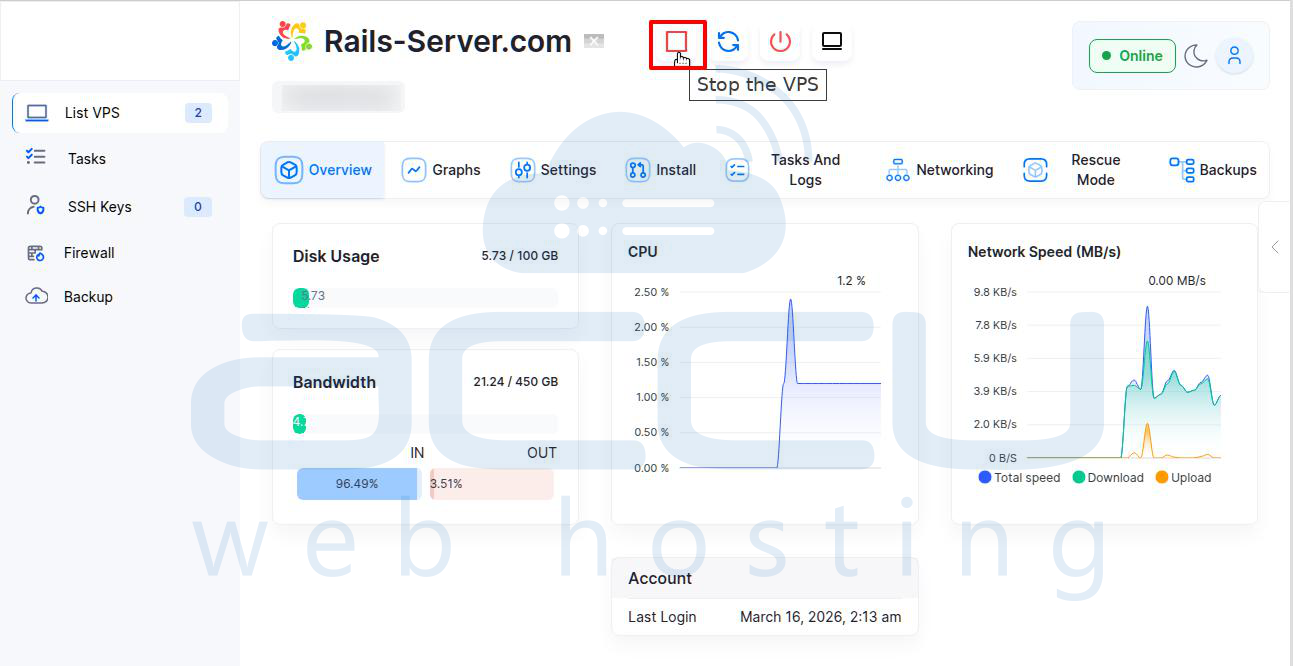
On the VPS management page, locate the Stop Icon.
-
Click the Stop Icon to shut down the VPS.
-
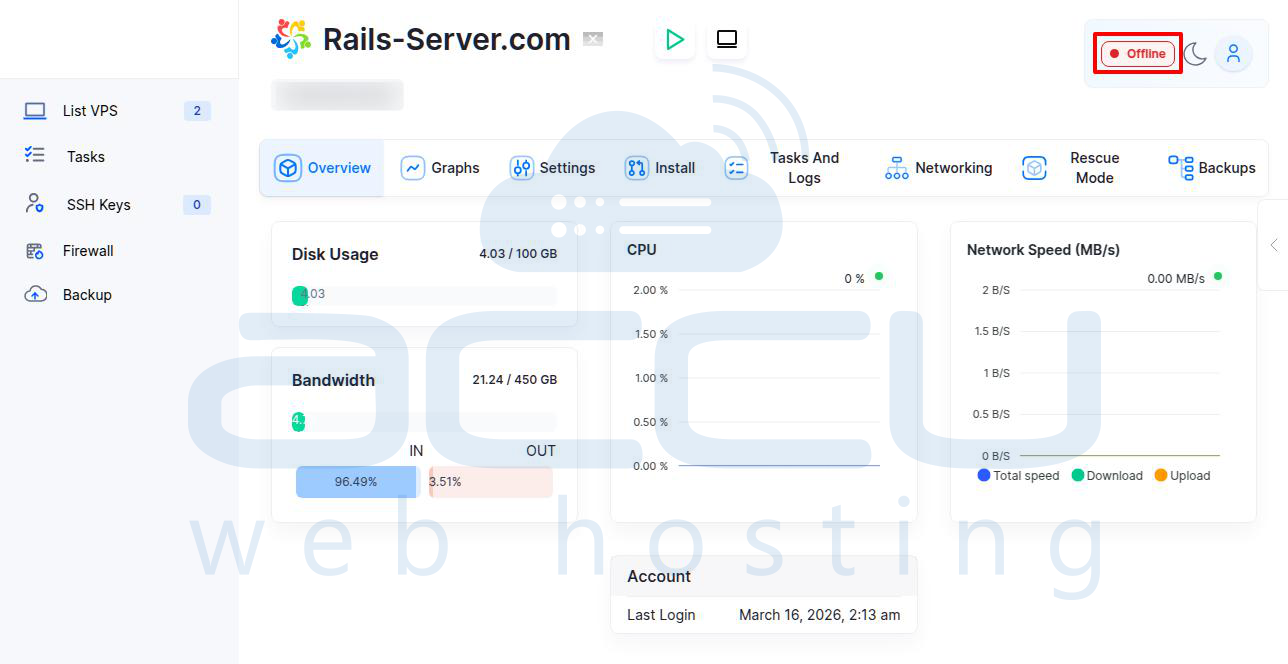
Once the action is completed, a confirmation message will appear: “The Shutdown signal has been sent to the VPS.”
-
The VPS status will change from Online to Offline.
How to Start a VPS in Virtualizor?
Starting a VPS powers it up and makes it available for use again.
Step 1: Log in to Virtualizor
Open your web browser and navigate to the Virtualizor login page: https://vmaster.accuwebhosting.com:4083/
Enter your credentials (username and password) to log in. These details can be found in your VPS login email.
Step 2: Navigate to the VPS Management Page
Once logged in, you'll see a list of all your VPS instances under the List VPS tab.
Step 3: Select the VPS
Find the VPS you want to start and click the Manage Icon under the ACTION column for that VPS. This will open the VPS details page.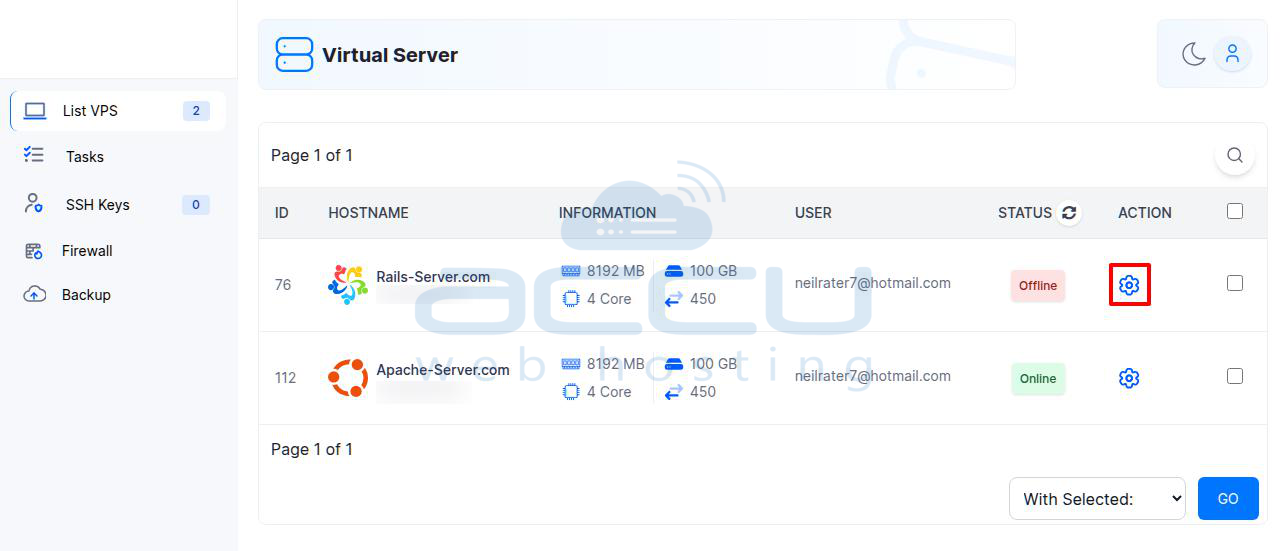
Step 4: Start the VPS
-
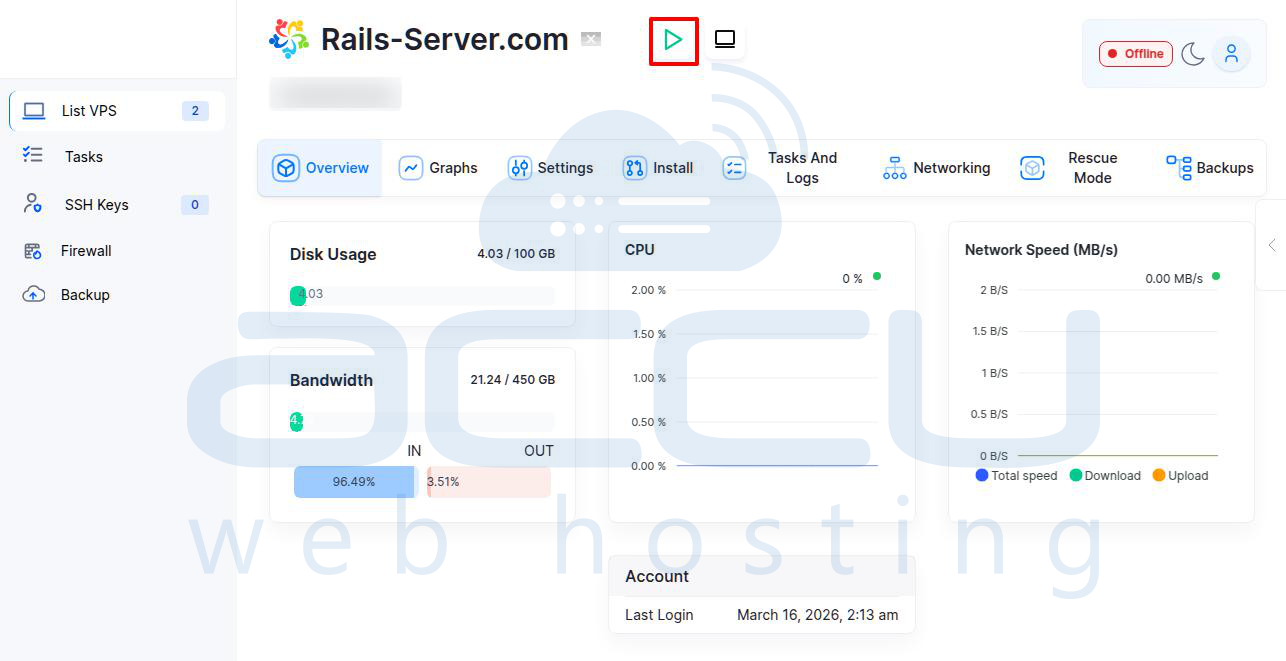
On the VPS management page, locate the Play Icon labeled Start.
-
Click the Play Icon to start the VPS.
-
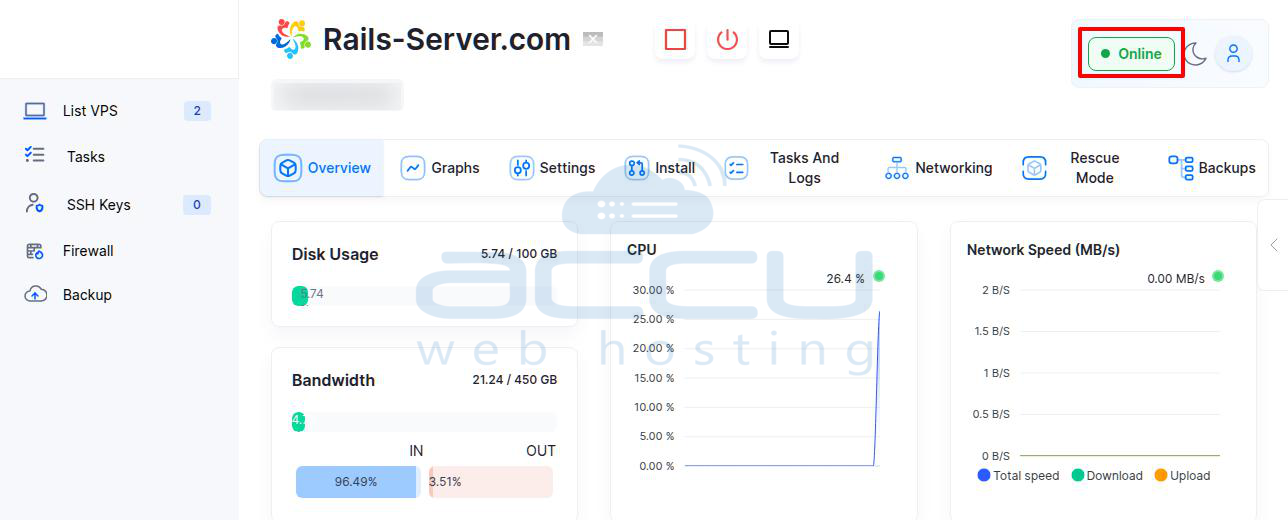
After the VPS has started, a confirmation message will appear: “The VPS was started successfully.”
-
The VPS status will change from Offline to Online.
How to Restart a VPS in Virtualizor?
Sometimes, you may need to restart a VPS to apply updates, changes, or fix performance issues.
Step 1: Follow Steps 1 to 3 from "How to Start a VPS"
Step 2: Restart the VPS
-
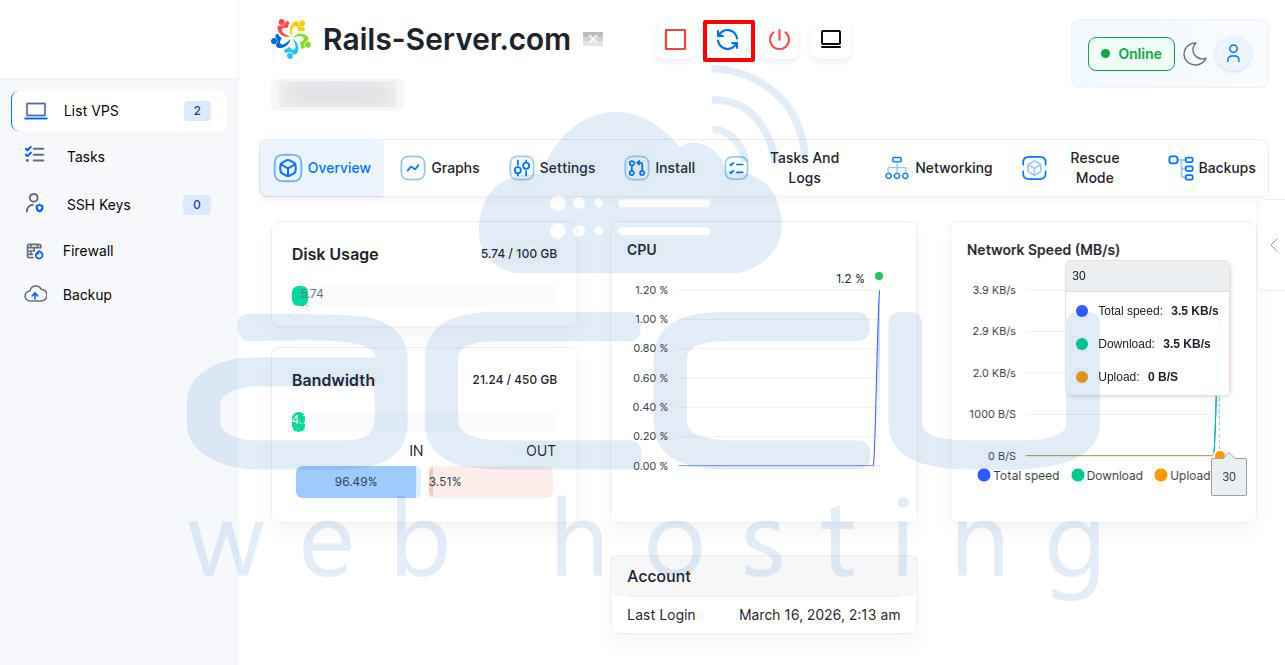
On the VPS management page, find the Restart Icon.
-
Click the Restart Icon to restart the VPS.
-
A confirmation message will appear: “The VPS was restarted successfully.”
-
Wait 2-3 minutes for the VPS to complete the restart process.
Conclusion:
Managing your VPS in Virtualizor is simple. Whether you need to stop, start, or restart your server, the process only takes a few steps.
By following the easy steps outlined above, you can manage your VPS effectively and ensure that your server is always ready for use when needed. If you need any further assistance or have any questions, don’t hesitate to reach out! We're here to help.


