
How to Change VPS Password in Virtualizor?
Virtualizor is a popular VPS management platform that allows users to manage virtual private servers (VPS) in a streamlined and user-friendly way. Changing your VPS password is a crucial task for ensuring the security of your server. Whether you've forgotten your password or simply want to update it for security reasons, Virtualizor provides an easy and efficient way to reset your VPS password.
In this article, we'll walk you through the process of changing the VPS password using Virtualizor.
Steps to Change VPS Password in Virtualizor:
Step 1: Log in to Virtualizor
Log in to Virtualizor using the VPS management panel details you received via email, along with the server login credentials.
Step 2: Select the VPS
On the left-hand panel, click on the List VPS tab. This will display all your VPS instances.
Step 3: Access VPS Settings
Find the VPS you wish to change the password for.
Under the ACTION column, click the Manage icon (represented by a Settings icon).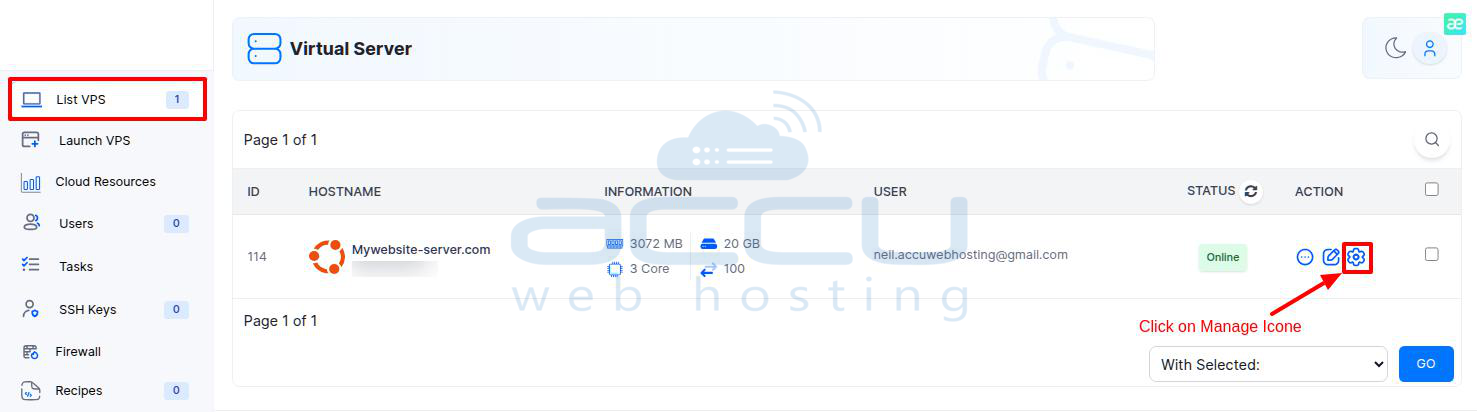
Step 4: Go to Settings
After clicking the Manage icon, the VPS management screen will appear.
On this page, click on the Settings tab at the top of the screen.
Step 5: Change Password
In the Settings section, click on the Change Password option.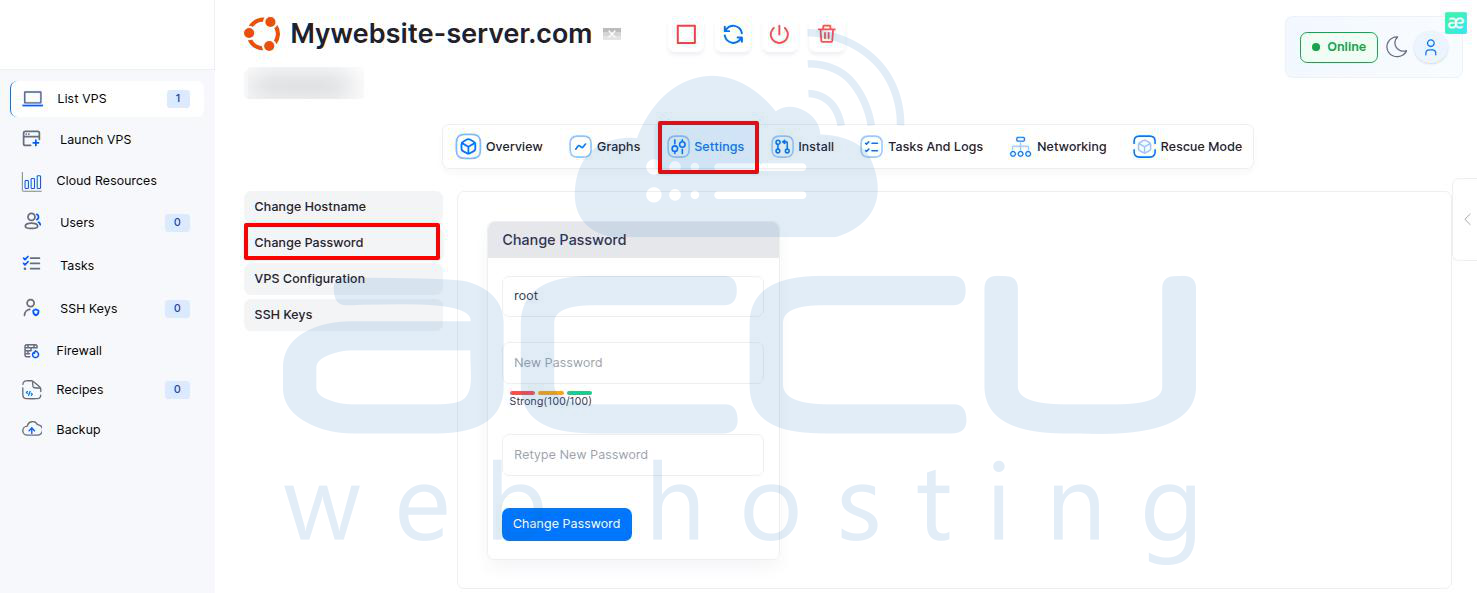
Type the new password in the New Password and Retype New Password fields.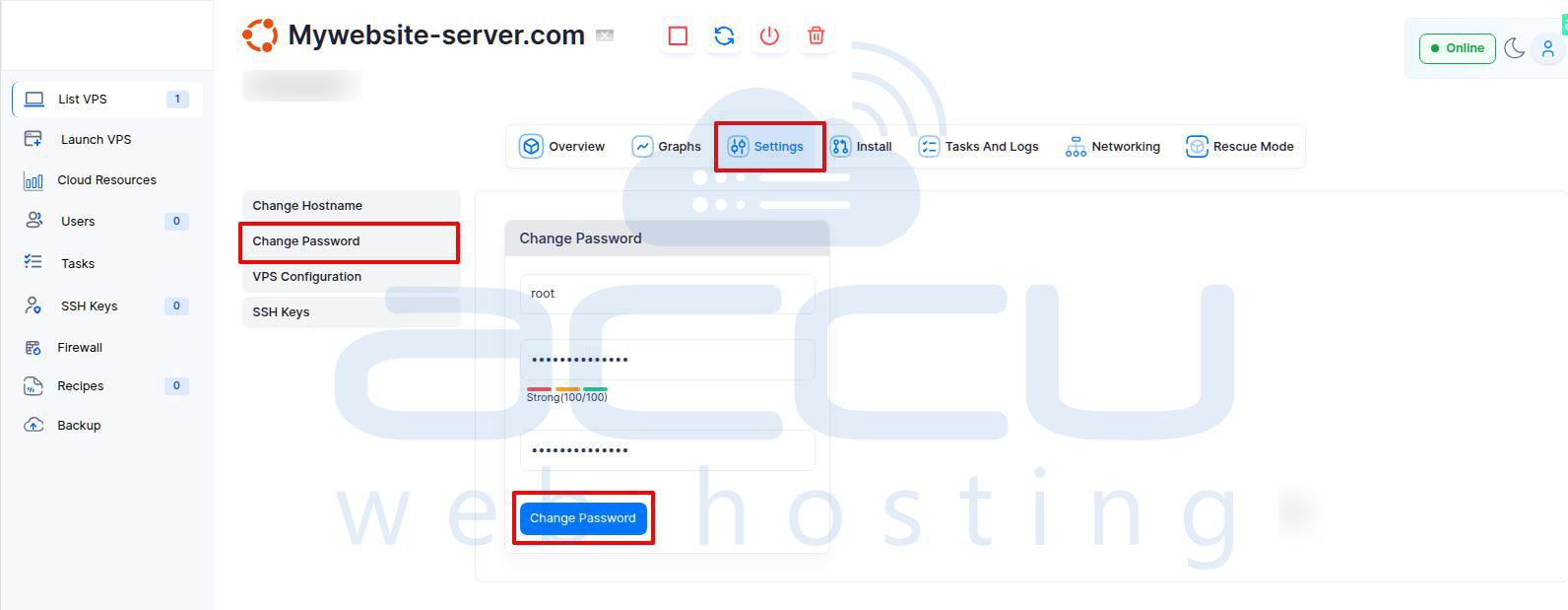
After entering the desired password, click the Change Password button to apply the changes.
Confirmation:
Once you click on Change Password, a success notification will appear, confirming that your password has been updated.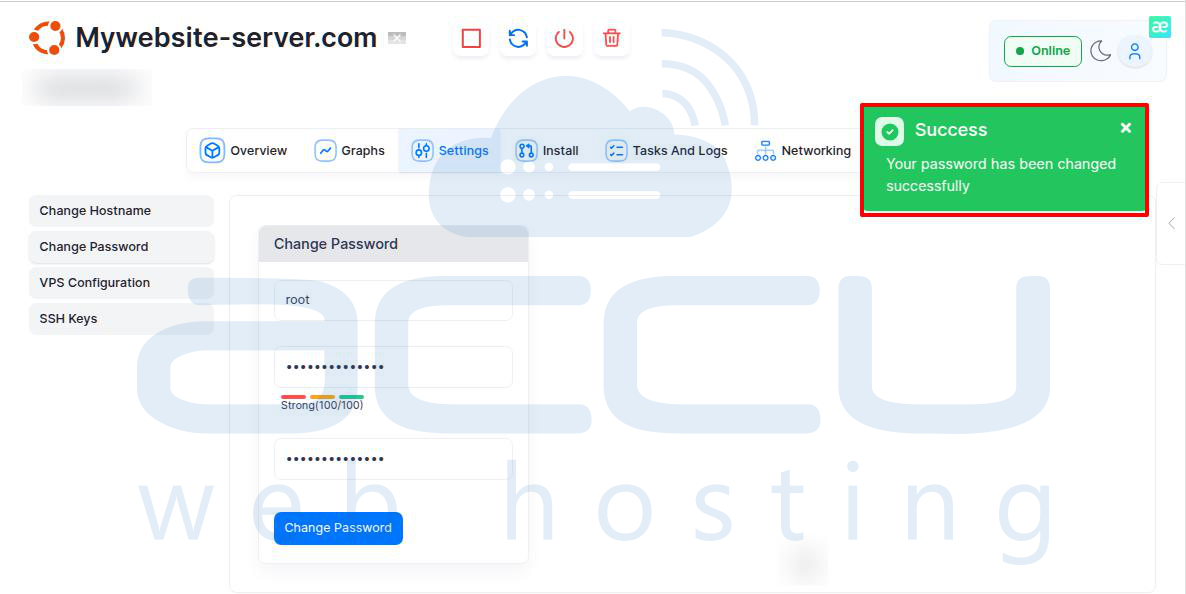
Step 6: Confirm VPS Password
Once the password change is successful, you can log in to your VPS via SSH with the new password.
Conclusion:
Changing the password of your VPS in Virtualizor is a quick and simple process. Keeping your VPS password secure is essential to maintaining the privacy and safety of your data.
By following the steps outlined above, you can easily update your VPS password and continue managing your server with peace of mind.
If you encounter any issues during this process or need additional help, you can contact us via support ticket or chat, and our support team will assist you further.


