
Introduction:
Claude is a powerful code hosting platform that enables developers to host, manage, and collaborate on their coding projects. It is an alternative to other hosting solutions like GitHub and GitLab, offering unique features to manage code repositories, pipelines, and more. In this article, we'll guide you through setting up Claude Code Hosting on Ubuntu 24.04, providing you with step-by-step instructions for error-free setup and usage.
Steps for Installing Claude Code Hosting on Ubuntu 24.04
Step 1: Update Your System
> sudo apt update
> sudo apt upgrade -y
Step 2: Install Required Dependencies
Claude may require certain dependencies to work smoothly. Install these essential packages first.
> sudo apt install -y git curl wget build-essential
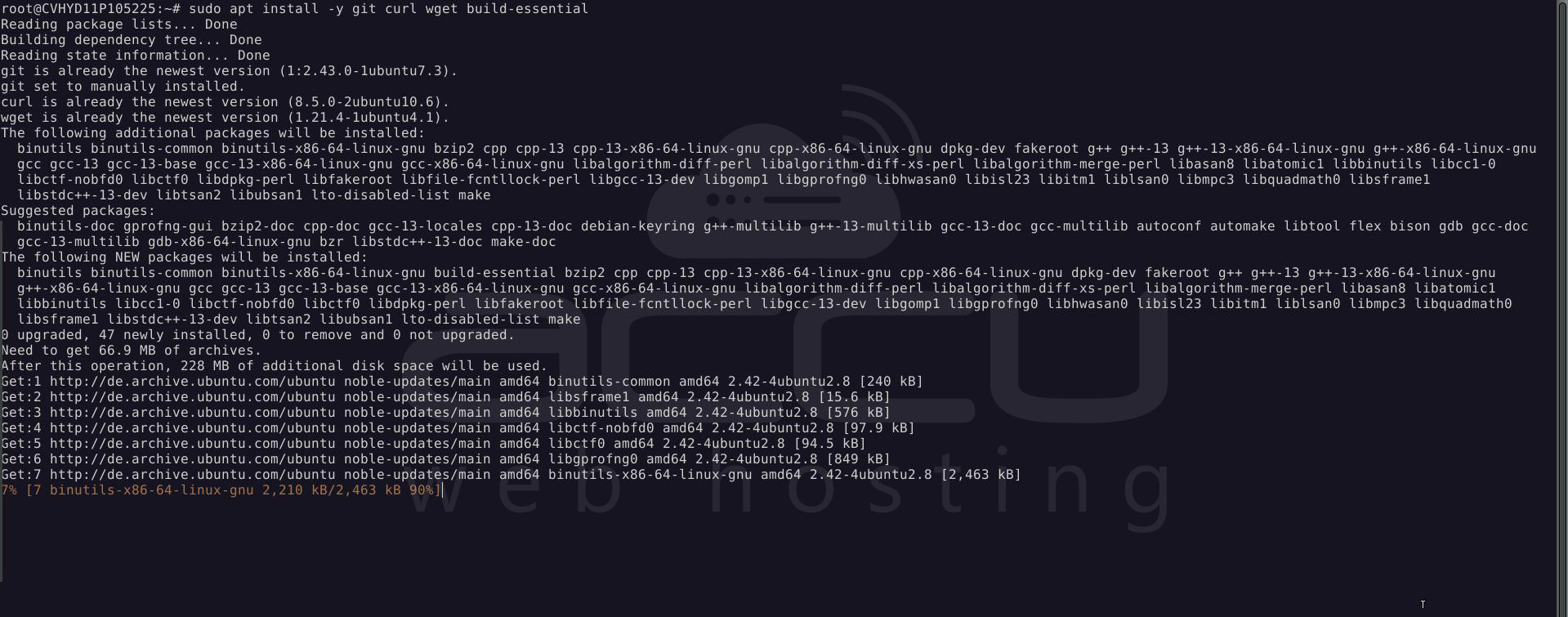
This will install Git (for version control), curl (for fetching data from URLs), and build-essential (for compiling software).
Step 3: Download the Claude Setup Script
Next, download the Claude setup script directly from the official Claude website or repository.
> wget https://claude.ai/install.sh
Note: This command downloads the setup script from Claude's official documentation URL.
Once downloaded, give execution permission to the setup script.
> chmod +x install.sh

Step 4: Run the Claude Setup Script:
Now, you can execute the setup script to install Claude. This will automatically configure Claude’s services on your system.
> sudo ./install.sh
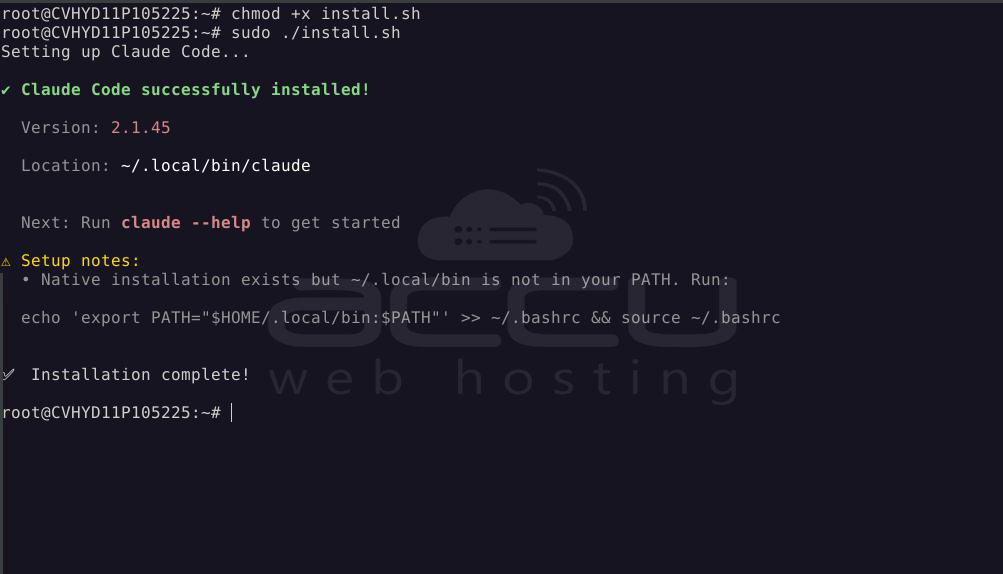
Follow the on-screen instructions to complete the setup process. You may be prompted for configuration details like repository locations, credentials, and API keys during this step.
Add ~/.local/bin to your PATH:
If the installation process pointed out that ~/.local/bin is not in your PATH, you need to add it. This is required for the system to find and run Claude correctly.
Run the following commands to add it:
> echo 'export PATH="$HOME/.local/bin:$PATH"' >> ~/.bashrc && source ~/.bashrc
This ensures that the installed binaries in ~/.local/bin are included in your system's PATH environment variable.
Step 5: Create a systemd Service
If you'd like Claude to run as a service that can be managed with systemctl, you can create a simple systemd service file.
Create a new service file for Claude:
> sudo nano /etc/systemd/system/claude.service
1. Add the following content to the file:
[Unit]
Description=Claude Code Hosting
[Service]
ExecStart=/root/.local/bin/claude
Restart=always
User=<your-username>
Environment=PATH=/root/.local/bin:$PATH
[Install]
WantedBy=multi-user.target
—----------------—----------------—----------------
Note: Replace <your-username> with your actual username (e.g., root, ubuntu, etc.).
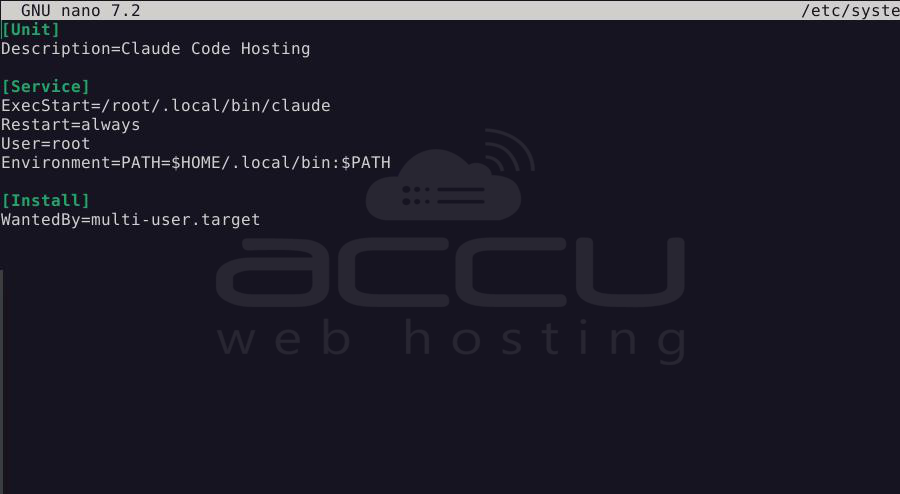
2. Save the file and exit the editor
3. Reload systemd to apply the new service:
> sudo systemctl daemon-reload
Start and enable the service to start automatically on boot:
> sudo systemctl start claude
> sudo systemctl enable claude
Check the status of the service:
> sudo systemctl status claude
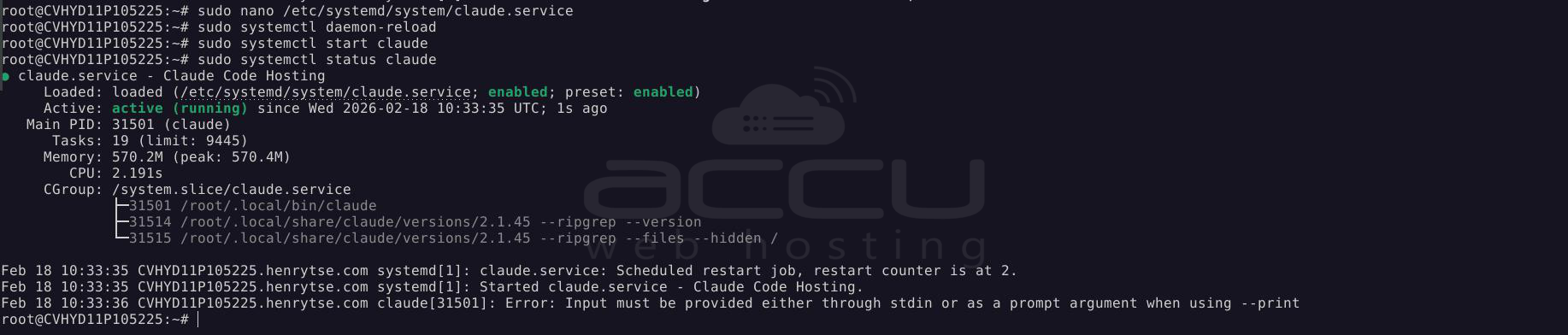
This should allow you to manage Claude using systemctl just like any other service on your system.
If everything is set up correctly, the status should show as “active (running).”
Step 6: Manually Start Claude
You can manually start Claude from the command line. Since it isn't registered as a service, you can simply run it with:
> claude
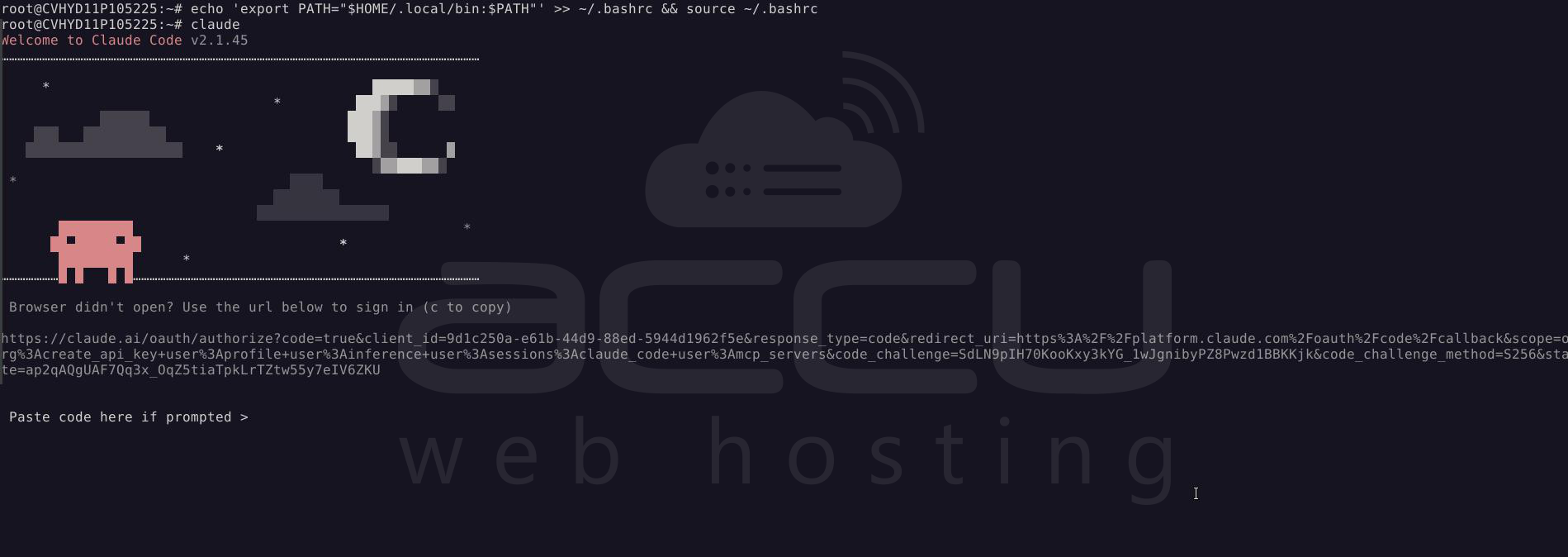
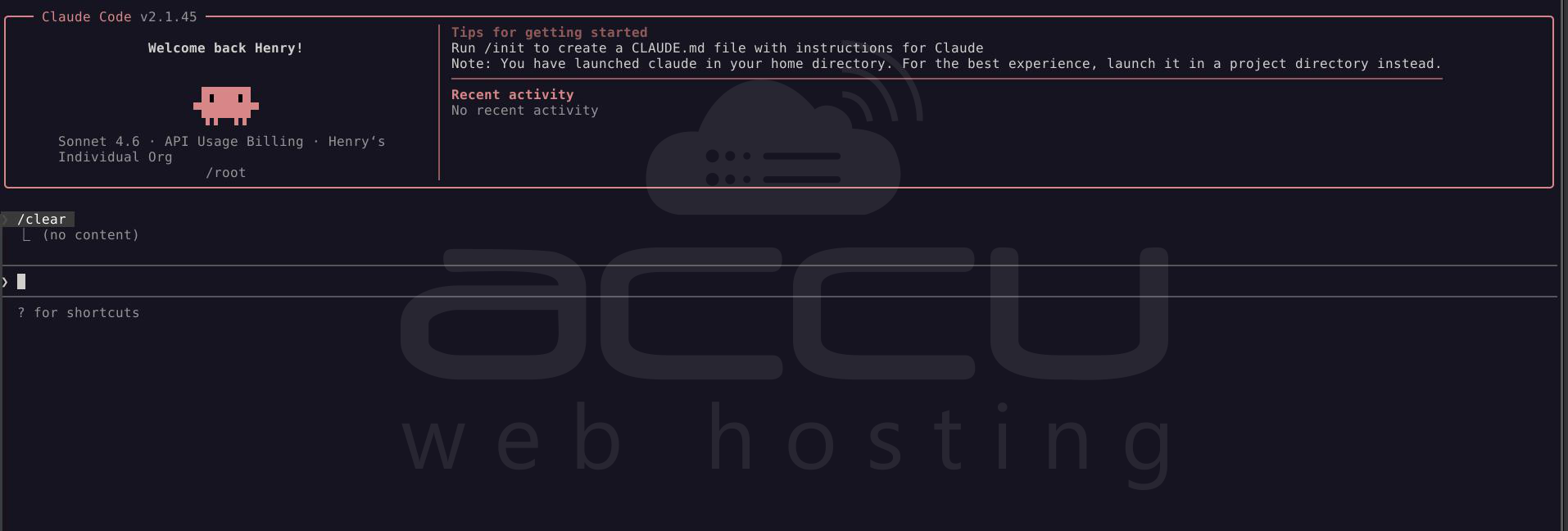
This should launch Claude. If you want to run it as a background process or automate its startup, you could create a systemd service for Claude.
Summary:
In this article, we’ve walked through the entire process of setting up Claude Code Hosting on an Ubuntu 24.04 machine. From updating the system and installing dependencies to configuring your first project repository, you should now have a functioning Claude instance running.
Here’s a recap of the steps:
- Update the system packages.
- Install necessary dependencies.
- Download and execute the Claude setup script.
- Verify the service is running.
- Configure your project and set up CI pipelines.
Conclusion:
Claude Code Hosting is a powerful and versatile tool for managing and hosting your code repositories. With the above steps, you should be able to set it up smoothly on your Ubuntu 24.04 system. Always refer to the official documentation for the latest updates, troubleshooting, and advanced configuration.
By using Claude, you'll have a robust platform to host your code, track changes, and ensure collaboration within teams. Whether you're working on small projects or large-scale systems, Claude can provide the infrastructure and automation necessary for modern software development.


