
What is Docker?
Docker is a powerful containerization open-source platform designed to help developers manage, create, package, ship, and run applications within an isolated environment called a container.
Think of Docker as a portable box for your application. This box contains:
- Your application code
- Required libraries
- System tools
- Dependencies
Once packaged into a container, your application will run the same way on any server, whether it's your local computer, a VPS, or a cloud server. It serves as a solution to the common "it works on my machine" problem, where an application fails on a different system due to compatibility issues like different OS settings, missing libraries, or version mismatches.
How Does Docker Work?
To understand Docker better, let’s look at its core components.
1. Docker Images: A Docker image is a blueprint or template. It contains everything needed to run an application.
For example:
An Nginx image
A Python image
A MySQL image
Images are read-only and stored in repositories like Docker Hub.
2. Docker Containers: A container is a running instance of a Docker image. If an image is a blueprint, a container is the actual running application created from that blueprint.
Containers are:
Lightweight
Fast to start
Isolated from each other
Efficient in resource usage
3. Docker Engine
The Docker Engine is the main service that:
Pulls images
Creates containers
Manages networking
Controls storage
When you install Docker on your server, you are installing the Docker Engine.
Docker follows a simple and structured workflow that helps developers build, test, and deploy applications consistently.
Write Code
↓
Create Dockerfile
↓
Build Docker Image
↓
Run Docker Container
↓
Test & Deploy
Docker vs. Virtual Machines (VMs)
While both provide isolation, Docker is often preferred because containers have a low impact on the operating system, use significantly less disk space, and start up much faster than VMs914. While a VM encapsulates a whole machine, Docker only encapsulates the application and its requirements
Why is Docker Widely Used?
Docker is popular in modern development and DevOps because:
- Applications run consistently across environments
- Easy deployment to servers
- Faster testing and development
- Simplifies CI/CD pipelines
- Works well with cloud platforms
Key Features of Docker:
- Lightweight containers
- Fast deployment
- Isolation between applications
- Easy scaling
- Version control for environments
- Large ecosystem (Docker Hub)
- Cross-platform compatibility
- Strong community support
How to Install Docker on Ubuntu 24 VPS
Please follow the steps mentioned below to install Docker on a Ubuntu 24 VPS.
Step 1: Connect to Your VPS
Connect via SSH:
Step 2: Update the System
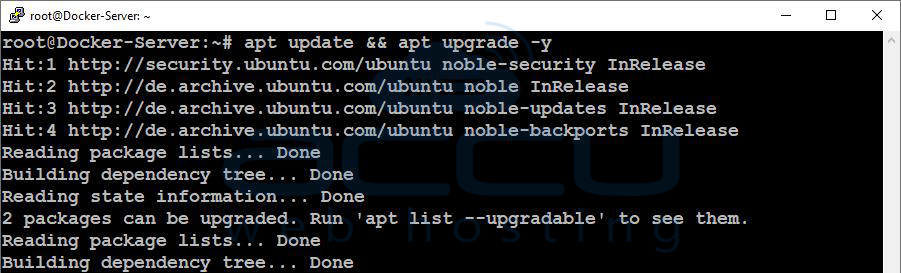
Step 3: Install Required Packages
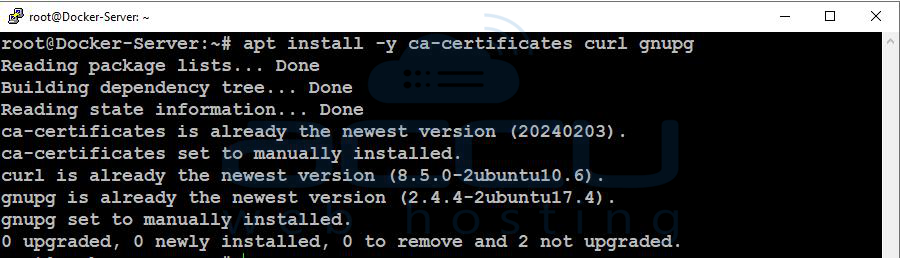
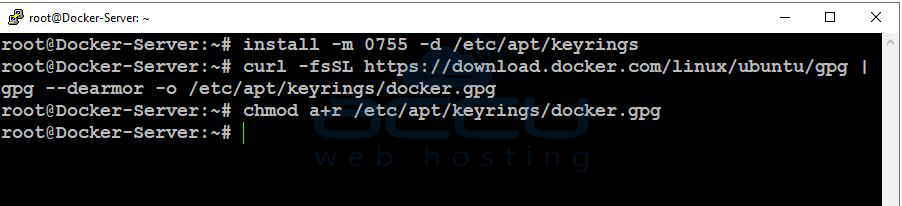
Step 4: Add Docker’s Official GPG Key
curl -fsSL https://download.docker.com/linux/ubuntu/gpg | gpg --dearmor -o /etc/apt/keyrings/docker.gpg
chmod a+r /etc/apt/keyrings/docker.gpg
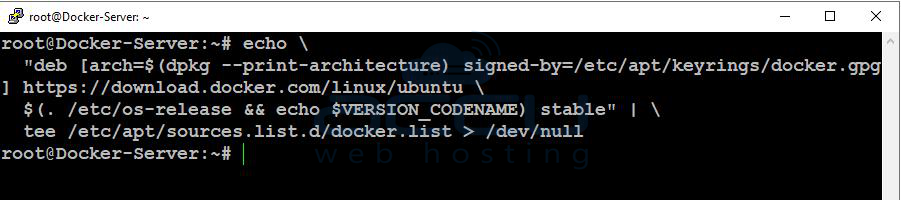
Step 5: Add Docker Repository
"deb [arch=$(dpkg --print-architecture) signed-by=/etc/apt/keyrings/docker.gpg
] https://download.docker.com/linux/ubuntu \
$(. /etc/os-release && echo $VERSION_CODENAME) stable" | \
tee /etc/apt/sources.list.d/docker.list > /dev/null
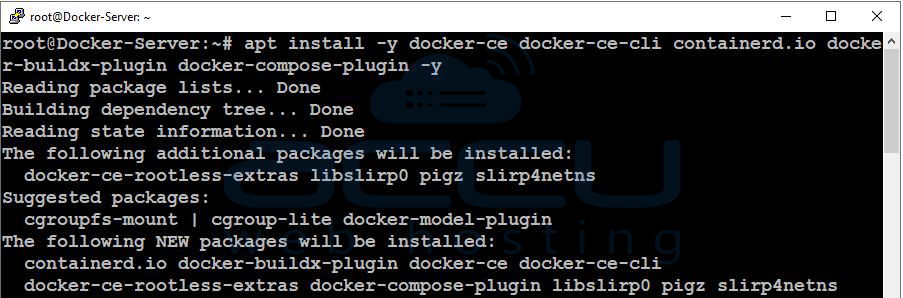
Step 6: Install Docker Engine
apt install -y docker-ce docker-ce-cli containerd.io docker-buildx-plugin docker-compose-plugin -y
Step 7: Verify Installation
Check Docker version:
Check service status:
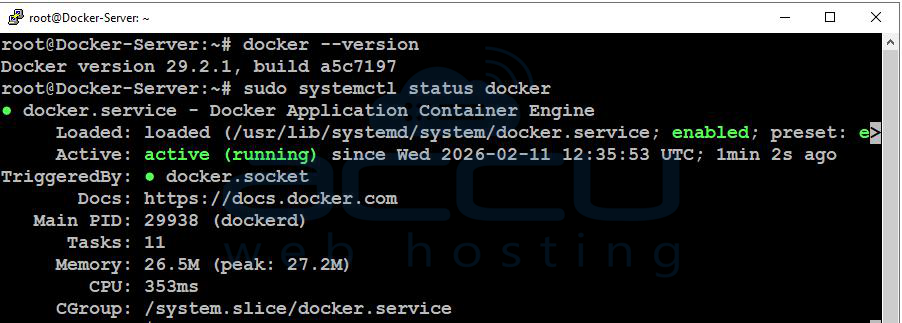
If active (running), Docker is successfully installed.
How to Deploy a Simple Docker Container
We will deploy a simple Nginx web server.
Step 1: Pull the Nginx Image
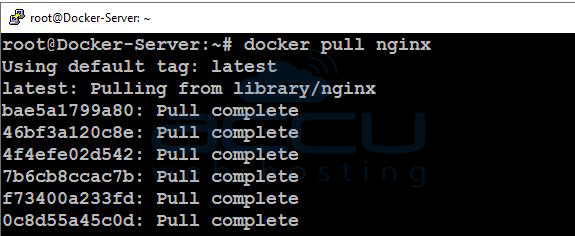
This downloads the official Nginx image from Docker Hub.
Step 2: Run the Container
Explanation:
-d → Run in background
-p 80:80 → Map VPS port 80 to container port 80
--name mynginx → Assign container name
nginx → Image name
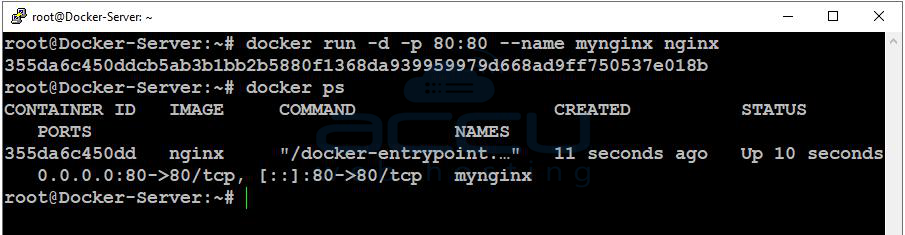
Step 3: Check Running Containers
You should see your Nginx container running.
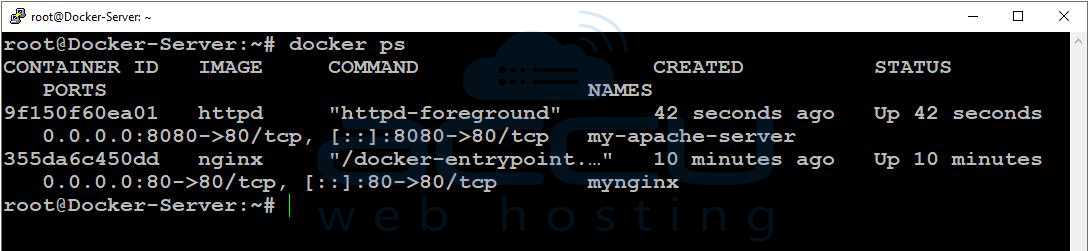
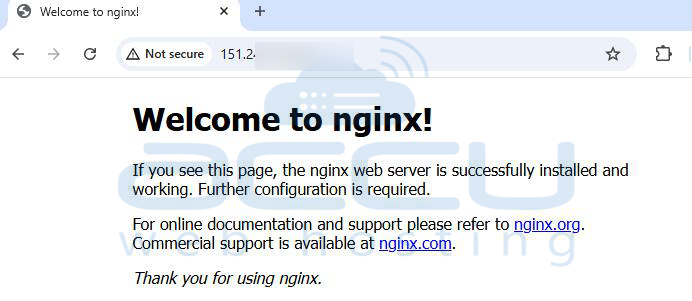
Now open your VPS IP in the browser:
http://your-server-ip
You will see the default Nginx welcome page.
Basic Docker Commands:
Below are the most commonly used Docker commands:
List Running Containers:
List All Containers (including stopped):
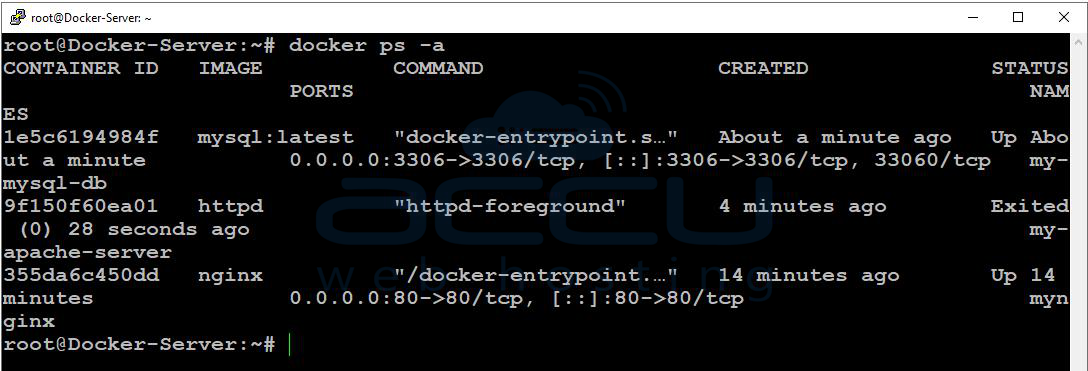
List Docker Images:
docker images

Stop/Start Container:
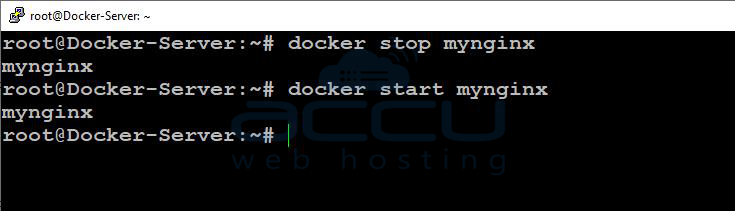
Remove a Container:
docker rm <container_id_or_name>
(Note: Container must be stopped first.)
Remove an Image:
docker rmi <image_name>

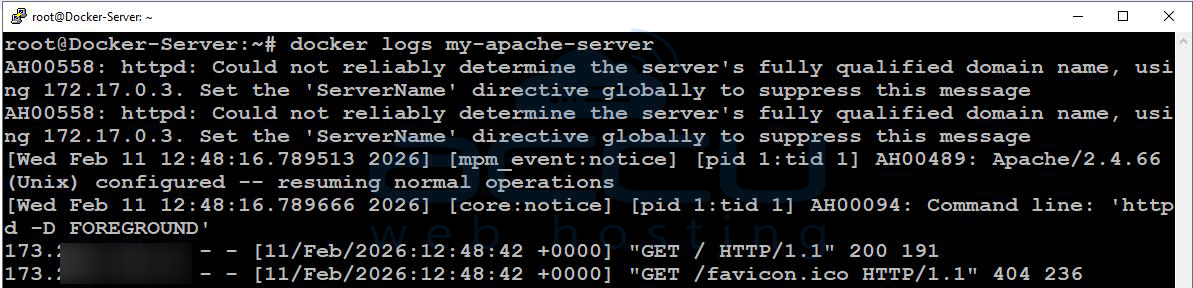
View Container Logs:
Conclusion:
Docker is a powerful platform that makes application deployment simple, consistent, and efficient. Instead of worrying about server configurations, missing dependencies, or compatibility issues, Docker allows you to package everything your application requires into a container and run it smoothly on your server. By learning how to install Docker, pull images, run containers, and manage them using basic commands, you now have a solid foundation to confidently deploy modern applications.
If you encounter any issues during the installation process, please feel free to contact us via live chat or support ticket. Our support team will be happy to assist you.
