
Introduction
Duplicate emails are a common frustration across many email clients, especially Microsoft Outlook and Mozilla Thunderbird. Users often report seeing the same messages downloaded multiple times, sometimes filling inboxes with hundreds of repeated emails.
This issue is usually not caused by the mail server itself but by email client configuration, synchronization behavior, or interruptions during message retrieval. In this article, we’ll explain the most common causes of duplicate emails and walk through practical steps to fix and prevent them in Outlook and Thunderbird.
Common Causes of Duplicate Emails
Before jumping into fixes, it helps to understand why this happens:
- POP3 protocol behavior (messages are downloaded but not properly marked as retrieved)
- “Leave a copy of messages on the server” enabled on multiple devices
- Corrupted mail profiles or local mail storage
- Interrupted send/receive processes (network drops, client crashes)
- Antivirus or email scanning software interfering with downloads
Same mailbox configured on multiple clients using POP3
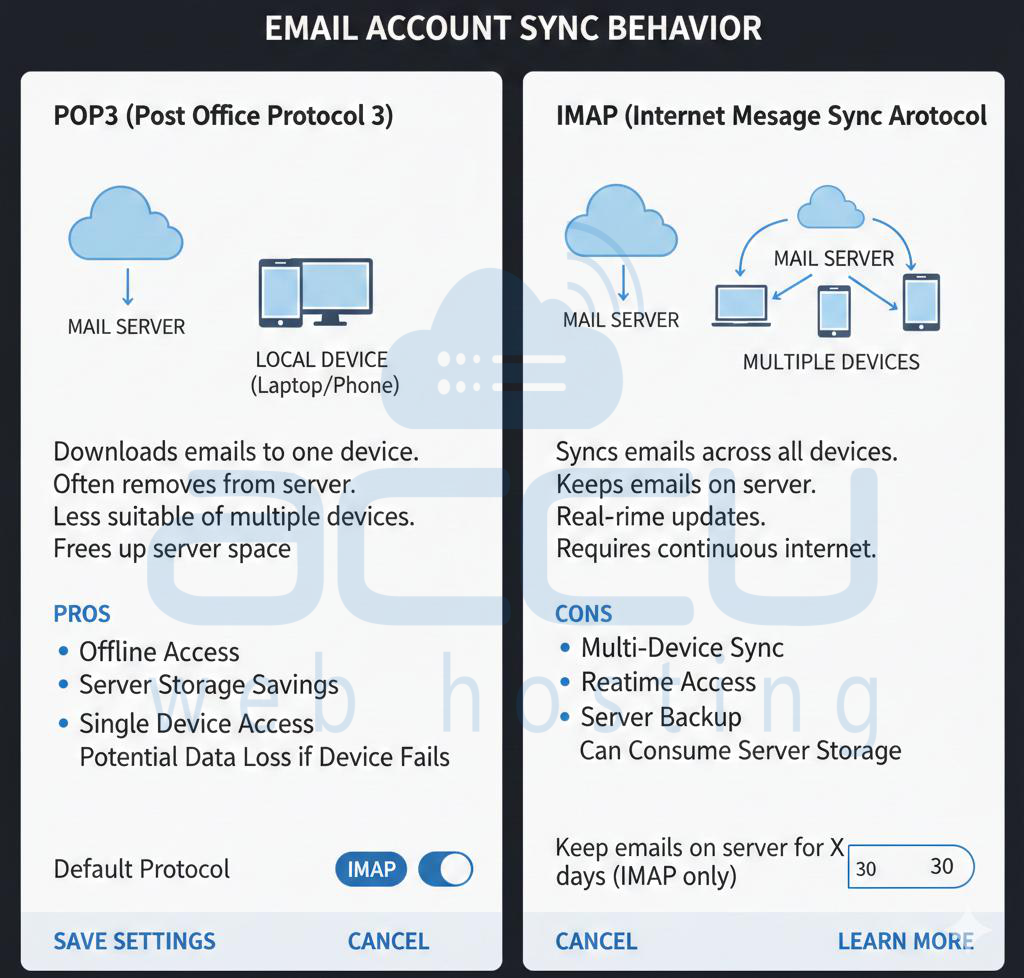
Recommended Best Practice: Use IMAP Instead of POP3
If possible, always use IMAP rather than POP3.
Why IMAP helps:
- Messages stay synced between server and all devices
- Emails are marked as read/downloaded correctly
No repeated downloads of the same messageBox
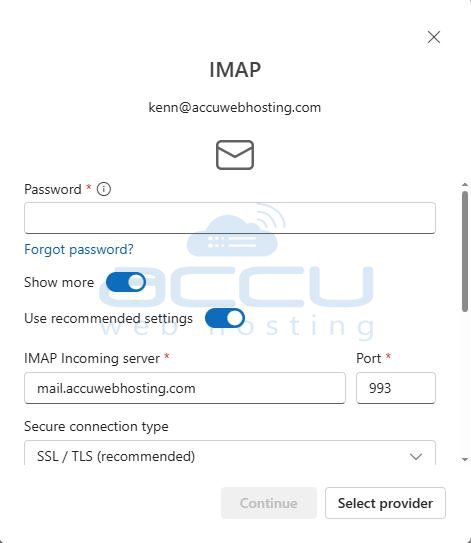
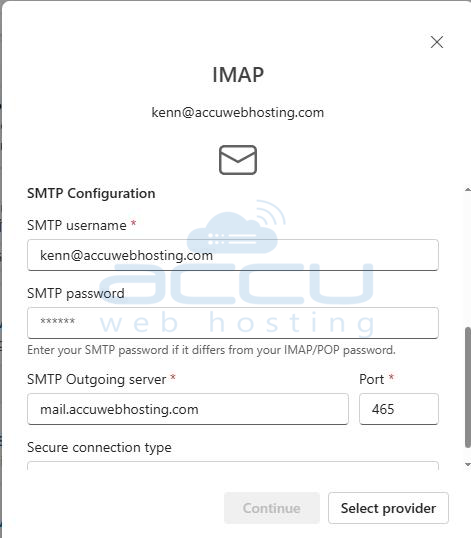
If switching to IMAP is an option, back up existing emails first, then recreate the account using IMAP.
Fixing Duplicate Emails in Microsoft Outlook
1. Check POP3 Settings
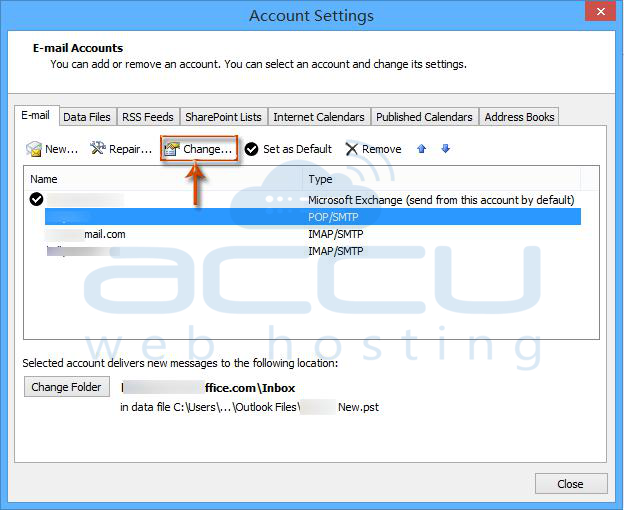
1.Go to File → Account Settings → Account Settings
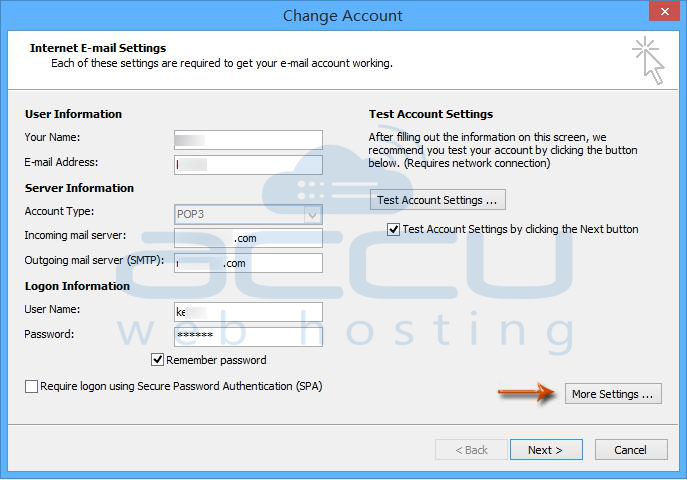
2. Select the email account and click Change
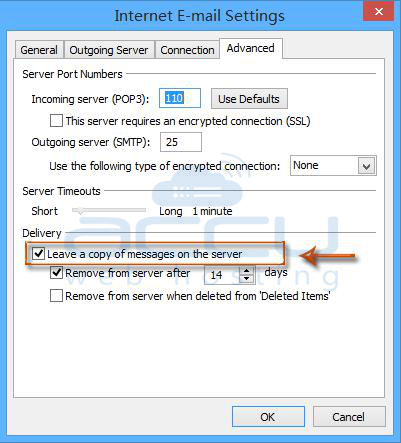
3. Click More Settings → Advanced
Check the following:
- If “Leave a copy of messages on the server” is enabled:
- Either disable it or
- Enable “Remove from server after X days”
2. Ensure Only One Device Uses POP3
If multiple devices (PC, laptop, phone) are using POP3 for the same mailbox:
- Disable POP3 on all but one device OR
- Switch all devices to IMAP
3. Create a New Outlook Profile
A corrupted Outlook(older version) profile can cause repeated downloads.
Steps:
1. Close Outlook
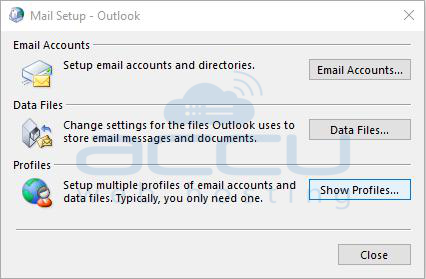
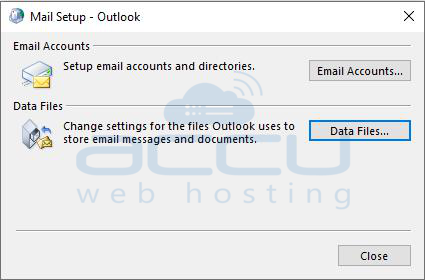
2. Open Control Panel → Mail
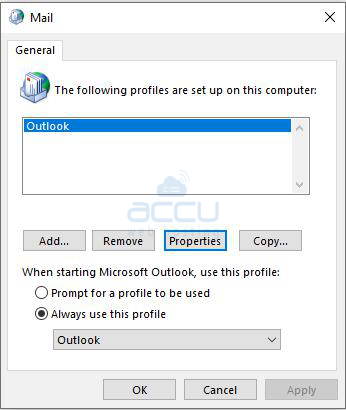
3. Click Show Profiles
4. Create a new profile
Set it as default and re-add the email account
Fixing Duplicate Emails in Mozilla Thunderbird
1. Verify Server Settings
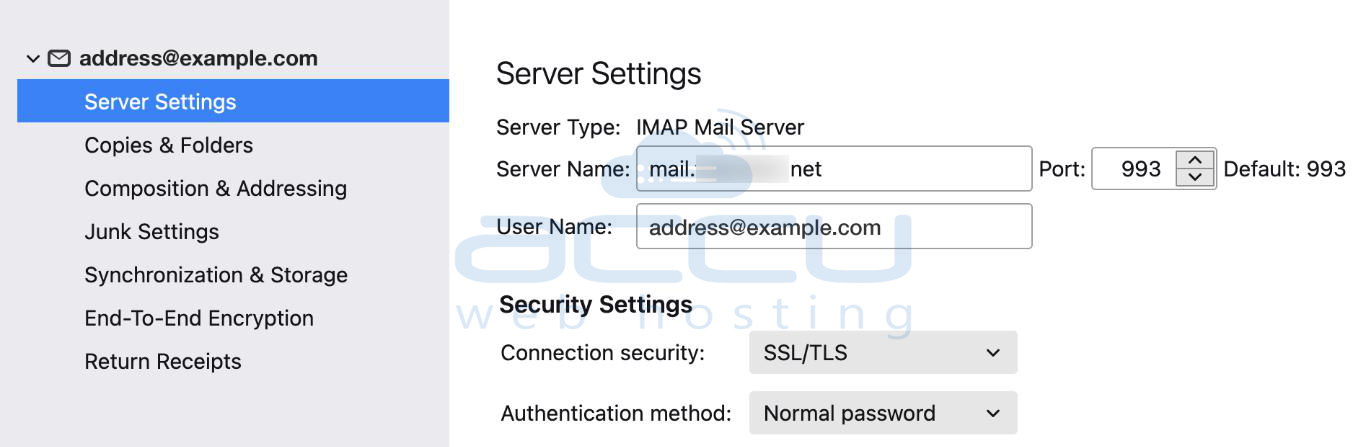
1. Go to Account Settings → Server Settings
2. Check:
- Correct server type (POP3 or IMAP)
- Correct port and encryption
- If POP3 is used, review download options
2. Disable Antivirus Email Scanning
Some antivirus programs scan incoming emails and interrupt downloads, causing Thunderbird to re-download messages.
- Temporarily disable email scanning
- Restart Thunderbird and test
- If resolved, permanently exclude Thunderbird from mail scanning
3. Repair Folders
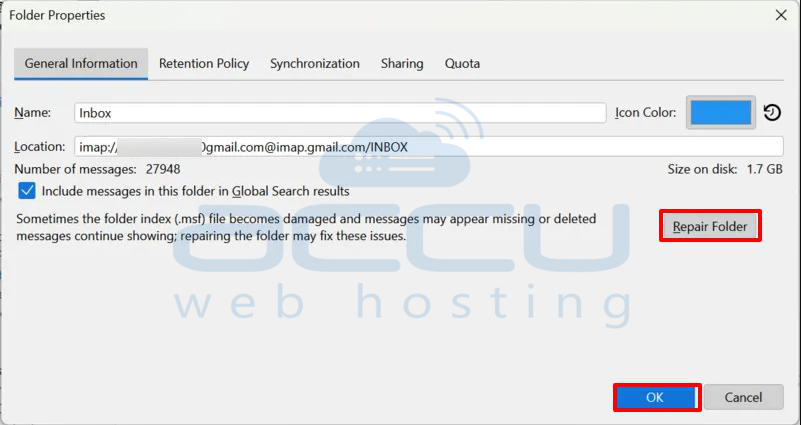
Corrupted folders can trigger duplicates.
Steps:
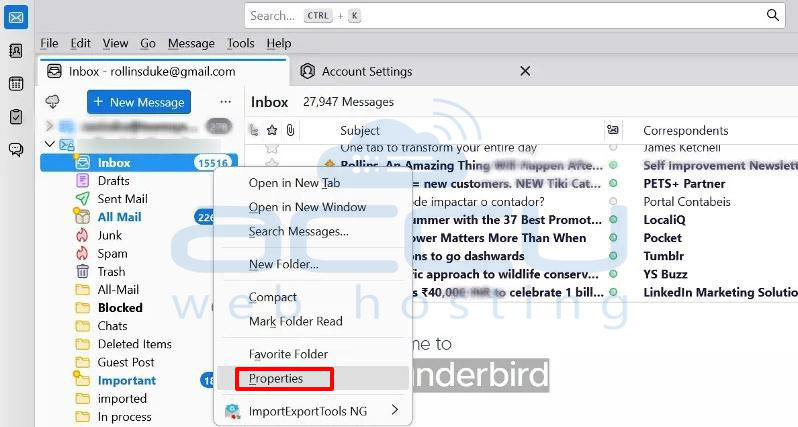
1. Right-click the affected folder (Inbox)
2. Select Properties
3. Click Repair Folde
4. Remove and Re-add the Account
If the issue persists:
- Back up the Thunderbird profile
- Remove the email account
- Add it again (preferably using IMAP)
Prevention Tips
- Prefer IMAP for all new email setups
- Avoid using POP3 on multiple devices
- Keep email clients updated
- Avoid force-closing email clients during send/receive
- Regularly compact or repair mail folders
Conclusion
Duplicate email downloads are almost always the result of client-side configuration issues rather than server faults. By switching to IMAP, reviewing POP3 settings carefully, and repairing or recreating email profiles, you can permanently resolve the issue in both Outlook and Thunderbird.
If duplicates continue after following these steps, it’s recommended to contact your hosting provider with details of your email client, protocol, and usage pattern for deeper investigation.


