
FastPanel is a powerful web hosting control panel that allows server administrators to easily manage web services, email, databases, and DNS. In this guide, we will walk you through a complete step-by-step installation of FastPanel on AlmaLinux 8, covering system preparation, installation, license activation, and verification.
Prerequisites
Before installing FastPanel, make sure your server meets the following requirements:
- Operating System: AlmaLinux 8 (clean installation, without pre-installed software)
- RAM: Minimum 1 GB
- Free Disk Space: Minimum 5 GB
- CPU: Minimum 1 Core, 1 GHz
- Root Access: You need root privileges on the server
FastPanel cannot be installed on a server with pre-installed software (such as Apache, Nginx, or PHP). A clean system is mandatory. You will also need either a VPS or dedicated server with root SSH access.
Steps to Install FastPanel Hosting Control Panel on AlmaLinux
Step 1: Once your server is ready and AlmaLinux 8 is installed, connect to it using SSH with the root account:
Replace your.server.ip with the public IP address of your server. After connecting, you will have root access to run installation commands.
Step 2: It is important to confirm that the server is running the correct OS version. Execute the following command:
cat /etc/os-release
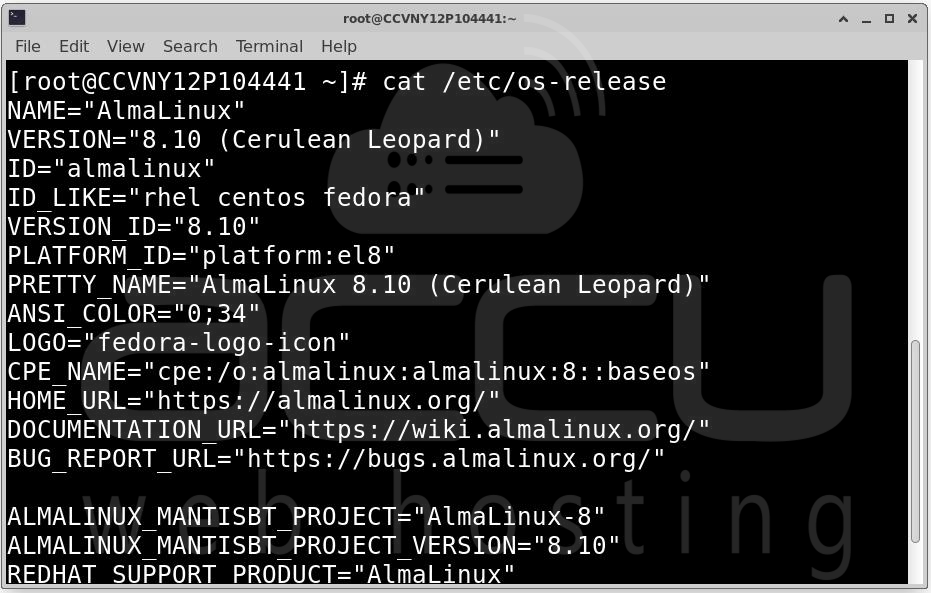
This will display the AlmaLinux version details, ensuring that you are using a supported version for FastPanel installation.
Step 3: FastPanel requires the wget utility to download the installation script. Additionally, updating the OS ensures all security patches are applied. Run the following commands:
yum makecache && yum update && yum install ca-certificates wget && reboot
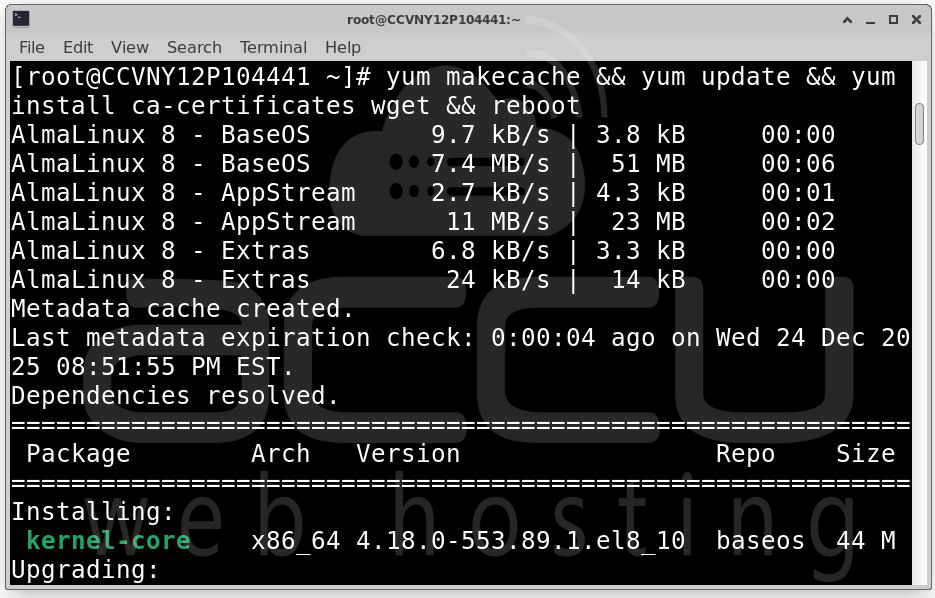
Step 4: After the server reboots, reconnect via SSH as root. Run the official FastPanel installation script with the following command:
wget https://repo.fastpanel.direct/install_fastpanel.sh -O - | bash -
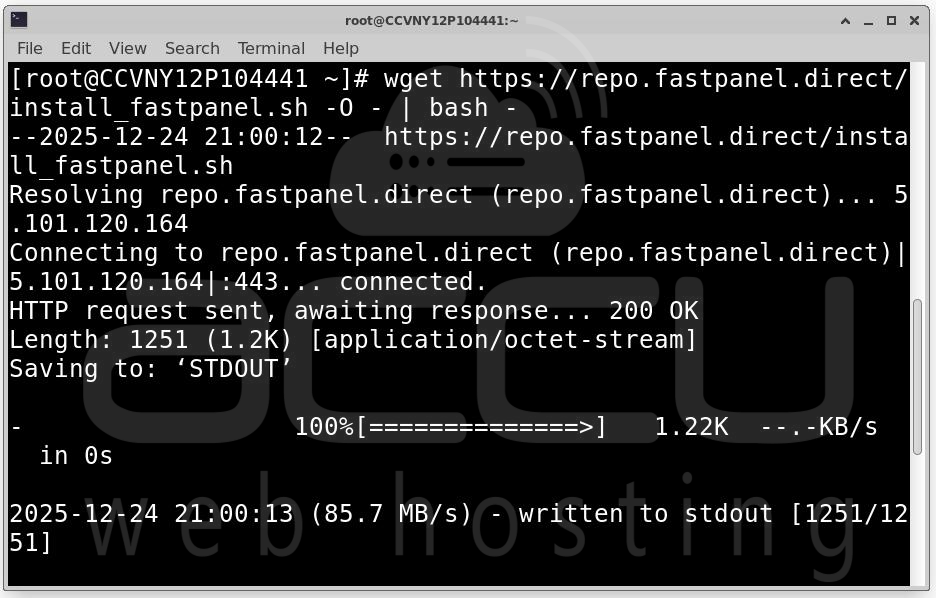
This command downloads the FastPanel installer and executes it immediately. It automates the configuration of web services, databases, and other dependencies. Once the installation completes, you will see a message similar to this: Congratulations! FASTPANEL successfully installed and available for you at https://<your-server-ip>:8888
Login: fastuser
Password: <generated-password>
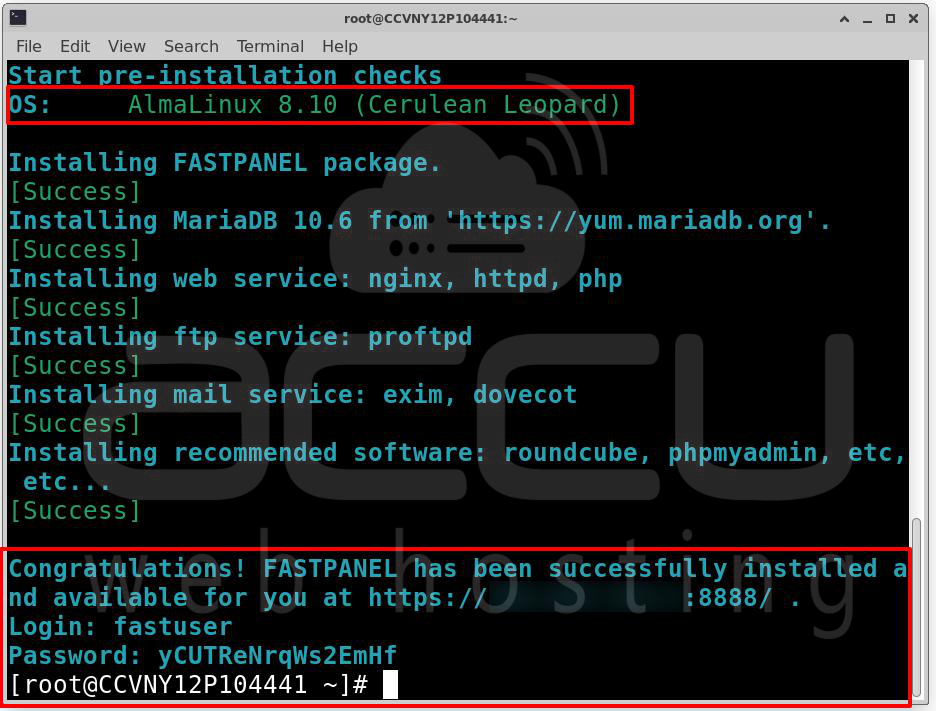
Step 5: Access FastPanel Web Interface. Open a web browser and navigate to:
https://<your-server-ip>:8888
Use the login credentials provided by the installer (fastuser and the generated password). Upon first login, FastPanel will prompt you to activate a license.
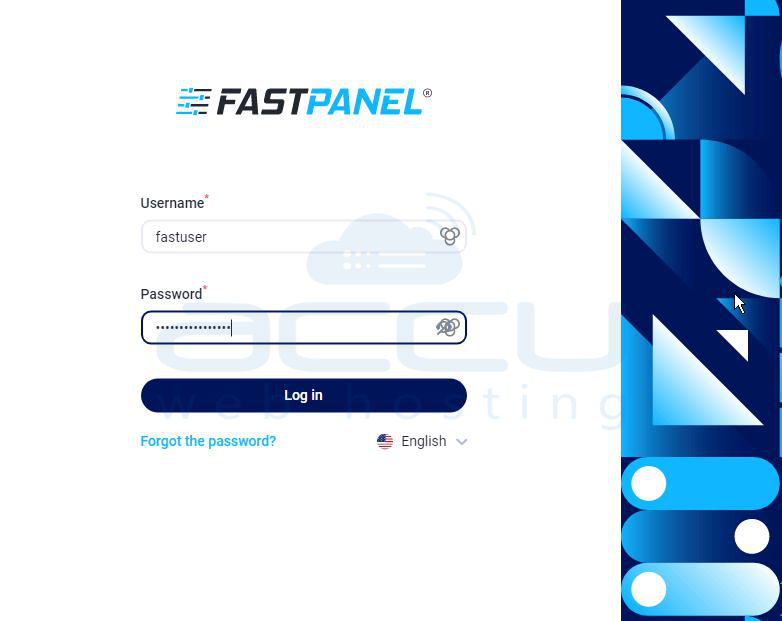
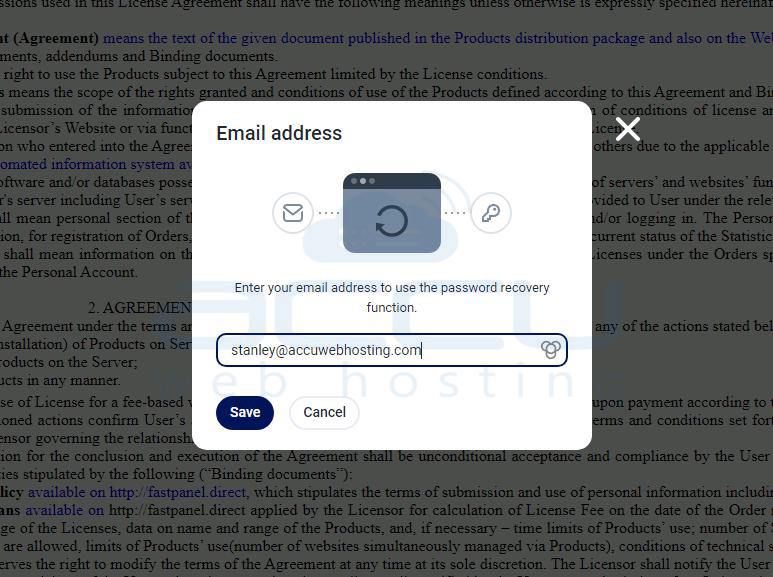
Step 6: FastPanel requires a license for operation. The panel will automatically redirect you to the license request screen. Enter a valid email address in the license request field. Click Request the license.
Step 7: Check your email inbox for a message from FastPanel containing the activation link. Click the link to: Confirm your email ownership
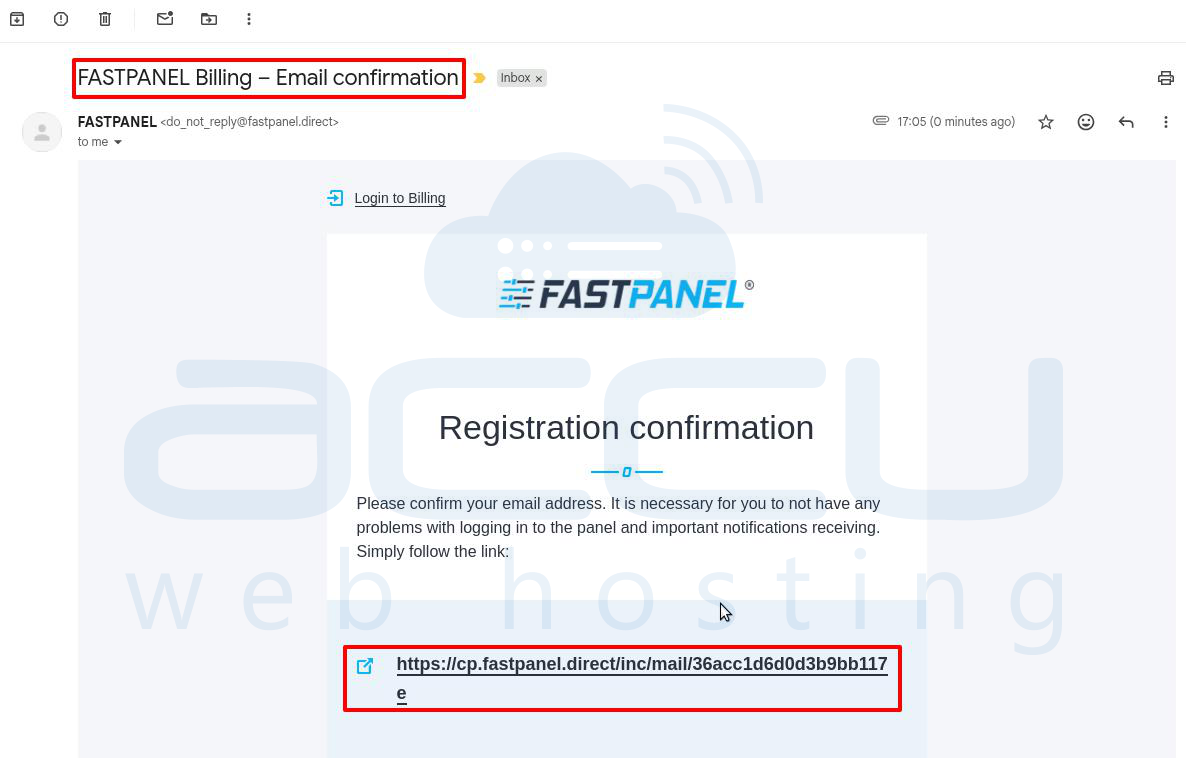
Step 8: FastPanel will send you billing account login details.
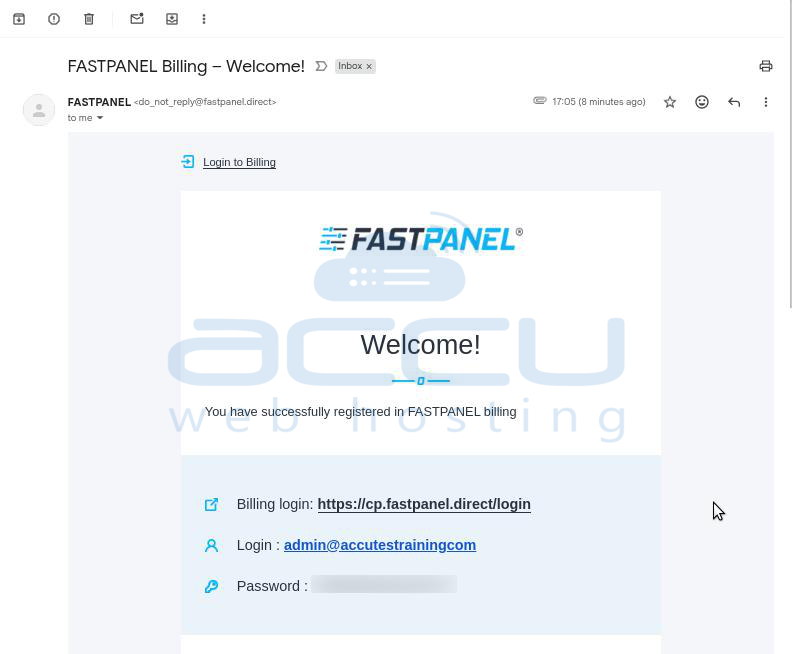
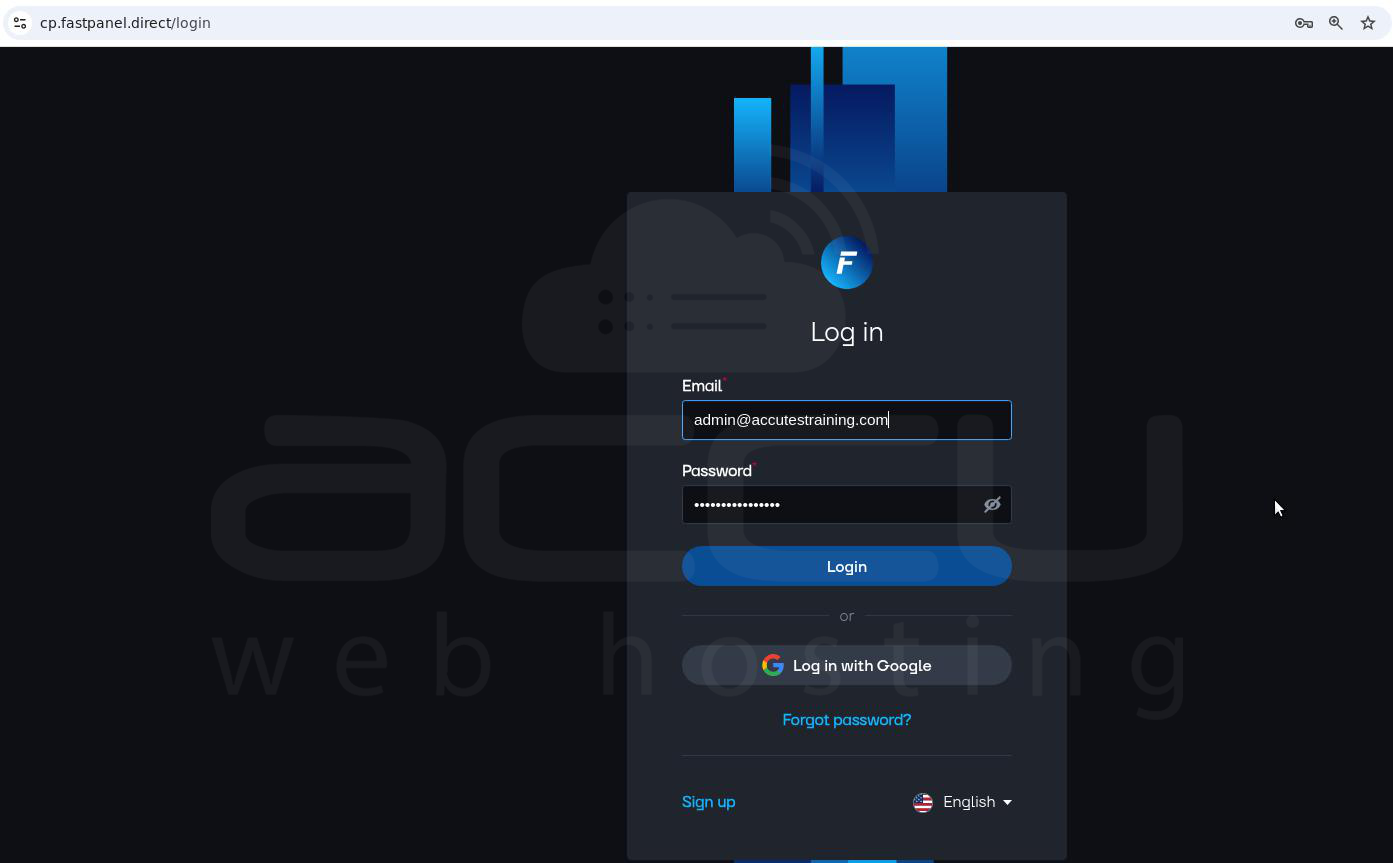
Step 9: Log into your FastPanel billing account using the details sent via email.
Step 10: Navigate to the License Ordering page.
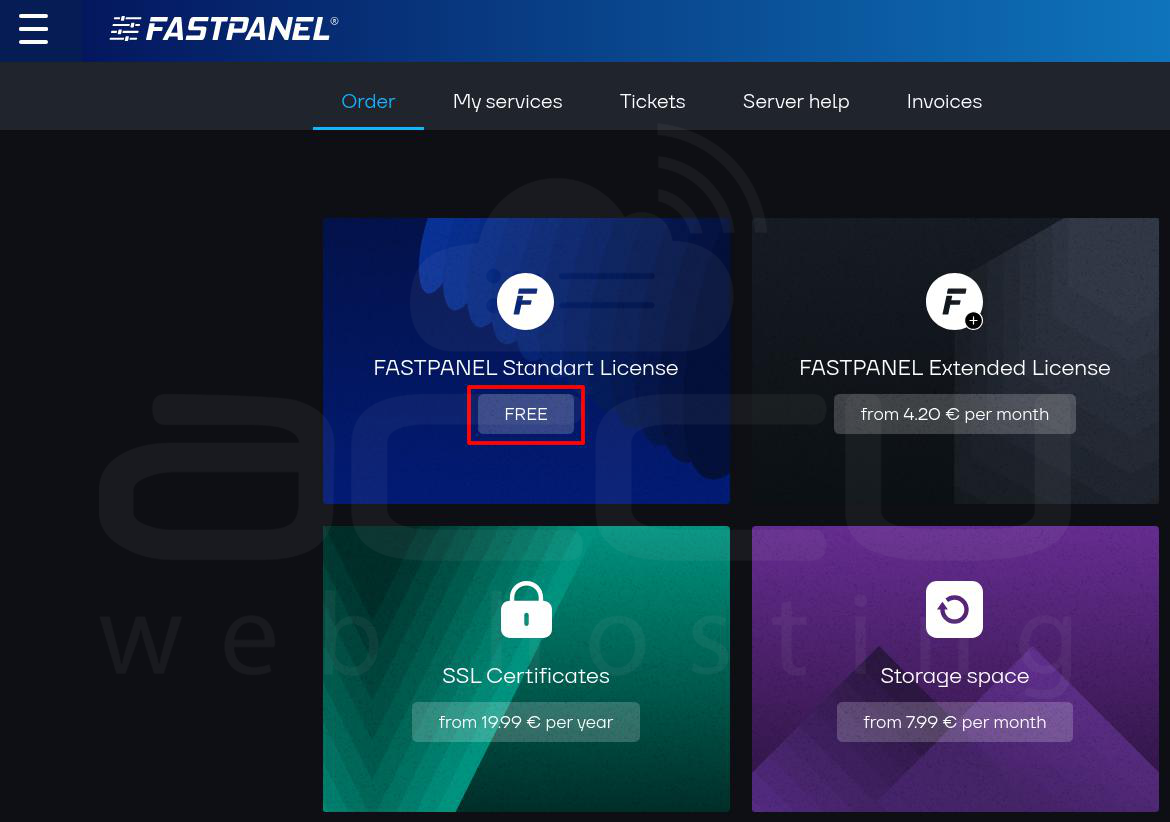
Step 11: Choose the license type: Free or Paid depending on your requirements.
Step 12: Click Add to Cart.
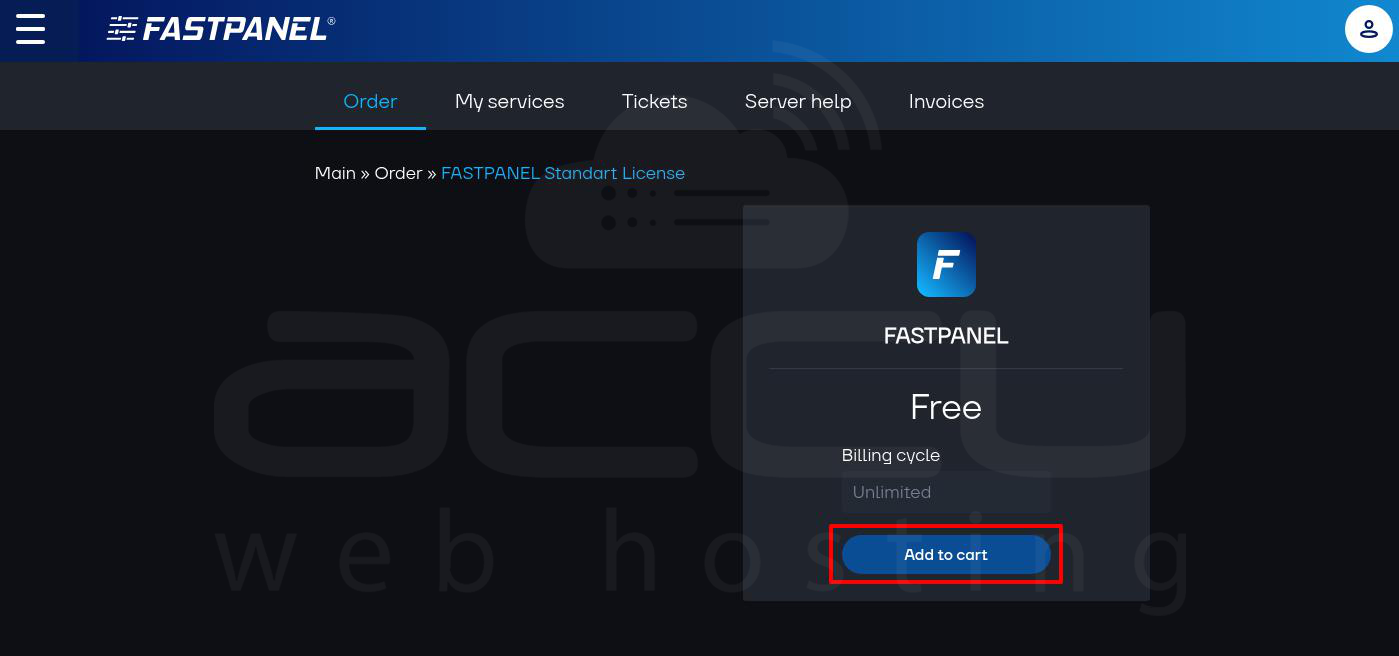
Step 13: Assign your server’s public IP to the license.
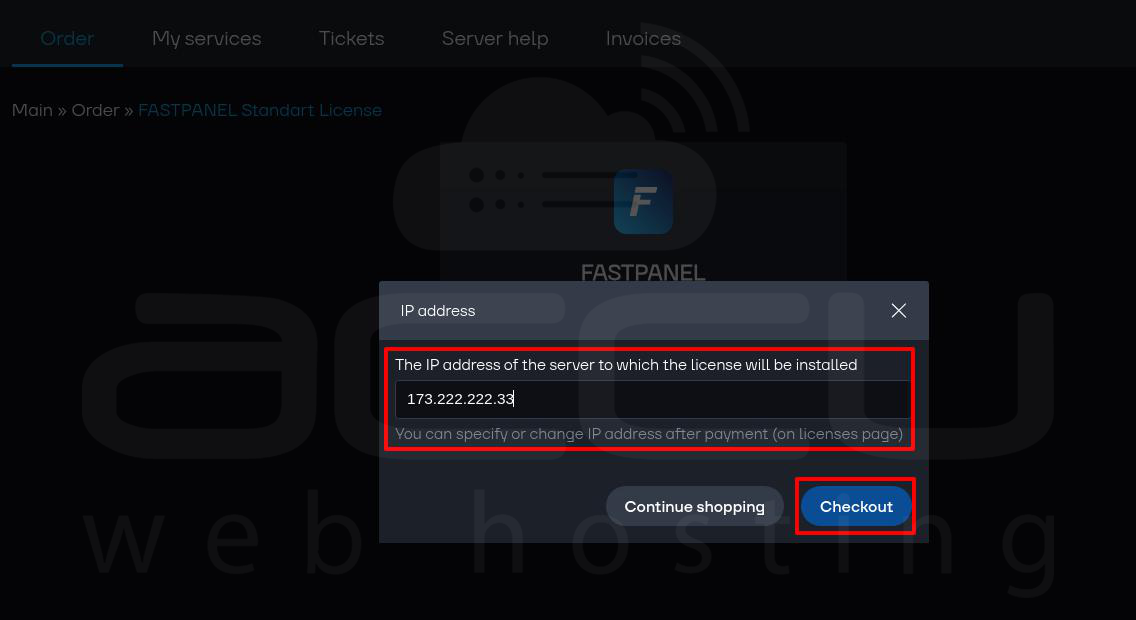
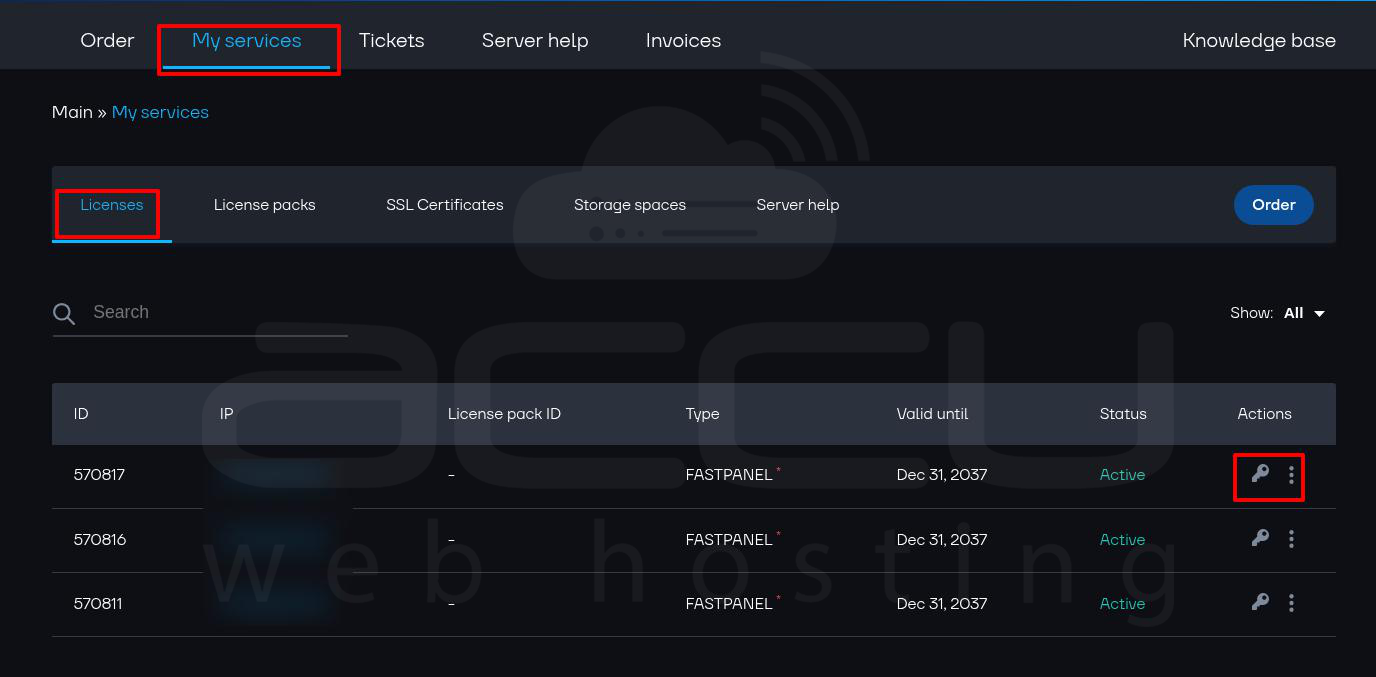
Step 14: If automatic activation fails, Go to My Services in the billing portal. Click the Key button to display your activation key.
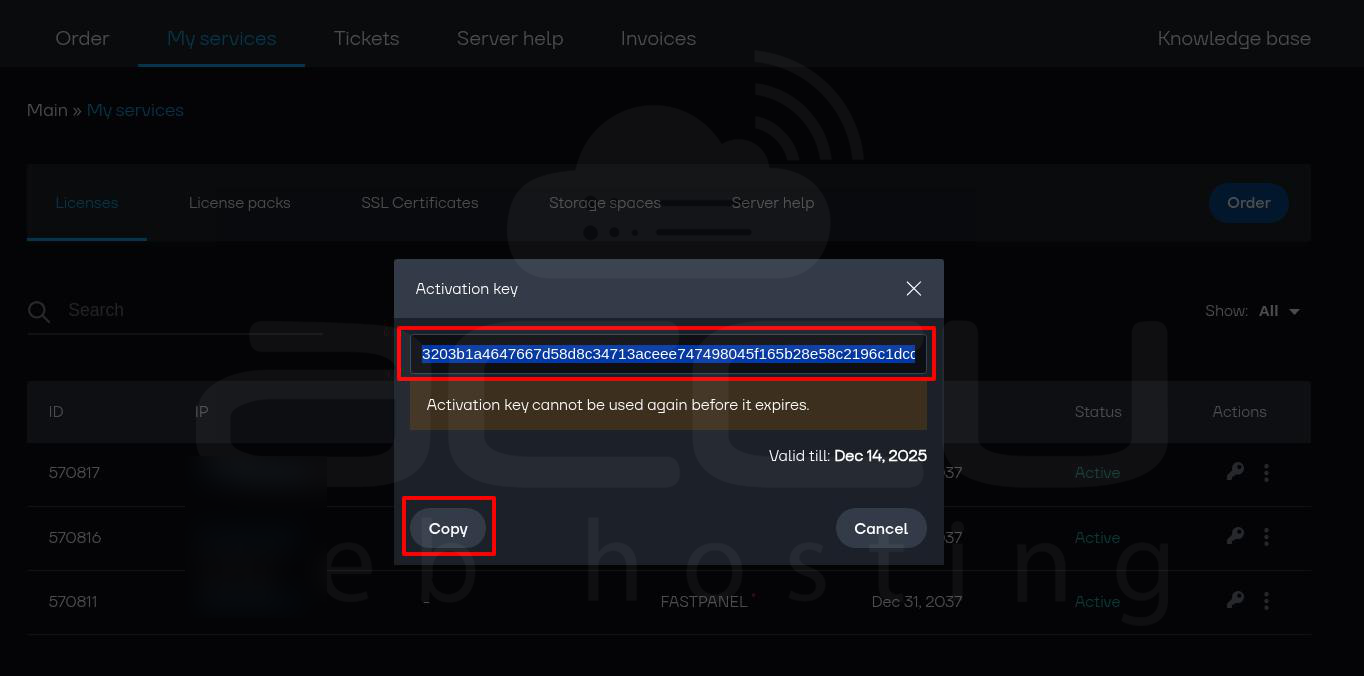
Step 15: Copy the key and paste it into the FastPanel license activation panel.
Once activated, your FastPanel dashboard will be fully accessible.
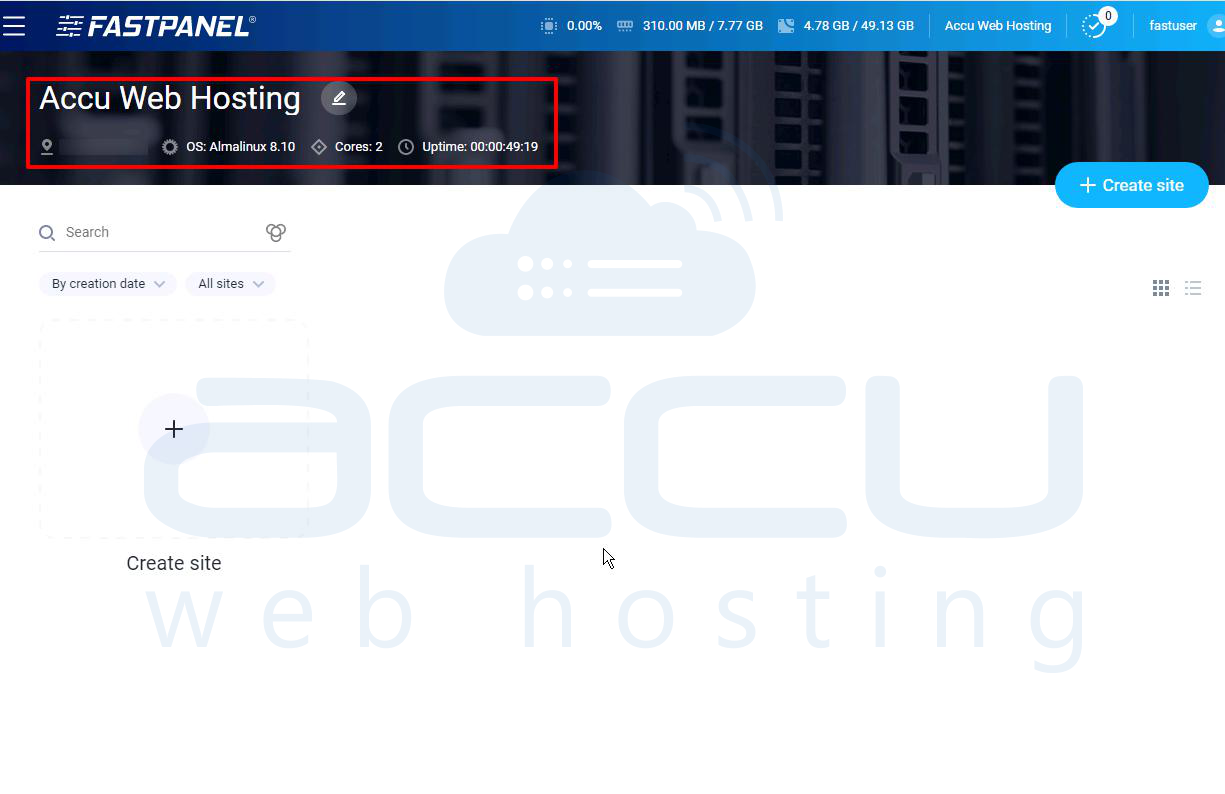
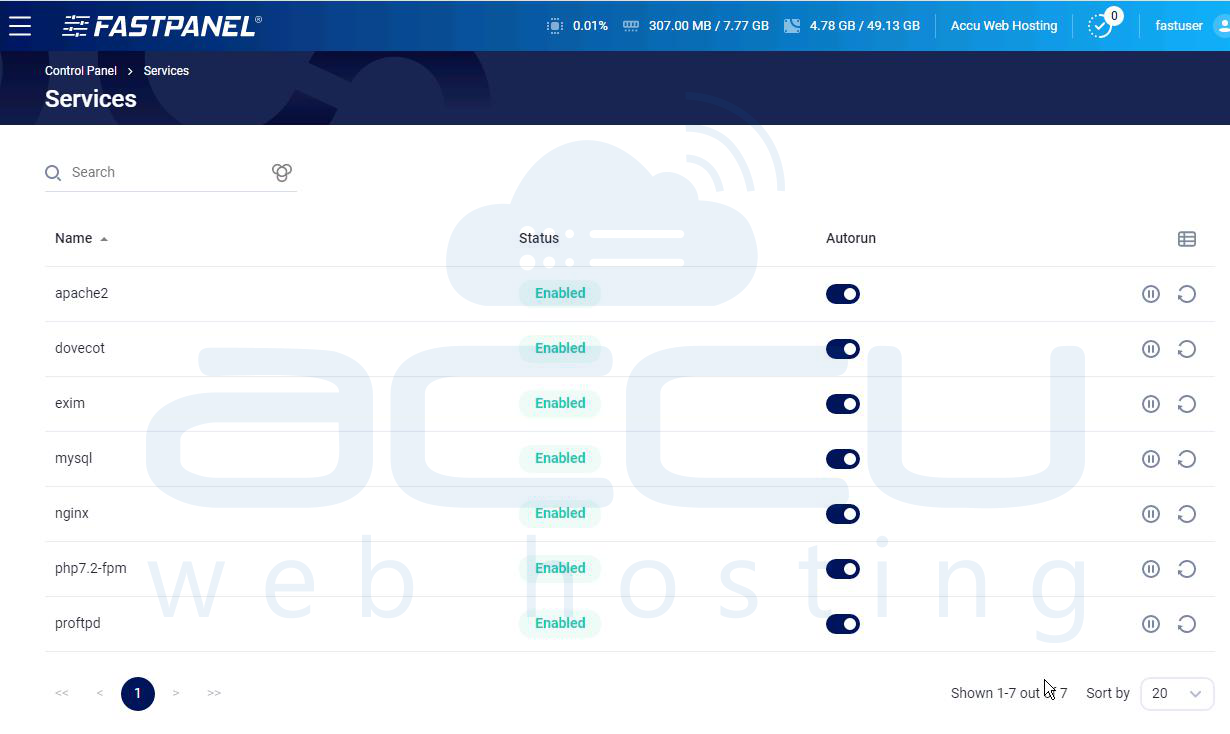
Step 16: After activation, log into your FastPanel control panel. Navigate to: Control Panel -> Services. Verify that all services are running correctly.
Conclusion
FastPanel simplifies server management by providing an intuitive web interface to handle websites, databases, email accounts, and DNS configurations, while also offering tools for monitoring and optimization. Installing FastPanel on AlmaLinux provides a robust and user-friendly solution for managing web hosting environments. By following this guide, from preparing a clean AlmaLinux 8 server and installing necessary utilities, to executing the FastPanel installation script, activating the license, and verifying services, you can set up a fully functional hosting control panel efficiently and securely.


