
Instructions:
When troubleshooting connectivity issues on a Windows VPS, it’s often necessary to verify whether a specific TCP or UDP port is open and listening. This guide explains multiple methods from basic to advanced so you can accurately test ports using built-in Windows tools and third-party utilities.
Method 1: Check Open TCP Ports Using Command Prompt (netstat):
1. Log in to your Windows VPS
2. Open Command Prompt as Administrator
3. Run the command:
> netstat -ano
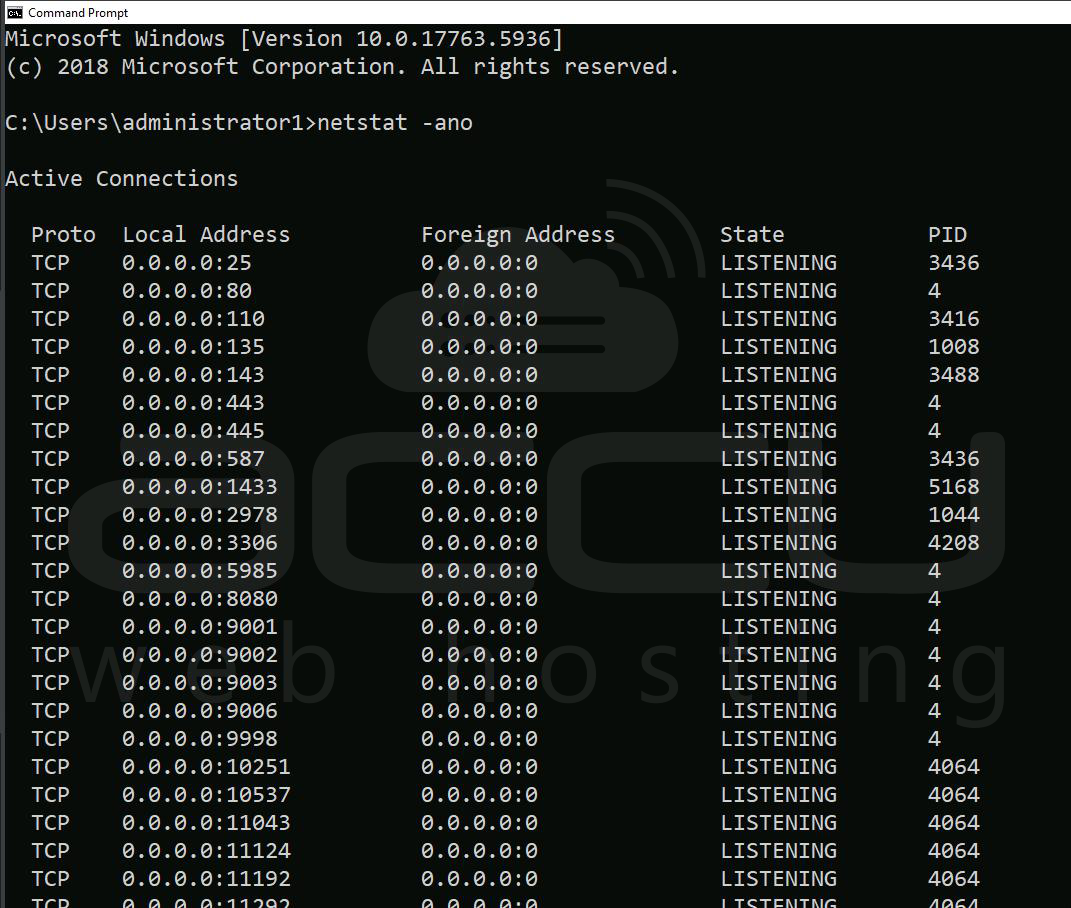
To check a specific port (example: port 80):
> netstat -ano | findstr :80
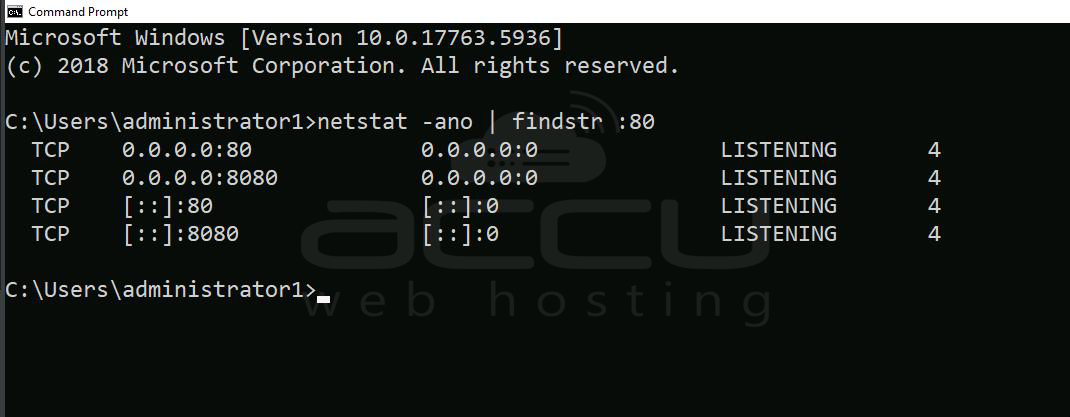
Output Explanation:
LISTENING -> Port is open and accepting connections
ESTABLISHED -> Active connection
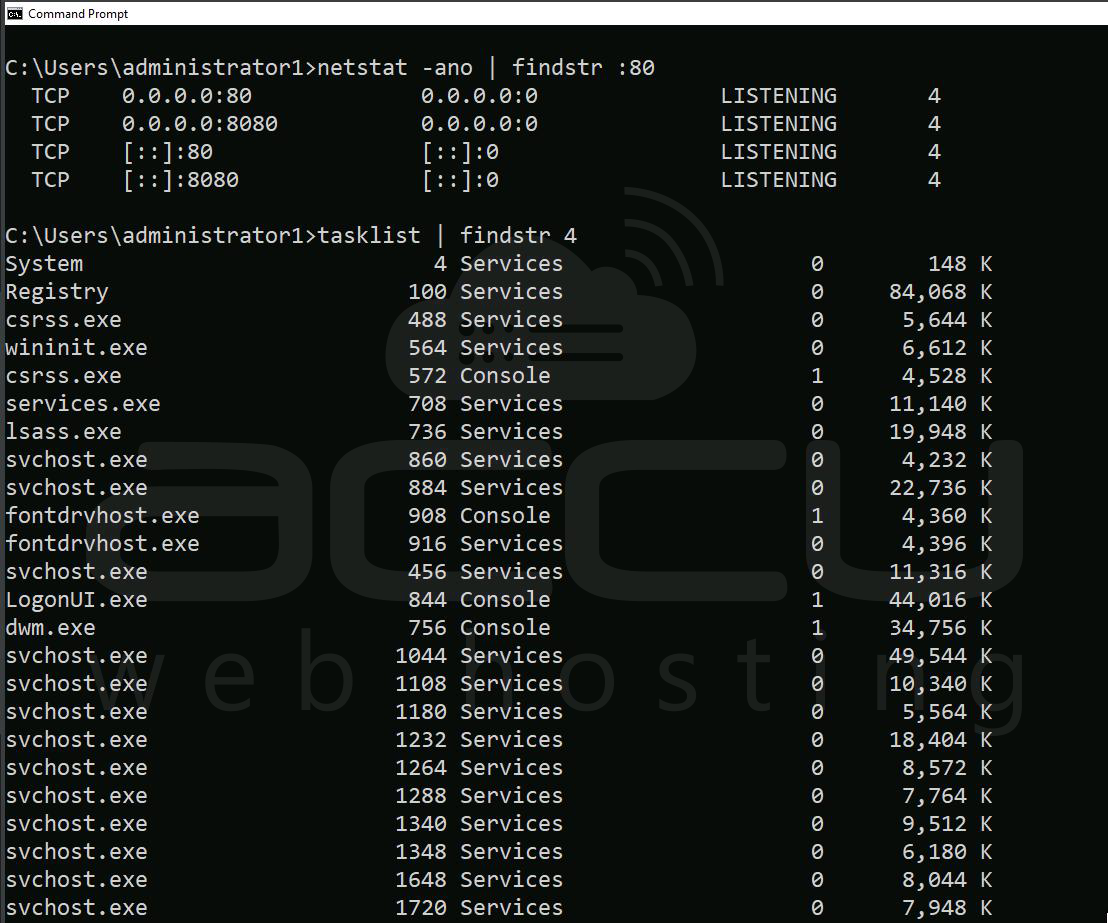
PID -> Process ID using the port
To identify the application using the port:
> tasklist | findstr <PID>
Method 2: Check Listening Ports Using PowerShell:
1. Open PowerShell as Administrator
2. Run:
> Get-NetTCPConnection -State Listen
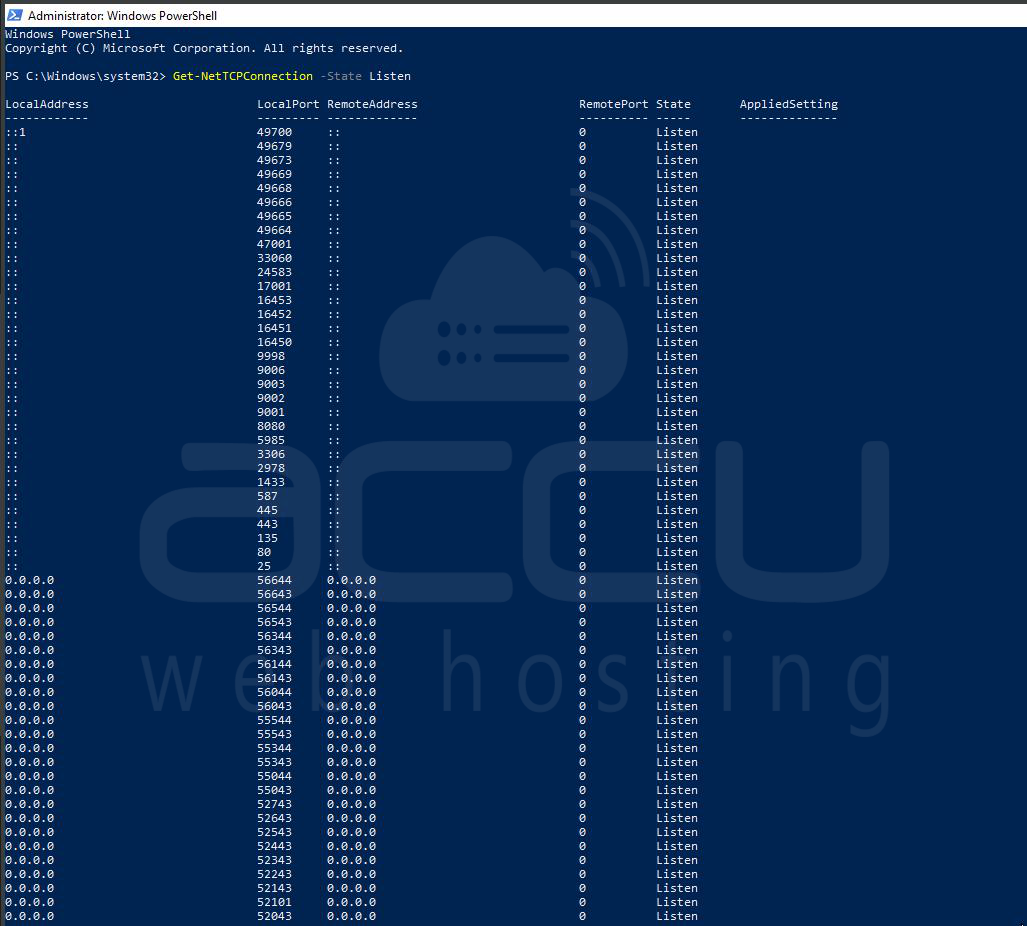
To check a specific TCP port:
> Get-NetTCPConnection -LocalPort 443
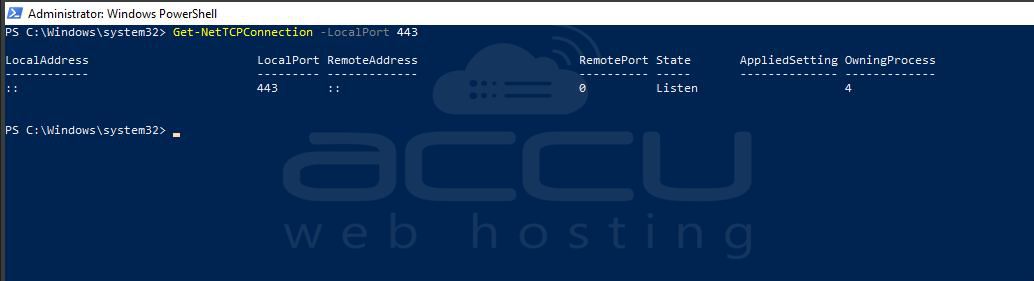
This method provides cleaner and more readable output compared to netstat.
Method 3: Test TCP Port Connectivity (Test-NetConnection):
This method checks if a port is reachable locally or remotely.
> Test-NetConnection -ComputerName localhost -Port 2978
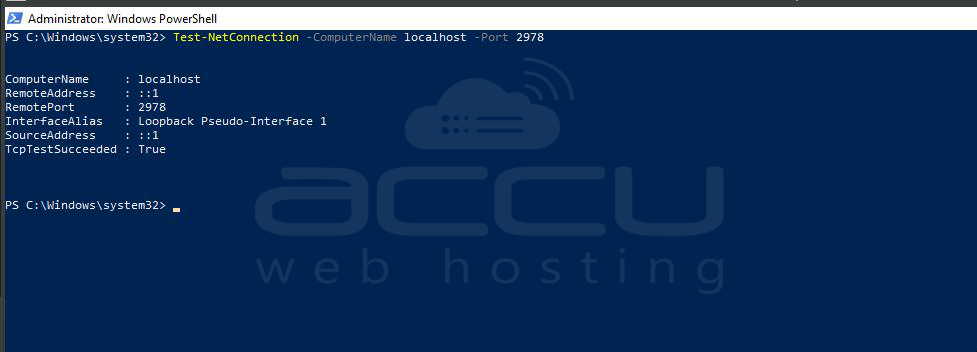
Example Output:
> TcpTestSucceeded : True -> Port is open
False -> Port is blocked, or service is not running
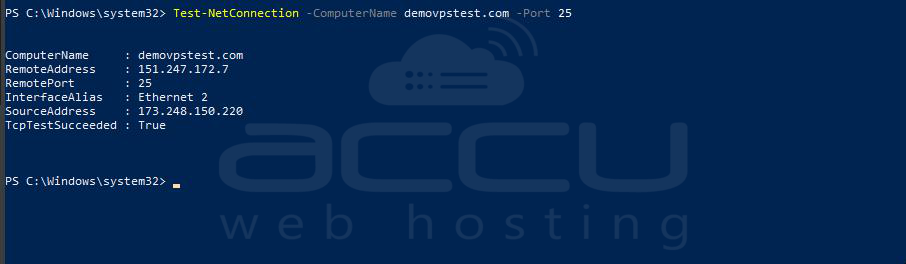
You can also test external servers:
> Test-NetConnection -ComputerName example.com -Port 25
Method 4: Check UDP Ports on Windows VPS:
Important: UDP is connectionless, so it cannot be reliably “tested” like TCP.
Check if a UDP port is listening:
> netstat -ano | findstr UDP
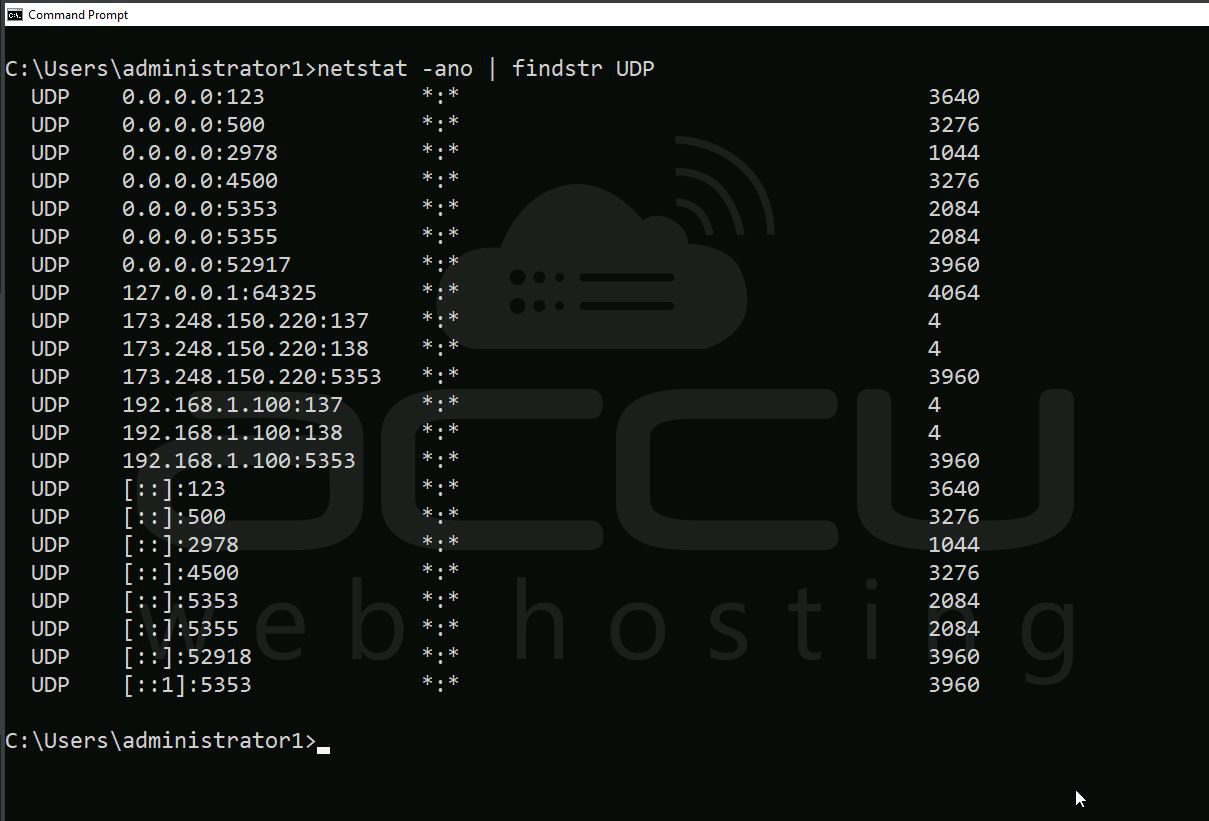
If an application is bound to the UDP port, it will appear in the output.
Method 5: Check Windows Firewall Rules:
Even if a port is open, Windows Firewall may block it.
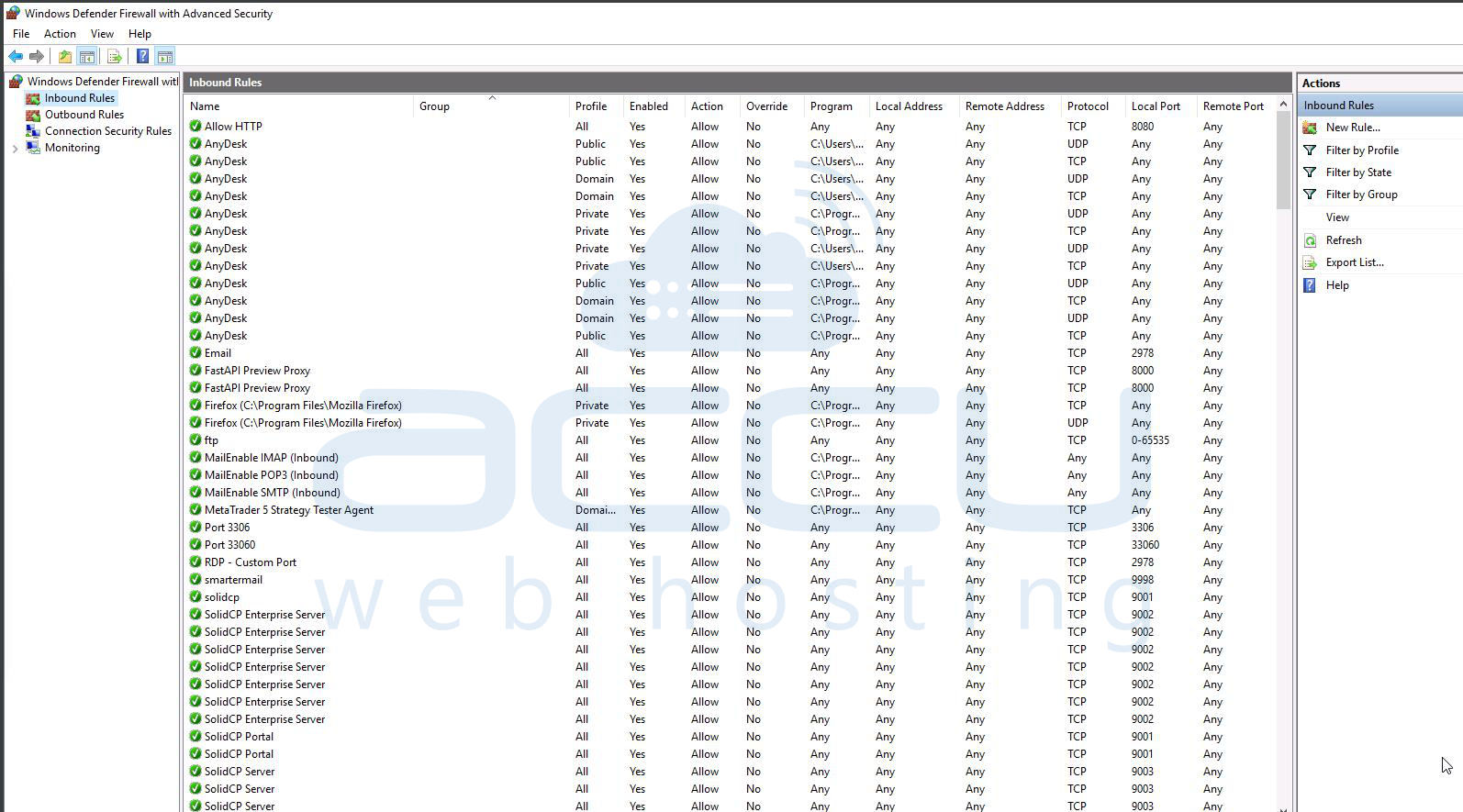
GUI Method:
1. Open Windows Defender Firewall
2. Click Advanced Settings
3. Go to Inbound Rules
4. Look for rules allowing the required TCP/UDP port
PowerShell Method:
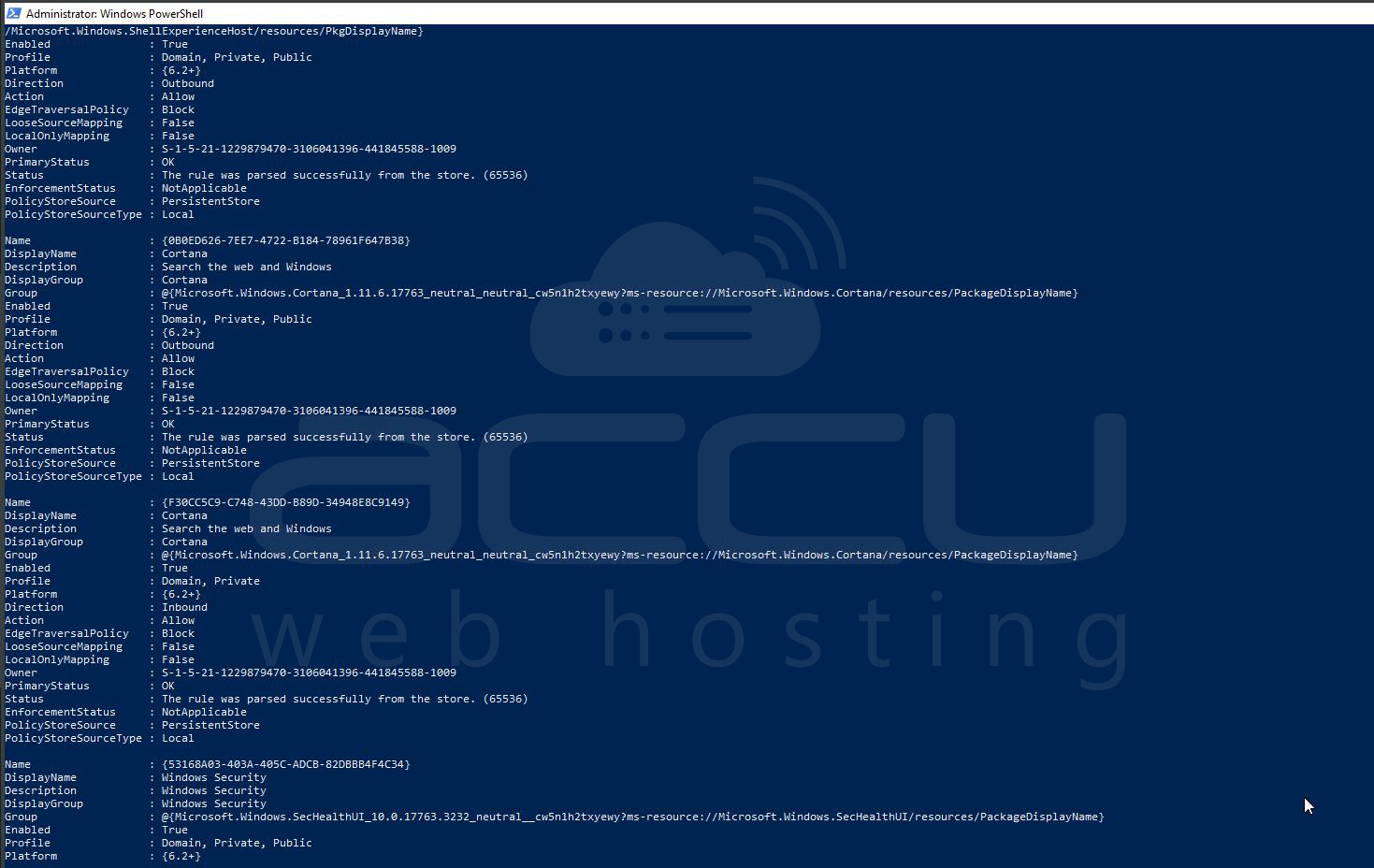
> Get-NetFirewallRule | Where-Object {$_.Enabled -eq "True"}
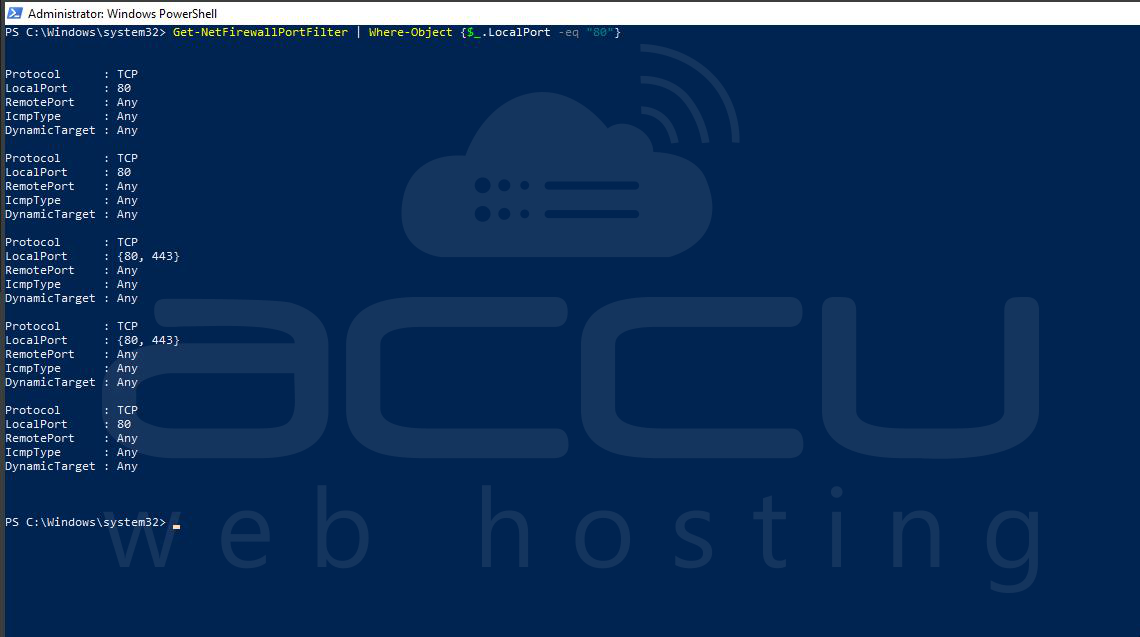
To check a specific port rule:
> Get-NetFirewallPortFilter | Where-Object {$_.LocalPort -eq "80"}
Method 6: Test Port Externally (From Another Server or PC)
Using Telnet (TCP only):
> telnet <VPS_IP> 2978
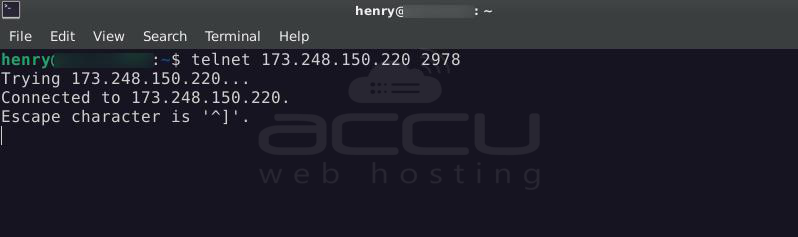
If the screen clears or connects, the port is open.
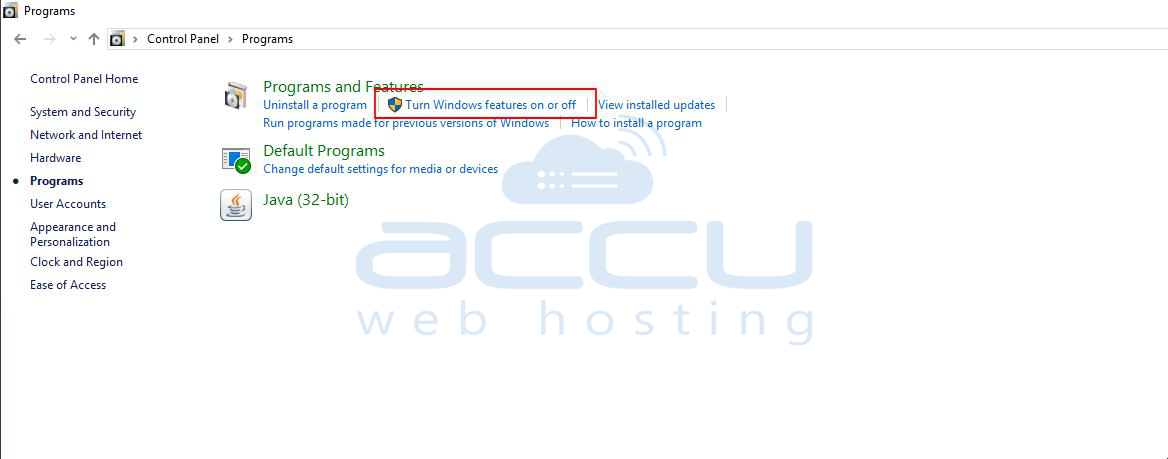
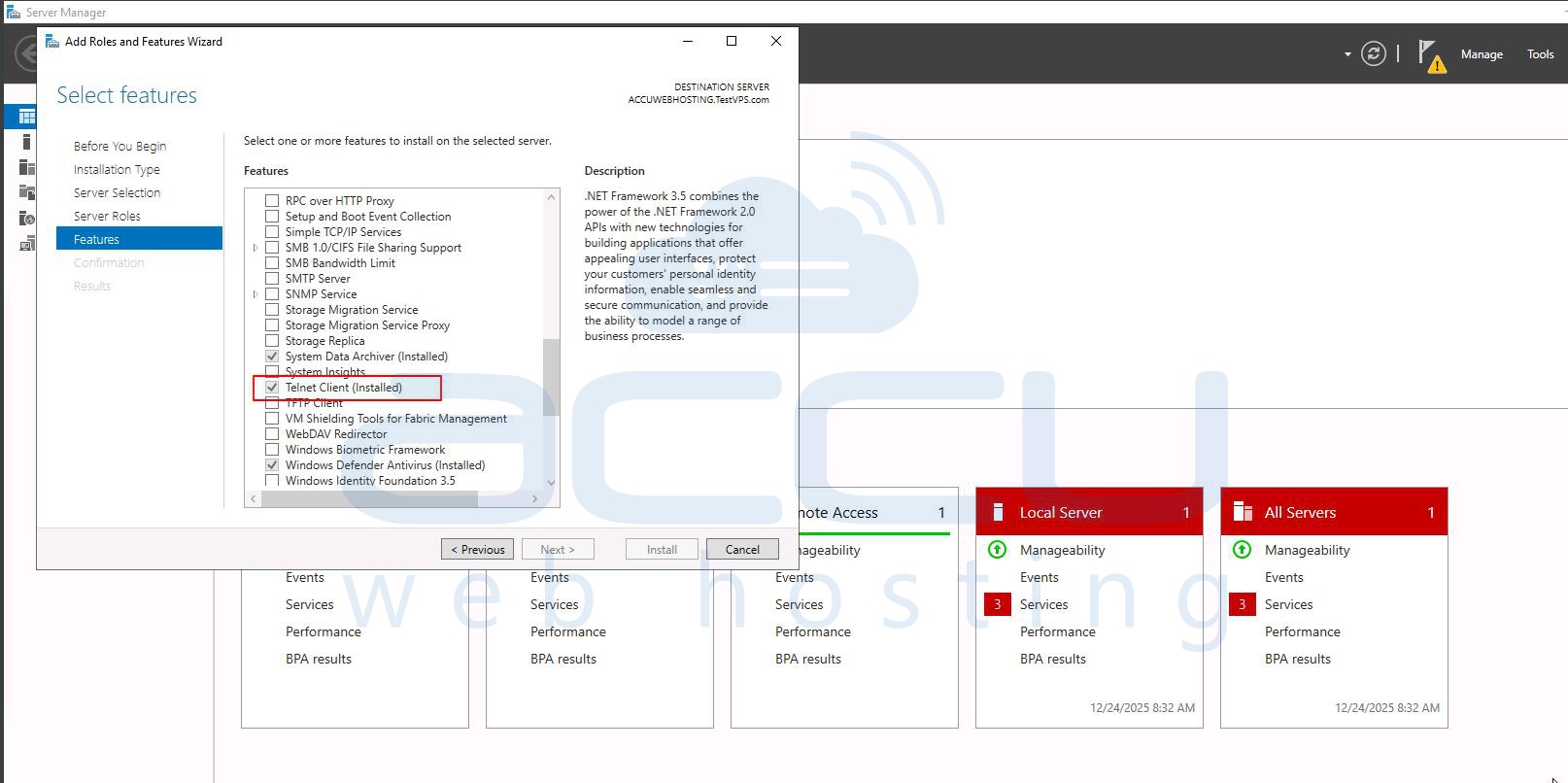
If Telnet is missing, enable it:
Control Panel -> Programs -> Turn Windows features on or off -> Telnet Client
Conclusion:
Checking TCP and UDP ports on a Windows VPS is essential for diagnosing network and service issues.
Using built-in tools like netstat, PowerShell, and Test-NetConnection, you can quickly determine whether a port is open, listening, or blocked.
Always remember that an open port requires both an active service and firewall permission.
