
CyberPanel introduced Two-Factor Authentication (2FA) in version 2.0.3 to enhance account security. With 2FA enabled, logging in requires not only your password but also a unique verification code from your mobile authenticator app. This greatly reduces the risk of unauthorized access to your hosting panel. In this guide, we’ll go through each step in detail to enable and configure 2FA on your CyberPanel server.
Steps to Enable Two-Factor Authentication (2FA) in CyberPanel
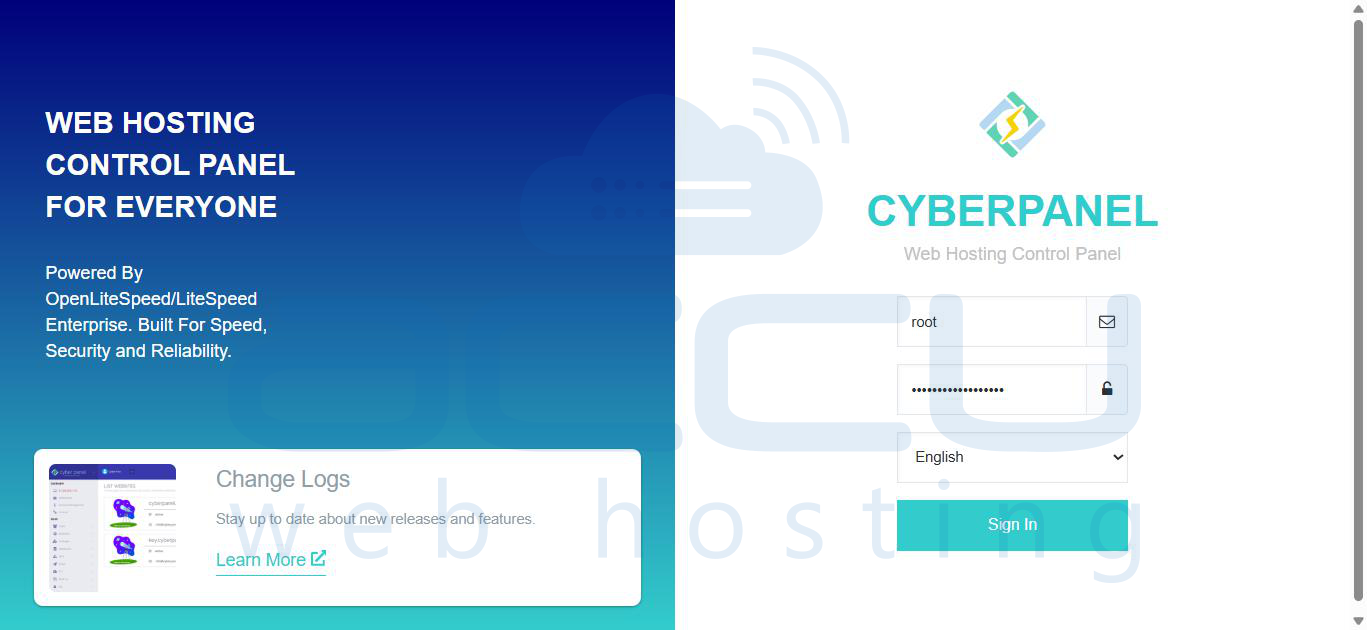
Step 1: Log in to CyberPanel. Enter your admin credentials and log in to the CyberPanel dashboard.
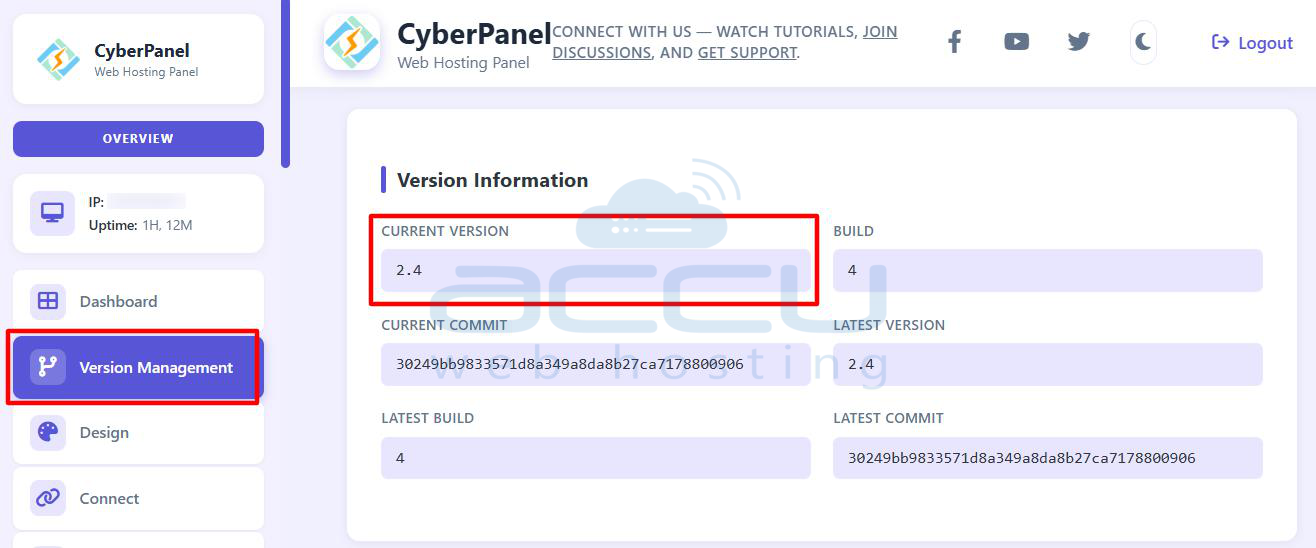
Step 2: Before enabling 2FA, verify that your CyberPanel version is 2.0.3 or newer, as this feature is not available in earlier versions. You can check from Version Information in CyberPanel. If your version is older, update it first.
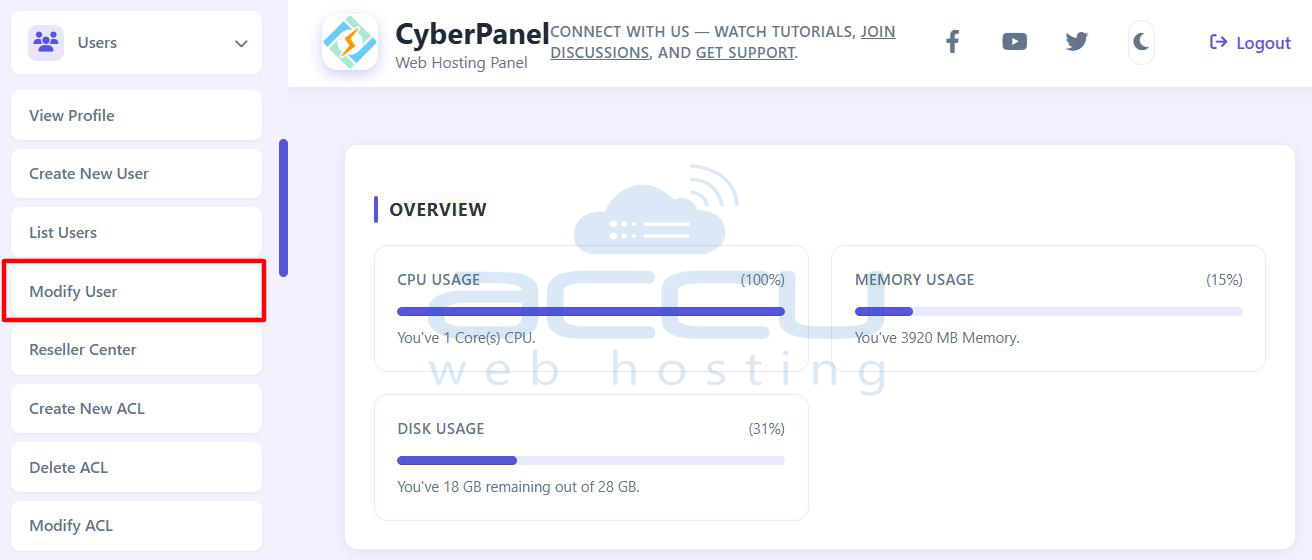
Step 3: From the left-side menu, click Users → Modify User.
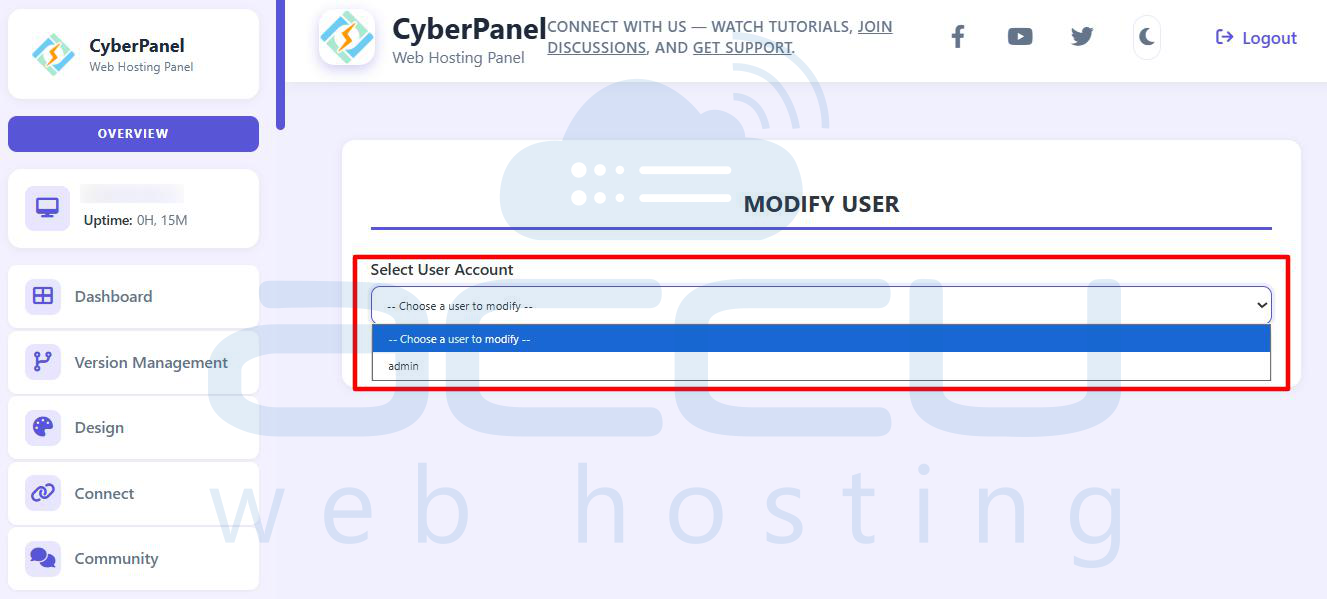
Step 4: A list of existing users will appear. Select your username (usually admin) from the list.
Step 5: Enter your current password in the provided field and Tick the checkbox labeled “2FA” to enable Two-Factor Authentication.
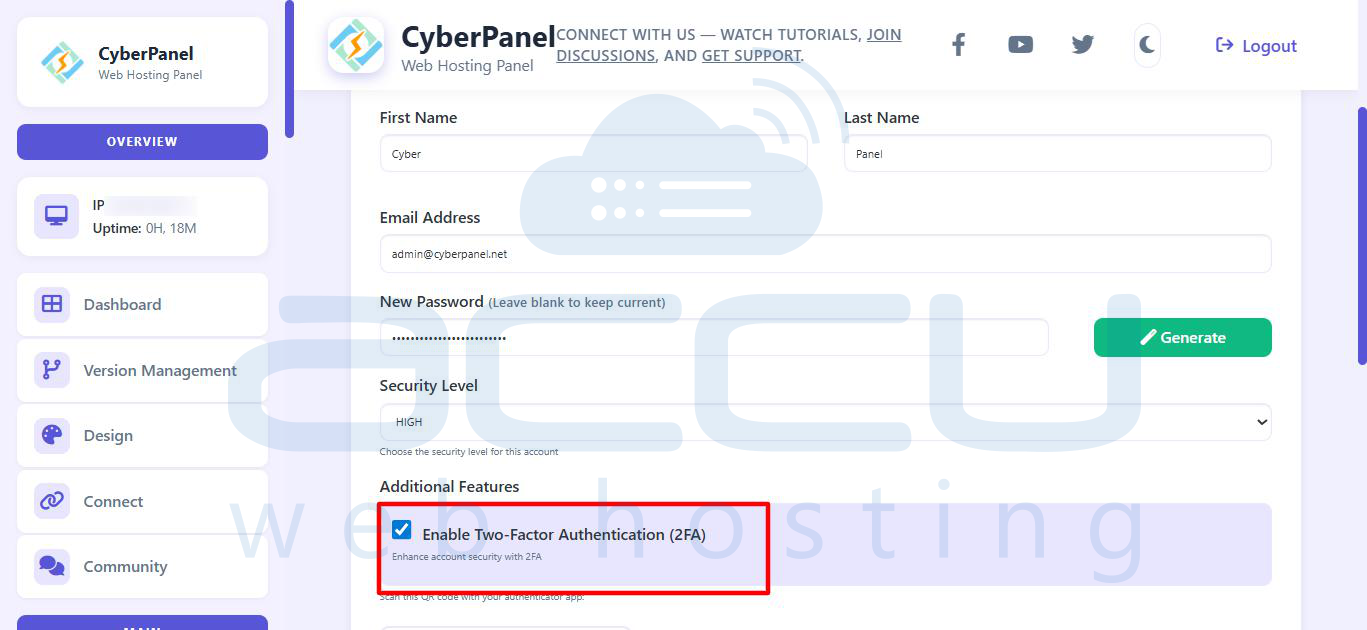
Step 6: A QR code will appear on your screen. Open a two-factor authentication app on your mobile device such as: Google Authenticator, Authy, or Microsoft Authenticator.
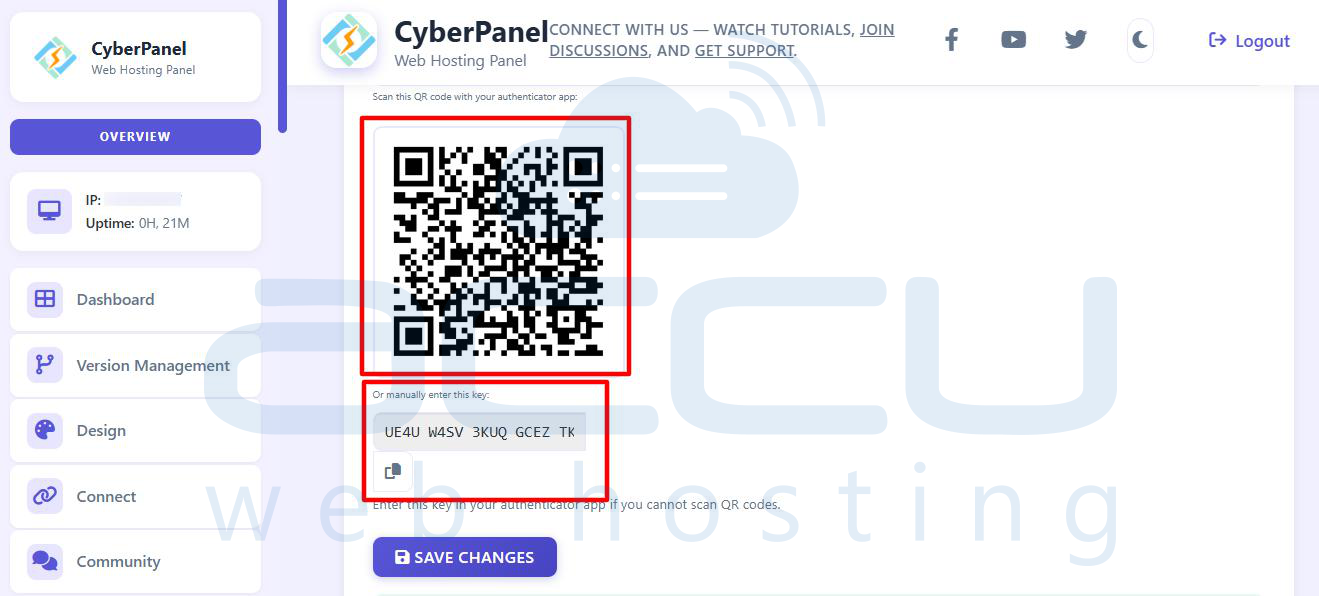
Step 7: Use the app’s Scan QR Code option to scan the QR code shown in CyberPanel. After scanning, your app will generate a 6-digit time-based code.
Step 8: Click Save Changes at the bottom of the page. A success message will confirm that 2FA has been enabled for your account.
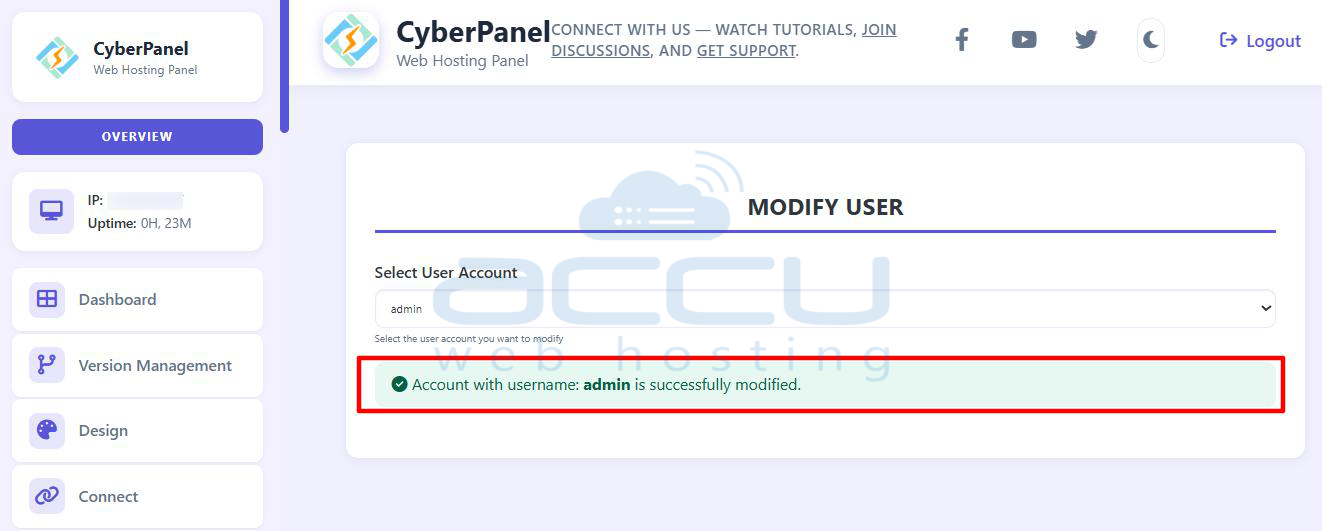
Step 9: Log out from CyberPanel and return to the login page. Enter your username and password as usual and click on Sign In. You’ll now see a new field asking for your Two-Factor Authentication Code.
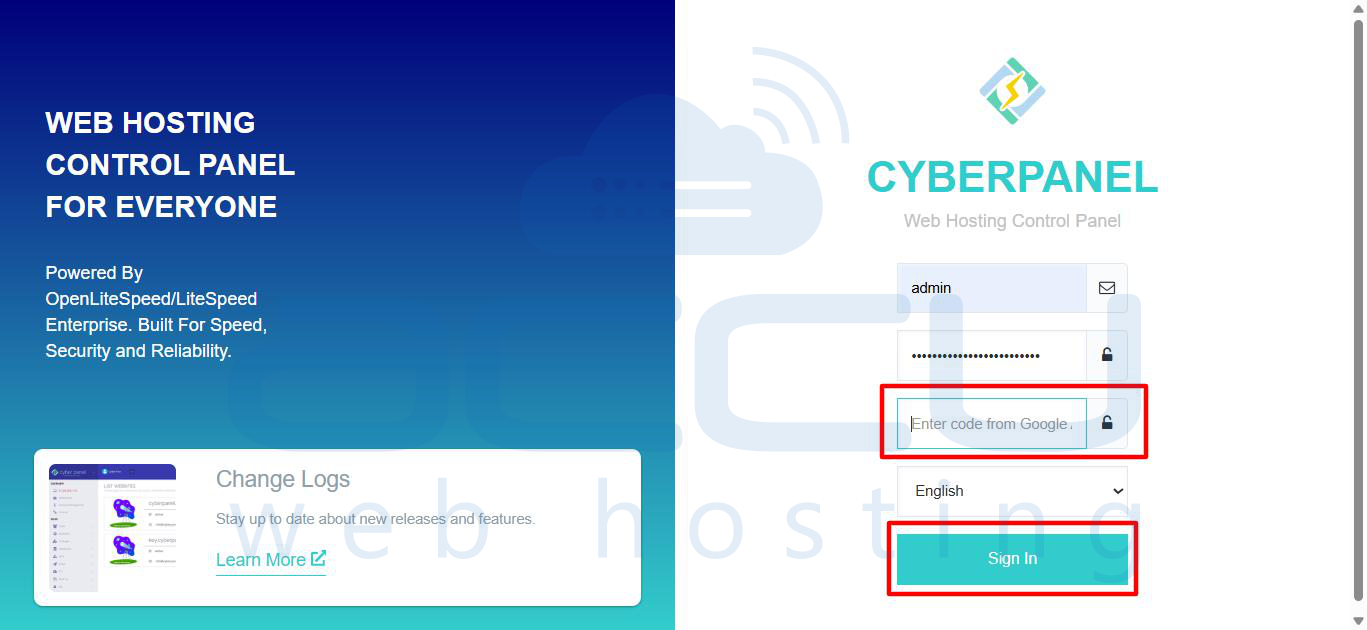
Open your authenticator app and enter the 6-digit code displayed there. Click Sign In — if the code is valid, you’ll be logged in successfully.
Conclusion
Enabling Two-Factor Authentication in CyberPanel adds an essential layer of protection against unauthorized access. Even if your password is compromised, attackers cannot log in without your authentication code. The setup process takes less than two minutes but greatly strengthens your server’s overall security. By keeping your CyberPanel installation updated and using 2FA, you ensure your Linux server remains secure and compliant with best security practices.
