
SQL Server 2022 Express Edition is Microsoft’s free, lightweight database engine designed for development environments, small-scale servers, and low-cost deployments. While it lacks some of the features of the full edition, it is fully capable of handling many workloads and is supported on Windows Server 2025. In this article we’ll assist you on Install and Configure SQL Server 2022 Express Edition on Windows Server 2025.
Pre-installation Planning and Requirements
-
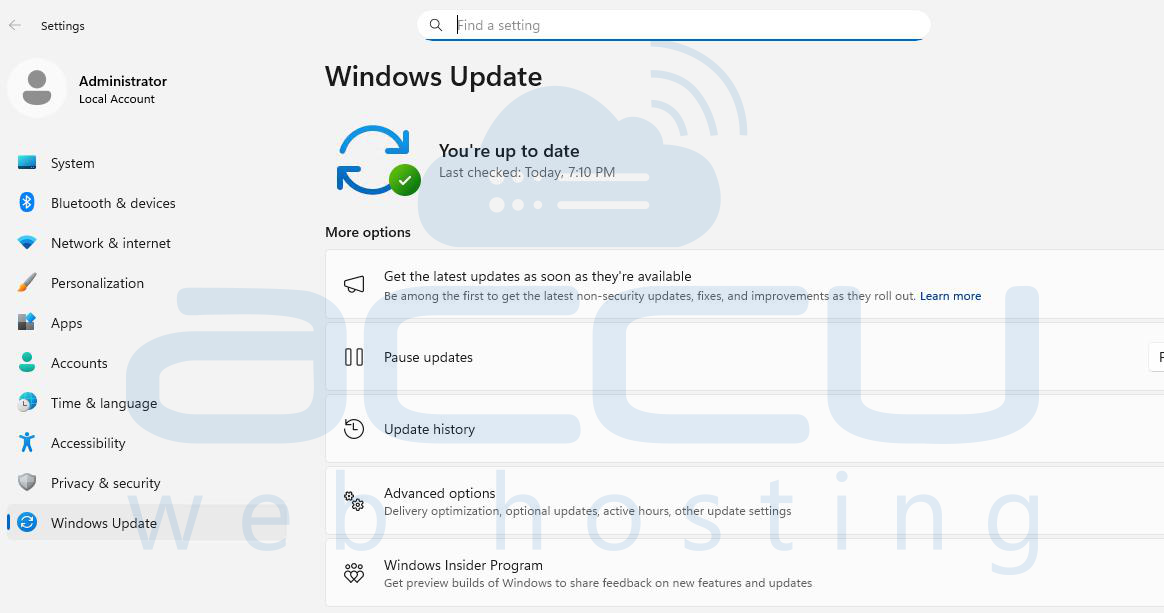
Windows Server 2025 must be fully patched, with no pending reboot or outstanding Windows Updates. A pending restart often blocks SQL Server installs.
-
.NET Framework, Windows components: Make sure the required .NET versions and Windows features are present.
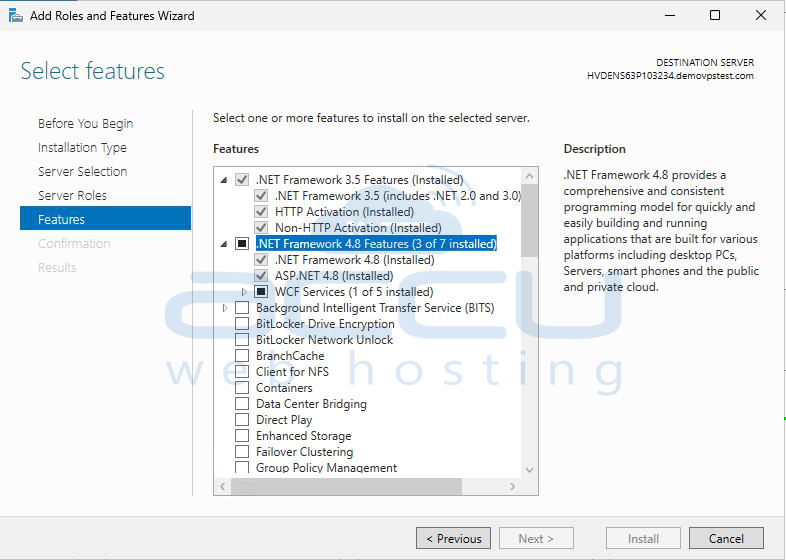
Steps to Install and Configure SQL Server 2022 Express Edition on Windows Server 2025
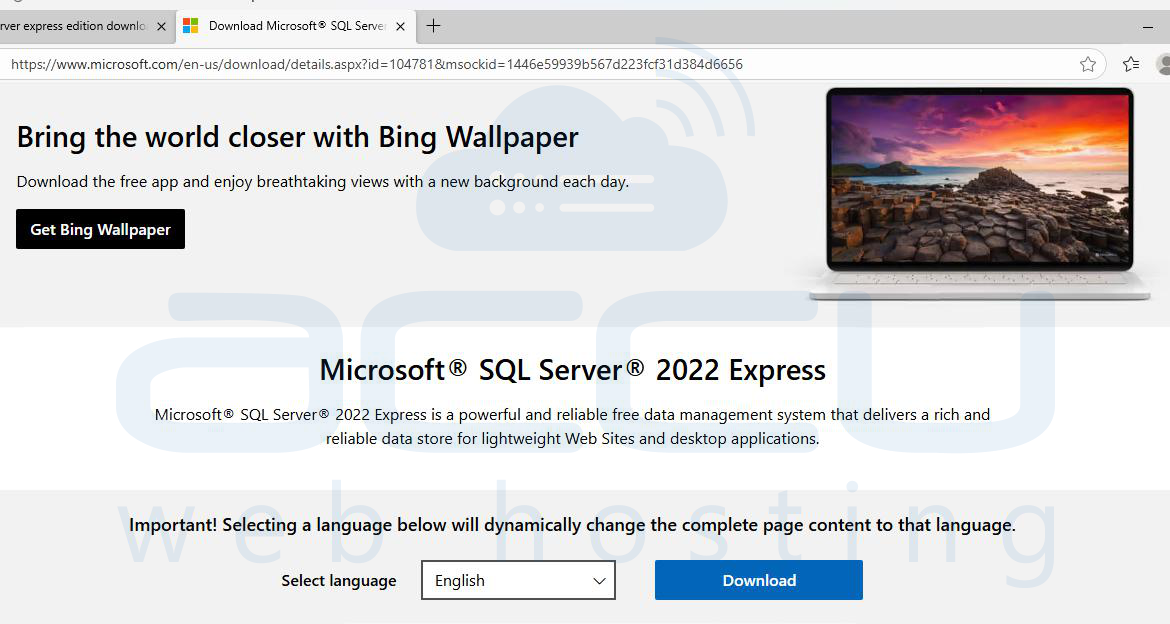
Step 1: Visit the Microsoft SQL Server download page (https://www.microsoft.com/en-us/download/details.aspx?id=104781) and select the Express edition. Download the “Express” installer, often labelled something like SQL2022-SSEI-Expr.exe or similar.
Make sure to download the 64-bit version and verify the language/region matches your installation.
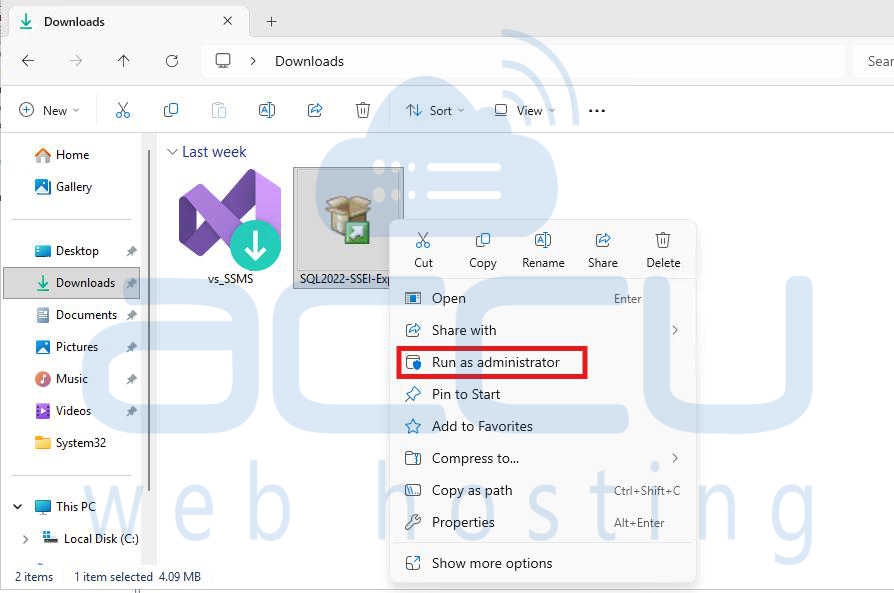
Step 2: Right-click the installer executable and choose Run as administrator. The installer will extract files and present the SQL Server Installation Center.
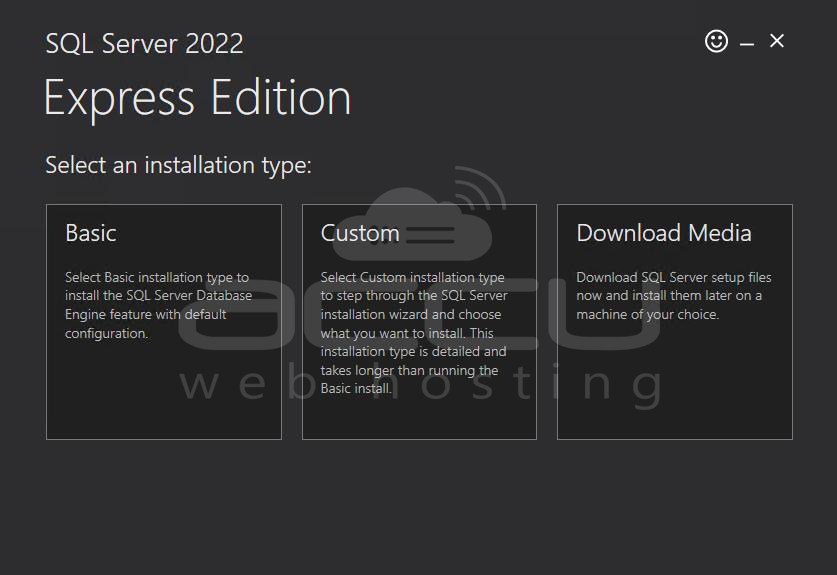
Step 3: Within the Installation Center you’ll see options such as: Basic, Custom, Download Media. For Express, you may choose Custom if you want to configure features, instance name, directories.
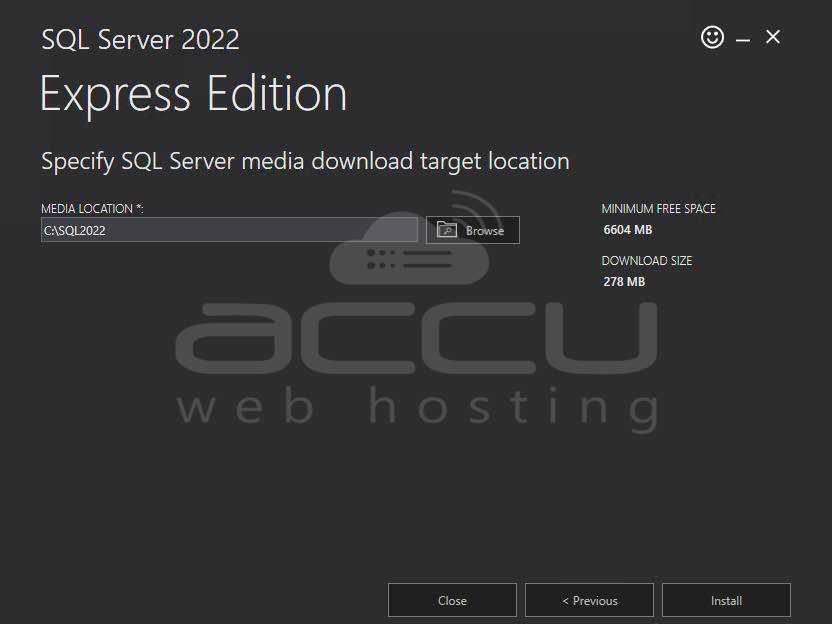
Step 4: Choose a location where the SQL 2022 Source files will download to, and click Install to launch the SQL Server Installation Center.
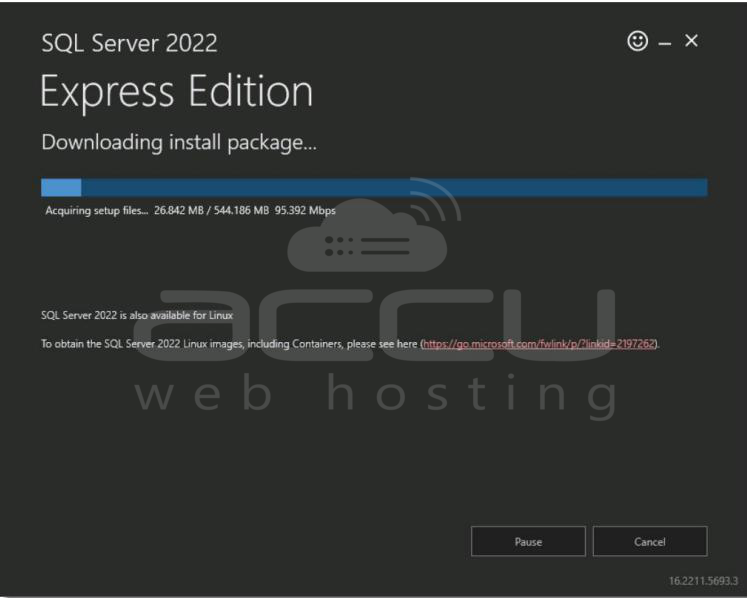
The installer will download necessary setup files.
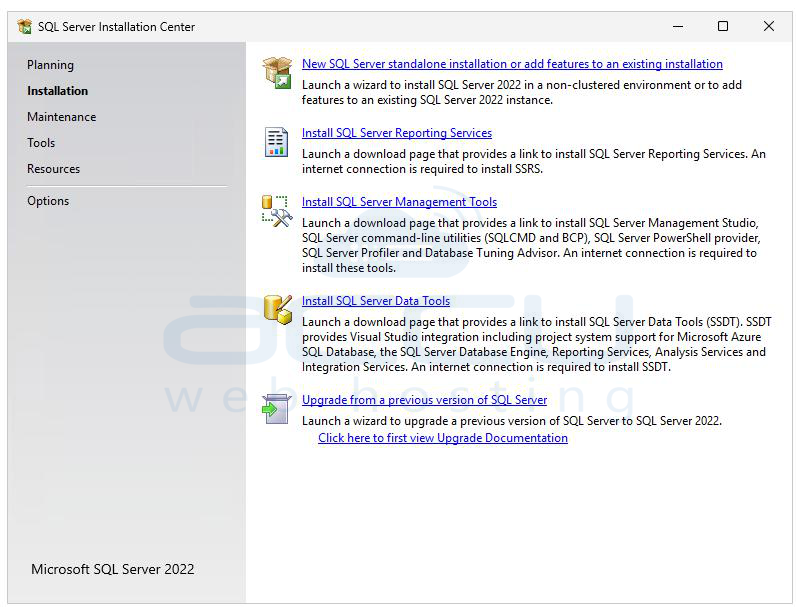
Step 5: Click on New SQL Server stand-alone installation. When you click the installer will install setup support files, It runs prerequisite checks, like OS compatibility, disk space, existing instances, etc.
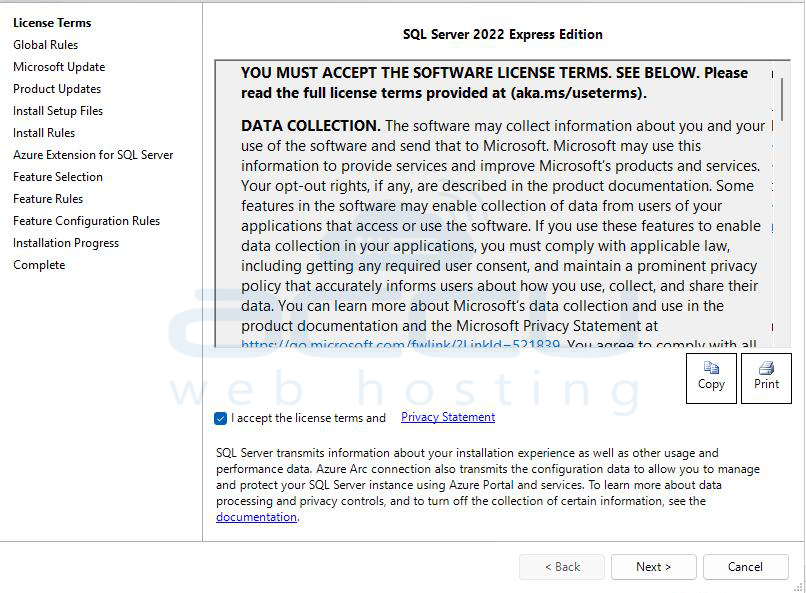
Step 6: Accept the terms of the licensing and click Next.
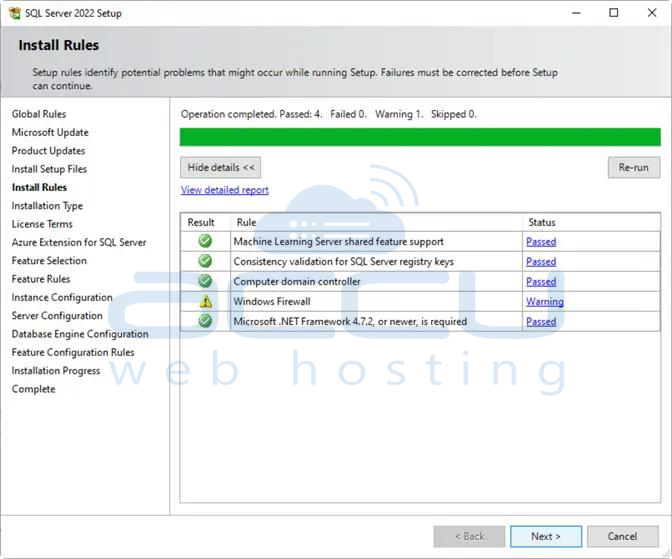
Step 7: Resolve any warnings or failures (e.g., “pending restart”, insufficient disk space). Once the checks pass, click Next.
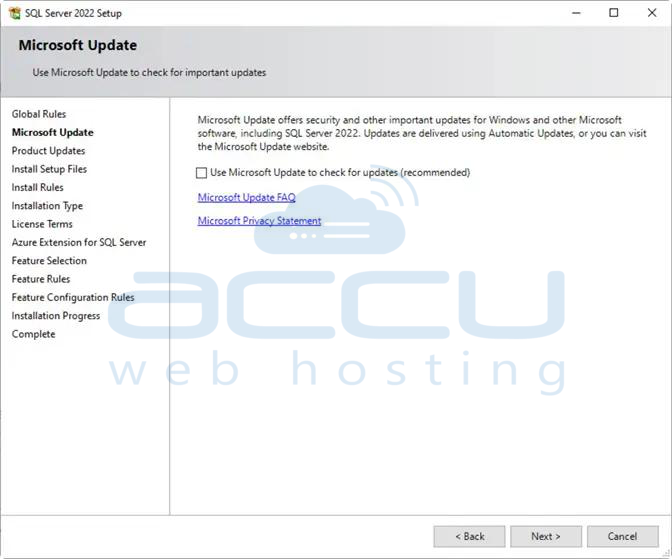
Step 8: Choose whether you want to check for updates (recommended) before proceeding.
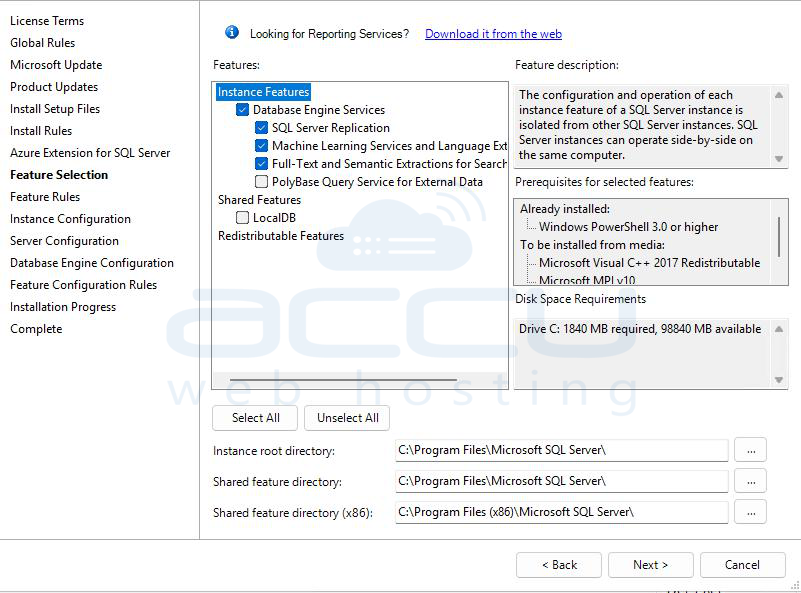
Step 9: Select the features you need, for Express this is usually Database Engine Services. Additional features (like Full-Text Search) are optional and may increase footprint, install only what you require. Review shared feature directories (you may leave defaults unless you have custom paths). Click Next.
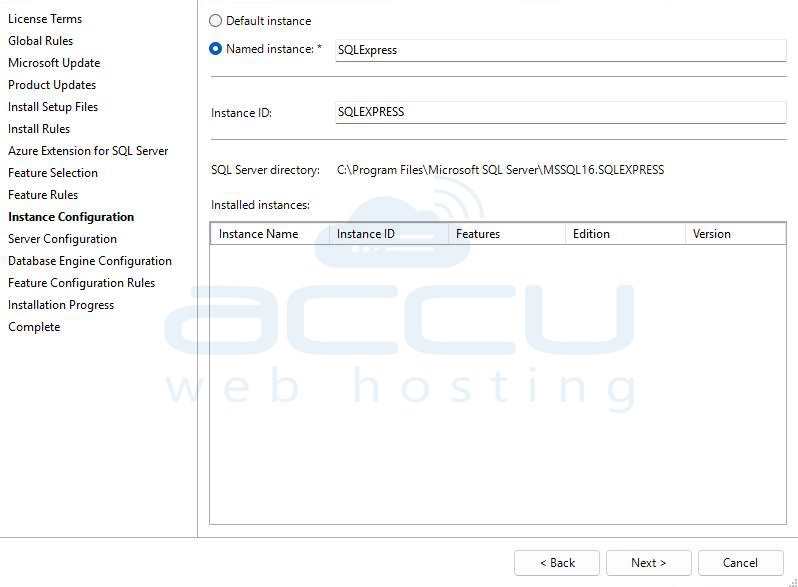
Step 10: Decide whether you want the Default instance or a Named instance. For Express the typical default is a named instance, e.g., SQLEXPRESS. If you select a named instance, specify the name.
You may also change the root directory if you want binaries in a non-default location (advanced). Click Next.
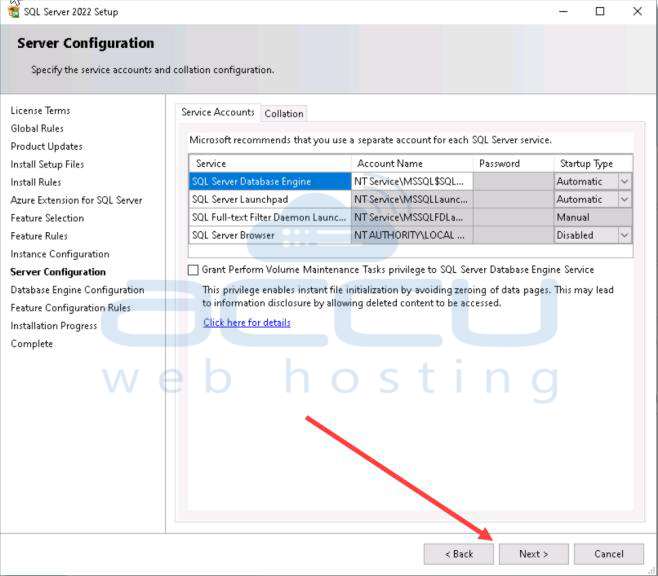
Step 11: Configure the service accounts for the SQL Server Database Engine, SQL Server Agent, SQL Browser, etc. Startup Type: Typically set to Automatic so that the service starts on system boot.
Under the Collation tab you may accept default collation (often SQL_Latin1_General_CP1_CI_AS) or change if you need locale-specific collation. Click Next.
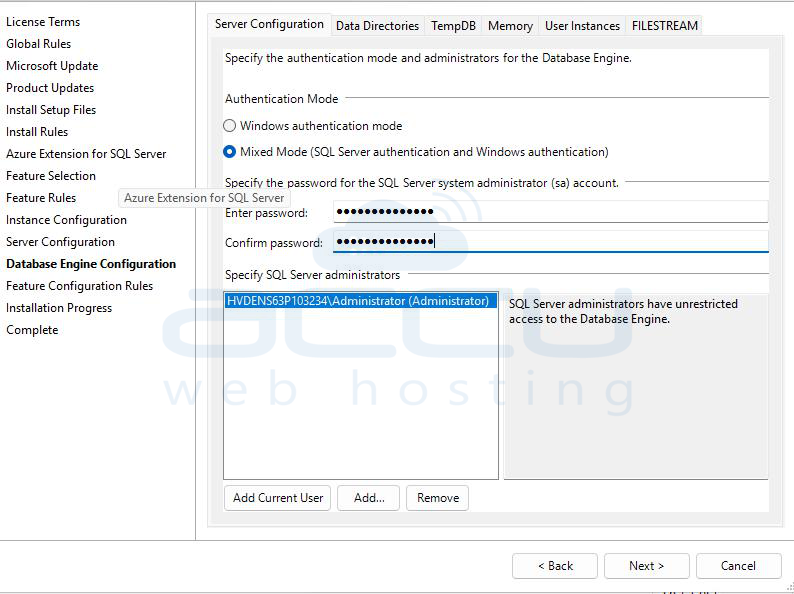
Step 12: Select Database Engine Configuration Authentication Mode:
- Windows Authentication only: uses only Windows identities (stronger by default).
- Mixed Mode: allows both Windows and SQL logins; if chosen, you must provide a password for the sa account.
Specify SQL Server Administrators: Click Add current user to give your Windows account sysadmin rights. You may add additional accounts/groups. Review and click Next.
Step 13: Review summary of settings. Click Install. Wait for the installation to complete; this may take several minutes depending on system resources.
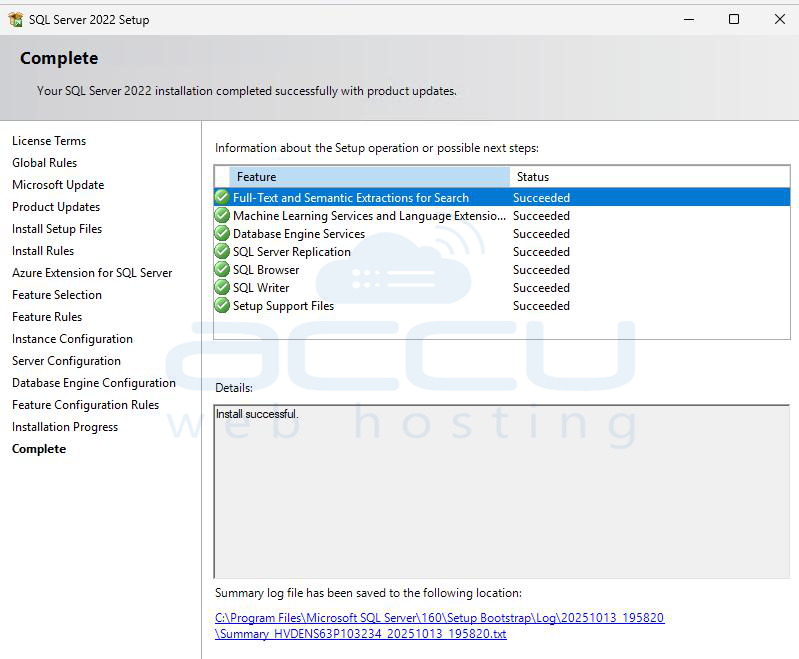
Step 14: Once the installation is complete, enable Network Connectivity and Configure Firewall
If your instance must be accessible from other machines:
Open SQL Server Configuration Manager. Under SQL Server Network Configuration → Protocols to enable TCP/IP and/or Named Pipes as needed.
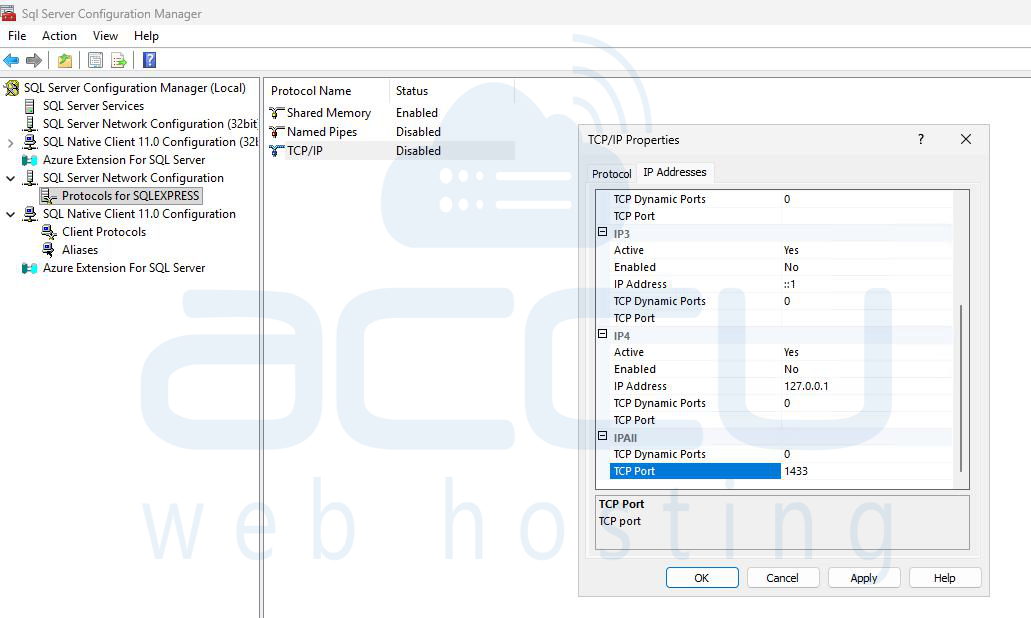
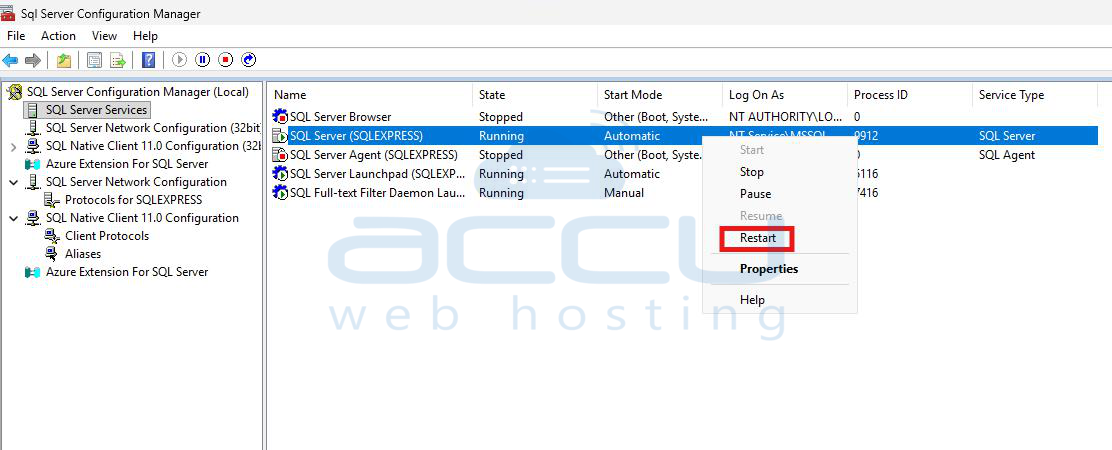
If using the default instance with TCP/IP port 1433, confirm the port. Restart the SQL Server service after enabling protocols.
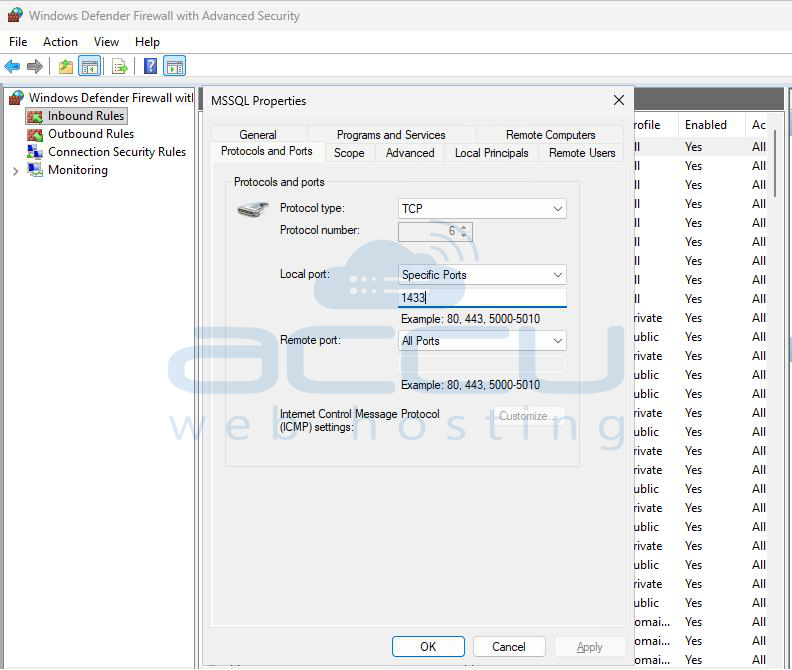
On Windows Server firewall open inbound rule for port 1433 (or your configured port) and/or SQL Browser UDP port 1434 if you want named instance discovery.
Step 15: Download SSMS from Microsoft’s site (https://learn.microsoft.com/en-us/ssms/install/install).
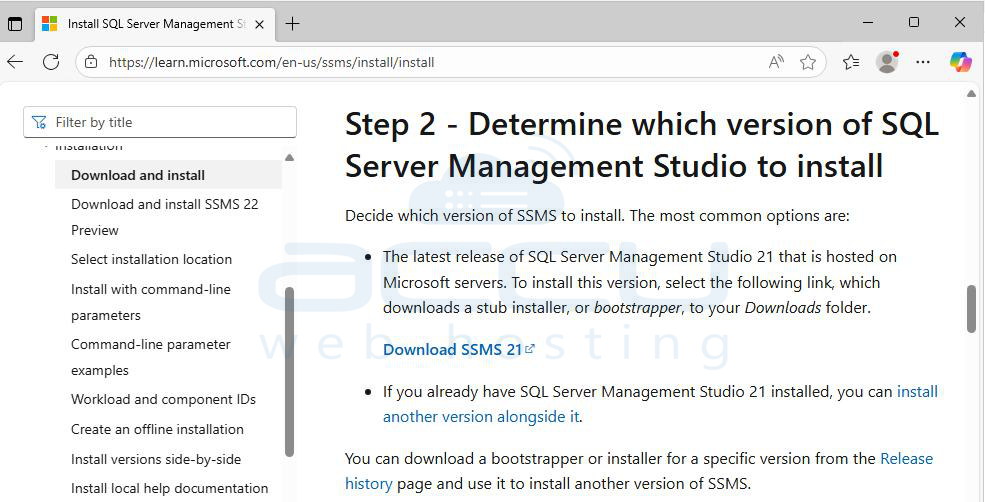
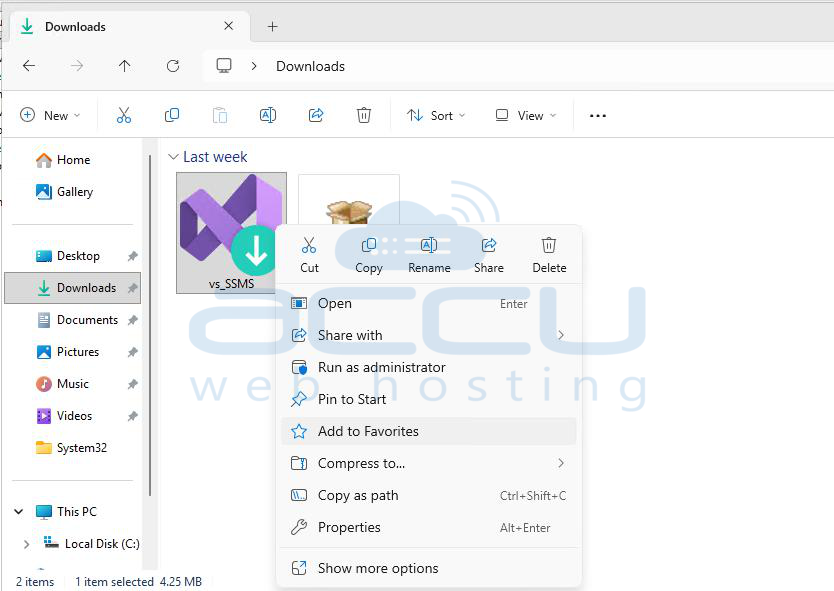
Run the installer (SSMS-Setup-ENU.exe) as Administrator and click Install to begin the setup.
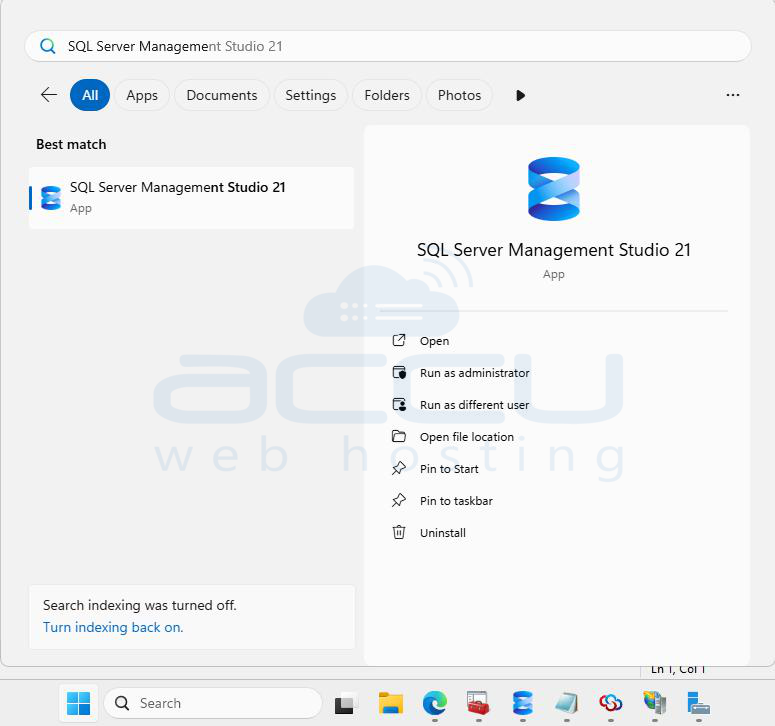
After installation, launch SQL Server Management Studio from the Start menu.
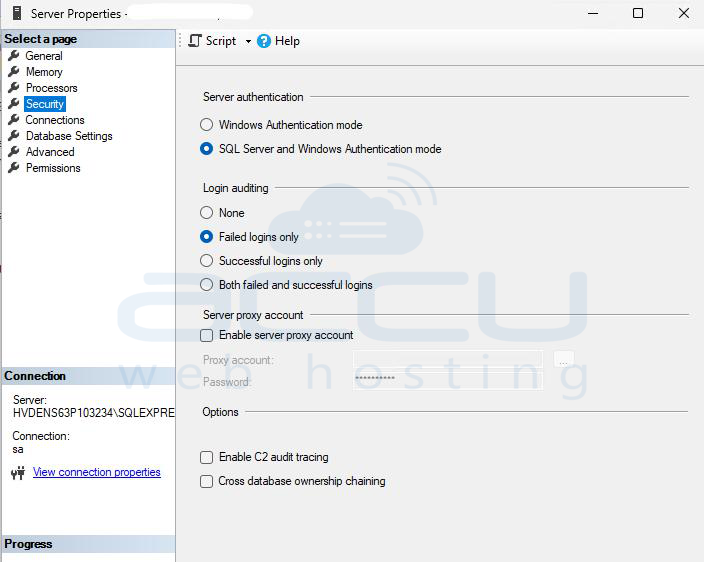
Step 16: Verify SQL Server Authentication. In SQL Server Management Studio (SSMS), connect to the local server. Right-click the server name, select Properties, go to the Security tab, and ensure SQL Server and Windows Authentication mode is enabled.
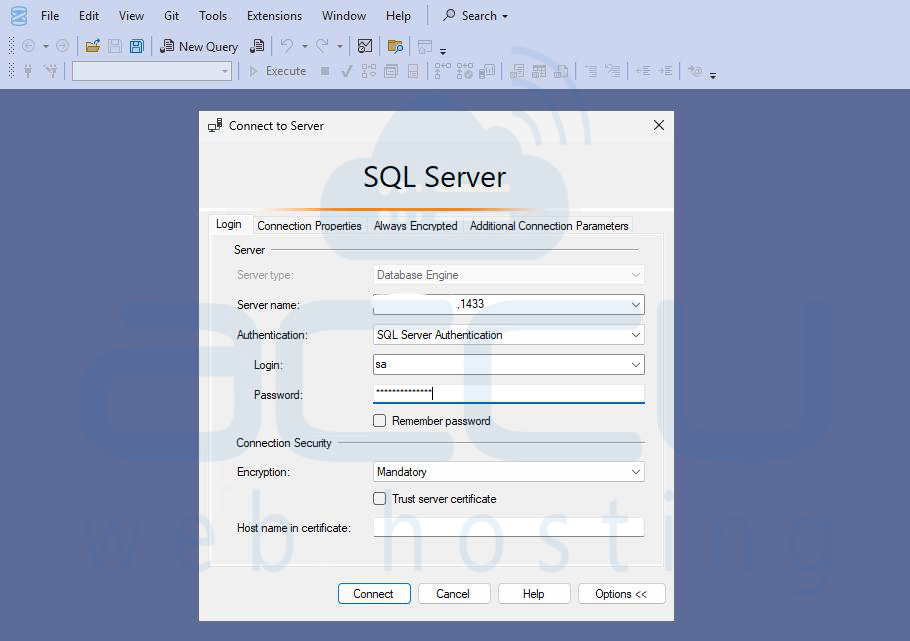
Step 17: Verify Remote connection from a client computer by opening SQL Server Management Studio (SSMS).
Use the following connection details:
Server name: <ServerIPAddress>,1433
Authentication: SQL Server Authentication
Enter valid login credentials and confirm the connection is successful.
Step 18: Run a simple query (e.g., SELECT @@SERVERNAME;) to confirm connectivity and access.
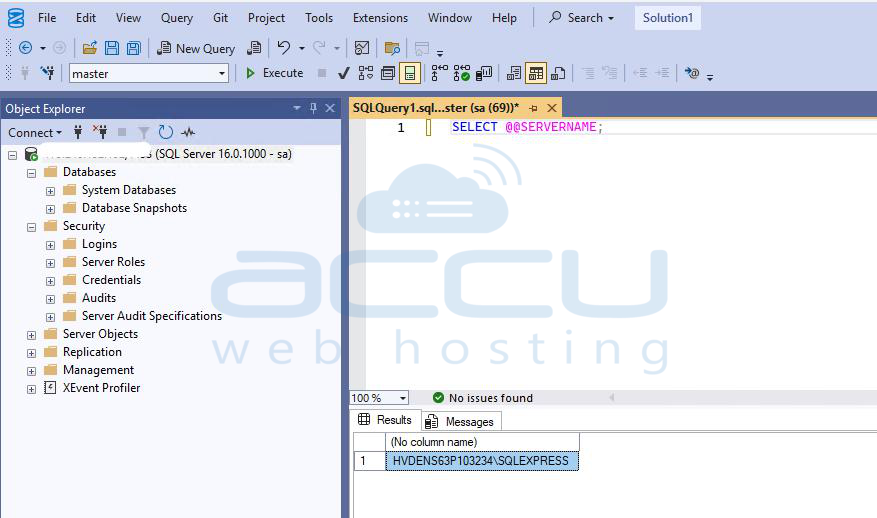
This process ensures that the SQL Server can accept and respond to remote client connections properly. You have successfully installed SQL Server 2022 Express Edition. Your SQL Server instance is now ready for use.
Conclusion
Installing SQL Server 2022 Express Edition on Windows Server 2025 is a manageable and straightforward process when you follow proper planning, verify prerequisites, configure carefully, and apply good operating practices. Although Express carries limitations, it still provides a full-featured database engine suitable for many scenarios. You can start creating databases, managing users, and running queries using SQL Server Management Studio.


