

Photoprism is a powerful AI-driven photo management app that helps you organize, browse, and share your photo collection. It runs efficiently on Linux servers using Docker and Docker Compose, making it easy to deploy on both Ubuntu and AlmaLinux.
This guide walks you through installing PhotoPrism on Ubuntu or AlmaLinux, step by step.
Prerequisites
Before beginning the installation, make sure you have:
- A server running Ubuntu 24.04 LTS, AlmaLinux 9, or another Debian/RHEL-based distribution.
- A clean OS installation (recommended) to avoid conflicts.
- SSH access to your server (or terminal access if on a desktop).
- An active internet connection is required to fetch the required packages.
- A user account with sudo privileges (or root access).
Step 1: Update Your System
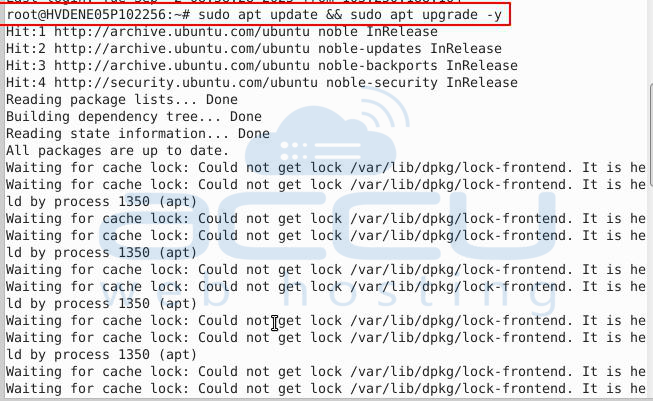
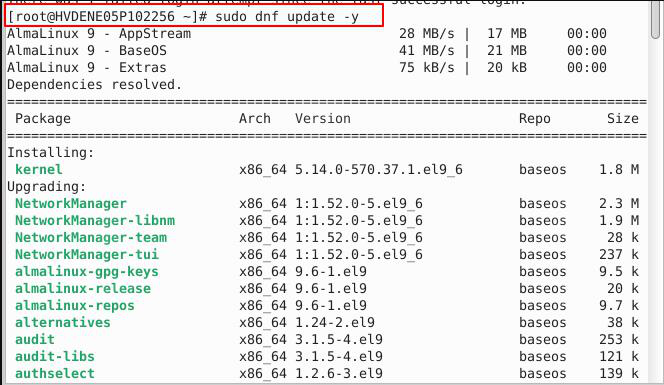
Always update your server before installing new software.
On Ubuntu:
On AlmaLinux:
Step 2: Install Docker
PhotoPrism runs inside Docker containers, so we’ll install Docker first.
On Ubuntu:
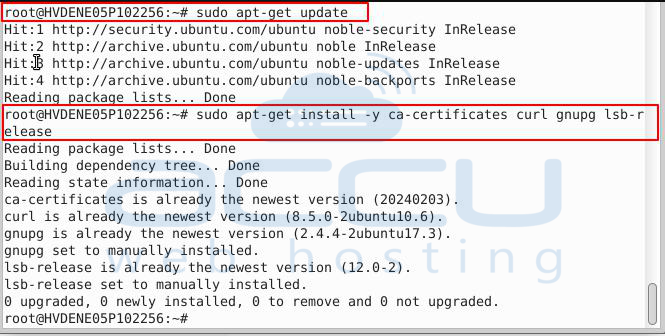
Update packages and install prerequisites:
sudo apt-get install -y ca-certificates curl gnupg lsb-release
Add Docker’s official GPG key:
curl -fsSL https://download.docker.com/linux/$(. /etc/os-release; echo "$ID")/gpg | sudo gpg --dearmor -o /etc/apt/keyrings/docker.gpg

Set up the repository:

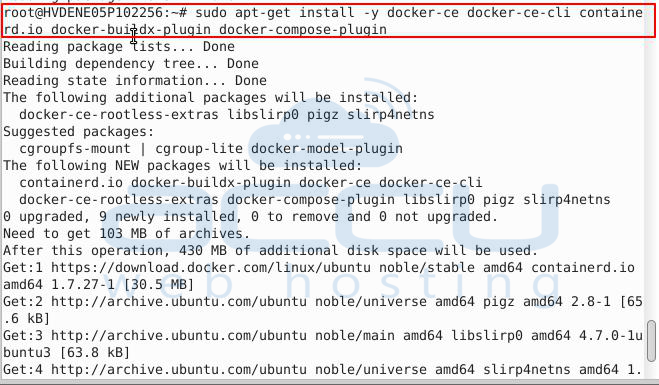
Update again and install Docker:
sudo apt-get install -y docker-ce docker-ce-cli containerd.io docker-buildx-plugin docker-compose-plugin
Verify installation:

On AlmaLinux:
sudo dnf install -y docker-ce docker-ce-cli containerd.io
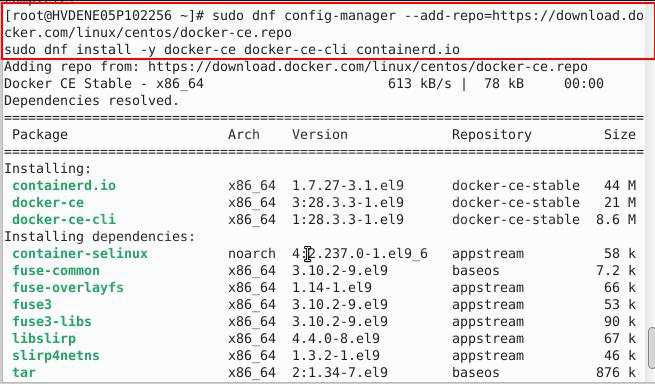
Enable and start the Docker service:
sudo systemctl enable --now docker
Check Docker version:

Step 3: Install Docker Compose
Same for Ubuntu and AlmaLinux-
Download Docker Compose binary:
-o /usr/local/bin/docker-compose
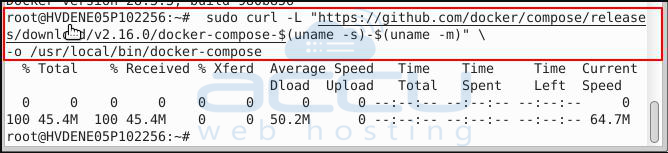
Apply executable permissions:
sudo chmod +x /usr/local/bin/docker-compose
Verify installation:
docker-compose --version
You should see something like:
Docker Compose version v2.16.0

Step 4: Create Directories & Configuration
Create a working directory for PhotoPrism:

Download the official Docker Compose file:
wget https://dl.photoprism.app/docker/compose.yaml
Open the file to edit the configuration:
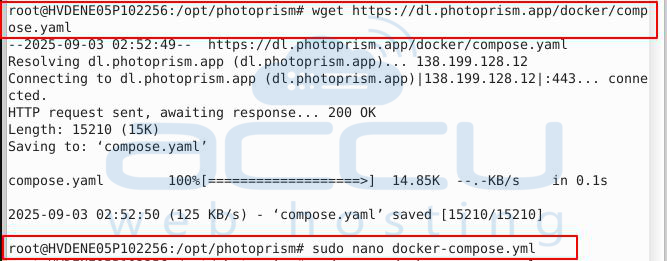
Step 5: Configure docker-compose.yml
A sample configuration:
version: '3.8'
services:
photoprism:
image: photoprism/photoprism: latest
restart: unless-stopped
ports:
- "2342:2342"
environment:
PHOTOPRISM_ADMIN_PASSWORD: "StrongAdminPassword"
PHOTOPRISM_ORIGINALS_PATH: "/photoprism/originals"
PHOTOPRISM_STORAGE_PATH: "/photoprism/storage"
volumes:
- /opt/photoprism/originals:/photoprism/originals
- /opt/photoprism/storage:/photoprism/storage
depends_on:
- mariadb
mariadb:
image: mariadb: latest
restart: unless-stopped
environment:
MYSQL_ROOT_PASSWORD: "StrongRootPassword"
MYSQL_DATABASE: "photoprism"
MYSQL_USER: "photoprism"
MYSQL_PASSWORD: "StrongDBPassword"
volumes:
- /opt/photoprism/database:/var/lib/mysql
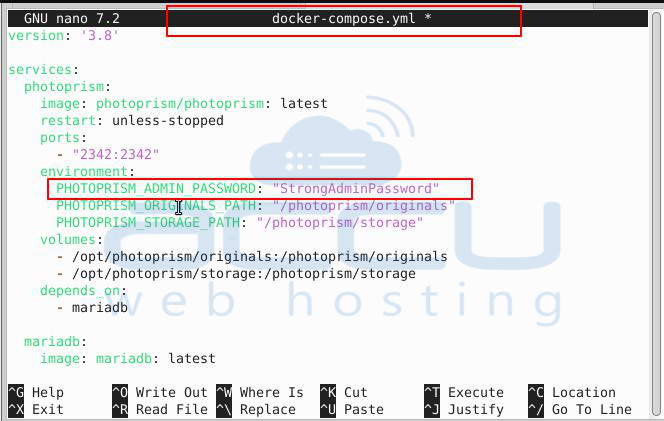
Replace the password values with your own secure credentials.
Step 6: Start PhotoPrism
Pull the latest container images:
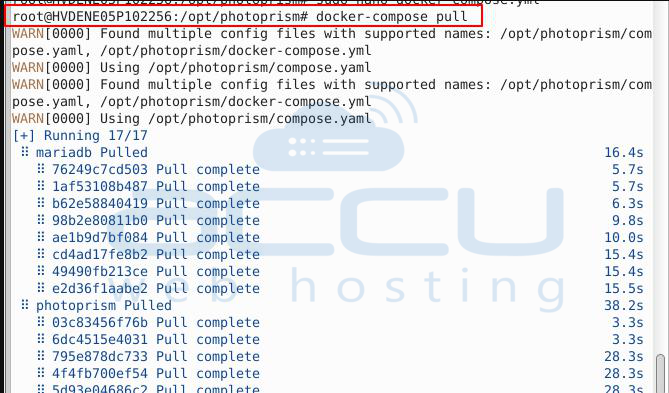
Start services in the background:

View logs:
docker-compose logs -f
Step 7: Access PhotoPrism
Open your web browser and visit:
http://<your-server-ip>:2342
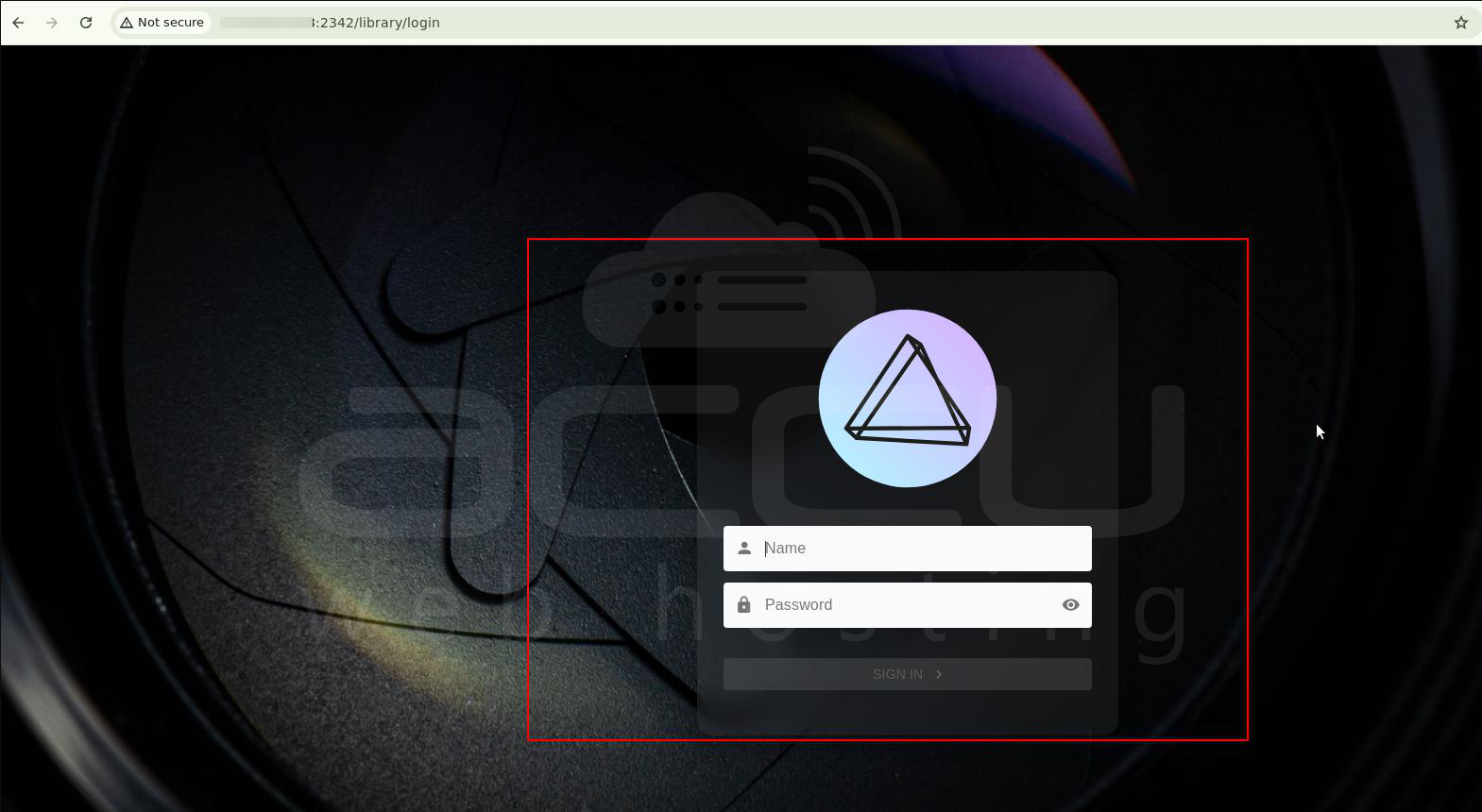
Log in with the admin username (admin) and your password in docker-compose.yml.
Conclusion
You’ve successfully installed PhotoPrism on Ubuntu 24.04 LTS or AlmaLinux 9 using Docker and Docker Compose. You can now upload, manage, and explore your photo collection with AI-powered search and tagging.


