
Knowing your Laravel version is essential for maintaining, updating, and debugging your application. Whether you're working on a legacy project or starting fresh, identifying the current version helps ensure compatibility with packages, documentation, and security patches. In this guide, you'll learn simple ways to check the Laravel version using built-in tools and commands.
Method 1: Check Laravel Version Using Artisan Commands
1. php artisan –version
Laravel’s built-in command-line tool, Artisan, makes it easy to find your project’s version without needing to dig into the code.
Step 1: Open Terminal
Use your system's terminal:
- Windows: Command Prompt or PowerShell
- macOS/Linux: Terminal app.
Step 2: Go to Your Laravel Project
Use cd to navigate to your Laravel project directory:
cd /path/to/your/laravel/project
Replace /path/to/your/laravel/project with your actual project path.
Step 3: Run the Version Command

This confirms your current Laravel version.
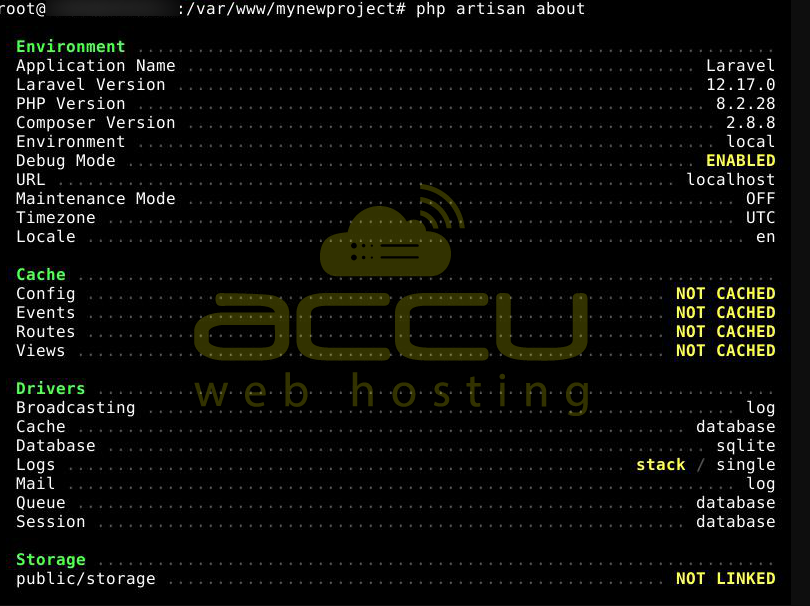
2. php artisan about
This command gives you more details about your Laravel environment.
You're already in the Laravel project root. Now run this command.
Method 2: Check Laravel Version Using Composer
Composer, the dependency manager for PHP projects, plays a key role in managing Laravel installations. It tracks all project dependencies, including the Laravel framework itself. With Composer, you can identify both:
- Required version: This is written in the composer.json file. It indicates the version range of Laravel that your project is intended to work with.
- Installed version: This is saved in the composer.lock file. It displays the exact Laravel version currently installed in your project.
1. Using the Composer Show Command
Step 1: Navigate to your Laravel project directory (if not already there):
cd /path/to/your/laravel/project
Replace /path/to/your/laravel/project with your actual project path.
Step 2: Run this command to see the installed Laravel framework version:
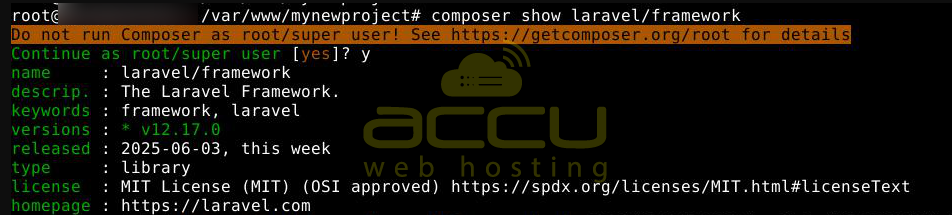
This confirms the exact version of Laravel that is installed.
2. Check composer.json and composer.lock Files
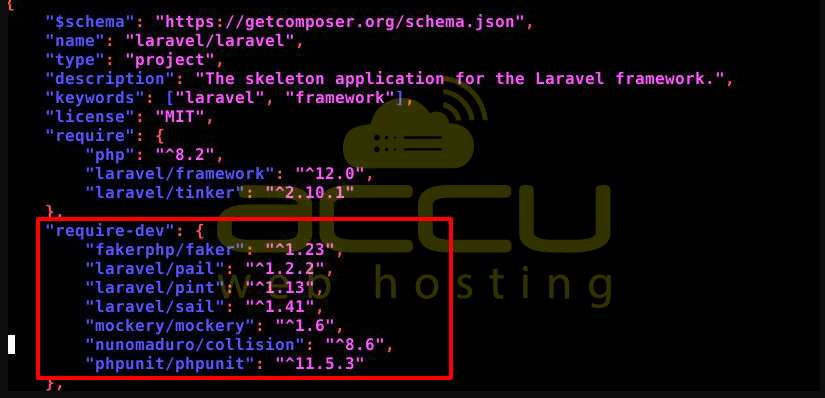
This file defines which Laravel version your project expects to use.
Using terminal command:
cat composer.json
Or open it with a text editor:
nano composer.json
Or use a code editor like VS Code:
code composer.json
What to look for:
Find the "require" section. You’ll see something like:
Open composer.lock
nano composer.lock
Or:
code composer.lock
What to look for:
Search inside the file for "name": "laravel/framework". Right below it, you’ll see the installed version:
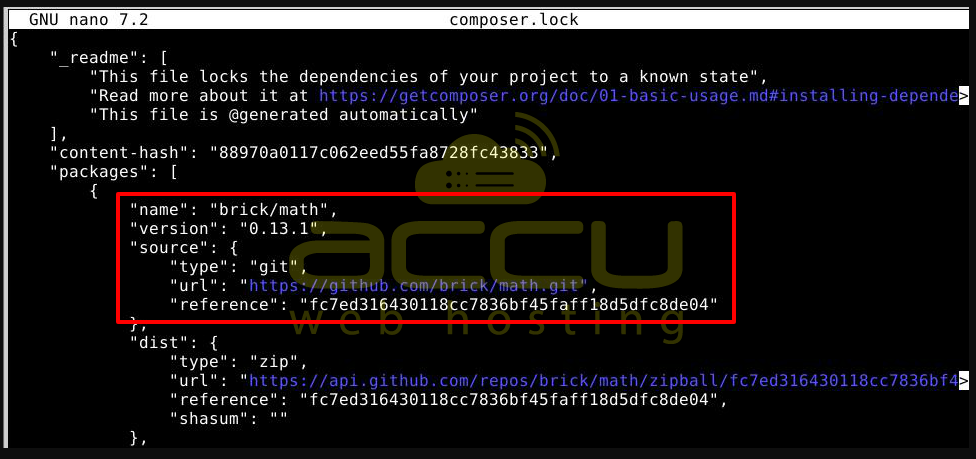
This method is helpful when you want to verify compatibility or ensure consistency across different environments.
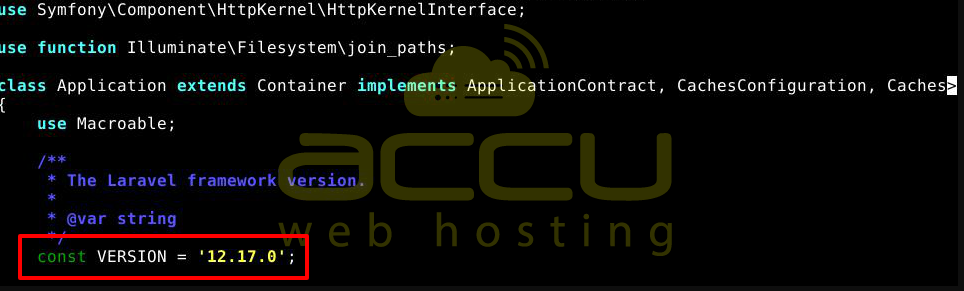
Method 3: Check Laravel Version Using Source Code
If you’re comfortable browsing through code files, you can directly find the exact Laravel version your project is using by checking Laravel’s core files.

This file is part of Laravel’s core and contains the version constant.
You can open it using:
nano vendor/laravel/framework/src/Illuminate/Foundation/Application.php
Or use a code editor like VS Code:
code vendor/laravel/framework/src/Illuminate/Foundation/Application.php
Locate the Version Constant
Knowing your Laravel version is crucial for managing your application effectively. Whether you prefer using Artisan commands, Composer tools, or inspecting source code, each method gives you a clear way to confirm the framework version you're working with. This helps ensure your app remains compatible with packages, follows proper documentation, and stays secure with the latest updates. Choose the method that suits your comfort level and development workflow best.


