
Sometimes you need to send visitors from one website to another. This is important when you are rebranding, merging websites, or changing your domain. To do this, you can write rules in the web.config file. Make sure to back up the web.config file and have the necessary permissions before making changes. This article will show you how to redirect a website using rewrite rules in web.config.
Steps to redirect a website to another website using the rewrite rule in the web.config file:
Step 1: Find the web.config file in your website's main folder. Generally, it is located in wwwroot or httpdocs folder.
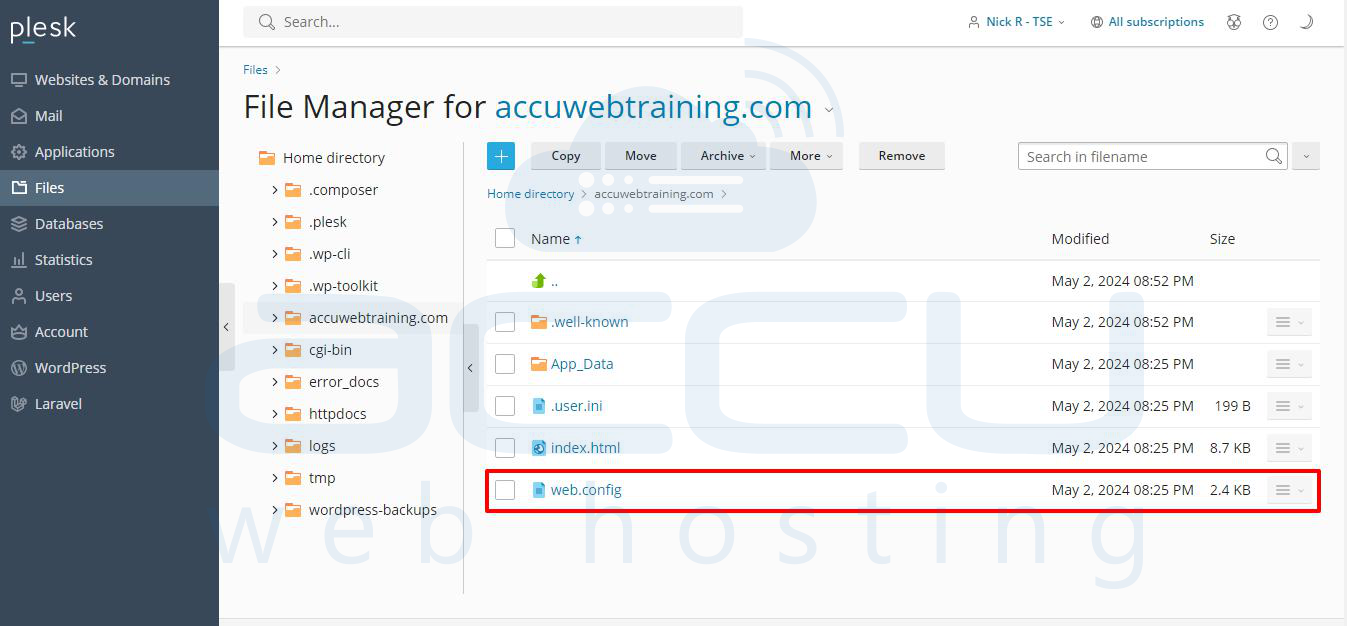
Step 2: Open the web.config file with a text or code editor.
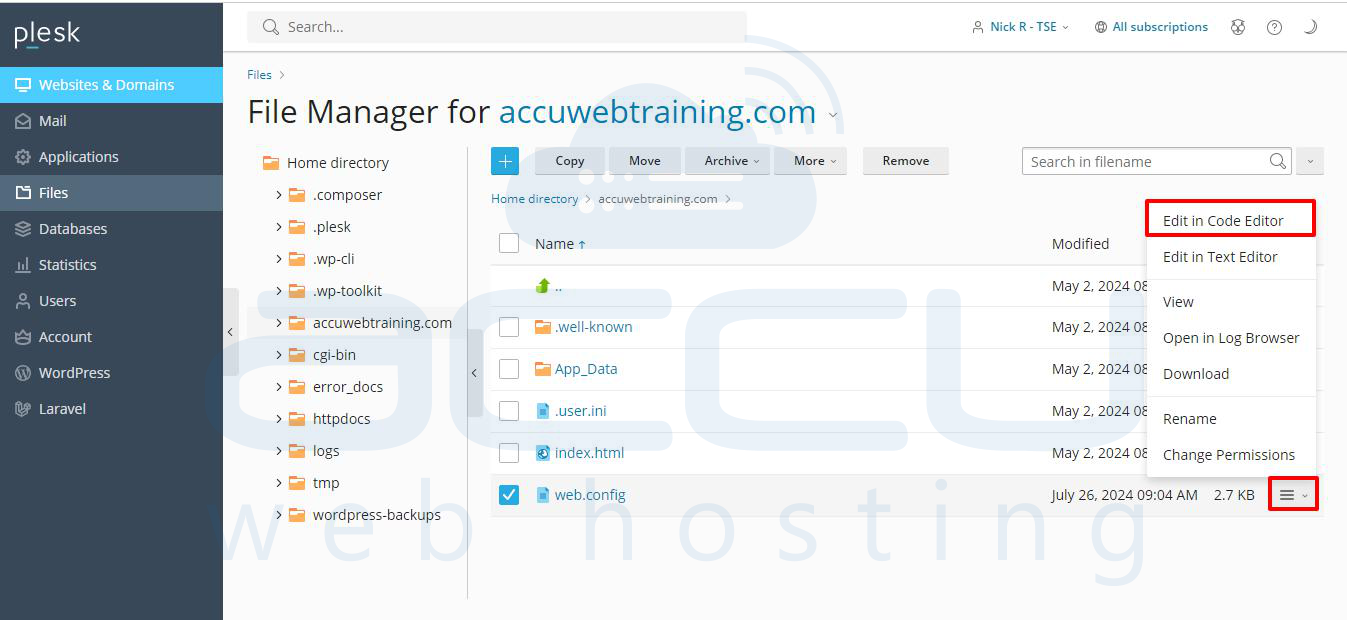
Step 3: Add this code within the <system.webServer> section to create the rewrite rule:
<rewrite>
<rules>
<rule name="RedirectRule" stopProcessing="true">
<match url=".*" />
<conditions>
<add input="{HTTP_HOST}" pattern="^www\.accuwebtraining\.com$" />
</conditions>
<action type="Redirect" url="https://www.demovpstest.com/{R:0}" redirectType="Permanent" />
</rule>
</rules>
</rewrite>
Note: Replace "www.accuwebtraining.com" with your current website's domain and "www.demovpstest.com" with the new website's domain. You can also change the redirect type to "Permanent", "Temporary", or "Found" based on your needs.
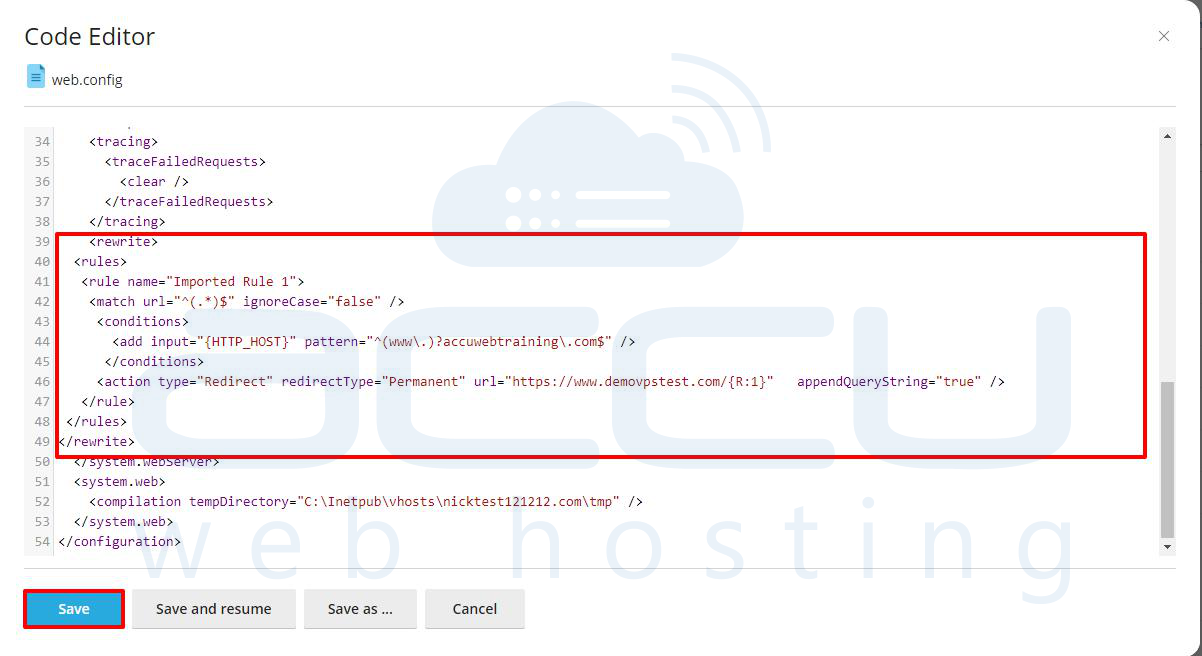
Step 4: Save the web.config file.
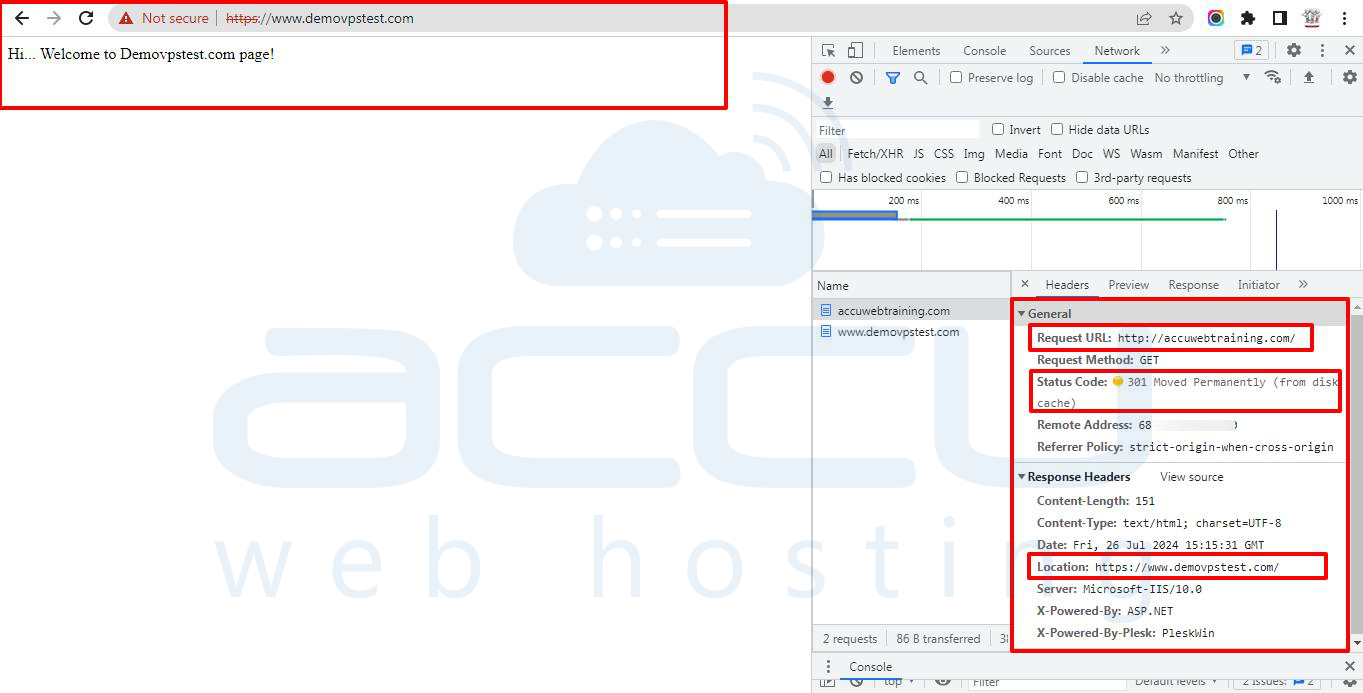
Step 5: Open a browser (such as Google Chrome or Firefox) on your local system and browse your old website. It will be redirected to the new website. In our case, you can see that our website accuwebtraining.com is redirected to the new website www.demovpstest.com.
Conclusion:
Rewrite rules in the web.config file are an effective way to redirect a website in web development. By following the steps above, you can easily send your users to the new website. This article explained the steps needed to change the web.config file.


