
Introduction:
Explore the essential distinctions between the cp and mv commands for efficient file management in Linux. Delve into their specific functionalities, use cases, and impact on file organization. Whether you're a Linux novice or refining command-line skills, this guide empowers you with insights to make informed decisions in handling files.
A fundamental and essential task within the Linux computing environment is file copying. The primary tool employed for this purpose is the "cp" command.
cp command
The cp command is employed for copying directories and files. This command encompasses three main operation modes, distinguished by the argument types provided to the program:
- Copying a file to other files
- Copying multiple files to any directory
- Duplicating entire directories to other directories
Syntax:
Copying a file using the cp command follows the basic syntax:
cp source_file destination
The command generates a duplicate of the source_file at the specified destination. When the destination is a directory, the file is duplicated into that specific directory.
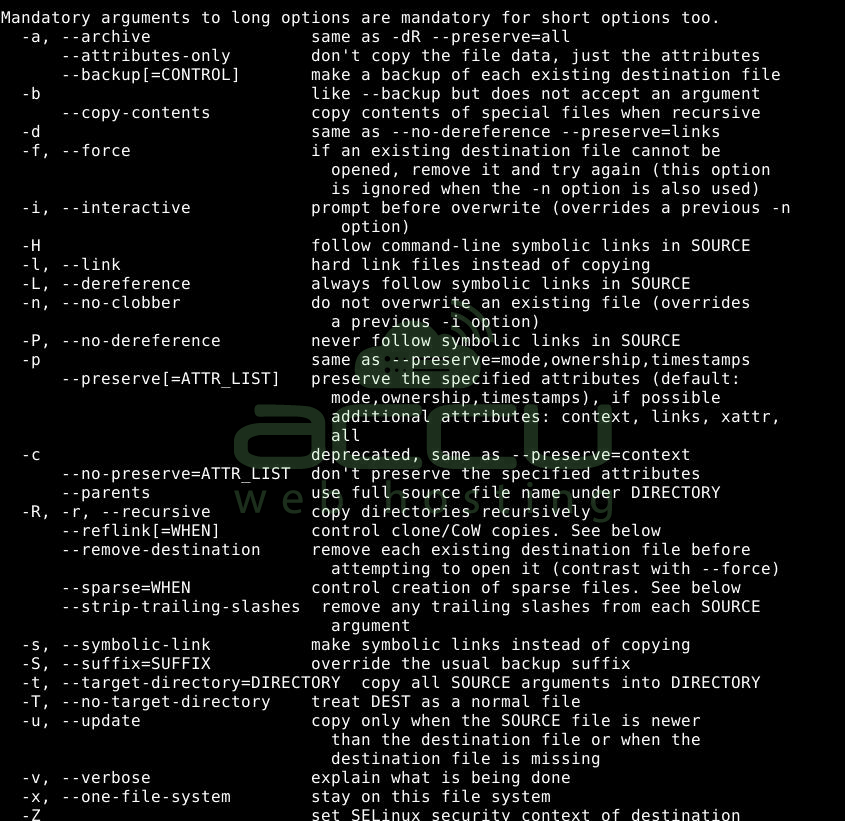
Please refer to this guide to understand how to use the cp command.
mv command
The mv command in Linux is a versatile tool, much like a superhero, equipped to handle various tasks involving your files and folders. Picture it as a digital moving truck, aiding you in rearranging items within your computer. Whether you're organizing folders, renaming files, or relocating them, mv is the trusted companion. It's an essential tool that every Linux user should be familiar with. In this article, we'll explore various applications of the mv command, providing step-by-step examples for easy understanding. Buckle up, and let's uncover the many tricks the mv command has at its disposal!
Two Primary Functions of the mv Command:
- Renaming a file or directory.
- Moving a file or directory to another location.
Syntax for the mv Command in Linux:
mv [options(s)] [source_file_name(s)] [Destination_file_name]
Here,
- source_file_name(s): Represents the file name or files intended for renaming or moving.
- Destination_file_name: Denotes either the name of the new location or the name of the file after the operation.
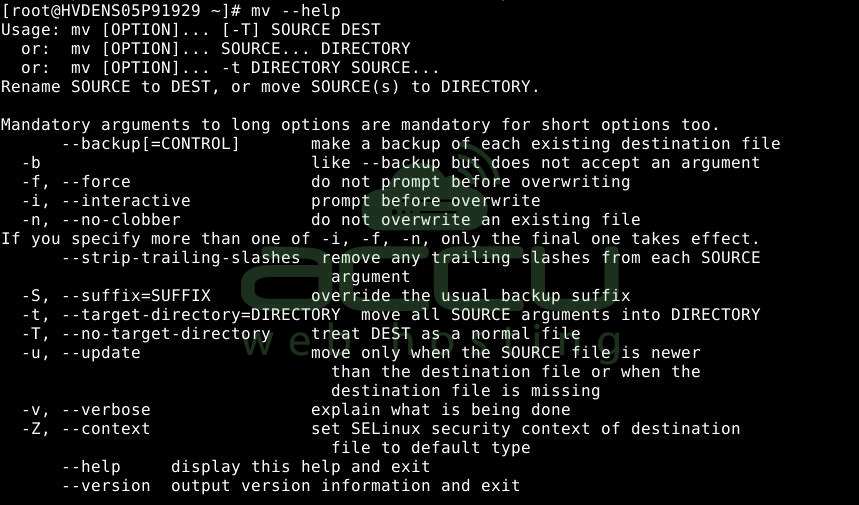
If you want to learn how to use the mv command, kindly refer to this article.
Key Distinctions:
- The primary difference lies in their function: cp duplicates files, whereas mv relocates files.
- When employing cp, the original file stays in its initial location, and a duplicate is generated in the destination. In contrast, with mv, the file is transferred to the destination, and no copy remains in the original location.
- mv is frequently employed for renaming files. When the source and destination paths are identical, mv is a tool for renaming the file.
- By default, cp does not delete the source file, whereas mv does, given that it involves a move operation, not a copy.
- Both commands offer options that allow control over their behavior. For instance, possibilities like prompting before overwriting files (-i) or updating only if the source is newer (-u).
Always exercise caution, particularly with the mv command, as it directly influences the file's location, posing the risk of unintended consequences if not used carefully.
Conclusion!
In summary, distinguishing between the cp and mv commands is vital for effective file management in Linux.
While both serve unique purposes, understanding their specific functionalities ensures informed decision-making when handling files.
Whether duplicating files with cp or relocating them with mv, users can rapidly navigate Linux environments, optimizing their command-line skills for efficient file organization.


