
The cat command is a highly valuable Linux tool, deriving its name from "concatenate." It enables users to create, merge, or display files in the standard output screen, redirecting them to another file and providing many additional functionalities.
The Linux cat command is a component of the "GNU Core Utilities" (Coreutils), a collection of fundamental command-line tools. These Coreutils are "Free and Open Source Software" (FOSS) and are included in nearly all Linux distributions. Additionally, the Linux cat command is accessible under macOS and Windows when utilizing the "Windows Subsystem for Linux" (WSL/WSL2).
Command Syntax:
cat [options] [file(s)]
- cat: The name of the command.
- [options]: Represents different command-line options available for the command.
- [file(s)]: One or more file names to read. If no files are specified, the cat command reads from standard input.
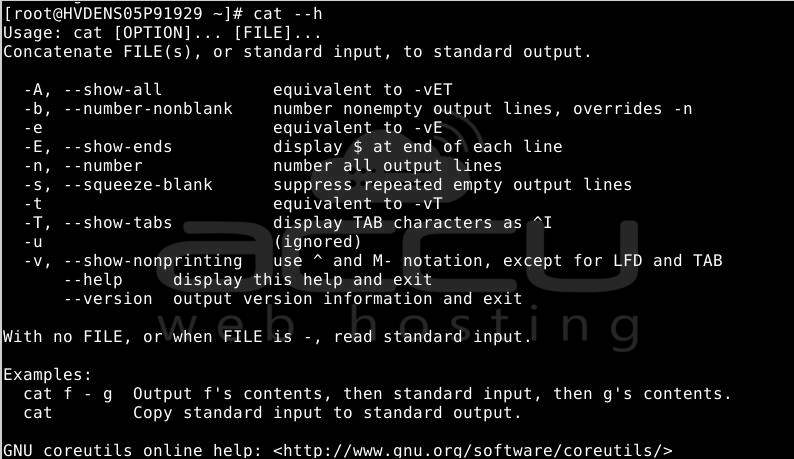
To discover the options available for the cat command, utilize the following "help" utility:
Caution: Avoid redirecting output to one of the input files using the ">" (greater than) symbol. This action results in losing the original data in the input file, as the shell truncates the file before the cat command can read it.
Use Of cat Command:
The practical application of the Linux cat command is restrained, adhering to the UNIX philosophy of "do one thing and do it well." Its primary utility emerges when combined with other commands, often involving standard input and output redirections. Notably, pipes and redirects, enabled by the shell, play an essential role in improving the functionality of various commands.
|
Redirection |
Symbol |
Use |
Explanation |
|
Input redirect |
< |
cmd < data |
Input to command cmd read from file data |
|
Output redirect |
> |
cmd > data |
Write the output of the cmd command to the data file; if necessary, the existing file will be overwritten. |
|
Output redirect |
>> |
cmd >> data |
Write the output of the cmd command to the data file; if necessary, the existing file will be extended. |
Explore some commonly used examples of the cat command in Linux.
Example 1: Create a file using the cat command.
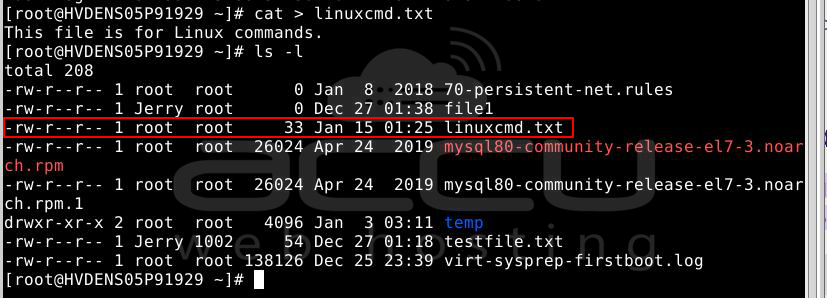
With the cat command, you can efficiently create a file and insert text into it. Utilize the > redirect operator to direct the text into the file.
cat > filename.txt
The file has been created, and you can add text. To input multiple lines of text, press Enter at the end of each line. When finished, press CTRL+D to exit the file.
To confirm that the file has been created with the above command, use the following ls command in the Terminal:
ls -l
Example 2: View the Contents of All Files.
The typical use of the cat command is to display the contents of a file. To show the file contents in the Terminal, type "cat" followed by the filename, as shown below:
cat [filename]

To view the contents of all files in the current directory, use the wildcard character along with the cat command as below:
cat *
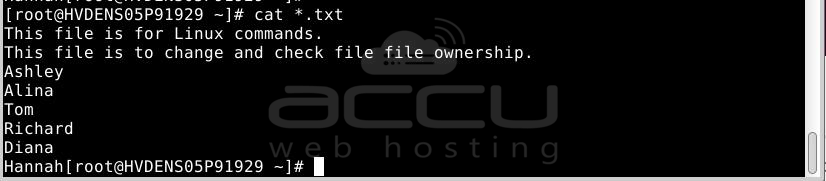
To view only the contents of text files in a directory, use the following command:
cat *.txt
Example 3: Displaying Multiple Files
Combine & display the contents of multiple files simultaneously in the Terminal using the cat command. To display multiple files, use the following syntax:
cat linuxcmd.txt userlist.txt.

Example 4: Copy the Output of One File to Another
It can also be used to copy the output of one file to another. If the target file is not found, it creates it; otherwise, it overwrites the existing file.
cat [source_file] > [destination_file]
This is to copy the output of a Linux command to another file named file_backup, as demonstrated below:
cat linuxcmd.txt > file_backup
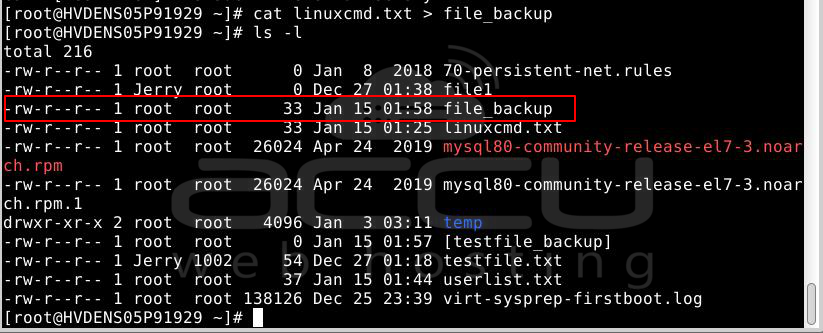
This command first creates the file_backup file and then copies the contents of linuxcmd.txt to it.
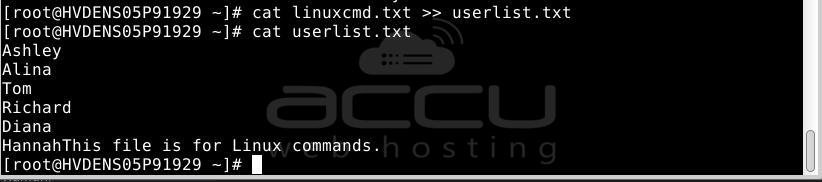
Example 5: Append the Output of a File to Another File
Instead of replacing the content of a specified file in the previous example, you can also instruct the cat command to append the output:
cat [source_file] >> [destination_file]
It generates the destination file if it doesn't exist; otherwise, it appends the output.
Example 6:Concatenate the Files/ Copy Multiple Files to Another Text File.
This command also allows concatenation of multiple files into a single one. It operates similarly to the redirection feature mentioned earlier but with multiple source files.
cat source1.txt source2.txt > destination.txt
As an example, suppose we wish to concatenate the outputs of linuxcmd.txt, file1, and userlist.txt into another file named concatenate.txt:
cat linuxcmd.txt file1 > concatenate.txt

Like before, the provided command will generate the destination file if it doesn't exist or overwrite an existing one with the same name.
Example 7: Show Line Numbers in a File
To show line numbers for the output of a file, use the -n flag as follows:
cat -n [filename]
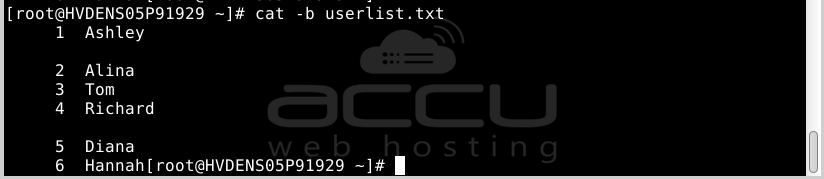
For example, when viewing a file containing a list of items, you can utilize the -n flag to showcase those items with line numbers. It's worth noting that empty lines will also be numbered.
cat -n userlist.txt

If you prefer not to number the empty lines, employ the -b flag in the following manner:
cat -b userlist.txt
Example 8: Eliminate Consecutive Empty Lines
Occasionally, when a file consists of consecutive empty lines that you prefer not to print individually, the cat command provides a way to merge these consecutive empty lines and display them as a single empty line:
Use the following command syntax to eliminate duplicated empty lines:
cat -s [filename]
For example, consider the following file that contains consecutive empty lines:
cat -s userlist.txt

Example 9: Display Non-Printable Characters
To display all non-printable characters, utilize the -v option along with the cat command, as demonstrated in the following example:
cat -v filename.txt
To show only tab characters, employ -T:
cat -T filename.txt
Tab characters will be shown as ^I.

Example 10: Display a File in Reverse Order
To observe the contents of a file in reverse order, beginning with the last line and concluding with the first, utilize the tac command, essentially functioning as 'cat' in reverse:
tac filename.txt

Conclusion!
In conclusion, the cat command is a versatile utility in Unix-like operating systems, primarily employed for concatenating and displaying the contents of files.
Its straightforward syntax and various options make it a powerful tool for file manipulation. The examples provided illustrate how the cat command can be utilized for tasks such as displaying, combining, and numbering lines and handling non-printable characters.
The cat command remains a fundamental component of command-line operations for basic file viewing or more advanced operations, offering efficiency and flexibility in handling file content.


