
Introduction:
The cp command in Linux is a fundamental utility for copying files and directories within the filesystem. Essential for managing files, understanding their options and examples enhances efficiency. This article explores various cp command uses, catering to beginners and experienced users and providing insights into its versatile functionality.
cp Command Syntax:
To copy a file, use the cp command. Following is the basic syntax:
$ cp [OPTIONS] <SOURCE> <DEST>
$ cp [OPTIONS] <SOURCE-1> <SOURCE-2> ... <DIRECTORY>
In the given syntax, square brackets ([]) denote optional arguments, while angular brackets (<>) indicate mandatory arguments.
This command generates a copy of the source_file at the designated destination. If the specified destination is a directory, the file is copied into that directory.
Important Note:To copy files and directories, you must have at least read permissions on the source file and write permission on the destination directory. Otherwise, you will get a permission error.
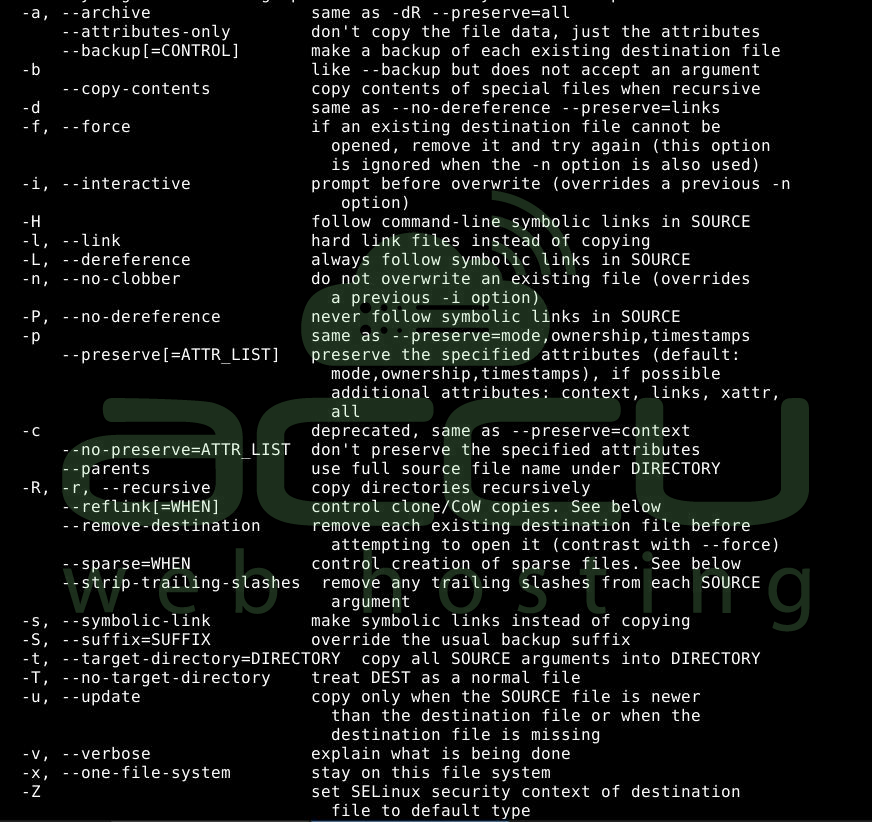
Options for cp Command:
Example 1: Copy a File in Linux
Copying a file to the present directory is one of the fundamental uses of the cp command. Users often perform this operation to create backups of crucial configurations.
For example, creating a backup copy of the /etc/ssh/sshd_config file is common before updating the SSH configuration.
Create a duplicate of the file using the following command:
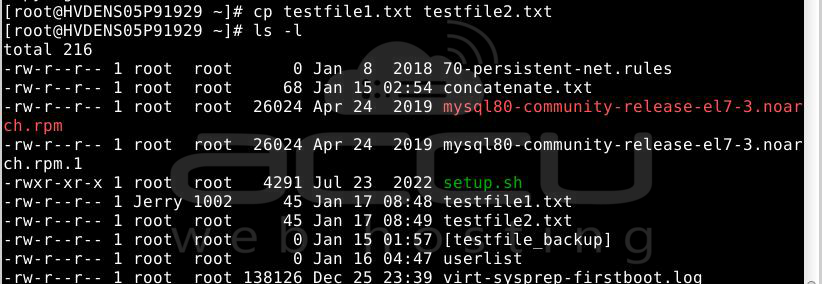
cp testfile1.txt testfile2.txt
Example 2: Display Copy Command Progress
In the earlier example, we employed the ls command to check the success of the file copy operation. However, adding another command solely for result verification might not be efficient.
In such situations, you can activate the verbose mode using the -v option, offering diagnostic information for each processed file.
Create a duplicate of the file-1.txt file using the following command:
cp -v file-1.txt file-3.txt

In the displayed output, the arrow indicates the file being copied. The left-side argument is the source file, while the right-side argument is the destination file.
Example 3: Copy Multiple Files to the Directory
Until now, we have only dealt with a single file and the current working directory. However, in real production environments, dealing with many files is common. One of the typical use cases in such scenarios is copying multiple files into a single directory.
Of course, we can execute the cp command multiple times to achieve this, but there may be more efficient approaches. We can employ an alternative syntax of the cp command to perform such an operation effectively.
Let's copy all the three files into the testdir directory using a single command:
cp -v testfile1.txt testfile2.txt testfile3.txt testdir

The output indicates that all files have been successfully copied to the testdir directory. Additionally, it's important to note that the directory must already exist for this alternative syntax to work and should be the command's last argument.
Example 4: Copying Files Between Two Directories in Linux
When the cp command includes two directory names, it copies all files from the source directory to the destination directory. The -R option is commonly employed to enable recursive copying for directories.
cp -R testdir dir2

The existence of Dest_directory determines the behaviors do not exist, and cp will create it and recursively copy the content of testdir. If dir2 already exists, the copy of testdir becomes a sub-directory under Dest_directory.
Example 5: Avoid Overwriting the File
As a default, the cp command replaces the destination file, indicating it will overwrite the file if a file with the same name exists at the destination. Nevertheless, we can override this default behavior by utilizing the -n option.
Let's attempt to overwrite the existing file:
cp -n -v testfile1.txt testfile2.txt
In this example, we have utilized the -v option to demonstrate that the file-2.txt file has not been overwritten.
Example 6: Overwrite the File with Confirmation
The previous example taught us how to prevent overwriting the destination file. However, there are instances when we want to overwrite the file destination more safely.
In such scenarios, the -i command option can make the copy operation interactive. This option displays a warning message and awaits the user's confirmation before the file is overwritten.
Let's attempt to overwrite the existing file:
cp -i testfile1.txt testfile2.txt

As we can observe, the command is awaiting confirmation. Similar to other Linux commands, we can use 'y' to proceed or 'n' to abort the operation.
The default non-interactive behavior of the cp command is not very safe. The user may accidentally overwrite an essential configuration by mistake. Hence, some Linux distributions enforce the interactive behavior by default using the alias command:
alias cp='cp -i'
Example 7: How to Force Copy to Overwrite File
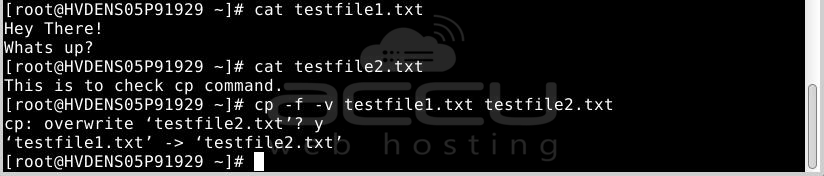
If the system encounters an issue opening the destination file for a writing operation, perhaps due to insufficient user permissions, employing the -f option with the cp command ensures that the destination file is first deleted. Subsequently, the content is copied from the source to the destination file.
cp -f -v testfile1.txt testfile2.txt
Example 8: Remove the Destination File Before Copying
Sometimes, there is a need to delete the destination file before executing the copy operation.
The --remove-destination option can be used to fulfill such a requirement.
cp --remove-destination -v testfile2.txt testfile3.txt

Example 9: How to Preserve the File Attributes While Copying
The option -p in the cp command preserves various attributes of each source file in the corresponding destination file, including the last data modification time, last access time, ownership (if permitted), and file permission bits.
Note: To preserve characteristics, you must be the system's root user; otherwise, characteristic changes may occur.
cp -p testfile2.txt testfile3.txt
Example 10: Copy Multiple Directories
Similar to files, you can copy multiple directories recursively using a single command. However, to achieve this, the destination directory must already exist, and it must be the last argument in the command. Let's understand this with an example.
Let's copy the testdir and dir2 directories into the newdir directory using the following command:
cp -r -v testdir dir2 newdir
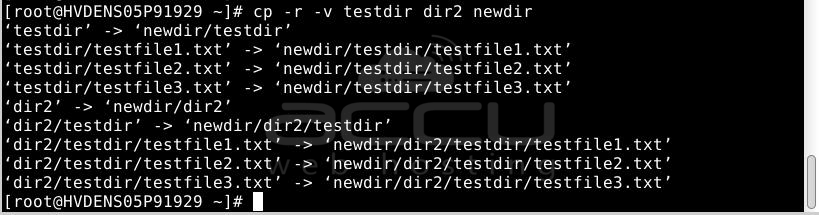
Similarly, we can utilize the -t command option to achieve the same result. This option enables us to specify the destination directory, allowing it to be used as the first argument as well:
cp -t newdir -r -v testdir dir2
Conclusion
The cp command is a fundamental tool for copying files and directories in Unix-like operating systems.
Its syntax requires at least two filenames as arguments (source and destination).
The command operates based on three principles: copying two filenames, copying one or more arguments, and copying two directory names.
Additionally, we explore the various options available when using the cp command.
A comprehensive understanding of the cp command is crucial for efficient file management in the Unix shell.


