
MailEnable log files are essential for monitoring and troubleshooting email server activities. However, over time, these log files can grow in size and consume valuable disk space.
In this tutorial, we will explore some effective methods to reduce the size of MailEnable log files without compromising critical information.
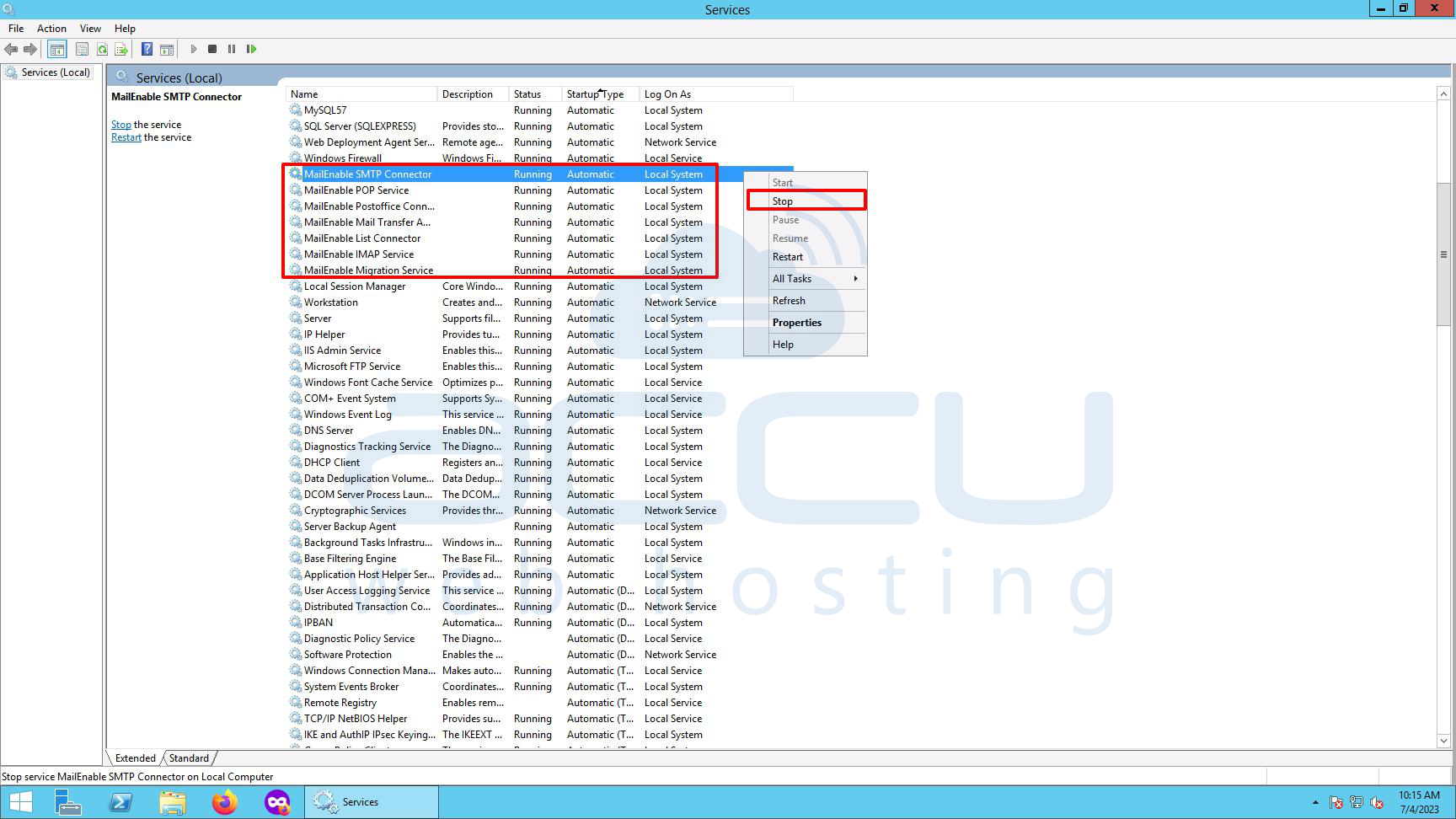
1. Stop MailEnable Services:
Before making any changes to the log files, ensure that the MailEnable services are stopped. This prevents any ongoing logging activities and ensures data integrity during the process.
2. Identify Log Files:
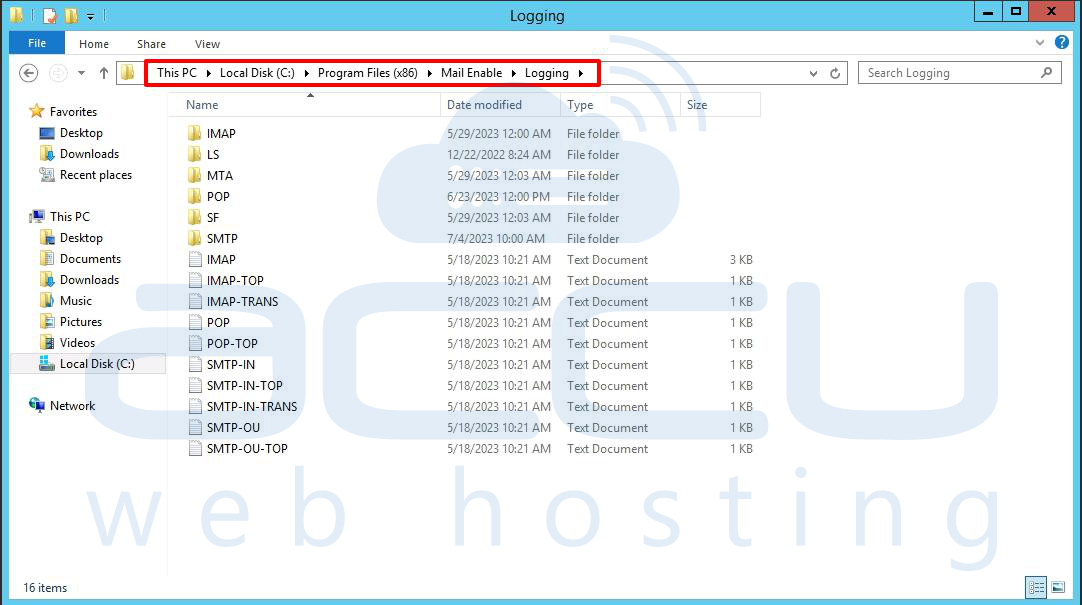
Locate the directory where MailEnable log files are stored, typically found at "C:\Program Files (x86)\Mail Enable\Logging". Identify the specific log files you want to reduce in size, such as SMTP Activity, POP Activity, or IMAP Activity logs.
3. Truncate Log Files:
To reduce log file size without losing important data, truncate the files by removing older entries. Open the log file using a text editor, and delete the content up to a certain point while preserving recent entries. Save the modified file, ensuring the original format and extension are maintained.
4. Compress Log Files:
If you want to retain the entire log history while reducing disk space usage, consider compressing the log files. You can follow the below steps to do the same.
Step 1: Select the log files you wish to compress.
Step 2: Right-click and go to Properties.
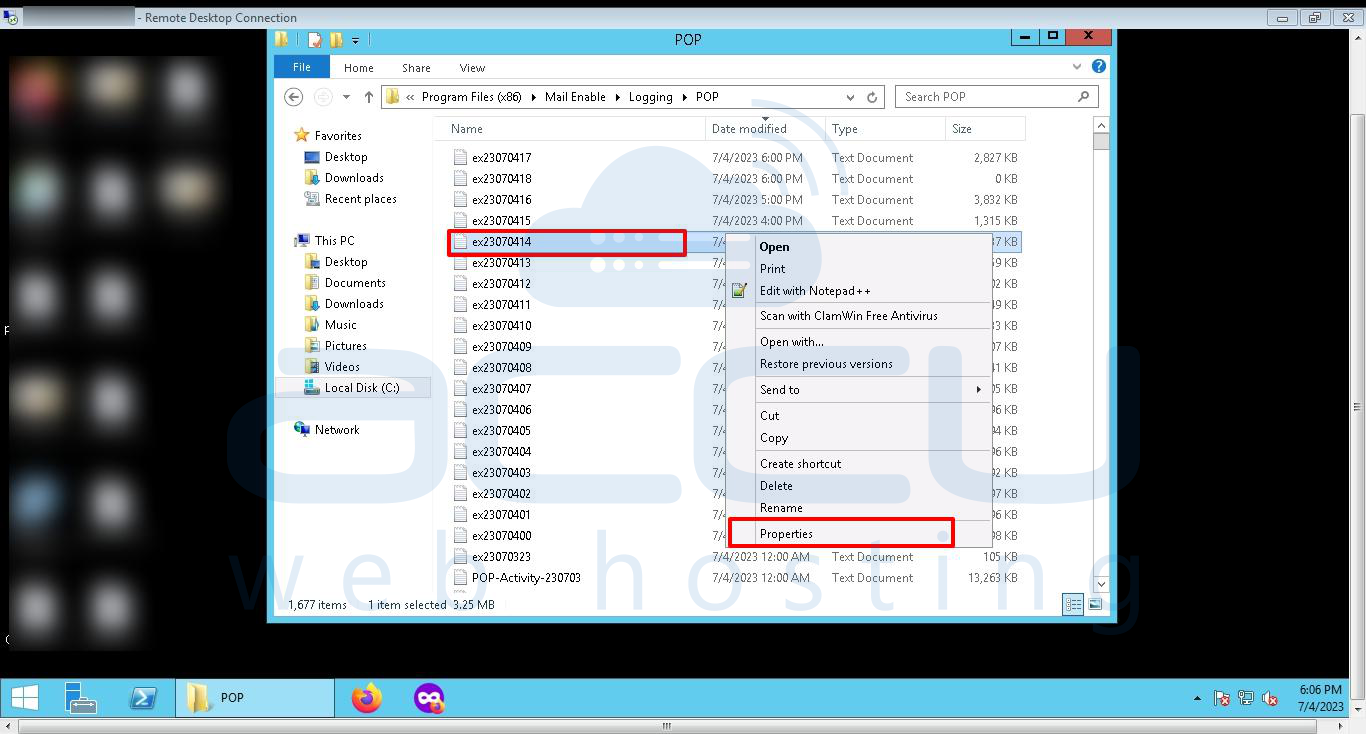
Step 3: Navigate to the Advanced option.
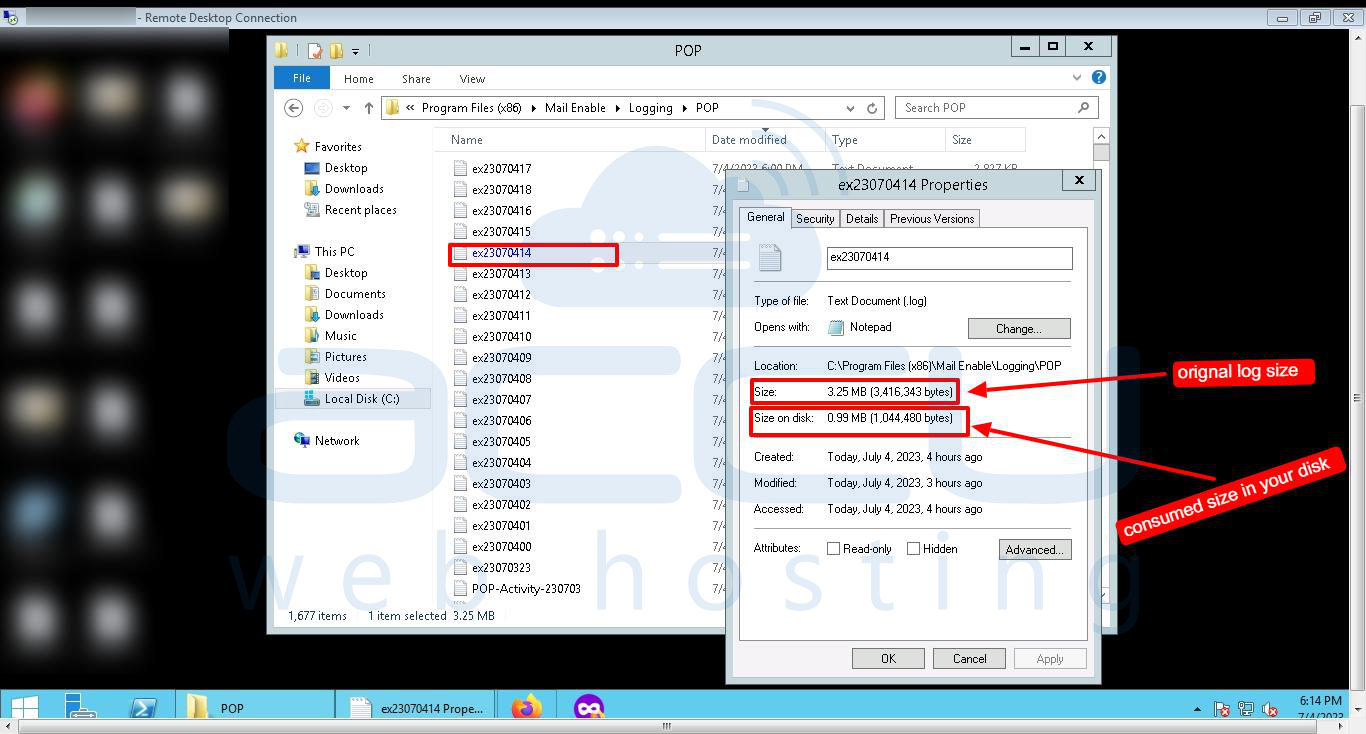
Step 4: Here, you will see the checkbox “Compress contents to save disk space” under Compress or Encrypt attributes section. Mark this checkbox.
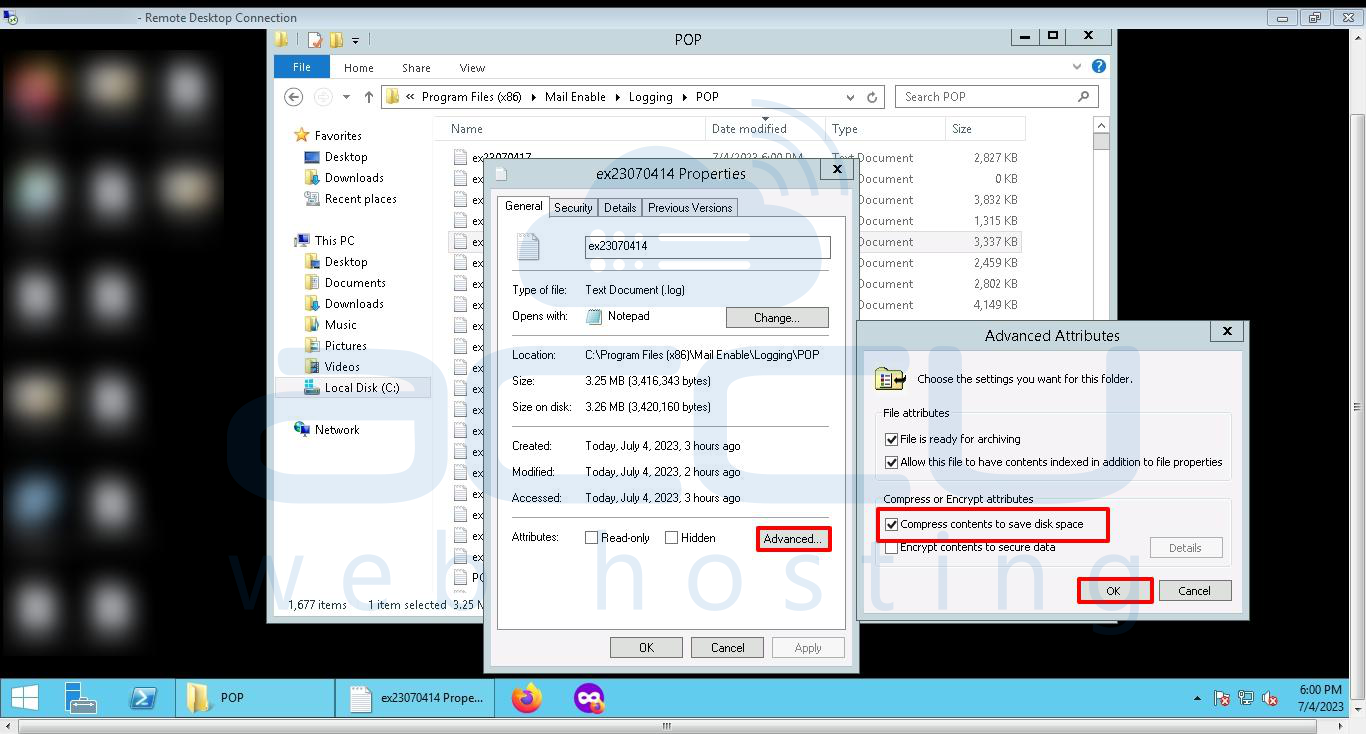
This will compress your log files and it will consume the very low disk space in your server. Please review the below screen capture for the same.
5. Automation and Log Rotation:
Implement automated log rotation to manage log file size effectively. Configure MailEnable to generate new log files periodically, such as daily or weekly, and store them in a separate directory. This practice prevents a single log file from growing excessively and facilitates easier log management.
6. Regular Log File Maintenance:
Institute a regular log file maintenance routine to review and manage log files. Schedule a task to check log file sizes and perform truncation or compression periodically. This proactive approach helps prevent log files from becoming unwieldy and ensures optimal system performance.
7. Backup and Archiving:
While reducing log file size is crucial, it's equally important to preserve log data for future analysis. Consider implementing a backup and archiving strategy that securely stores log files in a separate location or on a dedicated storage device. This allows easy access to historical logs while keeping them separate from the active server.
Conclusion:
Managing the size of MailEnable log files is essential for efficient server operation and resource optimization. Employing these techniques such as truncating log files, compressing archives, implementing log rotation, regular maintenance, and backup strategies, you can effectively reduce log file size without sacrificing critical information. Keeping log files at an optimal size ensures smoother operations and simplifies troubleshooting when needed.


