
The following are the steps to set up a web admin email account from MailEnable:
Step 1: Enable Web Administration for the Post Office
1. Log in to the MailEnable server.
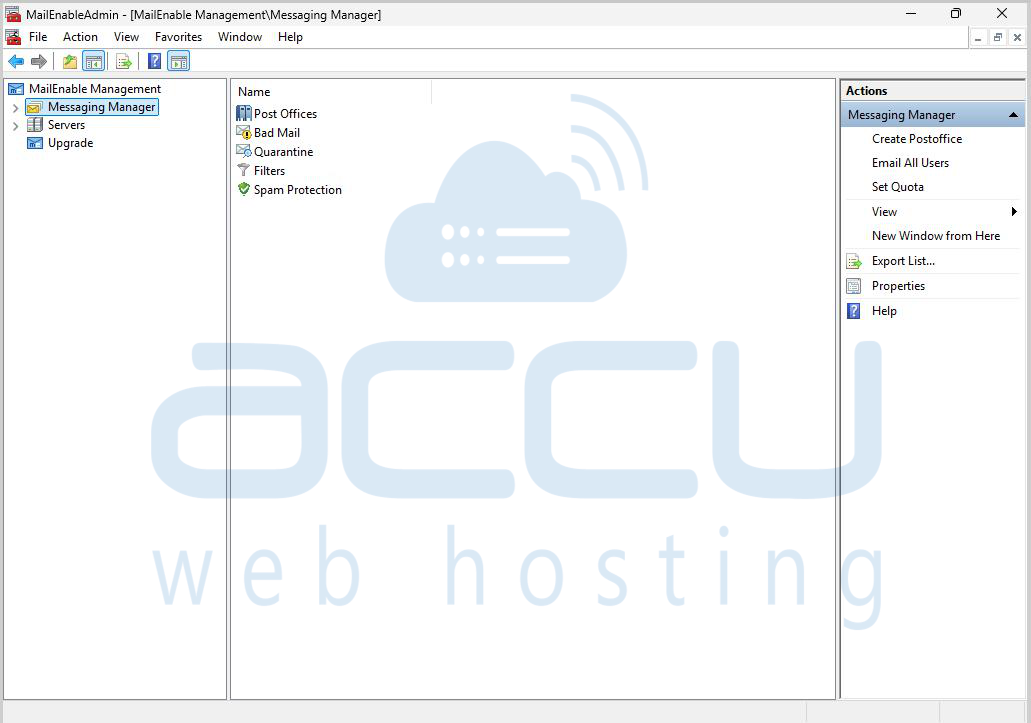
2. Open MailEnable Administrator.
3. Navigate to:
MailEnable Management → Messaging Manager → Post Offices
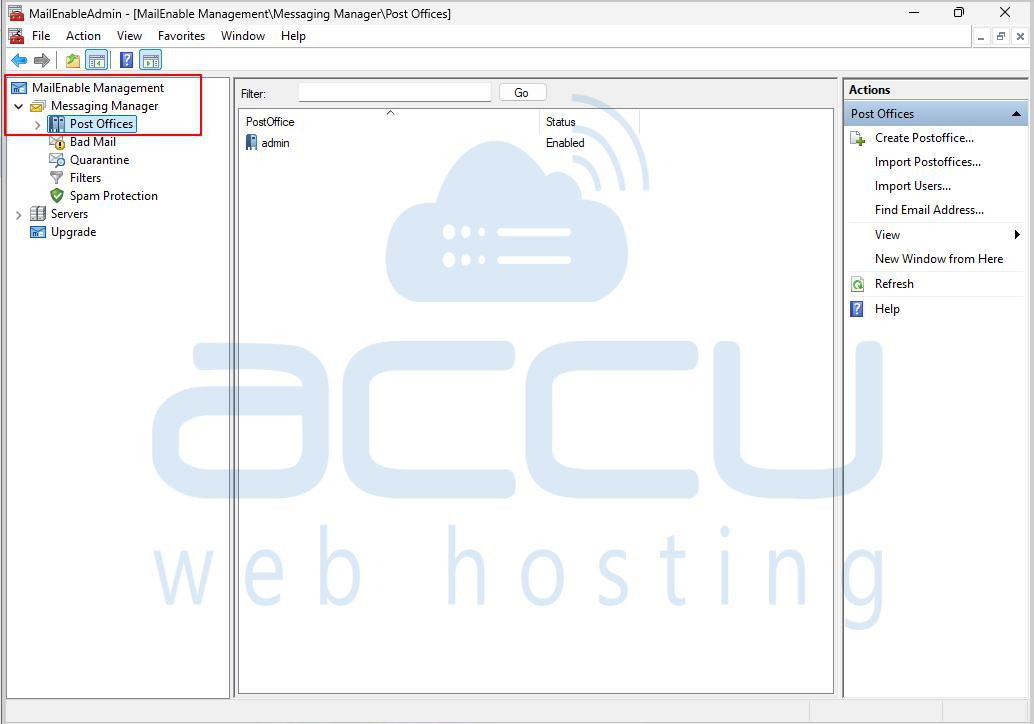
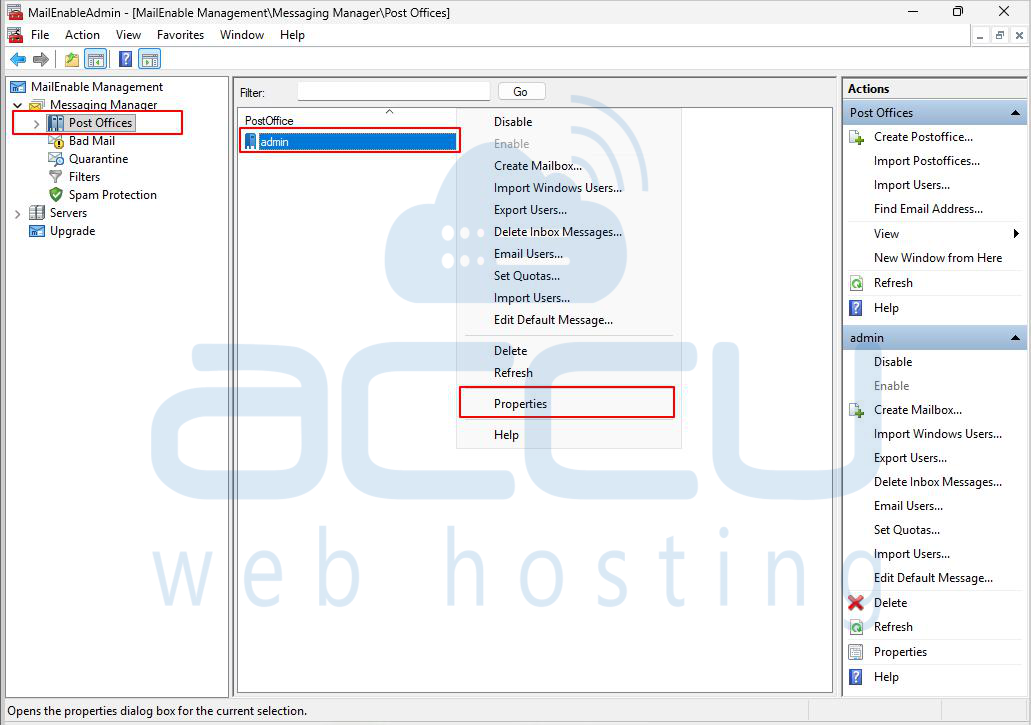
4. Right-click on the Post Office (for example: admin)
5. Click Properties
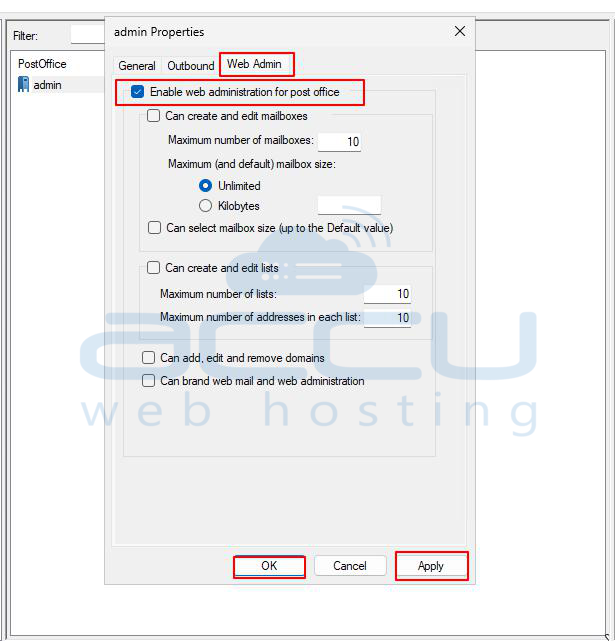
6. Go to the Web Admin tab
7. Select Enable web administration for this post office
8. Click Apply → OK
Step 2: Assign Admin rights to a mailbox
1. Expand the Post Office
2. Go to Mailboxes
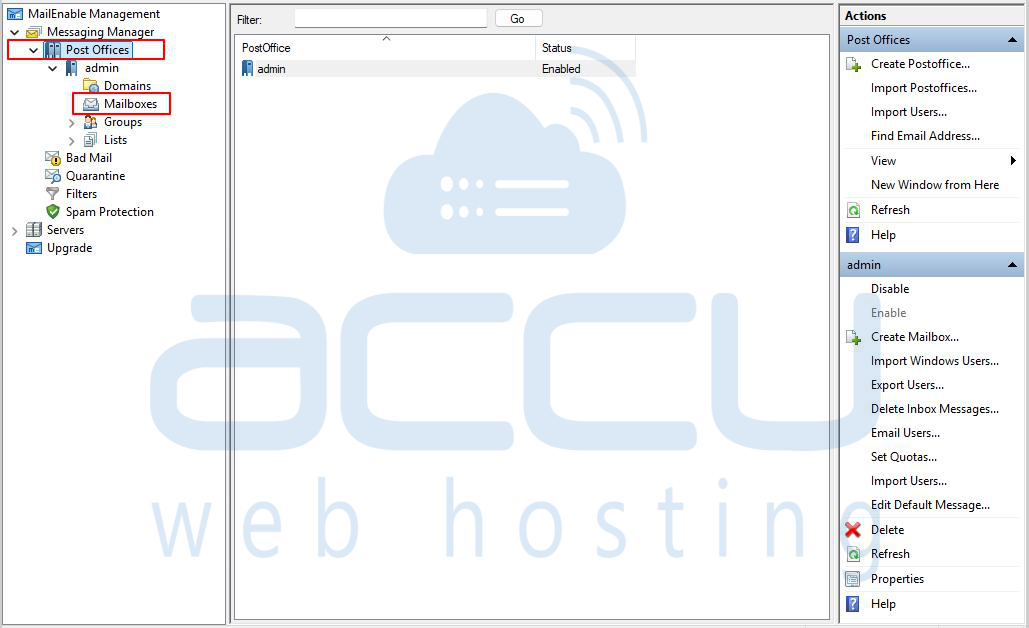
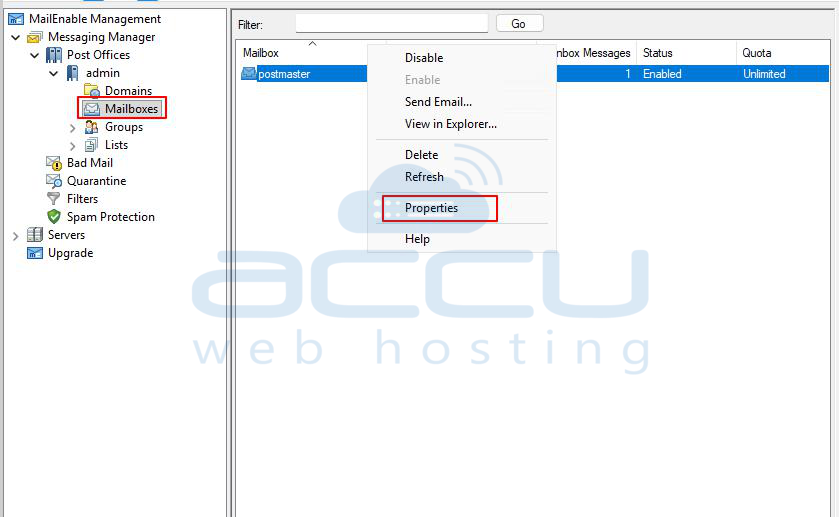
3. Right-click the mailbox you want to make an admin.
4. Click Properties
5. Go to the General tab
6. Change Mailbox Type from User to Admin
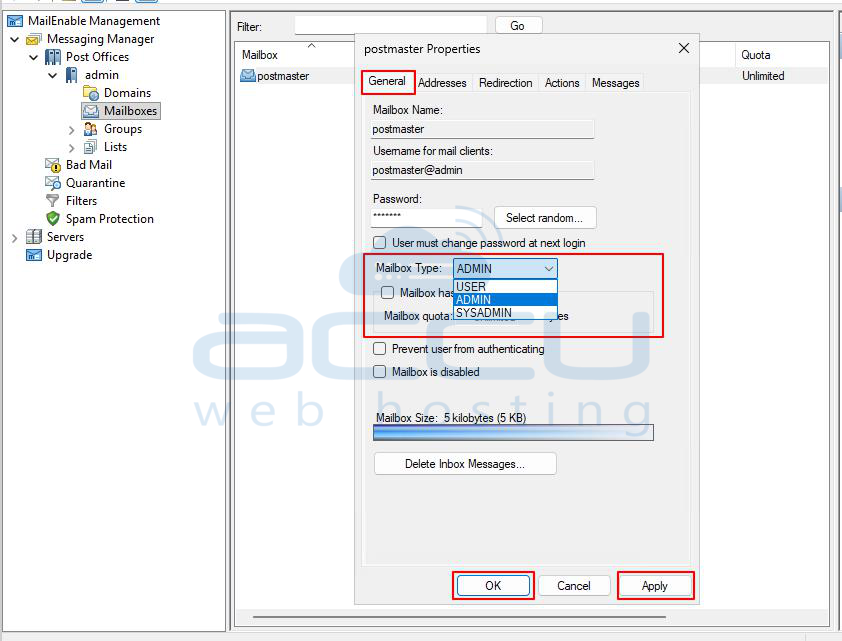
7. Click Apply → OK


