
The error message "The identity of 'XYZ.mailserver.com' cannot be verified by Mail" happens when your mail app (like Apple Mail) can't confirm the security certificate of the mail server. This issue is common on iPhones and iPads and is usually caused by a mismatch between the SSL certificate on the mail server and the settings on your device.
To fix this, instead of using mail.domain.com as your mail server, you should use accumail##.accuwebhosting.com, where "##" is the number of the mail server on which your domain’s email is hosted. If you're unsure which server your domain uses, you can contact support through live chat at support.appliedi.net or via email. Just provide your domain name, and they'll tell you which mail server to use.
Here’s how to fix the error on your iPhone:
Step 1: Open Settings on your iPhone.
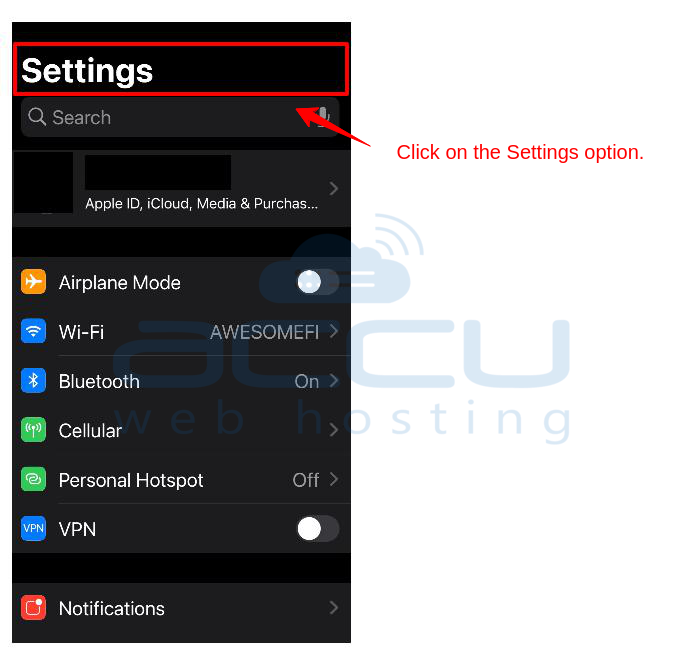
Step 2: Scroll down and tap on Mail.
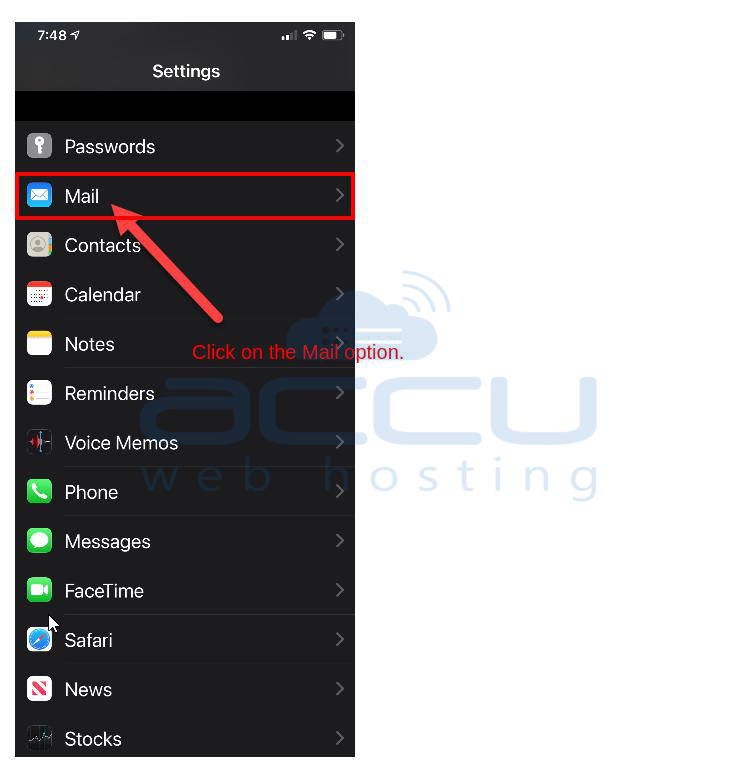
Step 3: Tap on Accounts.
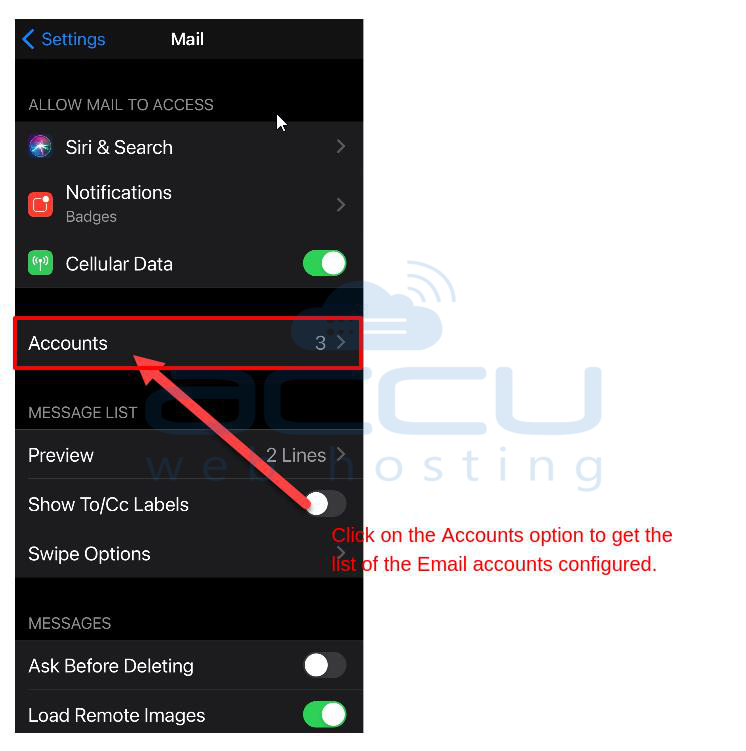
Step 4: Select the account you’re having issues with.
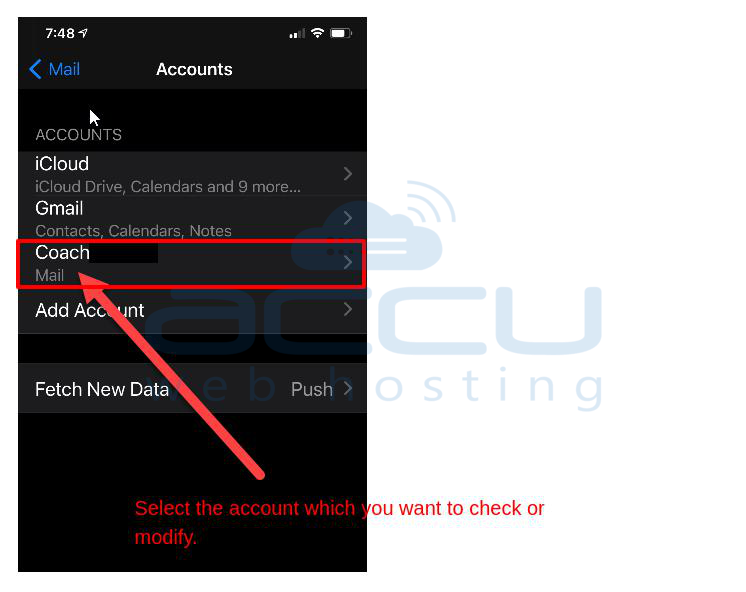
Step 5: Under Incoming Mail Server, replace "mail.yourdomain.com" with "accumail##.accuwebhosting.com". For example, if your server is accumail3, use "accumail3.accuwebhosting.com".
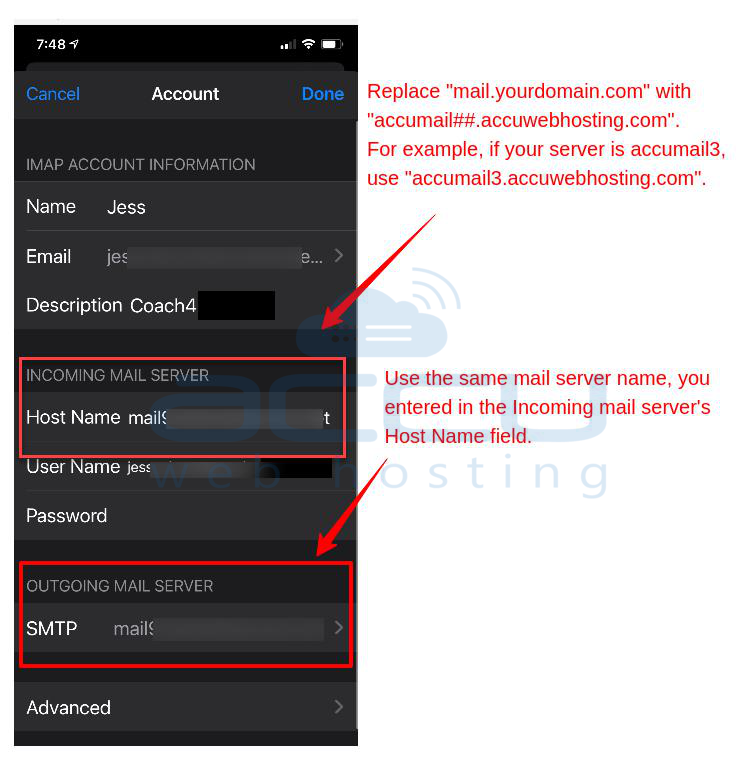
Step 6: Next, change the Outgoing Mail Server as well. Tap on SMTP and then on the mail server name.
Step 7: Under Host Name, use the same "accumail##.accuwebhosting.com" as before.
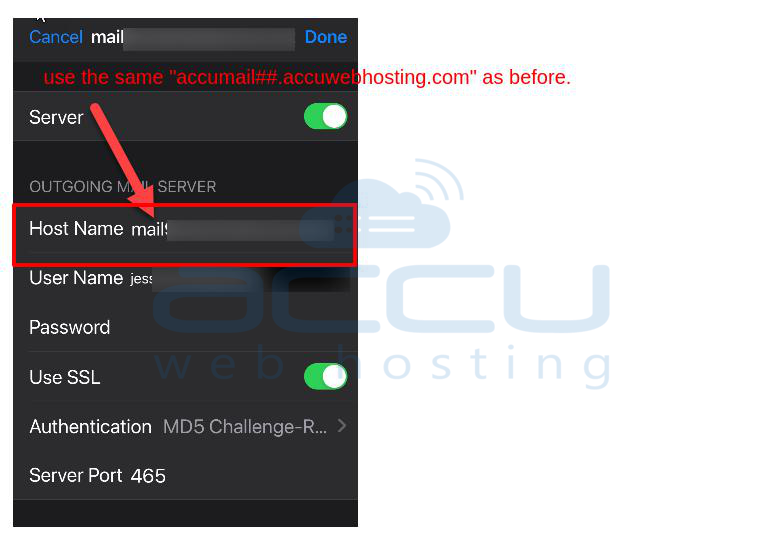
Step 8: Tap Done and continue to save all settings.
Your email should now work correctly.
Alternative Solutions:
Here are some other steps you can try to fix this issue:
1. Check the SSL Certificate
Inspect the Certificate:
- When the error appears, tap or click "Details" to view the certificate.
- Look at details like who issued it, when it expires, and if it's trusted.
Check Expiration:
- Make sure the certificate isn’t expired. If it is, the server admin needs to renew it.
Match the Server Name:
- The server name on the certificate should match the mail server name. If it doesn’t, that might be causing the error.
2. Manually Trust the Certificate
If you’re sure the server is safe, you can manually trust the certificate:
On macOS:
Step 1: Open the Mail app.
Step 2: When the error appears, click "Show Certificate."
Step 3: Check the box that says "Always trust [mail server name] when connecting to [mail server name]."
Step 4: Click "Continue" and enter your administrator password if asked.
On iOS:
Step 1: Open the Mail app.
Step 2: When the error shows up, tap "Details."
Step 3: Tap "Trust" in the upper right-hand corner of the screen.
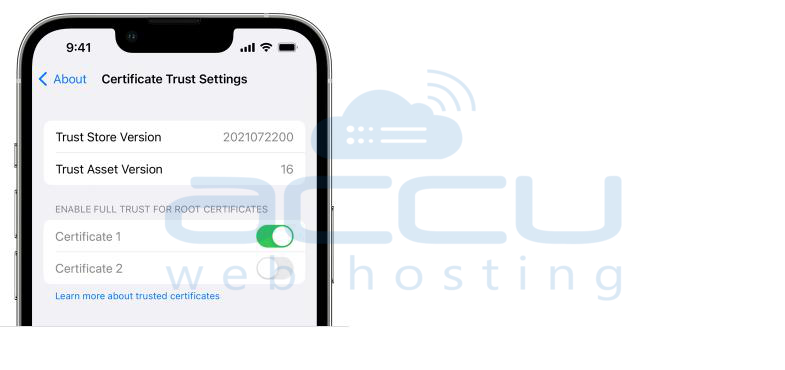
3. Check Mail Account Settings:
- Make sure the incoming and outgoing mail server settings match the ones recommended by your email provider.
- Verify that SSL/TLS settings are correct and that you’re using the right port numbers:
IMAP: 993 (SSL)
POP3: 995 (SSL)
SMTP: 465 or 587 (SSL)
4. Re-add the Email Account:
Sometimes, removing and re-adding your email account can fix certificate issues.
On macOS:
Go to System Preferences -> Internet Accounts.
Select your email account and click the minus (-) button to remove it.
Click the plus (+) button to re-add the account.
On iOS:
Go to Settings > Mail > Accounts.
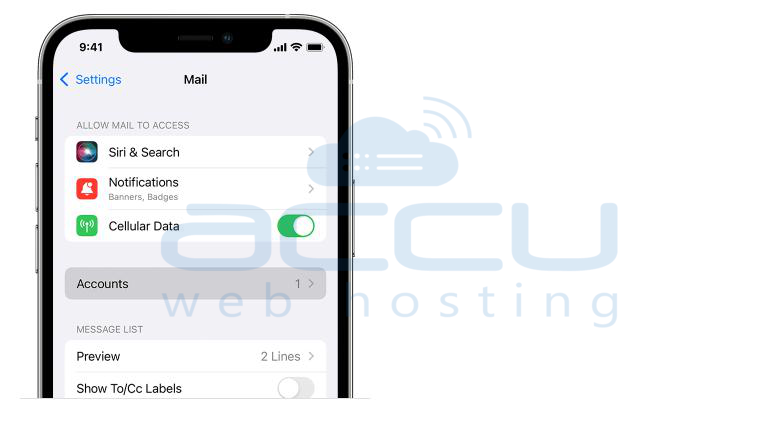
Select your email account and tap Delete Account.
Tap Add Account to re-add it.
5. Check DNS and Network Settings:
- Make sure your DNS settings are correct and your DNS server can find the right IP address for your mail server.
- Check if your network blocks SSL/TLS connections to your mail server.
6. Consult the Mail Server Administrator:
- If the issue continues, contact your mail server's administrator. If you use the Accuwebhosting service, you need to contact us through Ticket, chat, or phone. They might need to install a valid SSL certificate or adjust the server settings.
Following these steps should fix the unverified identity issue in your Mail app.
Conclusion:
To fix the error "The identity of 'XYZ.mailserver.com' cannot be verified by Mail," first check if the SSL certificate is valid and matches the mail server name. If needed, manually trust the certificate in your Mail app. Make sure your mail account settings, including server and port details, are correct. Also, check your DNS and network settings for any blocks on SSL/TLS connections. If the issue continues, contact your mail server administrator for help. Following these steps should resolve the problem and ensure your email works properly.