
The NET::ERR_CERT_AUTHORITY_INVALID error happens when a browser can't confirm a website's SSL certificate. This means the certificate might be from a source that the browser doesn't trust, which could lead to an insecure connection.
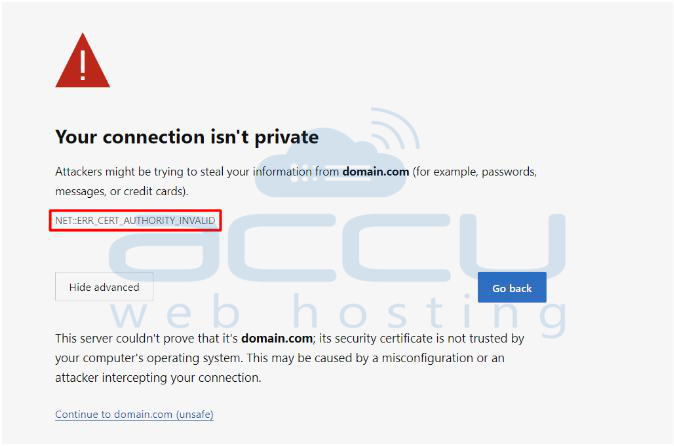
Since SSL certificates are meant to protect data transfer, this error can hurt a website's traffic and search engine ranking. Website owners need to fix this issue quickly to keep user trust and protect their site.
This article will discuss various effective ways to resolve the NET::ERR_CERT_AUTHORITY_INVALID error. Let's begin by looking at its common causes.
What Causes NET::ERR_CERT_AUTHORITY_INVALID?
The NET::ERR_CERT_AUTHORITY_INVALID error can happen for different reasons, usually related to SSL certificates or local issues with the browser.
SSL-Related Causes
Here are some common SSL-related causes:
No Certificate: If there’s no SSL certificate installed, the browser can’t create a secure connection.
Self-Signed Certificate: Self-signed certificates are cheap but not trusted by browsers, as they haven’t been verified by a Certificate Authority (CA).
Untrustworthy Certificate Authority: Browsers trust certain CAs. If the CA isn’t on this list, an error will show.
Improperly Installed Certificate: Problems during the SSL certificate installation can occur when switching from HTTP to HTTPS.
Misconfigured Certificate: This error can occur if the certificate isn’t linked correctly to the website’s domain.
Expired Certificate: SSL certificates have expiration dates. This error will occur if a certificate isn't renewed by its expiration date.
Browser-Related Causes
Local issues on a user's device can also trigger the NET::ERR_CERT_AUTHORITY_INVALID error. These include:
Unsecure Network Connection: Public Wi-Fi may not be secure, leading to the error.
Outdated Operating System: An old operating system may not have the latest list of trusted certificates, causing the browser to block the site.
Expired Cache and Cookies: Old cache and cookies can prevent the browser from verifying the SSL certificate.
Outdated SSL State: If a website updates its SSL certificate but the device has the old one cached, it can cause an error.
Wrong Date and Time: If your device shows the wrong date and time, it may think a valid certificate is expired.
Outdated Browser: Browsers need to be updated to recognize new certificates. An outdated browser may not trust them.
Browser Extensions: Some extensions can interfere with connections, causing the error.
How the NET::ERR_CERT_AUTHORITY_INVALID Error Looks in Different Browsers?
The ERR_CERT_AUTHORITY_INVALID error shows up differently depending on the browser. Let’s see how it appears in Google Chrome, Safari, Mozilla Firefox, and Microsoft Edge.
Google Chrome
In Chrome, when there’s an SSL error, you’ll see a message saying, "Your connection is not private." Users can still proceed to the website, but it’s risky.
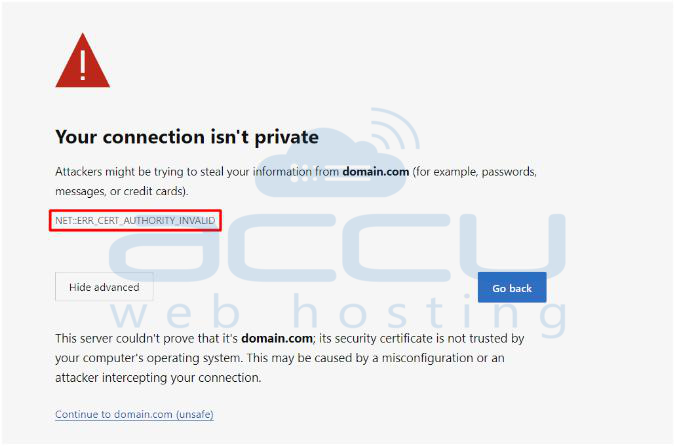
Other error messages related to SSL issues in Chrome include:
NET::ERR_CERT_COMMON_NAME_INVALID
NET::ERR_CERT_INVALID
NET::ERR_CERT_DATE_INVALID
NET::ERR_CERT_WEAK_SIGNATURE_ALGORITHM
SSL CERTIFICATE ERROR
These codes hint at different problems. For example, NET::ERR_CERT_COMMON_NAME_INVALID means the domain name doesn't match the SSL certificate.
Safari
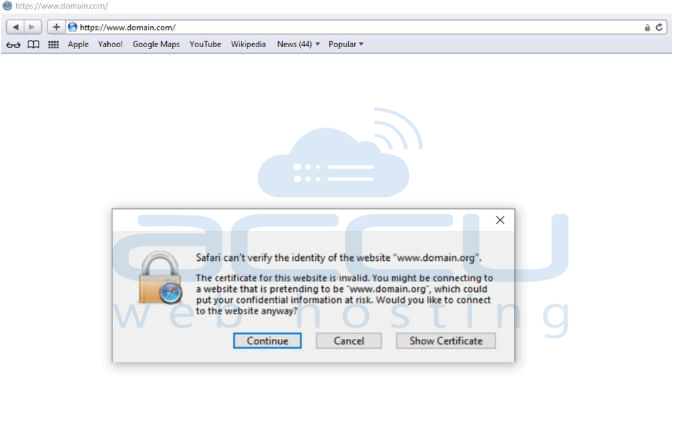
In Safari, when there’s a problem with an SSL certificate, a warning will appear about the risks of accessing a potentially unsafe site. Users can view more details about the certificate by selecting "Show Certificate" to decide whether to continue.
Microsoft Edge
Microsoft Edge shows SSL error codes similar to Chrome, helping users identify the problem. Some common ones are:
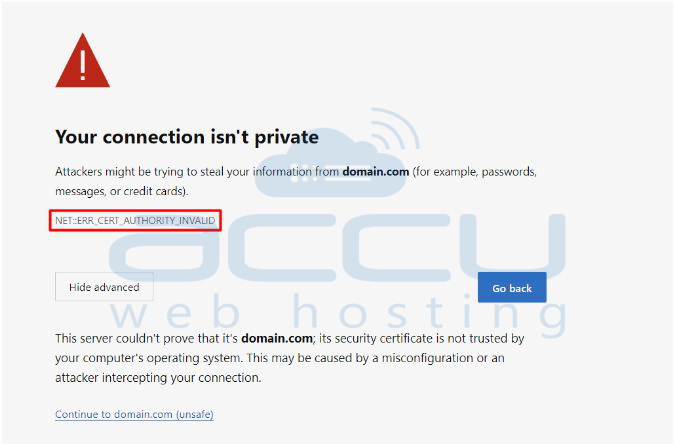
NET::ERR_CERT_COMMON_NAME_INVALID
NET::ERR_CERT_DATE_INVALID
NET::ERR_CERT_AUTHORITY_INVALID
NET::ERR_CERT_REVOKED
Mozilla Firefox
In Firefox, a message will appear saying, "Warning: Potential Security Risk Ahead," explaining the possible causes of the SSL error. Users can also view the certificate information to decide whether to proceed.
Firefox has its own set of error codes, like:
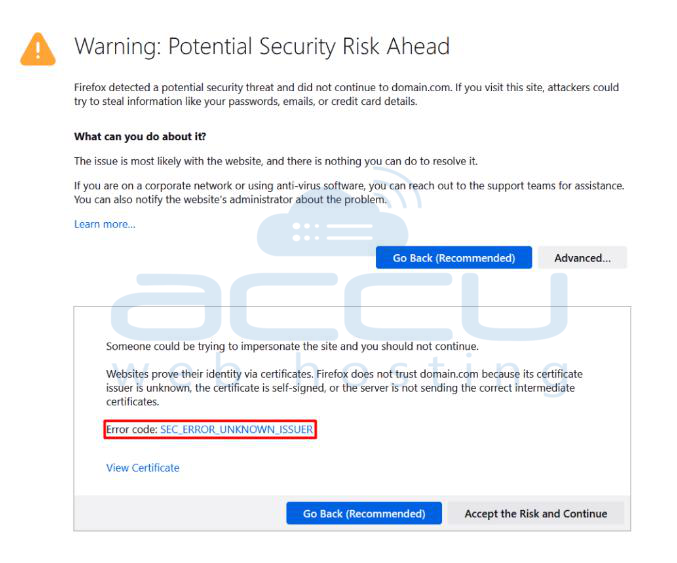
SEC_ERROR_UNKNOWN_ISSUER
SEC_ERROR_REUSED_ISSUER_AND_SERIAL
SSL_ERROR_UNSUPPORTED_VERSION
MOZILLA_PKIX_ERROR_KEY_PINNING_FAILURE
How to Fix NET::ERR_CERT_AUTHORITY_INVALID
The NET::ERR_CERT_AUTHORITY_INVALID error can have several causes, but fixing it is usually simple. The solution depends on what’s causing the problem.
Solutions for SSL-Related Issues
SSL problems often lead to this error. Before trying any solutions, check the SSL certificate by following these steps:
Step 1: Open a web browser.
Step 2: Click the padlock icon in the address bar.
Step 3: Click "Connection is secure."
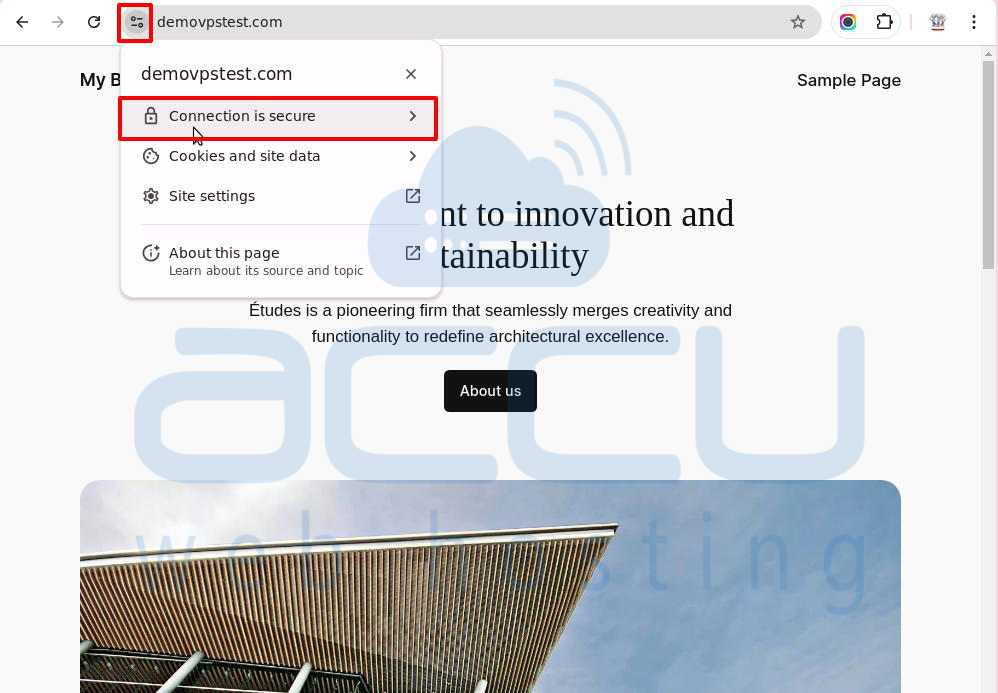
Step 4: In the pop-up, click "Certificate is Valid."
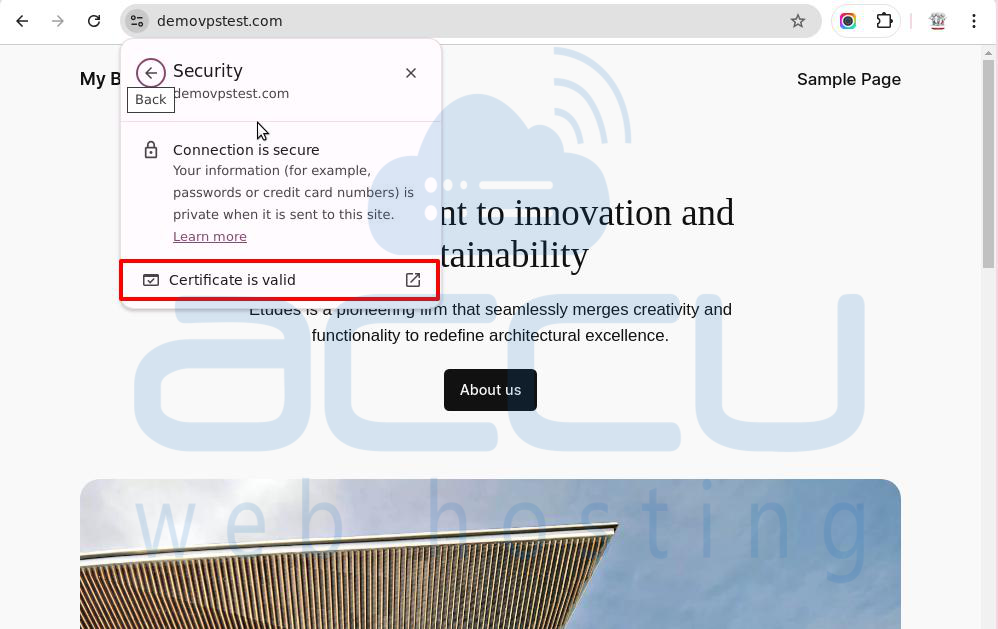
If you can do this, it means the SSL certificate is set up correctly. These steps also let you check the expiration date to see if the certificate is still valid.
If the website isn’t secure and the certificate is expired or self-signed, you’ll see a warning instead of the padlock icon.
Note: The steps above are for Chrome. Other browsers may have slightly different steps.
If the error is due to SSL certificate issues, you should reinstall or renew the certificate.
Solution 1: Run an SSL Test
Once you've ruled out problems on your end, it’s time to check the server.
You can run an SSL test using free tools like SSL Shopper to find any issues with your website’s SSL certificate. These tools provide a detailed report in just a few clicks.
The SSL report gives information about your certificate, including the IP address, expiration date, and whether the certificate is valid for your domain name.
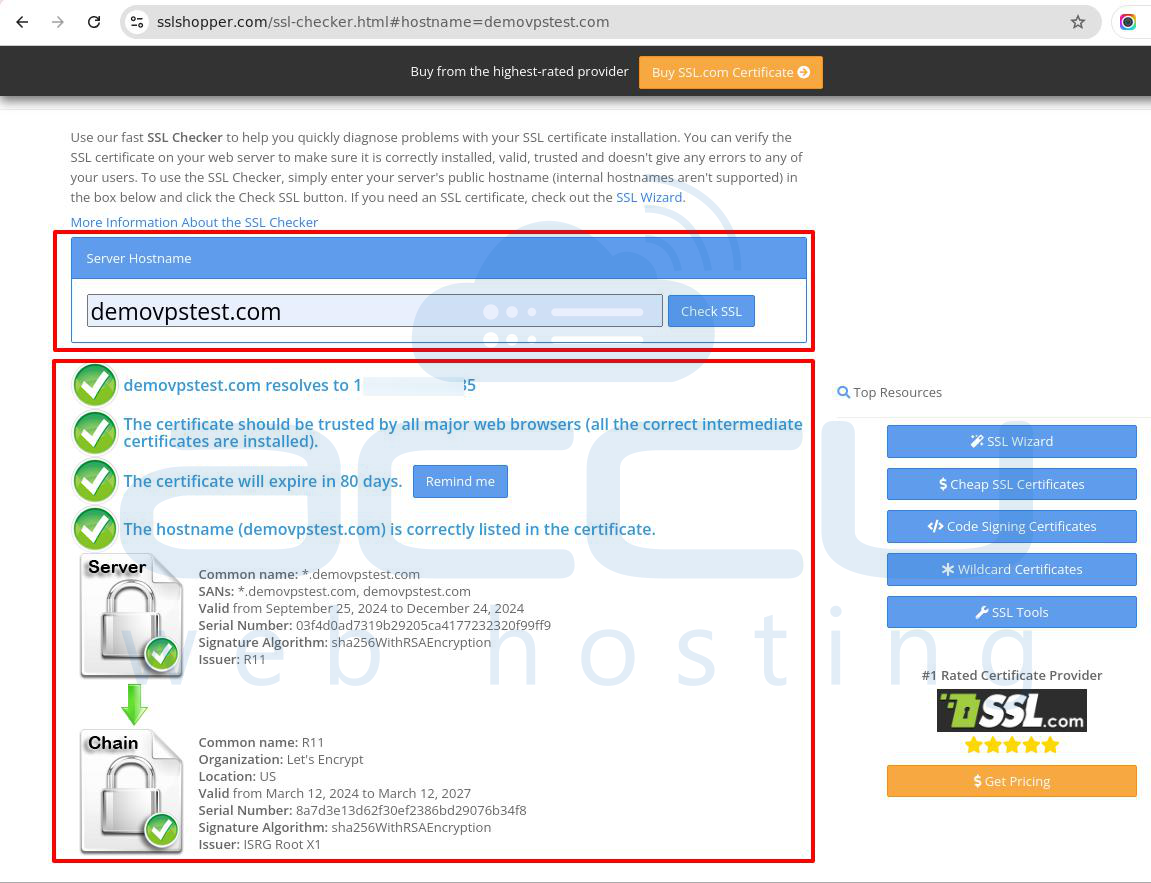
Green check marks mean everything is fine, confirming that:
- Your website has a valid SSL certificate.
- Major browsers trust the certificate.
- The certificate is issued for your website.
If the report shows issues like an expired certificate or a mismatched domain name, follow the next steps to fix them.
Solution 2: Reinstall SSL Certificate
You’ll see a "Not Secure" warning in the address bar if the SSL certificate isn't recognized. Once you click on it, a new window will open, which will show details about the certificate, including its owner, expiration, and issuer date, which can help identify the issue.
To fix this, install a new certificate from a trusted authority. The certificate provider will guide you through reinstalling the SSL certificate.
Solution 3: Renew SSL Certificate
SSL certificates expire after a certain period, and the renewal time varies by provider. If the SSL certificate has expired, it needs to be renewed; otherwise, it will be invalid and cause the NET::ERR_CERT_AUTHORITY_INVALID error.
Renewing the certificate confirms the domain's identity and maintains trustworthiness. This is usually done through your hosting provider.
After renewing the SSL certificate, try accessing the website again to see if the error is gone.
Fixing Browser-Related Problems
If the SSL certificate is installed correctly but the issue only happens in a specific browser, it's likely a local problem. Here are some simple steps visitors can take to resolve the issue:
1.Clear Browser Cache and Cookies
Browsers store cache and cookies to help pages load faster, but these can become outdated or corrupted, leading to SSL errors.
If the website works in incognito mode, the problem might be caused by an old browser cache. Clearing it should fix the issue.
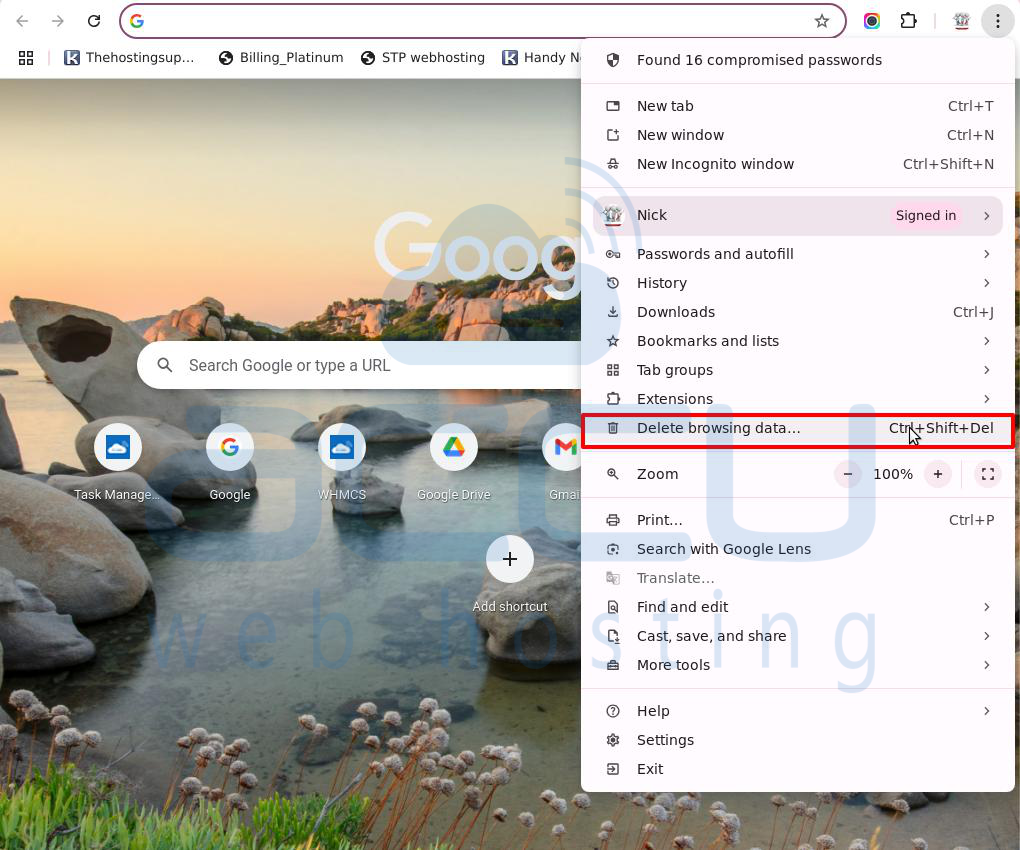
To clear cache and cookies in Google Chrome:
Step 1: Click the three dots in the top right corner and select "Delete browsing data."
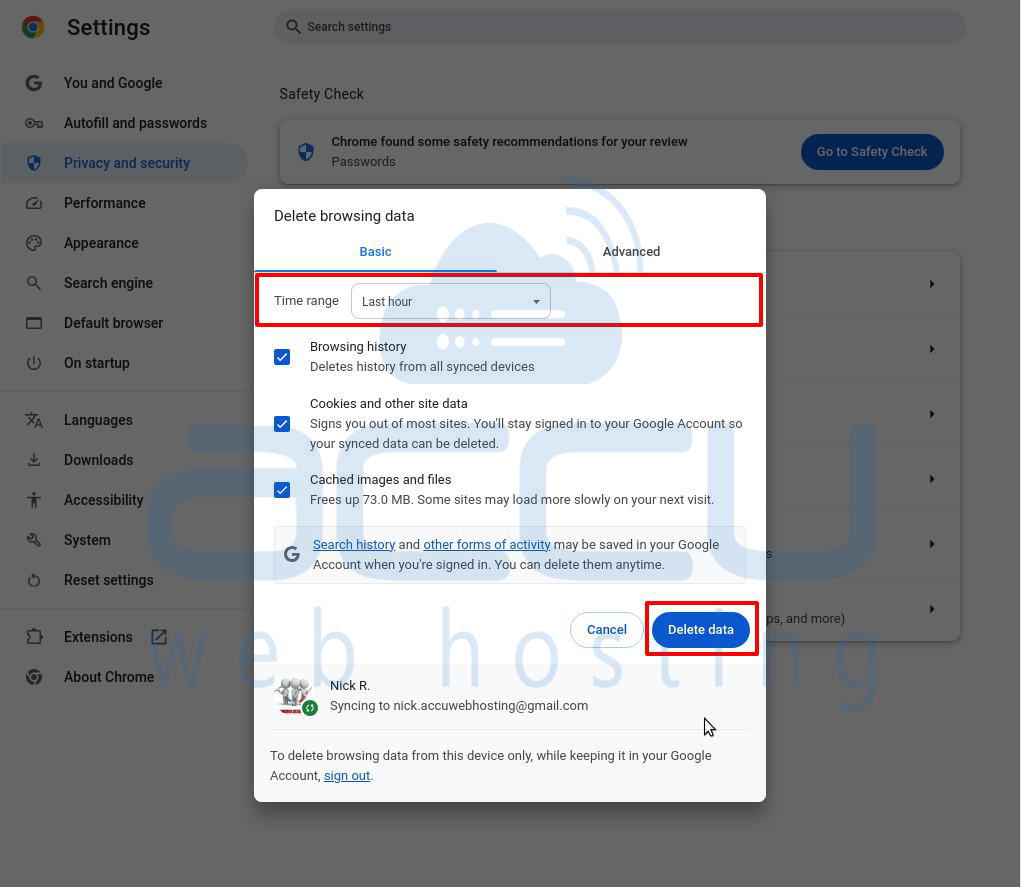
Step 2: Choose a time range and check all items for removal. Click "Delete data" to remove the cache and cookies.
2.Turn Off Browser Extensions Temporarily
Browser extensions improve browsing, but sometimes they can affect how pages load and cause SSL errors.
Turning off extensions can help you find out if they’re causing the NET::ERR_CERT_AUTHORITY_INVALID error.
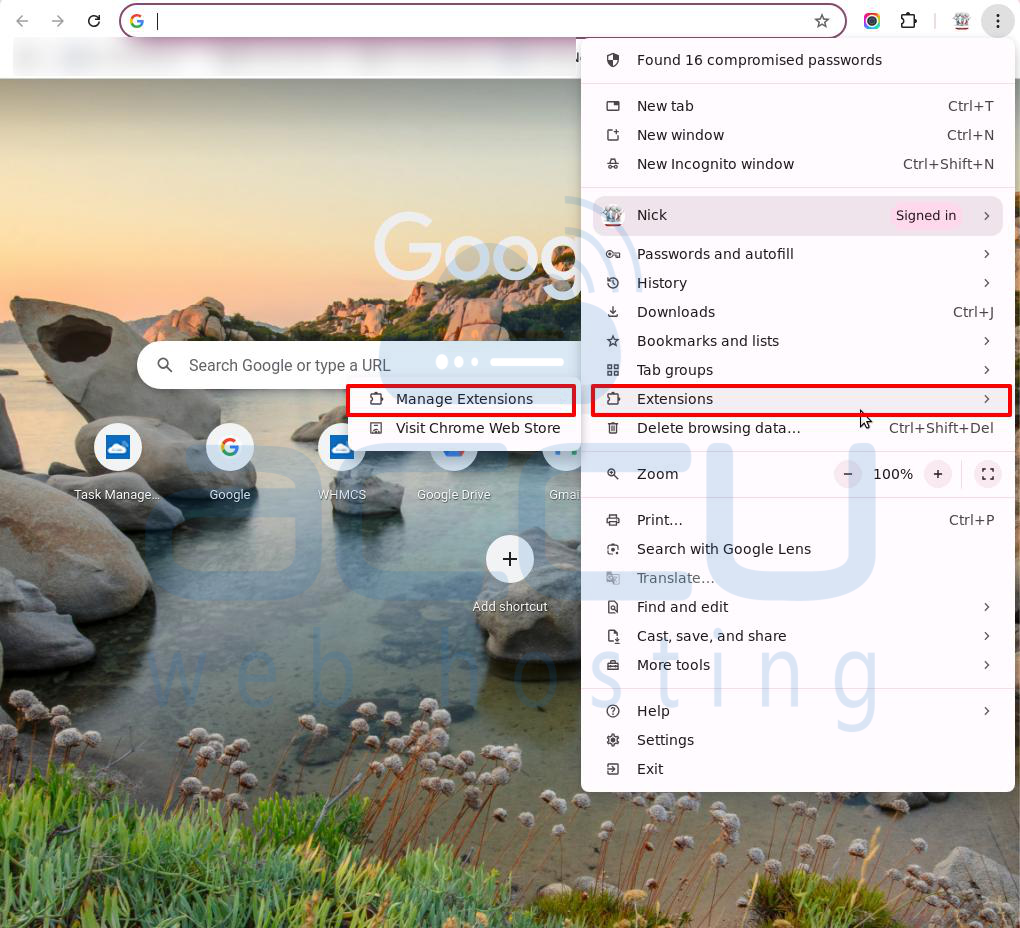
Here’s how to turn off extensions in Google Chrome:
Step 1: Click the three dots in the top right corner and go to Extensions -> Manage Extensions.
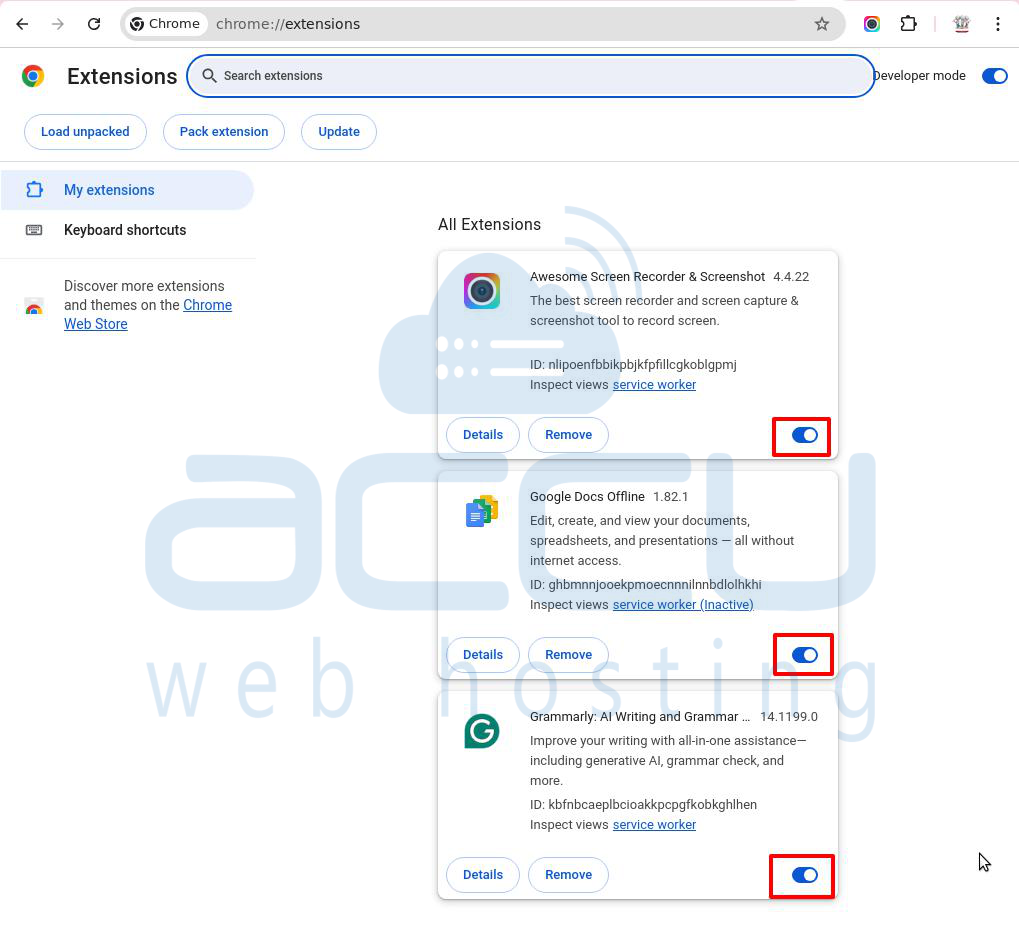
Step 2: Switch off all active extensions.
Step 3: Reload the page to see if the error is fixed. If it works, turn extensions back on one by one to find the problem.
3.Update Your Browser
Older browsers may not support the latest security features, leading to errors like NET::ERR_CERT_AUTHORITY_INVALID. Updating your browser can fix this.
To update Google Chrome:
Step 1: Click the three dots in the top right corner and go to Settings -> About Chrome.
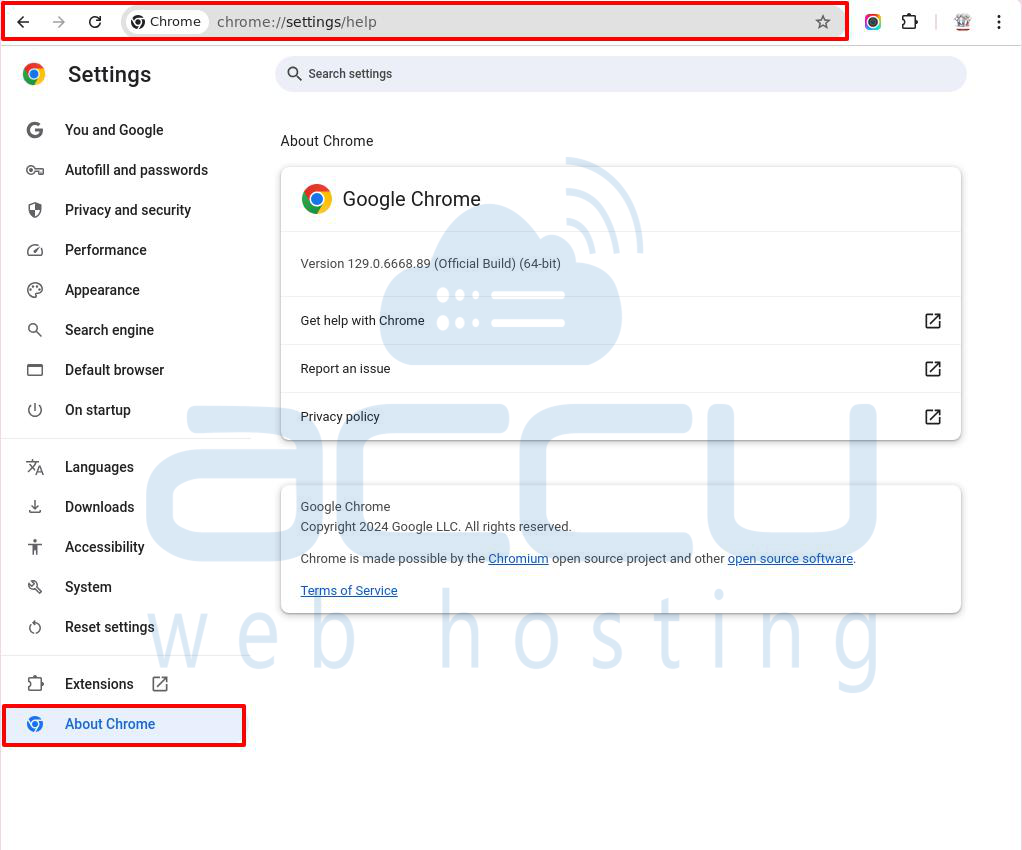
Step 2: If Chrome is up to date, you’ll see a message saying so.
Step 3: If there’s an update, click "Update Google Chrome" and then "Relaunch" to finish.
4.Clear the SSL State
Like browser cache, SSL state stores information about secure connections. Sometimes, your computer might save old or wrong SSL certificates from websites, causing the NET::ERR_CERT_AUTHORITY_INVALID error. Clearing the SSL state can fix this issue.
Here’s how to clear the SSL state on Windows:
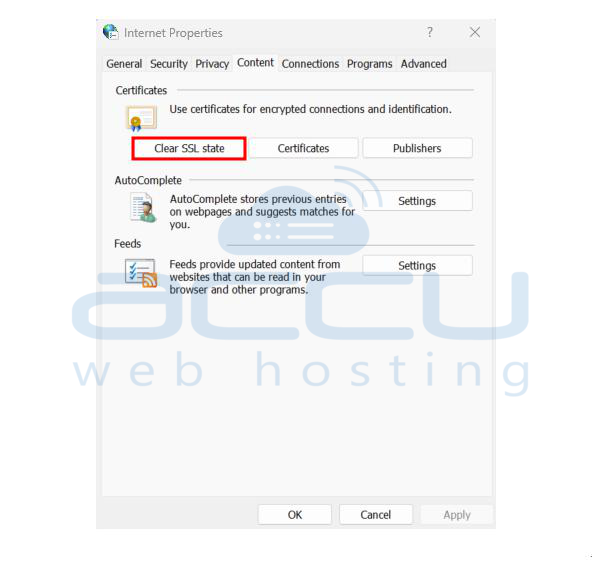
Step 1: Open the Start menu and search for "Internet Options."
Step 2: Go to the "Content" tab in the Internet Options window.
Step 3: Click "Clear SSL State."
Fixing System-Related Problems
1. Update Time and Date Settings on Your Computer
Issues with the computer's battery, time zone, or daylight saving settings can cause the system's time to be wrong. This can make the browser think a valid SSL certificate is expired.
To adjust time and date settings on Windows:
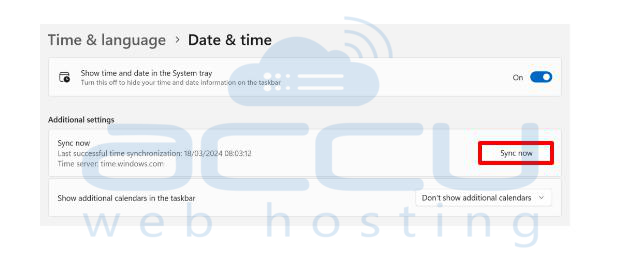
Step 1: Open the Start menu and search for "Date and time settings."
Step 2: Under "Additional settings," click "Sync now."
Step 3: Turn on the option "Set time zone automatically" to ensure your device has the correct time, especially when traveling.
2. Turn Off Firewall or Antivirus Temporarily
If nothing else has worked, try turning off your firewall or antivirus for a short time. Sometimes, these security programs can block SSL certificates, causing the NET::ERR_CERT_AUTHORITY_INVALID error.
Here’s how to turn off Windows Firewall:
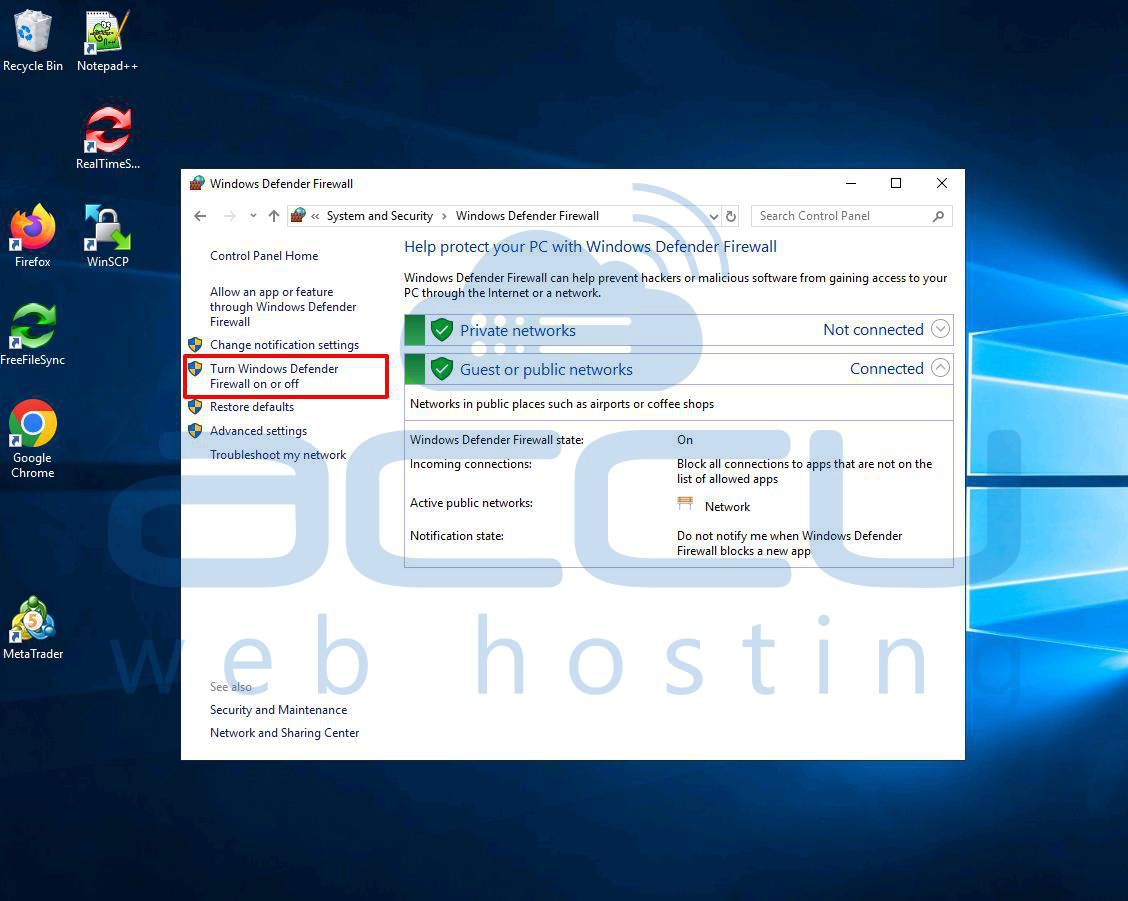
Step 1: Open the Start menu and go to the Control Panel.
Step 2: Navigate to System and Security -> Windows Defender Firewall.
Step 3: On the sidebar, click "Turn Windows Defender Firewall on or off."
Step 4: Select "Turn off Windows Defender Firewall (not recommended)" for both private and public networks.
Conclusion:
The NET::ERR_CERT_AUTHORITY_INVALID error can occur due to both user-side and server-side problems, like an outdated browser cache or a self-signed certificate. Website owners should resolve this issue promptly to provide a good user experience and maintain trust. The above-mentioned solution will help you fix the error quickly.


