
Yes, you can use any FTP (File Transfer Protocol) application, such as FileZilla, WinSCP, or Cyberduck, to upload and download content to/from your hosting server.
FTP is a simple and efficient way to manage website files, especially when handling multiple uploads or large files.
Below are the steps to use FileZilla FTP Client
Step 1 – Download and Install FileZilla
Visit the official FileZilla website: https://filezilla-project.org/.
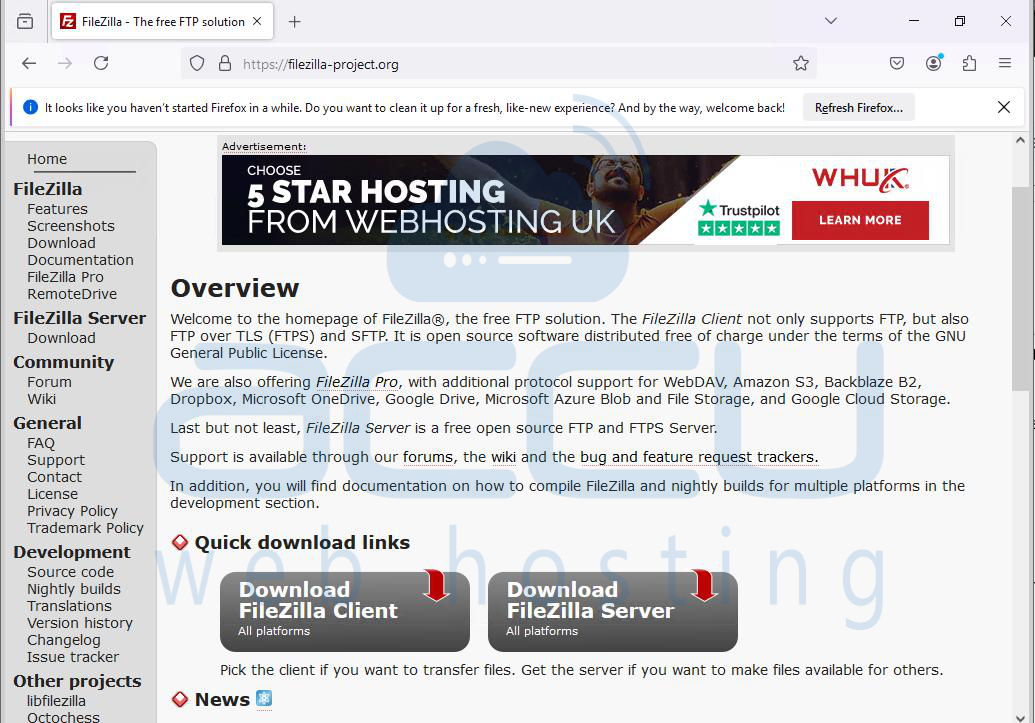
Download FileZilla Client (not FileZilla Server).
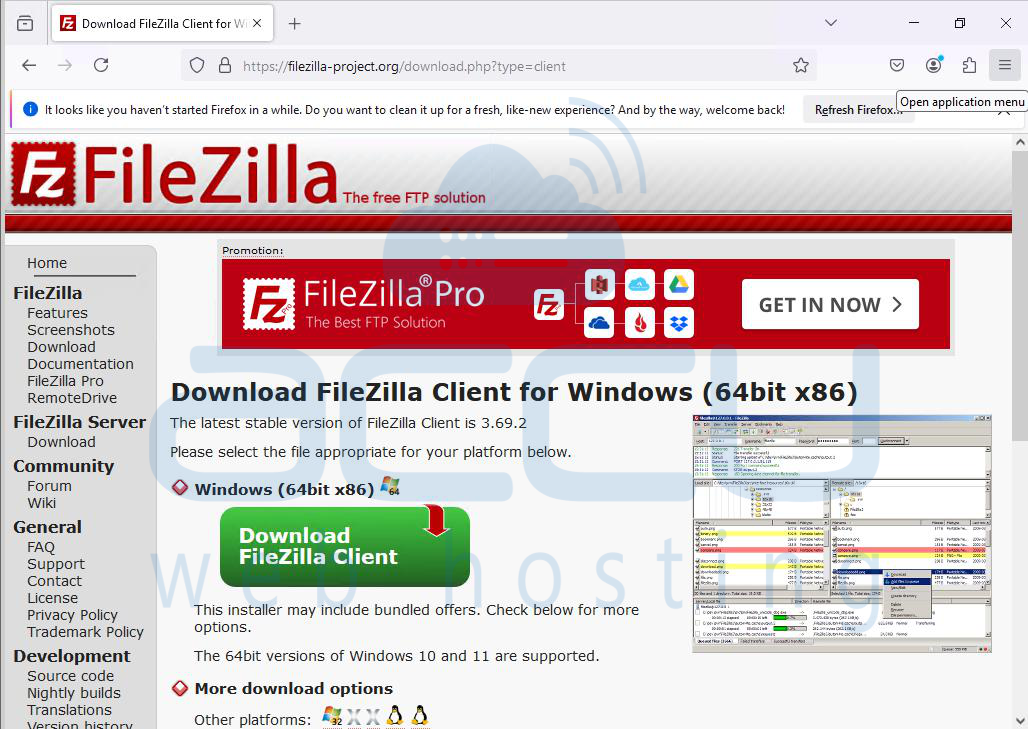
Install it on your computer.
Step 2 – Gather Your FTP Account Details
You will need the following details, which are provided in your hosting account welcome email or client area:
FTP Host:Your domain name (e.g., yourdomain.com) or server IP address.
FTP Username:Your hosting account FTP username.
FTP Password: Your FTP password.
Port: Usually 21 for standard FTP or 22 for SFTP (if enabled).
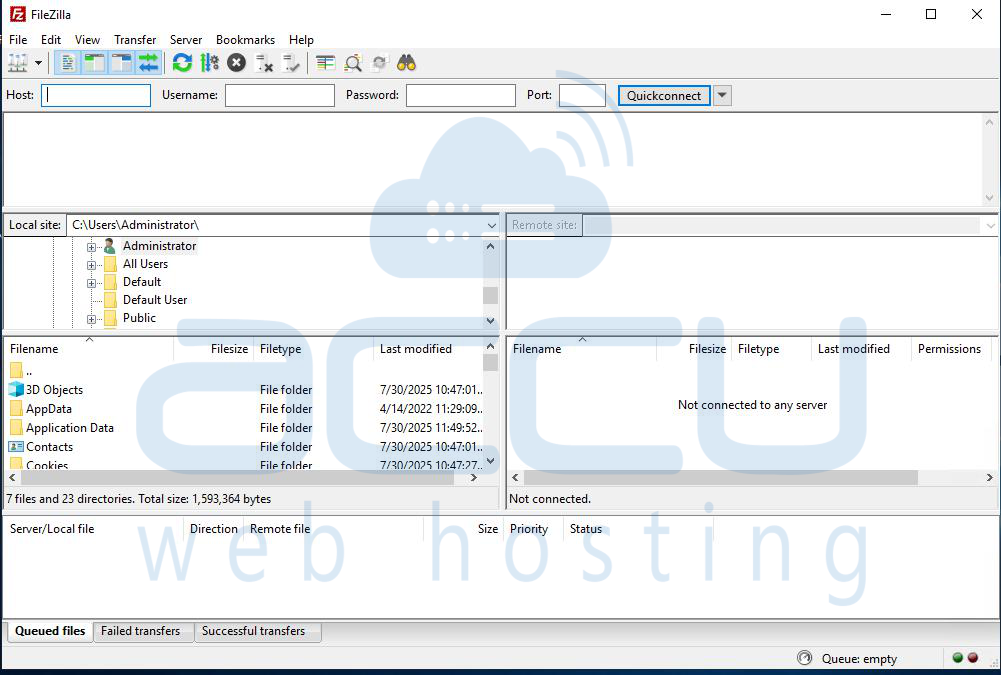
Step 3 – Connect to the Hosting Server
Open FileZilla. In the Quickconnect bar at the top, enter:
Host: (e.g., yourdomain.com)
Username
Password
Port: 21 (or 22 for SFTP)
Click Quickconnect.
Accept any security prompts if connecting via SFTP.
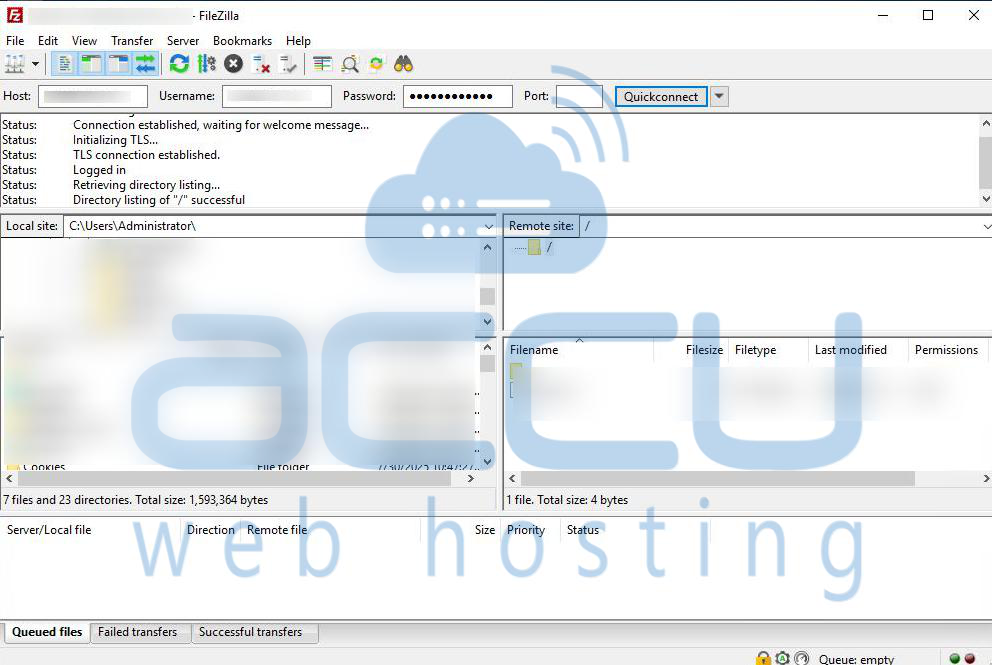
Step 4:Upload and Download Files
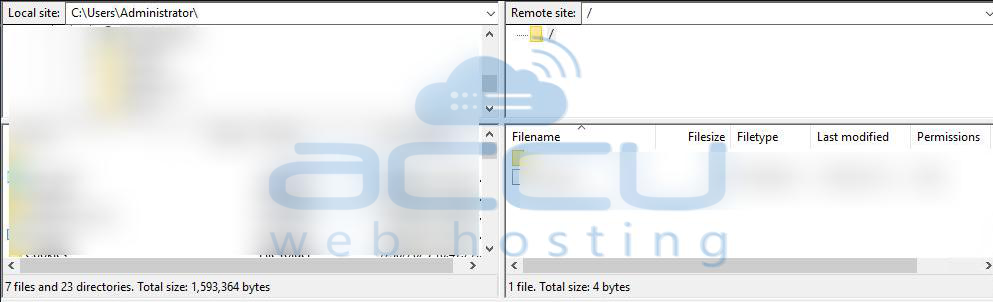
Upload: Drag and drop files from the Local Site (left panel) to the Remote Site (right panel).
Download: Drag and drop files from the Remote Site to your local computer.
Ensure you upload website files inside the public_html or www directory for them to be accessible via the web.
Step 5: Disconnect When Done
Once file transfer is complete, click the Server menu. Select Disconnect.
Conclusion:
Using an FTP client such as FileZilla is an easy and reliable method to upload and download files to your hosting server.
Make sure you have the correct FTP credentials, and always place your website files inside the public_html folder for them to be publicly accessible.
If you face issues connecting, verify your credentials or contact AccuWeb Hosting Support.


