
The Linux kernel is the main component of the Linux operating system and is the core interface between your computer's hardware and its processes. It communicates with the hardware through drivers that are either built-in or can be installed later as modules.
For example, when an application running on your computer tries to connect to a wireless network, the request is sent to the kernel, which uses the correct driver to connect to the network.
Why is it required to update the kernel?
With new devices and technologies appearing regularly, it's essential to keep your kernel up-to-date to get the most out of it.
Additionally, kernel updates allow you to take advantage of new kernel features and protect against vulnerabilities found in previous versions.
The updated kernel contains bug fixes, such as suppose you have a problem with your sound card or wireless card or another hardware component. Updated versions include support for sound cards, wireless cards, or other hardware components.
Steps to update the kernel version in the CentOS system/server
Step 1: Check Installed Kernel Version
When you install a distribution, it includes a certain version of the Linux kernel. Therefore, you need to execute the following command to show the current version installed on your system.
# uname -sr
The following is the result of the above command in CentOS 7.

Step 2: Upgrade Kernel
Most modern distributions offer a way to update the kernel using a package management system such as yum and an officially supported repository. However, this only upgrades to the latest version available in the distribution's repositories, not to the newest version available at https://www.kernel.org/. To install the latest version, you must use the ELRepo repository from a third party.
To enable the ELRepo repository on CentOS 7, do:
# rpm --import https://www.elrepo.org/RPM-GPG-KEY-elrepo.org

# rpm -Uvh http://www.elrepo.org/elrepo-release-7.0-3.el7.elrepo.noarch.rpm
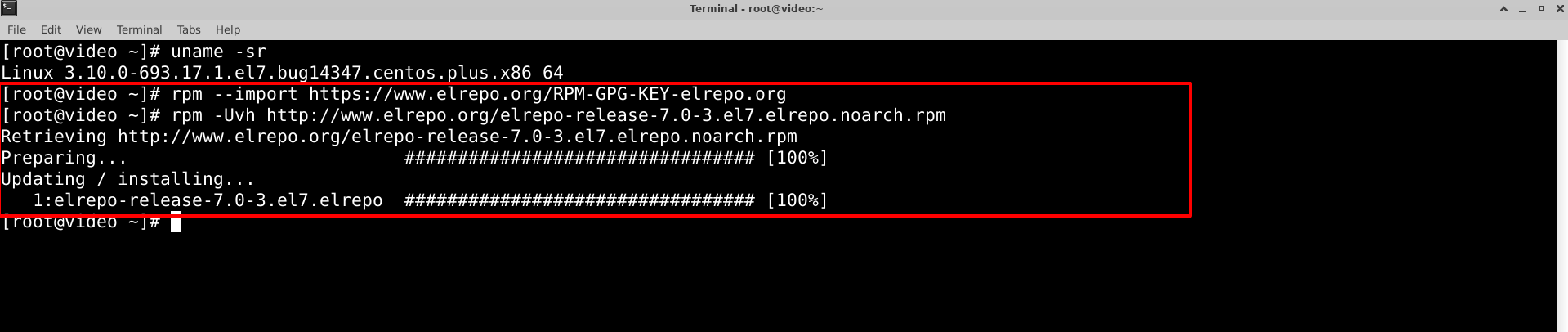
Once the repository is activated, you can list the available kernel-related packages using the following command.
# yum --disablerepo="*" --enablerepo="elrepo-kernel" list available

Then install the latest stable mainline kernel.
# yum --enablerepo=elrepo-kernel install kernel-ml
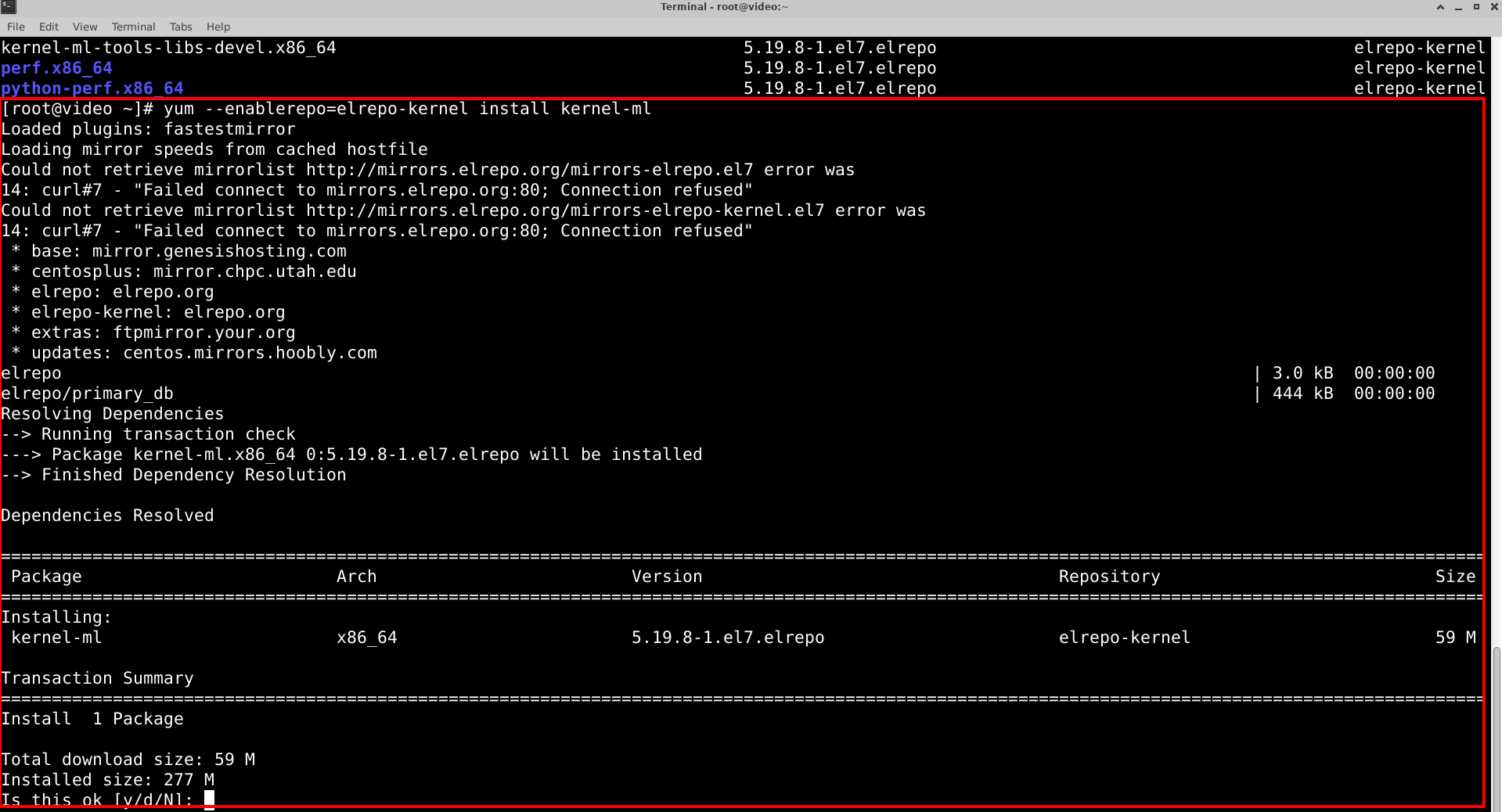
Finally, reboot the server to apply the latest kernel, and then select the latest kernel from the menu as shown.
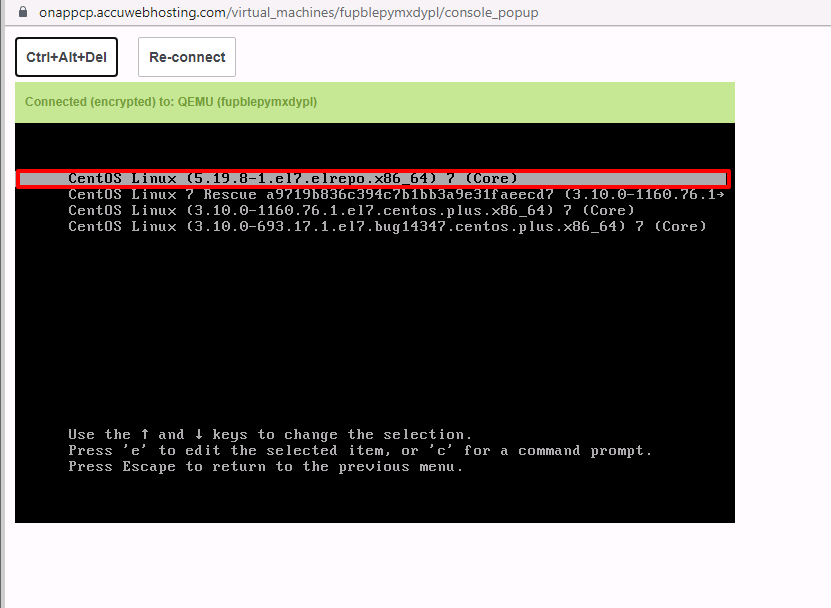
Log in as root and run the following command to check the kernel version:
# uname -sr

Step 3: Set Default Kernel Version in GRUB
To make the newly installed version the default boot option, you need to change the GRUB configuration as follows:
Open and edit the /etc/default/grub file and set GRUB_DEFAULT=0. This means that the first kernel on the GRUB boot screen will be used as the default.
# sudo vi /etc/default/grub
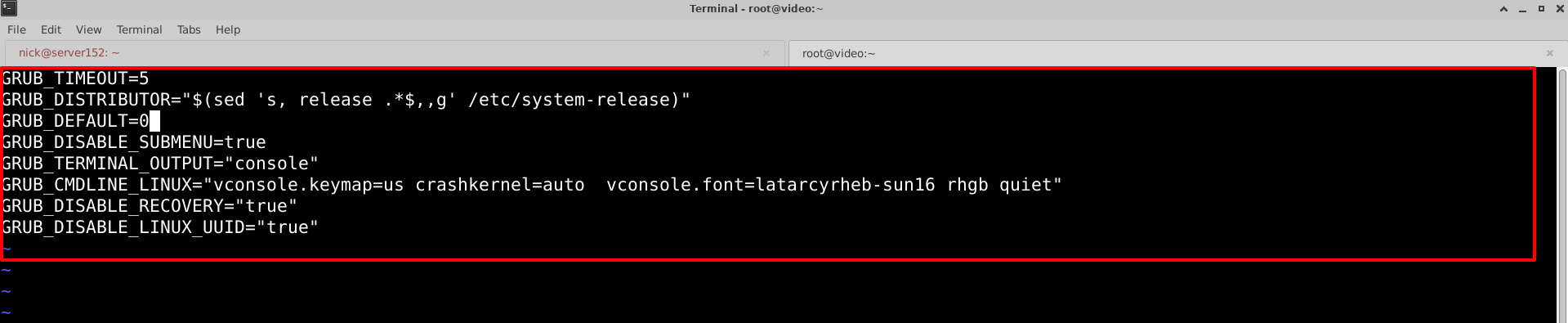
Then run the following command to rebuild the kernel config:
# grub2-mkconfig -o /boot/grub2/grub.cfg
Reboot to make sure the latest kernel is used by default.
Steps to update the kernel version in the Ubuntu system/Server
Step 1: Check your current kernel version
Check your current kernel version by entering the following command:
# uname –sr
The following image shows the output of the above command on an Ubuntu 20.04 server.

The first two digits (5.4 in this case) are the kernel package. The third digit is the version, and the fourth digit is the patch and fixes level.
Step 2: Update your repository
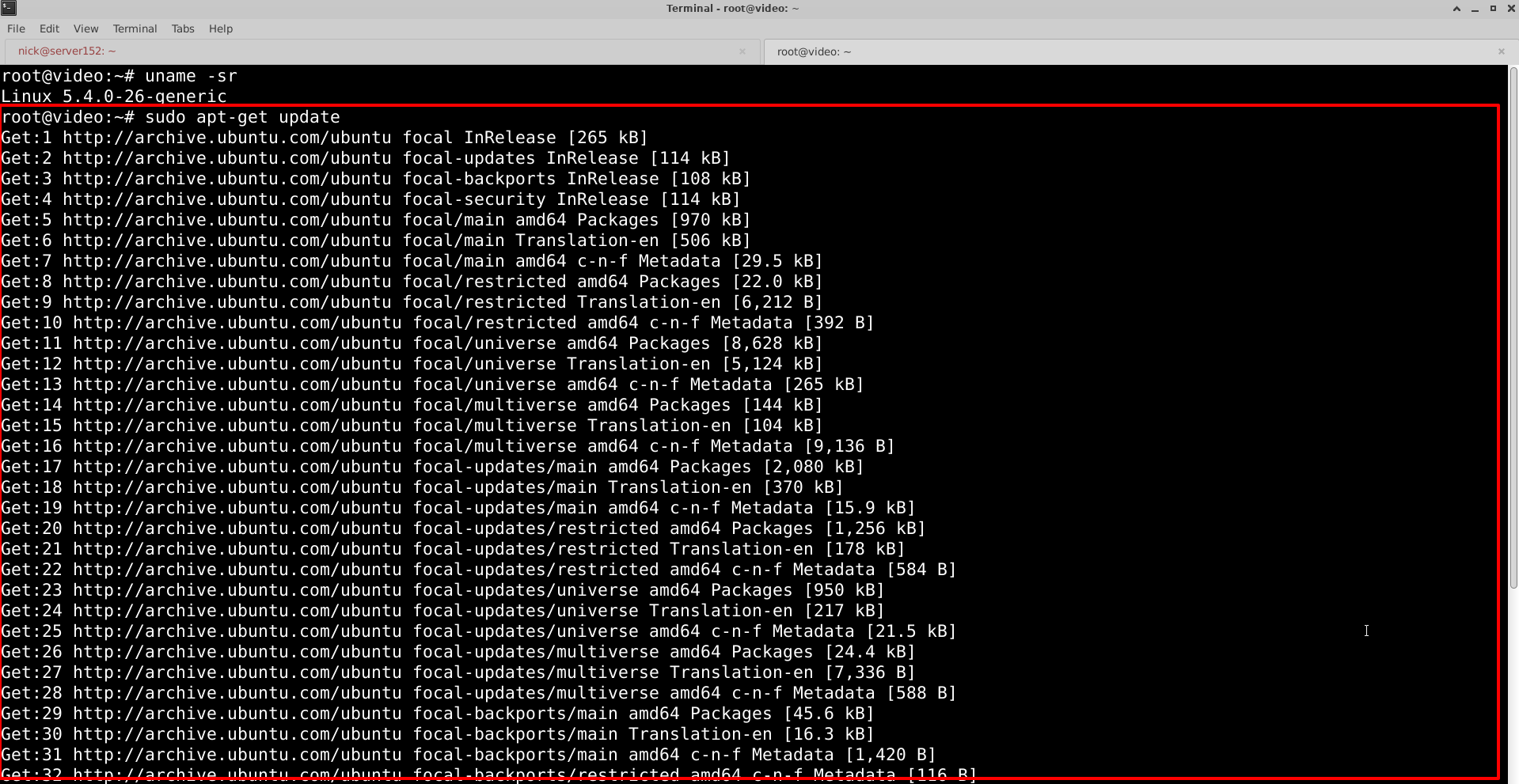
# sudo apt-get update
This command updates the local software list and notifies you of new revisions and updates. In addition, the command will find and mark it for download and installation if there is a more recent kernel version.
Step 3: Run the Upgrade
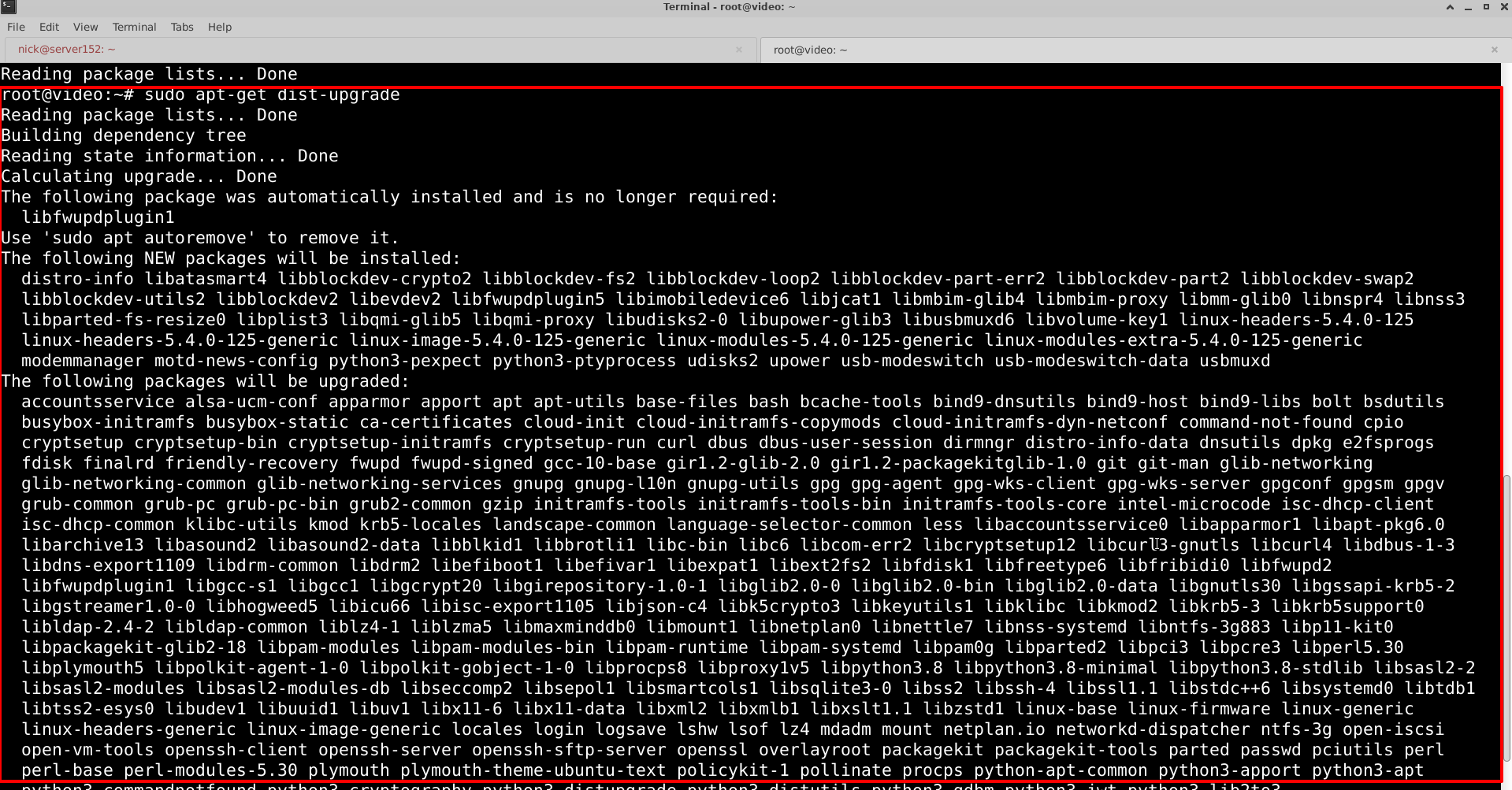
# sudo apt-get dist-upgrade
The dist-upgrade switch tells Ubuntu to handle all dependencies intelligently. In other words, if a particular software package depends on another software package to run, this command will update the second package before updating the first package.
This method is a safe way to update the Ubuntu Linux kernel. The kernel updates accessible through this utility have been tested and verified to work with your version of Ubuntu.
Conclusion:
Keeping your Linux VPS kernel updated is not just about tapping into new features—it’s about staying ahead of performance issues, security vulnerabilities, and hardware compatibility. Whether you're running CentOS or Ubuntu, regularly upgrading your kernel ensures your system remains robust, secure, and optimized for modern workloads. Just remember: kernel updates affect the core of your OS, so always follow verified steps and perform backups when possible. In the world of Linux, an up-to-date kernel is a stable, secure, and smart foundation.
