
The main problem stopping people from switching their websites from HTTP to HTTPS is getting and handling certificates. But now, Let's Encrypt has solved this issue.
Let's Encrypt is a free and easy-to-use Certificate Authority. Their goal is to make sure everyone uses HTTPS for their websites. Keep reading to learn how to get free SSL/TLS certificates that are trusted by browsers.
Prerequisites:
-> You need to have administrative user access using Remote Desktop Protocol.
-> IIS should already be installed on the server and have a live website.
-> The website should be pointed to your server.
What is Let's Encrypt SSL?
Let's Encrypt offers free SSL certificates for websites. These certificates are trusted and provided by Let's Encrypt. You can find more details about Let's Encrypt on their official website.
To use an SSL certificate, you need a valid domain or subdomain name. Additionally, the domain must be directed to the web server through the DNS server. Let's Encrypt uses the ACME protocol to verify your control over the domain name.
Type of ACME Clients
There are various ACME clients available to issue Let's Encrypt SSL certificates for our website. Here, we will discuss two methods for issuing SSL/TLS certificates, which are as follows. You can choose either of them:
1. Using certbot ACME client for issuing SSL
2. Using win-acme client
1 How to install Let's Encrypt SSL Certificate using Certbot ACME in Windows Server?
1.1 Installing certbot ACME client on Windows
In this section, we will install the certbot ACME client. Follow these steps:
Step 1: Download the certbot ACME exe file by visiting this URL in your web browser:
Step 2: Once the download is complete, run the installer by double-clicking on the install file.

Step 3: The installer wizard will open, click Next.
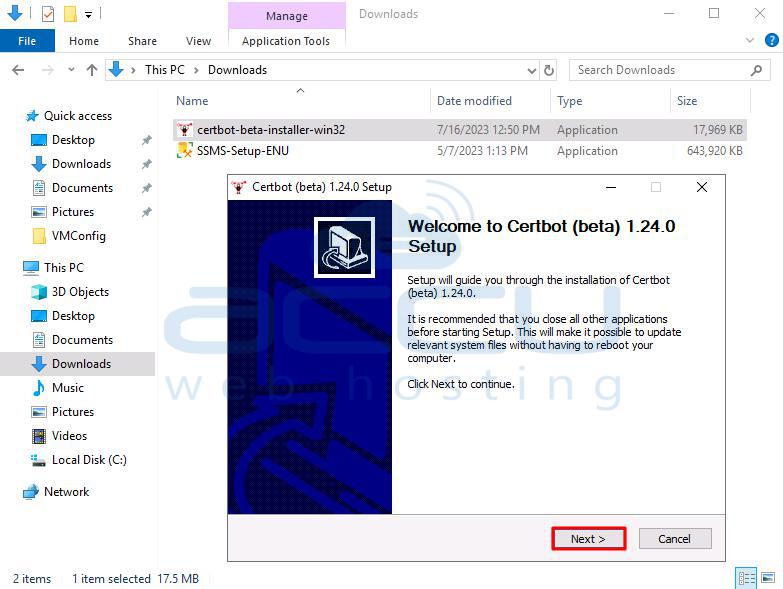
Step 4: The installer will suggest a default installation directory (e.g., C:\Program Files(x86)\Certbot). Leave it as it is and click Install.

Step 5: After the installation is complete, click Finish.
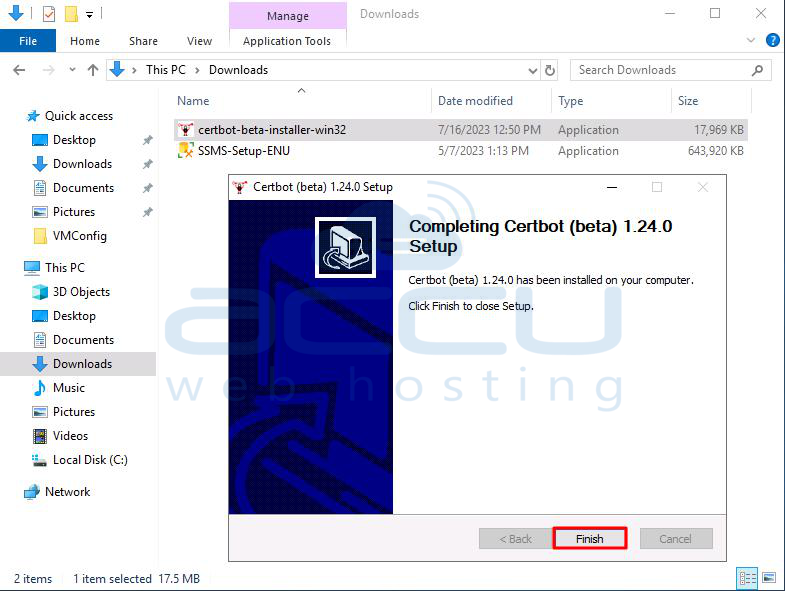
This completes the installation of the certbot ACME package. Now, let's test it. Open the Windows command prompt (cmd) and type the following command:
certbot --help

If the certbot ACME client is installed successfully, you will see the corresponding output. Now, let's move to the next section.
1.2 Issuing SSL Certificate using Certbot
In this section, we will issue an SSL certificate for our website. Follow these steps:
Stop the IIS service from the IIS manager or through the Windows Services section.
In the Windows command prompt (cmd), enter the following command:
certbot certonly
Select the authentication method to authenticate with the ACME CA. Here, we have selected 2: Place files in webroot directory (webroot) as an example.
Enter the path of the webroot directory in the input the webroot for website field. Here, we have entered C:\HostingSpaces\admin\accuwebtraining.com\wwwroot as an example.
The certbot will successfully issue the SSL/TLS certificate, along with the private key and intermediate certificate. The issued certificates will be automatically saved to the location C:\Certbot\live\accuwebtraining.com\ folder.

This completes the issuance of the SSL/TLS certificate for your website. Start the IIS service again, and let's move to the next section.
1.3 Importing and Installing SSL using IIS Manager
Currently, Certbot for Windows cannot automate the installation of adding SSL certificates in IIS. So, we need to import the certificate manually through the IIS manager. Follow these steps:
Step 1: Convert the PEM formatted SSL certificate file obtained from the certbot ACME client into a PFX file, which is supported by IIS. You can use online PEM to PFX converter tools or OpenSSL commands.
openssl pkcs12 -export -out cert.p12 -in C:\Certbot\live\accuwebtraining.com\cert.pem -inkey C:\Certbot\live\accuwebtraining.com\privkey.pem -passout pass: -nokeys

Step 2: Assume that you have the PFX version of the SSL certificate (e.g., cert.pfx) ready to import through the IIS manager.
Step 3: Open the IIS manager and click on "Server Certificates" under the server section, then click on "Import".
Step 4: In the import window, provide the location of your cert.pfx file in the certificate file field.
Step 5: Leave the password field blank.
Step 6: Select the certificate store as "Personal".
Step 7: Leave other settings as they are and click OK.

Step 8: Now you can see that your certificate is successfully imported and available under the "Server Certificates" section of IIS.
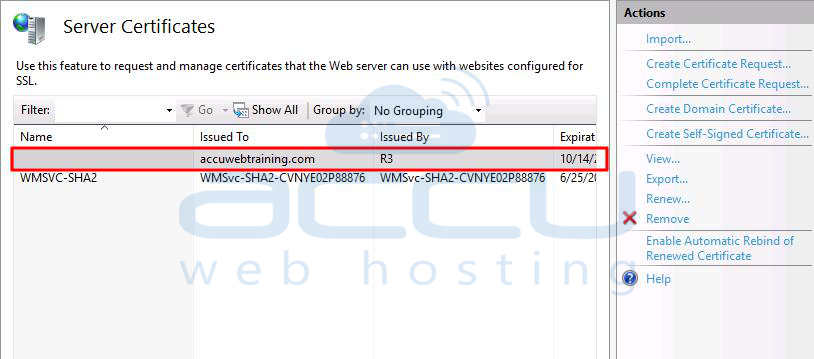
Step 9: From the IIS manager, go to the "Sites" section and click on "Bindings".
Step 10: Click "Add" in the "Site Binding" window.
Step 11: In the new "Add Site Binding" window, choose the type as "https".
Step 12: Enter your domain name (e.g., accuwebtraining.com) in the hostname field.
Step 13: Choose your certificate from the SSL certificate dropdown.
Step 14: Enable the "Require Server Name Indication" option.
Step 15: Leave all other settings as they are and click OK.
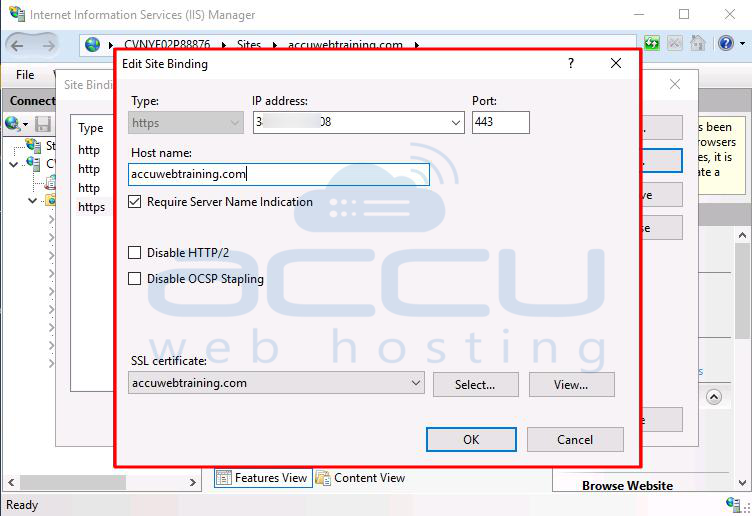
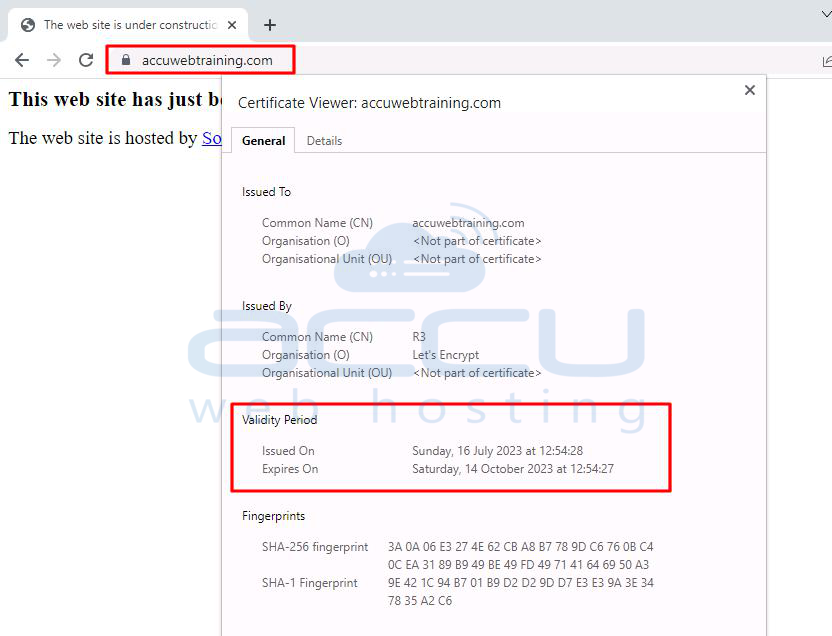
This concludes the SSL installation process. You can verify the SSL by browsing your website over https in the browser.
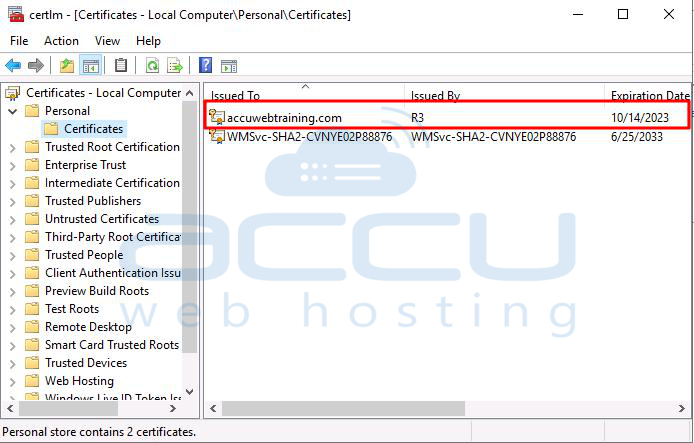
You can also check the imported Let's Encrypt SSL certificate in the Windows Certificate Manager using the "certlm.msc" command in the Windows Run dialog.
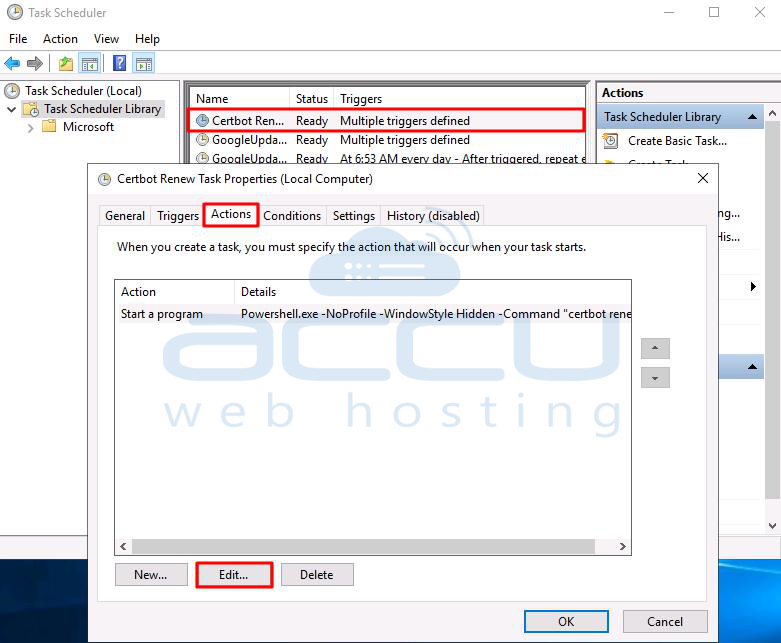
Additionally, a Windows task named "Certbot Renew" is created in the Windows Task Scheduler. This task will automatically run when the Let's Encrypt certificate is due for renewal, eliminating the need for manual renewal.
If you used the standalone authentication method on a machine where port 80 is typically used for issuing SSL certificates, you can edit the built-in command for automatic renewal. Add the "--pre-hook" and "--post-hook" flags to stop and start the IIS web service.
To do this, go to the "Certbot Renew" tab, choose Properties, click on the Actions tab, and then click Edit.
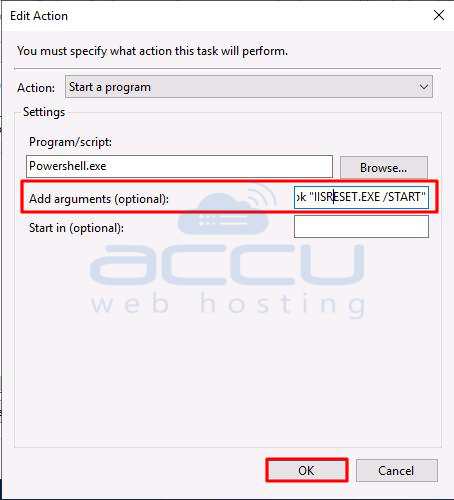
In the "Add Arguments" section, add the command:
certbot renew --pre-hook "IISRESET.EXE /STOP" --post-hook "IISRESET.EXE /START"
You can test the working of this command by executing it in the Windows command prompt.
certbot renew --pre-hook "IISRESET.EXE /STOP" --post-hook "IISRESET.EXE /START"

If you prefer another ACME client for Windows, you can follow the steps above. Otherwise, this concludes the installation and setup of Let's Encrypt SSL on a Windows Server 2019.
2. SSL Installation Using win-acme Let's Encrypt Client:
win-acme is a user-friendly ACMEv2 client designed specifically for Windows. It provides a simple interface to create and automatically install certificates on an IIS server.
Steps to Install Let's Encrypt SSL Certificate on Windows VPS using win-acme:
Step 1: Log in to the server using Remote Desktop Application.
Step 2: Open the web browser on the server and go to https://www.win-acme.com/.
Step 3: Click the Download button and choose the recommended version.
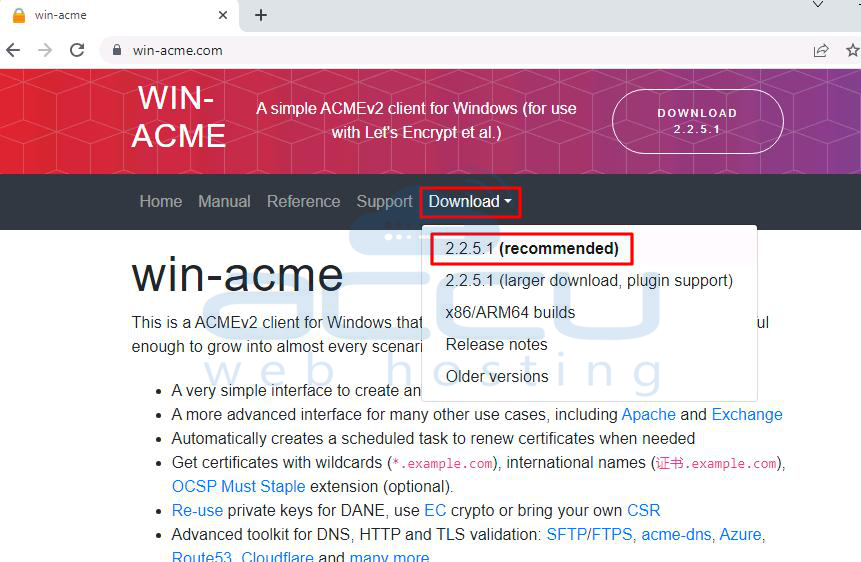
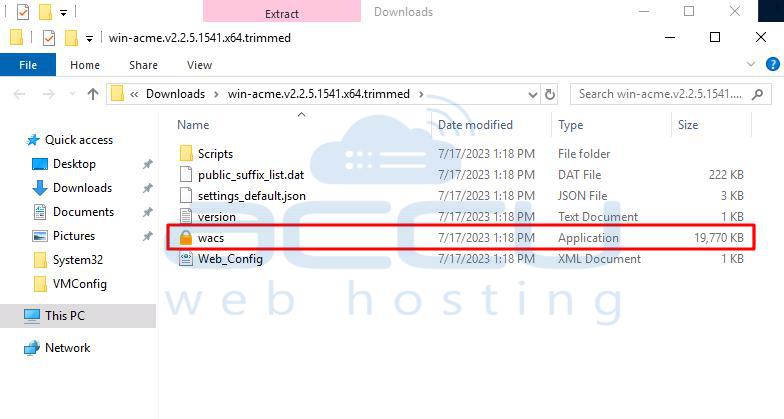
Step 4: Extract the downloaded zip folder and save it wherever you want.
Step 5: Open the Win-acme directory and double-click on "wacs.exe".
Step 6: This will open the Win-acme console on your server.
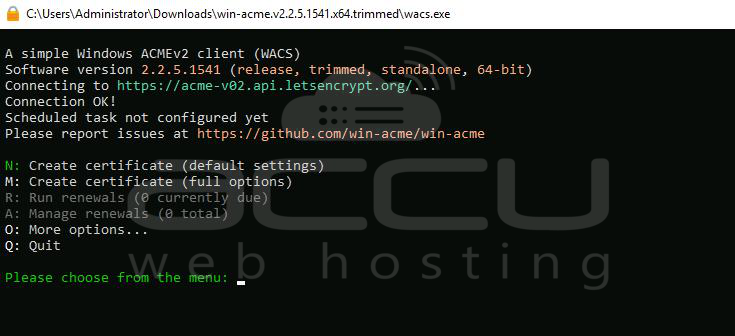
Step 7: To create a certificate, type "N" and press Enter. The win-acme client will scan your live websites from IIS and display the results.
Step 7: Enter the number corresponding to the website name.
Step 8: Choose the website binding by entering the corresponding character.
Step 9: Confirm the selection by typing "yes".
Now, the Win-acme client will install the SSL certificate.
If your domain is correctly pointed to your server, it will successfully generate an SSL certificate for you. It will also set up a scheduled task for automatic certificate renewal. The application will install the SSL certificate for you as well.
You can use the SSL checker tool at https://www.sslshopper.com/ssl-checker.html to check the SSL status of your website.
To test the SSL certificate renewal, follow these steps:
Step 1: Run the "wacs.exe" file.
Step 2: Select option "A" to manage renewals.
Step 3: A list of all Let's Encrypt SSL certificates on the server will be displayed. Enter the corresponding number for the SSL certificate you wish to renew (e.g., "2").
Step 4: Initiate the renewal by typing "R".
Step 5: The renewal process will run, and once completed, exit the console by typing "Q".
With these steps, you have successfully issued a free Let's Encrypt SSL/TLS certificate using the win-acme Let's Encrypt Client. Your website will now be secured with the new Let's Encrypt SSL/TLS certificate when accessed through a web browser.


