
A link is essentially a reference to a file, much like a pointer in programming languages. By creating links, users can easily access files using shortcuts. This enables multiple file names to point to the same file at different locations.
Linux has two distinct types of symlinks, namely:
- Hardlink
- Softlink
1) Hard Link:
A hard link operates by generating an additional filename referring to the inode data of the source file. It is comparable to duplicating the file. In Linux, hard-linked files have the same Inode value as the original file, which means they refer to the exact physical location of the file. Hard links possess actual file content. As a result, the size of any hard-linked file is identical to that of the original file. Any changes made to the content of a hard link file will also update all the hard link files.
Here is the command to create a hard link:
Syntax: ln [original filename] [link name]
2)Soft Link:
In Linux, a soft link is akin to the file shortcut feature commonly used in Windows Operating systems. Each soft-linked file has a distinct Inode value that points to the original file. When changes are made to the data in either file, the other file will reflect these changes. Soft links contain the path for the original file and not its contents. If you remove a soft link, there is no impact on the original file. However, if you delete the original file, the soft link becomes a "dangling" link pointing to a non-existent one. For linking file across different file systems, soft links/symlinks is used.
To create a soft link:
Syntax: ln -s [original filename] [link name]
The Linux ln command establishes links between source files and directories.
-s – the command for Symbolic Links.
[original filename] – the name of the existing file for which you are creating the link.
[link name] – is the name of the symbolic link.
If the [link name] is not specified, the command will default create a new link in the current directory.
By default, the ln command creates a hard link, & to create a soft link use the ln -s command.
To Create Symbolic Link for Files in Linux
ln -s [original filename] [link name]
Example: ln -s /home/user/test file testlink

To Create Symbolic Link for Folders in Linux
Generating symbolic links for folders is also a straightforward process.
The command to create a symbolic link for a folder is:
ln -s [Specific file/directory] [symlink name]
Example: sudo ln -s /home/user/music /home/user/music

In Linux, how to Change or Remove Symbolic Links?
To eliminate existing links associated with files or directories using the unlink or rm command. Below is an example of how to remove a link using the unlink command:
unlink [symlink to remove]
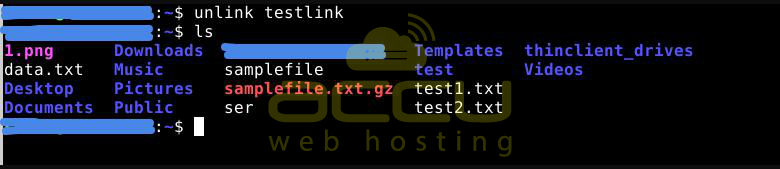
Eliminating a symbolic link using the rm command is analogous to utilizing the unlink command, as demonstrated below:
rm [symlink name]

Here are some crucial considerations when creating hard links and soft links:
A soft link refers to the path or location of the original file and operates similarly to a hyperlink on the internet. Here are a few essential points regarding soft links:
- When a symbolic link file is removed, the initial data persists. However, the symbolic link becomes invalid if the original file is deleted or relocated.
- Soft links can refer to files located on separate file systems. They are commonly employed to provide rapid access to frequently-accessed files without the need to type the entire file path.
A hard link is a type of link that associates one file with another by creating a new name for an existing file on the same file system. The following are some key considerations regarding hard links:
- Even if the original file is deleted, the file data remains accessible through other hard links. Hard links remain functional even if the original file is moved to another location.
- Hard links have a limitation: they cannot be created for files or directories located on different file systems, and they also cannot be created for special files or directories.
- The inode & file data are permanently deleted when the number of hard links reaches zero.
To create links, use the "ln" command and verify them using the "ls" command.
Remember, in case the source file is no longer available in its original location, you should delete the symbolic links to prevent creating duplicates that can potentially slow down your work.


