
SQL Server maintains detailed error logs that capture both system events and user-defined activities. These logs are essential for troubleshooting issues, monitoring database performance, and maintaining a secure and healthy database environment. Knowing where to locate these logs and how to access them helps database administrators quickly diagnose and resolve potential problems.
When you install SQL Server, you are given options for storing the log files. You can either keep them on disk or create a directory named 'Log' and put them under that folder.
If you choose to have them on disk, they are stored in C:\Program Files\Microsoft SQL Server\MSSQL.SQLEXPRESS\MSSQL\DATA\LOG.

The SQL Server error log contains user-defined events and system events that you can use to troubleshoot problems.
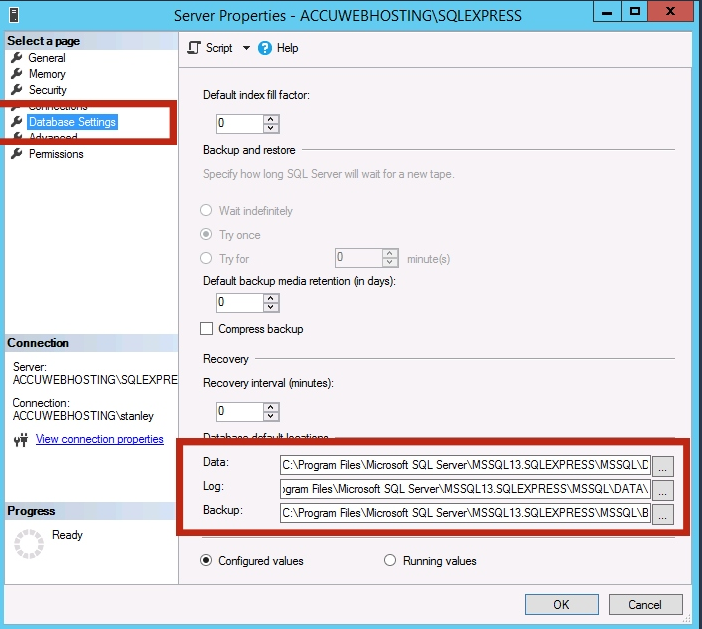
To check the log file location, follow the steps below –
Step 1: Open SQL Server Management Studio and connect to your SQL Server.
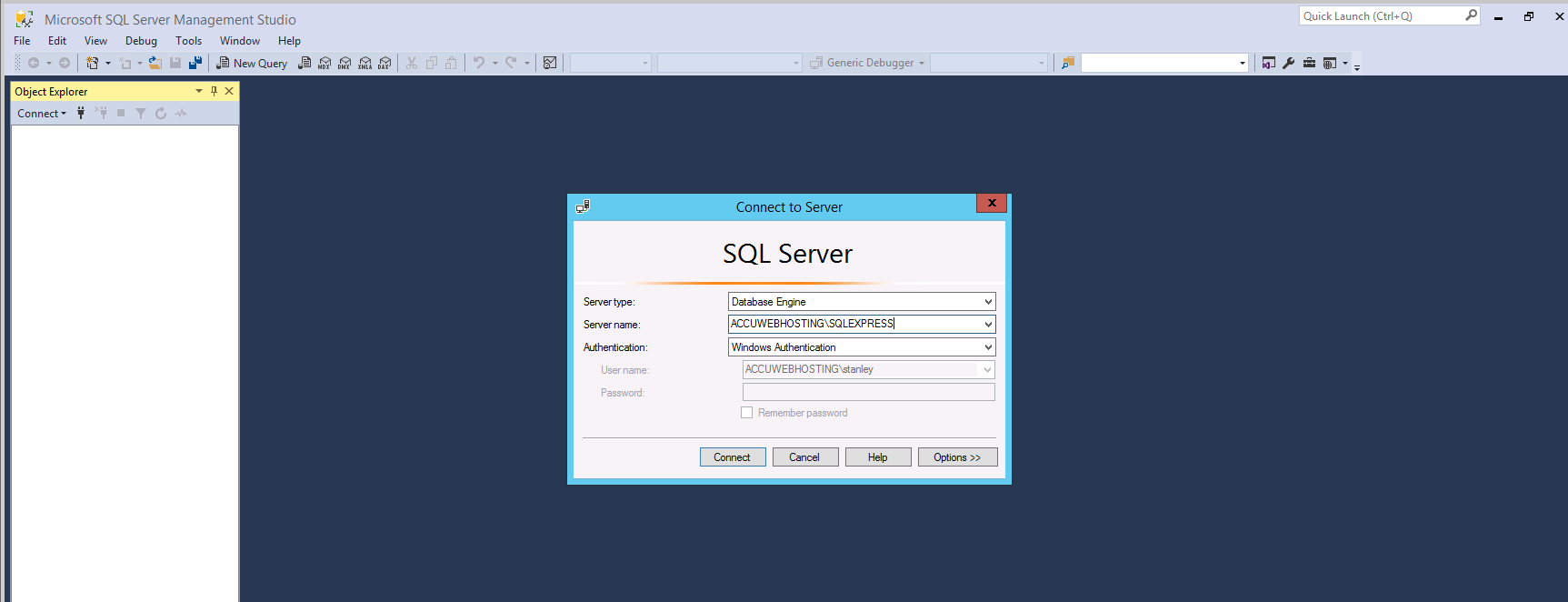
Step 2: Right-click on the SQL Server hostname and select Properties.

Step 3: Go to the Database Setting tab. Here you should see the log file location.
View the logs from SQL Server Management Studio.
Step 1: Log in to the SQL Server Management Studio.
Step 2: Find and expand the Management section under Object Explorer.

Step 3: Right-click on SQL Server Logs, select View, and then choose SQL Server Log.

Step 4. Once you click on the SQL Server Logs, you can view the MSSQL Logs.
You can read the current SQL Server error log without specifying any parameters by executing the xp_ReadErrorLog command.
Step 1: Log in to the SQL Server Management Studio.
Step 2: Click on New Query.

Step 3: Enter 'EXEC xp_ReadErrorLog' in the query window.
Step 4: Click on the Execute button or press F5.

SQL Server error logs are a crucial tool for monitoring and troubleshooting your database server. Whether accessed through SSMS or via T-SQL commands, regularly reviewing these logs ensures you can quickly detect and resolve issues, keeping your SQL Server environment stable and secure.


