
If you've created a website using Classic ASP and are facing issues, enabling detailed error messages is essential for identifying the root cause.
Displaying detailed error information provides insights into specific topics, making addressing problems in your Classic ASP application easier.
Follow the steps below to enable detailed errors and streamline the debugging process. These three steps will assist you in effectively identifying errors in your application.
By default, IIS does not automatically send debugging information to the browser. However, you can alter this behavior and instruct IIS to transmit details, including line numbers and traces, to the user.
1. Turn on IIS debugging for ASP
IIS doesn’t send debugging details to the browser by default. You can change this behavior and ask IIS to send details such as line number and trace to the user:
- Open IIS Manager. Click the application name
- Double click “ASP. “

- Expand “Debugging Properties“
- For the attribute “Send Errors to Browser, “select “True. “

2. Configure Error Pages
You can tell IIS to show details on common error pages such as 401, 404, and 500:
- Open IIS Manager. Click the application name
- Double click “Error Pages.
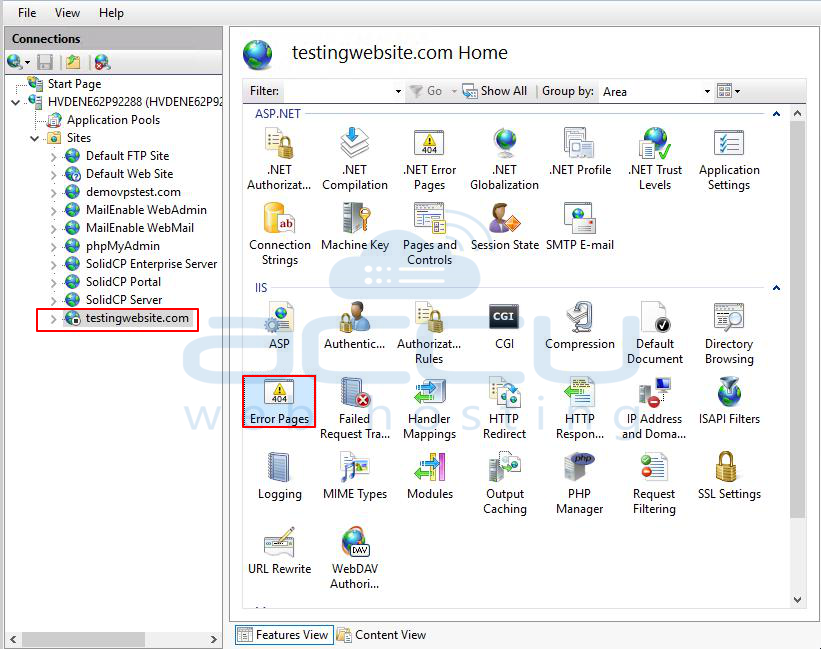
- Select the error code
- In Action Panel, click “Edit Feature Settings“And Select “Detailed errors. “

Within Error Responses, you will encounter three options. Now, choose either the second or third option and click OK.

3. In some instances, utilizing the IIS manager to enable detailed errors may not be possible. For instance, if your website is hosted on a shared hosting site, accessing the IIS manager may not be available. In such situations, you can enable detailed errors using the web.config file, typically in the website's root directory. Insert the following line within the <system.webServer> tag:
<configuration>
<system.webServer>
<httpErrors errorMode="Detailed" />
</system.webServer >
</configuration>
Remember that adding this line into the web.config file compels IIS to display detailed local and remote request errors.
Note: Detailed errors are an excellent way to troubleshoot your site code in classic ASP because the error messages they generate on your site may contain information relevant to the error you are experiencing and will assist you in resolving many coding issues.
However, please be mindful when using detailed errors on a production site because the information output to the page can also be very revealing about how your code works and processes information, which is particularly concerning for the security of your site.
Therefore we strongly recommend using detailed errors for sites that are in development or experiencing problems; conversely, we recommend disabling detailed errors while the site is in production and not experiencing any issues.
Conclusion!
In conclusion, when troubleshooting errors in a website developed using Classic ASP, enabling detailed errors is pivotal for identifying the root cause of the issue.
By following the steps outlined, such as configuring IIS settings and utilizing the web.config file, developers can access comprehensive error information, aiding in a more effective diagnosis and resolution of issues within their Classic ASP websites.


