
Files and directories are fundamental operating system components, constituting an integral part of our daily interactions as regular users. Frequently, we find the need to rename or relocate files for improved organization. While Graphical User Interfaces (GUIs) can execute such tasks, many Linux users opt for the "mv" command owing to its extensive functionality.
This user-friendly guide will explore the "mv" command basics. As the name implies, the "mv" command renames or relocates files and directories.
The syntax for the mv Command:
The mv command operates on files and directories, with outcomes dependent on the provided arguments. There are four basic ways to use the mv command:
Rename a file by specifying the source filename and the destination filename:
mv [options] [source-file] [destination-file]
To rename or move a directory, specify both the source and destination directories. If the destination directory already exists, the mv command moves the source directory to the specified destination.
mv [options] [source-directory] [destination-directory]
Move a file while preserving the filename. Enter the filename followed by the destination directory.
mv [options] [file] [destination-directory]
Move a file and change its name by entering the filename followed by the destination directory and a new filename.
mv [options] [file1] [directory/file2]
Options for the mv command:
According to the POSIX standard, the mv command primarily offers two options: -f (force remove) and -i (interactive mode). However, additional options may be available based on the operating system and the version of the mv command, providing users with enhanced functionality.
Here are some of the most frequently used options with the mv command.
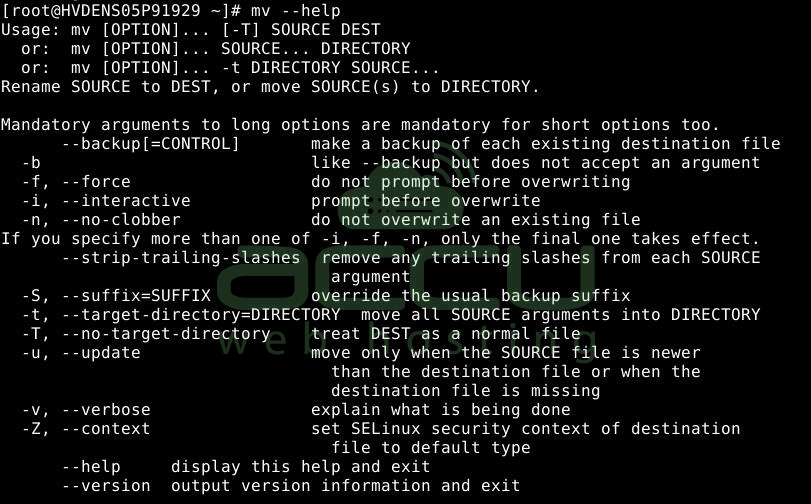
Examples of the "mv" Command
As demonstrated earlier, the "mv" command is a straightforward yet versatile tool for file management—the following sections present examples of the most frequently used "mv" operations.
Example 1: Move a Single File/Directory from One Directory to Another
To relocate a single file or directory from one location to another, specify the source location and the destination for the "mv" command. Remember that if you move a file to a directory where another file with the same name exists, it will overwrite the existing file.
For example, to relocate a file named "file1.txt" from the current directory to the "~/temp" directory, you can use the following command:
mv file1.txt ~/temp/
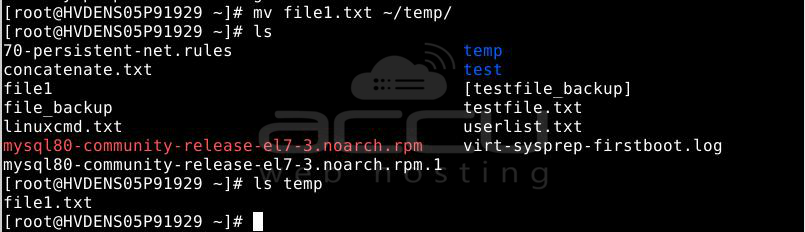
Likewise, to transfer a directory from one location to another, employ the following syntax:
mv directory1 directory2
For example, to move a directory named "test" from the current working directory to the "~/temp" directory, execute the following command:
mv test/ ~/temp/

Example 2: Move Multiple Files/Directories from One Directory to Another
Employ the following syntax for moving multiple files from one directory to another:
mv file1 file2 file3 dir1
For example, to move the files named "sample1.txt," "sample2.txt," & "sample3.txt" from the current directory to the "~/temp" directory, execute the following command:
mv linuxcmd.txt file_backup ~/temp/

Likewise, to move multiple directories from one location to another, utilize the following syntax:
mv directory1 directory2 directory3 destination_directory
For example, to move the directories named "devs" & "temp" from the current directory to the "~/user", execute the following command:
mv devs temp ~/user/

Example 3: Rename a File & Directory
With this command, you can also rename a file/directory. To rename a file, utilize the following syntax:
mv file1 file2
For example, to rename a file named "samplefile" to "samplefile1," use the following command:
mv samplefile samplefile1
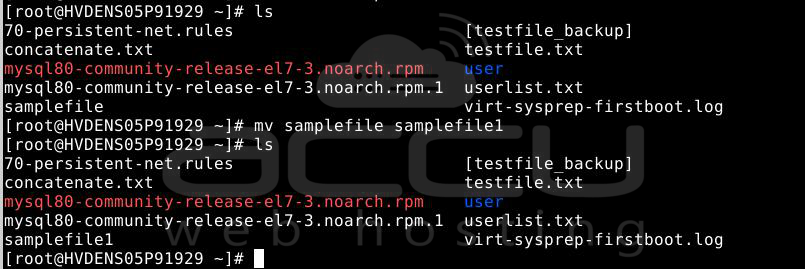
Note: If a file named "sample2.txt" already exists, it will be overwritten by the file "sample1.txt."
mv directory1 directory2
For example, to rename a directory named "user" to "doc/", the command would be:
mv user/ doc/
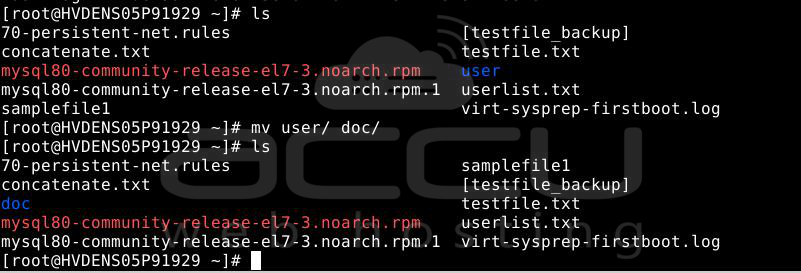
Example 4: Enable Verbose Mode
When we want to track which files or directories are being renamed, we can use the "-v" option to enable verbose mode.
To illustrate this, let's rename the file using the verbose mode:

The output above shows that the "mv" command now displays the renaming messages.
Example 5: Prompt Before Overwriting an Existing File
When you transfer a file to another directory where a file with the same name already exists, it automatically overwrites the existing file in the destination directory. If desired, you can instruct the "mv" command to prompt for confirmation before overwriting an existing file by utilizing the "-i" option.
mv -i file1 directory
If you wish to move the file "samplefile1" to the "~/doc" directory, which already has a file named "samplefile1," the "-i" option will prompt you before overwriting the existing file.
mv -i samplefile1 ~/doc

If you wish to proceed with the overwrite, press 'y'. Otherwise, the operation is canceled.
Example 6: Avoid Overwriting an Existing File
If you prefer, you can instruct the "mv" command not to overwrite an existing file at the destination by using the "-n" option, as shown below:
mv -n file1 directory
For example, suppose you wish to move the file "samplefile1" to the "~/doc" directory, which already has a file named "samplefile1." Using the "-n" option prevents the file from being overwritten.
mv -n samplefile1 ~/doc/
Example 7: Move Only If the Source File Is Newer Than the Destination
When you move a file to a directory that already has the same file, you can instruct the "mv" command to update the destination file only if the source file is new than the file at the destination.
mv -u file1 directory
We have a samplefile1 file in the current directory and the ~/doc directory. The version of samplefile in the current directory is more recent than the one in the ~/doc directory, as shown in the following screenshot.
Now, by utilizing the mv command with the -u option, the file at the destination gets updated since the source file is more recent.
mv -u samplefile1 ~/doc/

Example 8: Create a Backup of an Existing Destination File
To avoid overwriting an existing destination file, you can use the -b option with the mv command to create a backup of the destination file in the destination directory.
mv -b file1 directory
We have a "userlist.txt" file in the current directory and the "~/doc" directory. Before the source file potentially overwrites the "userlist.txt" file in the destination directory, you can generate a backup using the "-b" option like this:
mv -b userlist.txt ~/doc/

It generates a backup file in the destination directory with the same name, but a tilde (~) is added to it.
Conclusion!
The "mv" command is a robust tool for manipulating files and directories in Unix-like environments.
Its versatility allows users to seamlessly move, rename, and update files or directories.
With practical examples demonstrating its usage, users can streamline file management, enabling organized and precise directory structuring.
The "mv" command is an essential resource for users seeking efficient and flexible file management solutions.


