
The tail command is a powerful utility in Unix-like operating systems that allows users to monitor the end of text files in real time. It is beneficial for observing log files, tracking updates, and staying informed about changes in dynamic files. This command offers a convenient way to display the most recent lines of a file, making it a crucial tool for system administrators and developers.
Definition:
The tail command outputs the last portion of the files, typically used for viewing log files. It displays the last ten lines of each specified file to the standard output.
The syntax of the tail command in Linux is as follows:
tail [OPTION]... [FILE]...
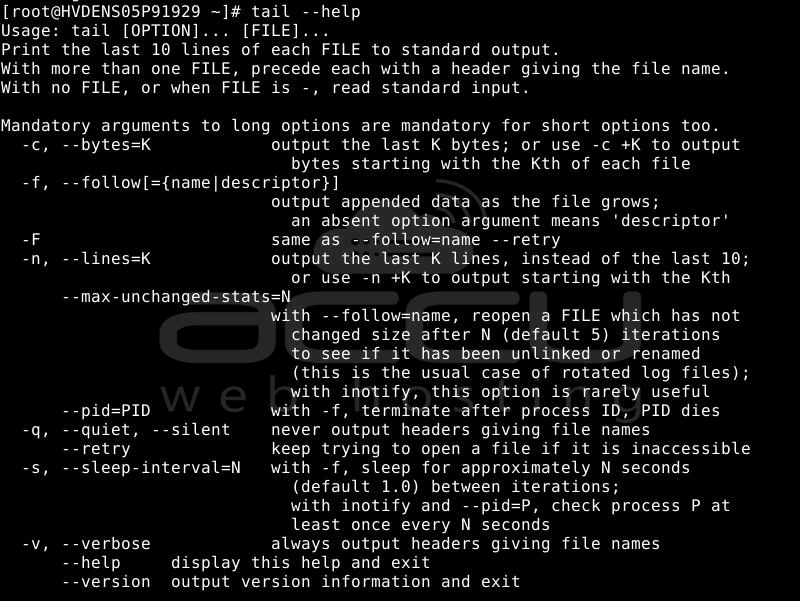
Option: The [options] for the tail command are described in the image below.
File: Specify a [file]/multiple files for processing the tail command. By default, the tail displays the last 10 lines of each [file] to standard output, prefixing their content with the name of each file. The tail reads from standard input if no [file] is specified.
Keep in mind that the input for the tail command is case-sensitive.
Note: The tail command pairs with the head command, showcasing a file's beginning. Both head and tail commands ignore the rest of the file. To display the entire file contents, use the cat command.
Options for tail command
Note: The tail command is primarily designed to work with ASCII text files, where one character corresponds to one byte. When working with the files in the Unicode character set, the -c or -n +NUM options may result in unexpected errors.
tail Command Examples
This section explores common use cases and practical examples of the Linux tail command. To execute this command on a VPS, establish a connection using an SSH client such as PuTTY or Terminal.
1. Using tail to Display the Last 10 Lines
- The basic purpose of the tail command is to display the last ten entries from a single file. Execute it without any additional options or flags, as illustrated in the following example:
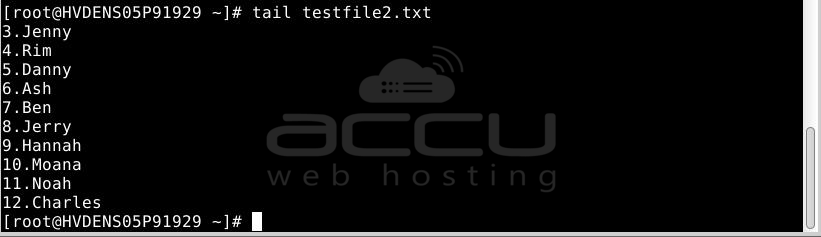
- The command outputs the last 10 lines from the specified file.
- Printing a Specific Number of Lines with the Tail Command
- To display a specific number of lines with a tail, use the -n option in your command. The syntax is as follows:
tail -n [num] [file_name]
- For instance, use the following command to print the last two lines of the testfile2.txt file:
tail -n 2 testfile2.txt

- You can also skip the -n option and directly specify the number of lines to print as the flag, as shown in this example:
tail -2 testfile2.txt

2. Using tail to Specify the Number of Bytes
- The -c option in the tail displays the last number of bytes from the specified file. This is commonly used for regular-sized files containing the ASCII character set, where one character corresponds to one byte.
- Syntax:
tail -c [num] [file_name]
- The following example displays the last 50 bytes of the mynote.txt file using the tail command:
tail -c 30 testfile2.txt

Note: The -c option in the tail command counts bytes instead of characters. When dealing with files using the Unicode character set, especially those with multi-byte characters, specifying the last num bytes may not align with character boundaries. This can result in potentially confusing output.
3. Sorting Data with 'tail'
- Integrate additional utilities and options with the tail to customize the data query in a specific order. The command structure varies depending on your preferences for displaying the information.
- For instance, pipe the ls command with -t and -l options to list 10 items within the current directory with the oldest modification timestamps. Here's the syntax:
ls -tl | tail -n [number_of_lines]
- Additionally, incorporate the sort command with the -M option to arrange the output in ascending order based on the month of creation.
ls -tl | sort -M | tail -n [number_of_lines]
- Add the -r option to the tail command to reverse the output order.
tail -n [number_of_lines] [file_name] | sort -r

4. Utilizing the tail command to handle multiple files
- To simultaneously process multiple files using the tail command, you need to specify their names in the following manner:
tail [option] [file_name_1] [file_name_2] [file_name_3]
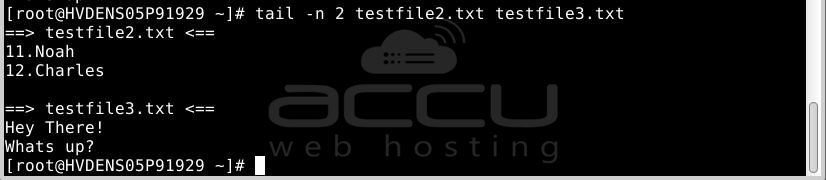
- For example, we will output 2 lines from multiple text files:
tail -n 2 testfile2.txt testfile3.txt
- When executing the tail command with multiple file names, Terminal will show headers indicating them.
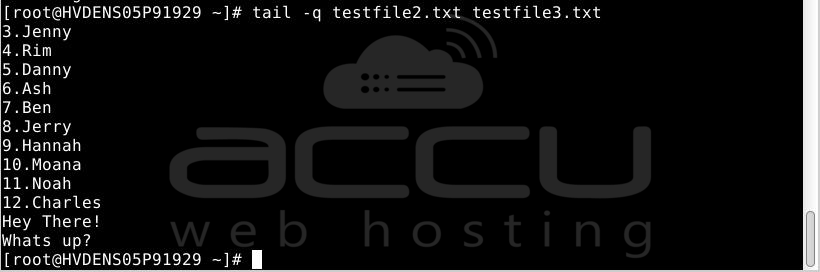
- Hide the file header by using the -q option to enable quiet mode, excluding the information:
tail -q [file_name]
5. Utilizing the tail Command with Pipes
- A pipe (|) is a standard output redirection in Linux operating systems, enabling a command to pass its retrieved information as input to another utility.
- For instance, pipe input from either the cat command or the ls command and display the last three lines of the output:
ls -l | tail -3

- In the given example, the output shows the last three lines of the ls command output.
6. Display Real-Time Updates
- Utilize the -f (--follow) option to monitor files in real time and present any updates in the standard output. This option is commonly employed for log files, given that new status information is typically appended to the end of the file. However, it's important to note that the log file must be a text file for the tail to interpret.
- Syntax:
tail -f [file]
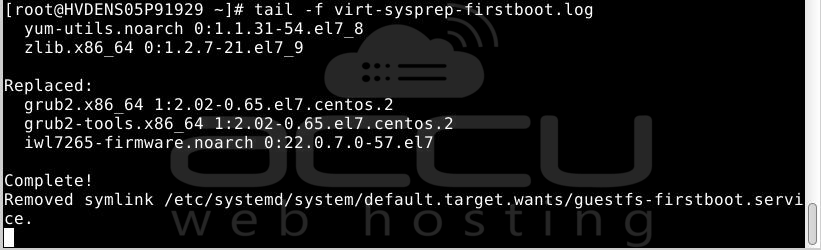
- The command above outputs the virt-sysprep-firstboot.log and awaits new data to be appended to the file. To terminate the command, press the interrupt key combination (Ctrl+C). The default refresh interval is 1 second, and if you want to specify a different refresh interval, utilize the -s option.
- The syntax is:
tail -f -s <sleep interval in seconds> [file]
- Save Output to File
- If you wish to promptly extract a section of a file and store it for future use, redirect the tail output to a new file using the > character.
tail -n 2 testfile2.txt > newfile.txt

- Initially, redirect the output to the newfile.txt file and then employ the cat command to display the file's contents.
Conclusion
In conclusion, the tail command is a versatile tool in Linux, allowing users to efficiently view the end of files, monitor real-time updates, and redirect output for further analysis or storage.
With its various options and capabilities, the tail is a valuable command for managing and analyzing log files, configuration files, and other text-based data.
Its ease of use and flexibility make it essential for system administrators, developers, and users seeking efficient ways to examine and track file content.


