
This article will guide you in changing the .pfx to a .jks file in a few simple steps. But first, you need a Windows environment and a JDK setup to execute the steps.
Step 1: Export the certificate from the server to your Windows system.
Step 2: Open the command prompt (Start >> Run >> type cmd and press enter),
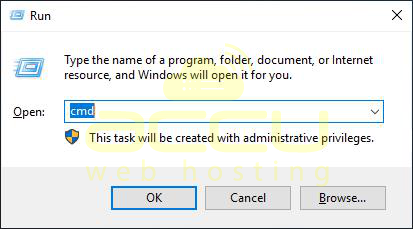
and navigate to the path where you have stored the .pfx file.

Step 3: Run the command below in the command prompt to extract the certificate and keys from the .pfx file:
# Command: openssl pkcs12 -in Yourfilename.pfx -out Yourcertfile.crt -nodes
Note: Do not forget to replace the name of your file (yourfilename.pfx) in the above command.
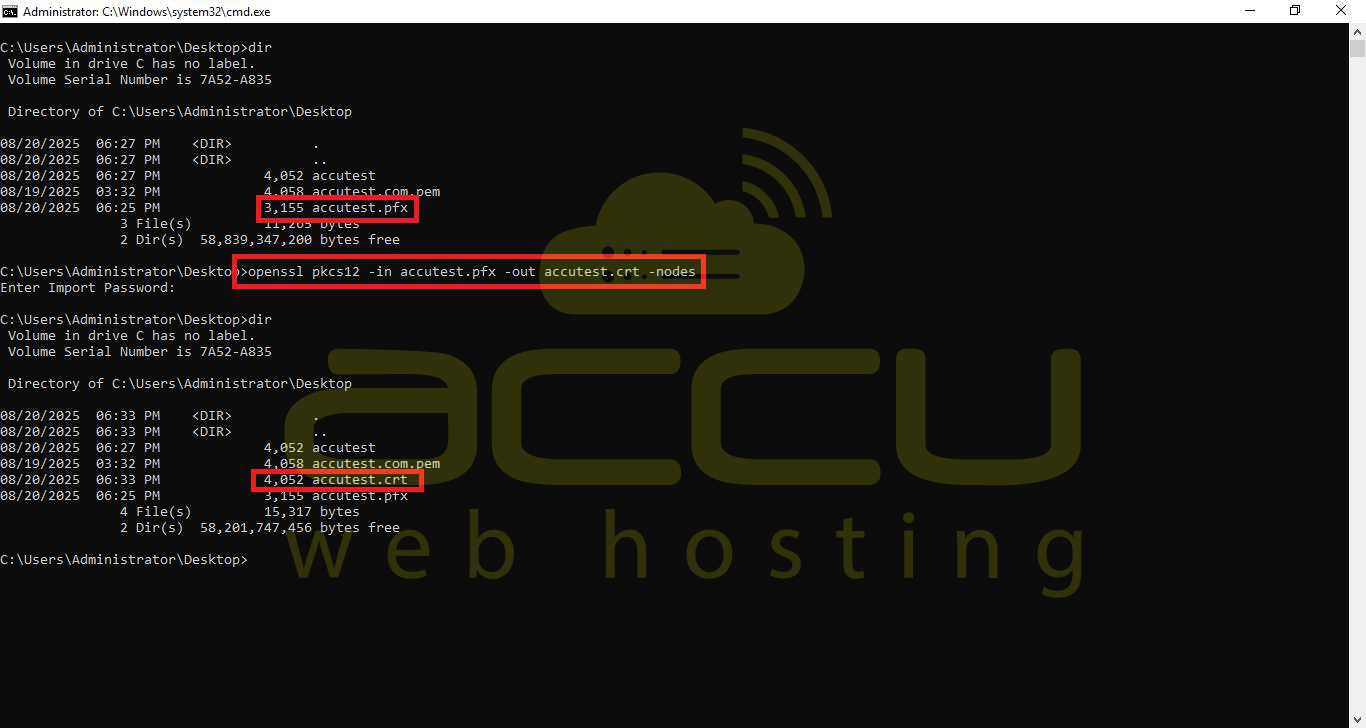
Now, Yourcertfile.crt file has been created.
Step 4: Copy and paste the .crt file to the path given below:
C:\Program Files\Java\jdk-17.0.1\bin
or C:\Program Files\Java\jdk-17\bin
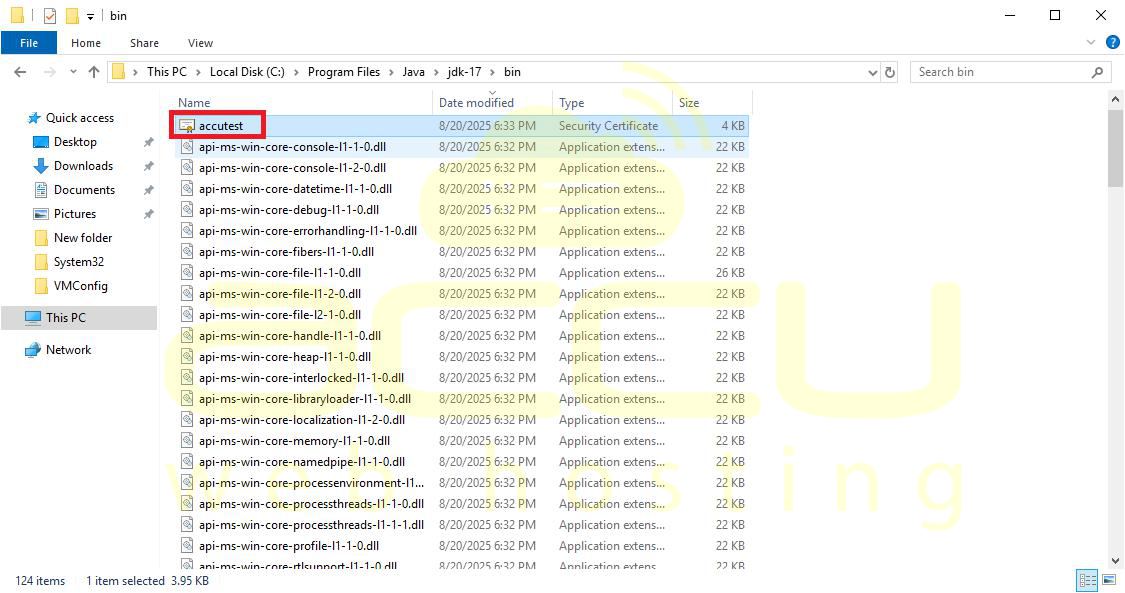
Step 5: Navigate to the C:\Program Files\Java\jdk-17.0.1\bin or C:\Program Files\Java\jdk-17\bin path and run the following command:
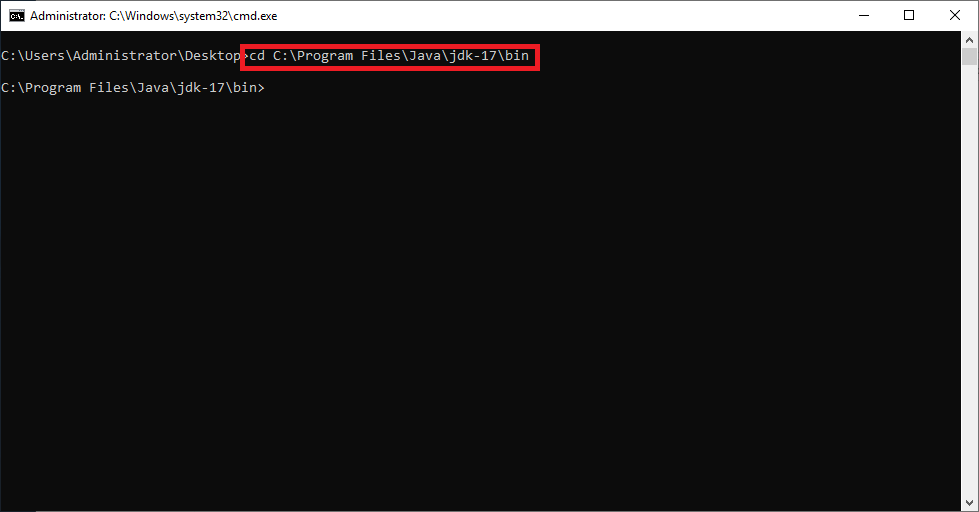
# keytool -import -file Yourcertfile.crt -keystore certfile.jks
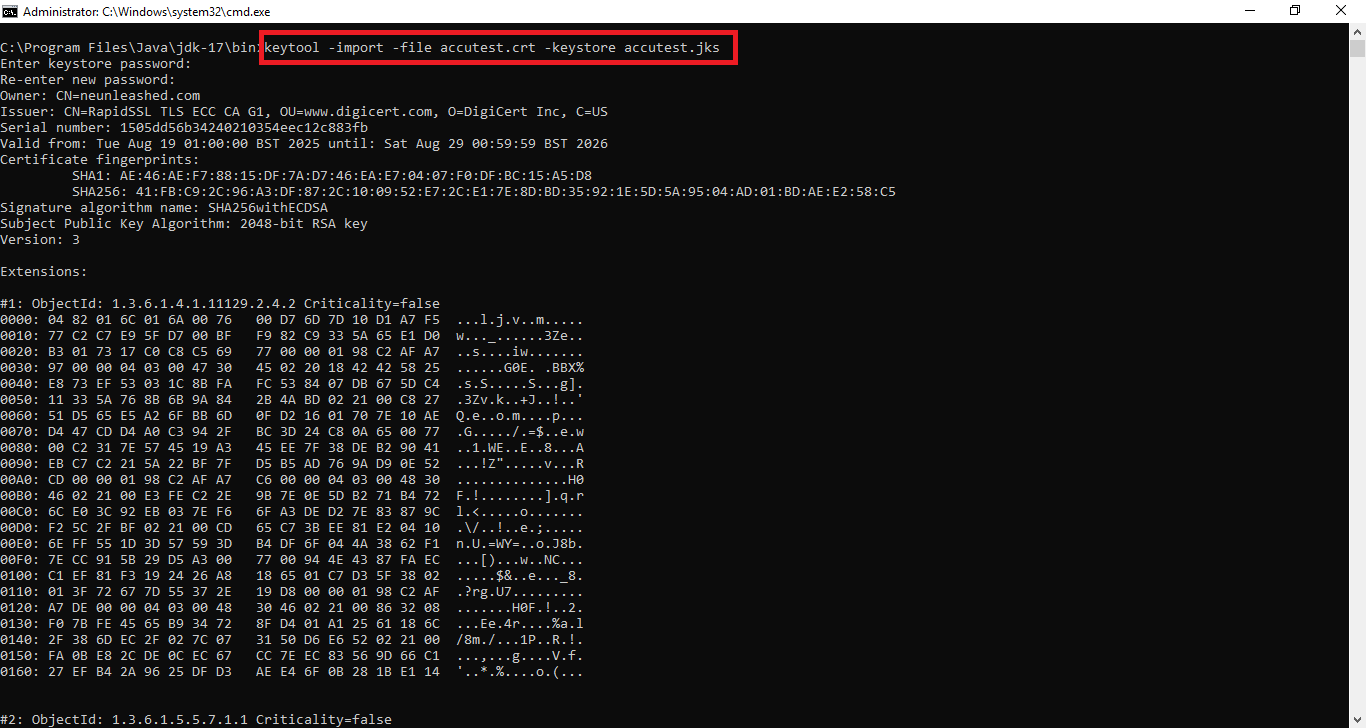

Once you execute the command mentioned above in the command prompt, it will ask for the password to create the .jks file.
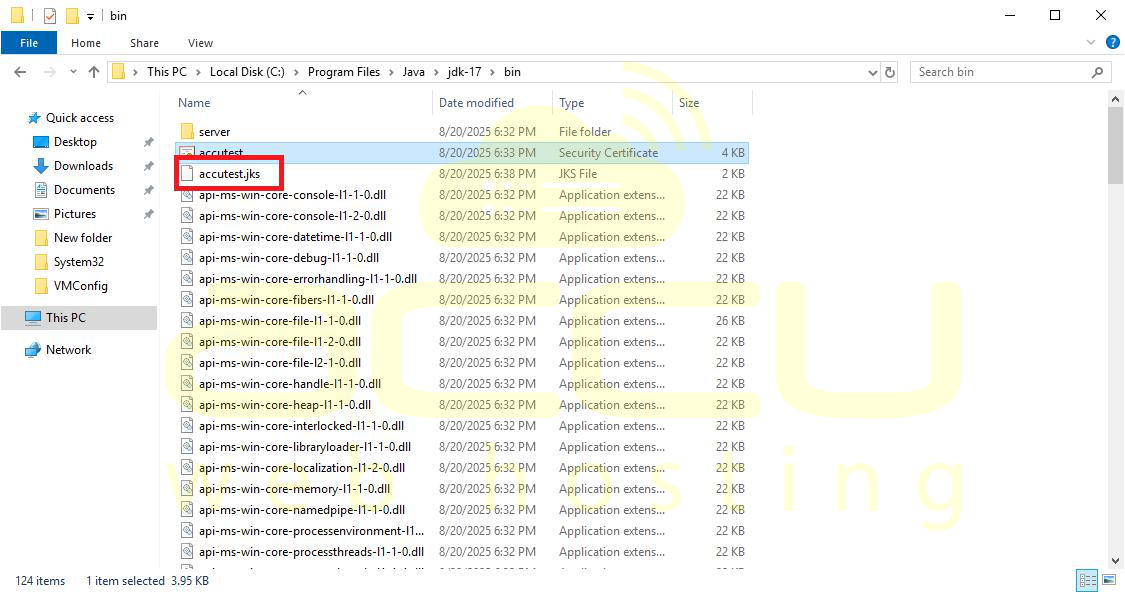
When you enter the password, your .jks file will be ready.
Conclusion:
By following the steps outlined above, you can easily convert a .pfx certificate into a .jks (Java Keystore) file using OpenSSL and the Java keytool utility.
This process ensures that your SSL/TLS certificate is compatible with Java-based applications and servers that require the JKS format. Once the .jks file is generated, you can configure it in your Java application or server to enable secure communication.


