
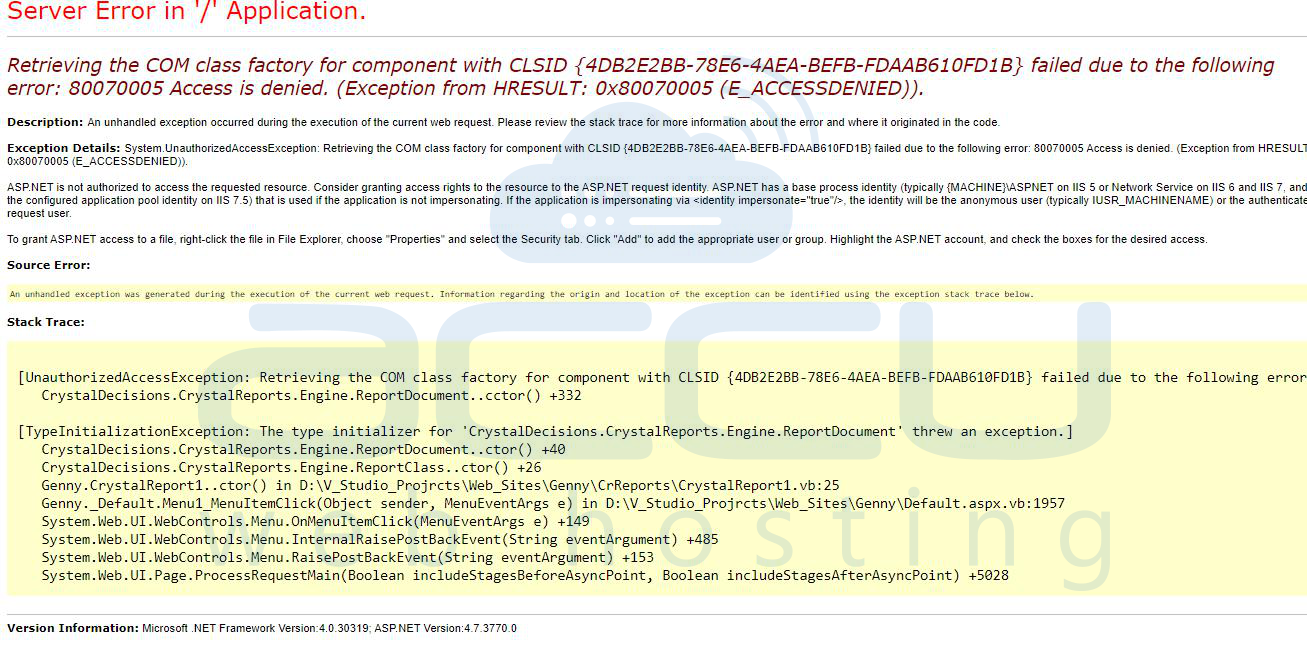
You may face the error below while generating the report for your ASP.NET website with the Crystal Report run time installed on the server.
Retrieving the COM class factory for component with CLSID {4DB2E2BB-78E6-4AEA-BEFB-FDAAB610FD1B}
failed due to the following error. 800700005 Access is denied. (Exception from HRESULT:0x80070005
(E_ACCESSDENIED))
There could be various reasons for this error, like permissions, misconfiguration of the application pool, etc. Here, we have mentioned some settings that can help to fix your issue.
Option 1
Ensure that your application pool identity has the proper permission for the website root folder. Also, be sure about your application pool identity user before applying for permission. You can go for the other options if the issue isn't fixed.
Option 2
You may be running on a Windows server with a 64-bit OS. First, enable the 32-bit applications for the Application Pool; please refer to the steps below to do it:
Step 1: Open Internet Information Services (IIS).
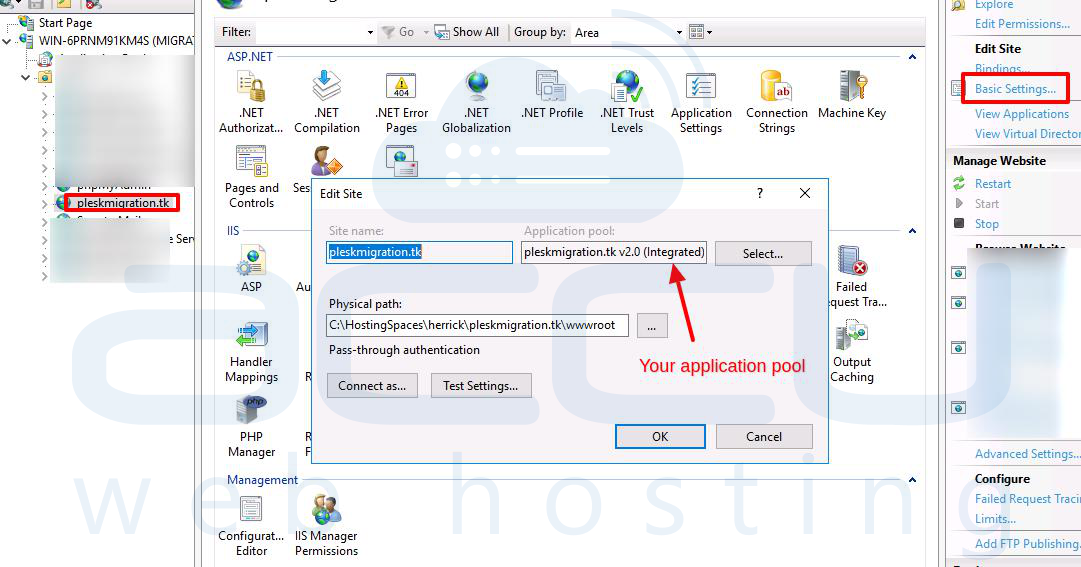
Step 2: Click on the basic settings to find out the name of your application pool.
Step 3: Click on the Application pools.

Step 4: From the Filter option, search for your application pool.

Step 5: Right-click on the application pool and click on Advanced Settings.

Step 6: Set the Enable 32-bit applications to True.

Option 3
Provide read/write permission to the website application pool identity to the C:\Windows\Temp folder. If the issue isn't fixed, you should revert these changes.
Option 4
Find the Crystal report folder on your server. It should be located at C:\Program Files\SAP BusinessObjects\Crystal Reports for .NET Framework 4.x\Common\SAP BusinessObjects Enterprise XI 4.x\.
Provide full permission for the application pool identity user to the same folder and check if the issue resolves. Revert the changes if it doesn't fix your issue.
Conclusion:
The 80070005 Access is denied error when using Crystal Reports with ASP.NET is usually caused by insufficient permissions or incorrect IIS application pool settings. Following the above steps typically resolves the issue.
If the problem persists, review the Windows Event Viewer for detailed error logs and ensure your Crystal Reports runtime version matches your development environment.


