
There are scenarios where your /var or /root partition may not have enough space to accommodate MySQL or MariaDB data. In such cases, it’s common practice to move the MySQL data directory to a larger partition like /home. This guide walks you through the process to safely move the data directory on a cPanel/WHM server while preserving all existing databases.
By default, MySQL/MariaDB stores its databases in /var/lib/mysql.
Steps to Change MySQL/MariaDB Data Directory to /home
Step 1: First of all, we will create a backup of all MySQL databases so that there is no data loss if anything goes wrong.
# tar -cvf mysql.tar /var/lib/mysql
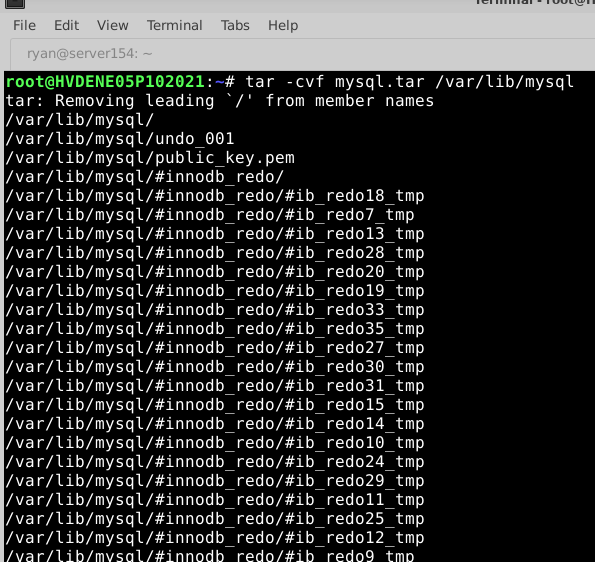
Step 2: Once you are done with the backup, stop the MariaDB service with the command given below:
For SystemD-based systems:
# systemctl stop mariadb
# systemctl is-active mariadb
For SysVInit-based systems:
# service mysqld stop
# service mysqld status
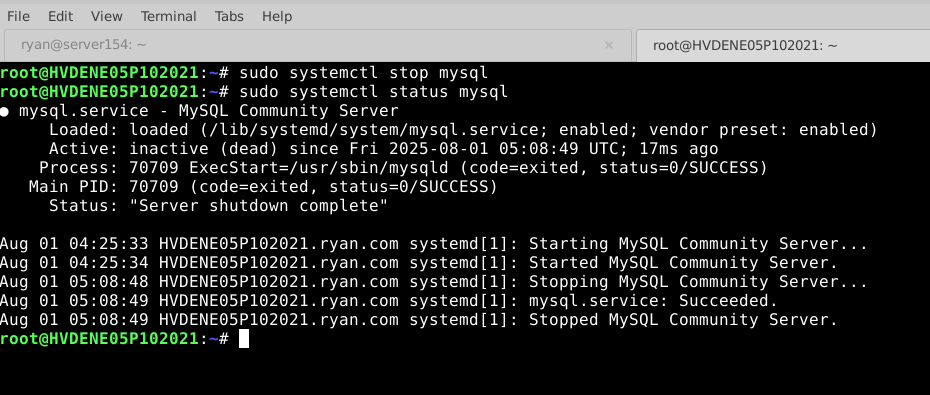
Step 3: Install and use the screen to keep your session active
# sudo apt install screen
screen # starts a new screen session

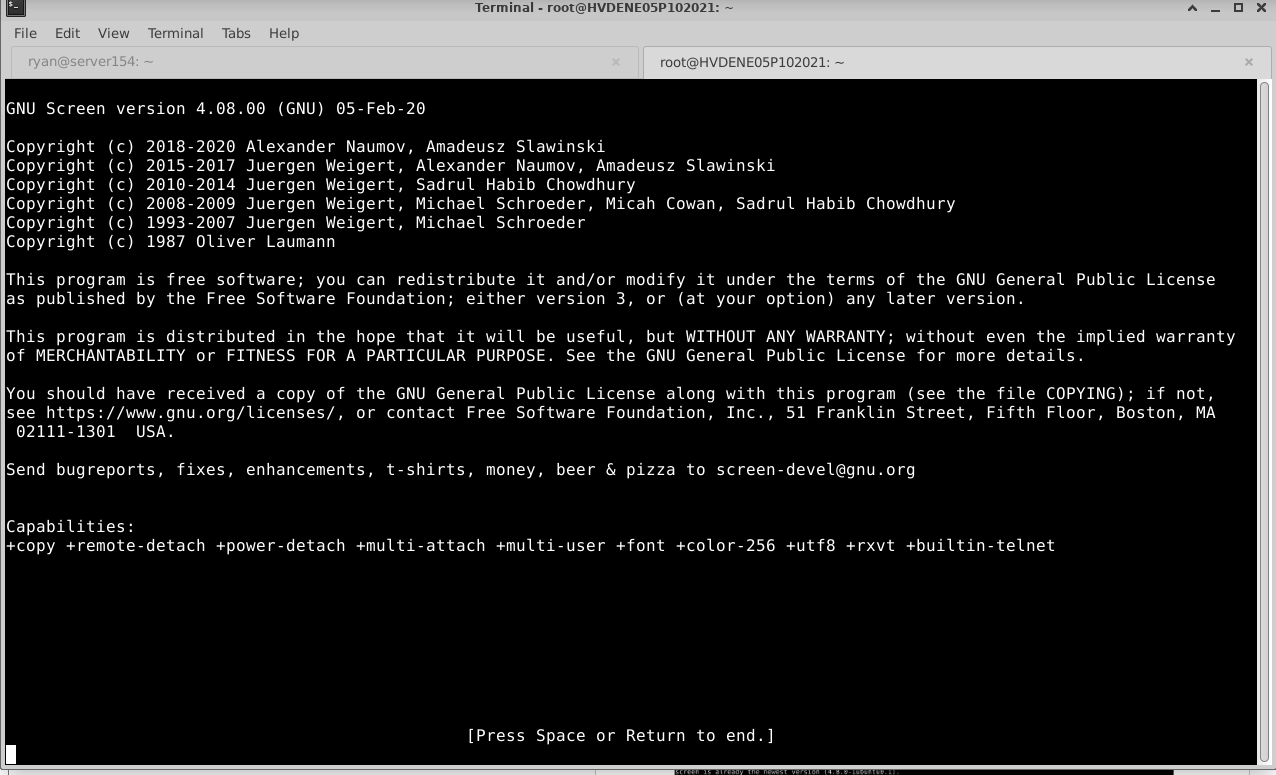
Step 4: Now, we will sync all the MySQL databases to the /home/mysql. The following command will create a MySQL directory in /home and start the sync process.
# rsync -avz /var/lib/mysql /home
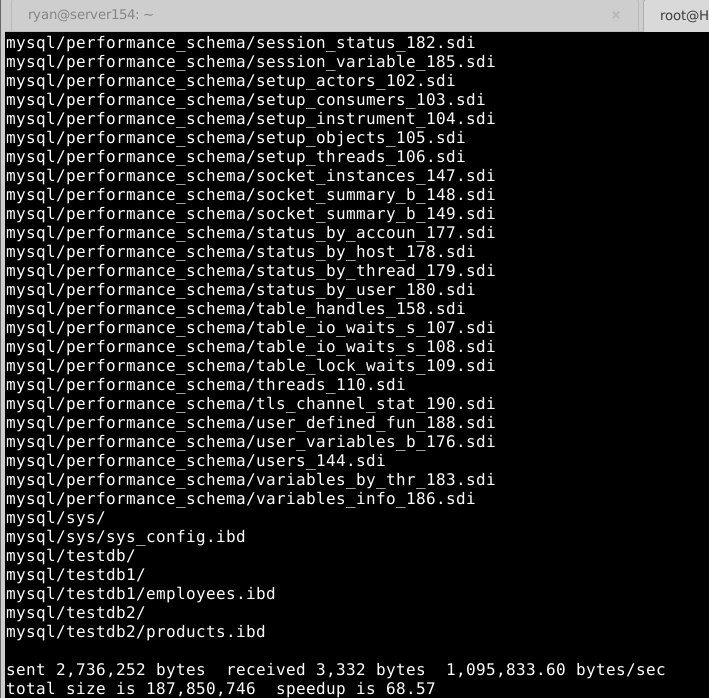
This will copy the full contents and structure while preserving permissions.
Step 5: Screen controls to manage multitasking
# screen -r (it will resume the previous screen)

# ctrl A and ctrl D (for return to main screen)
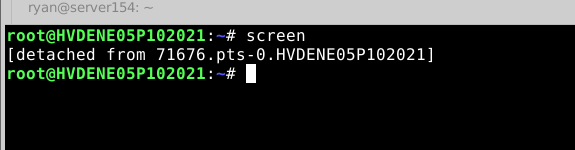
# ctrl A and shift? (for screen command menu)
Step 6: To change MySQL/ MariaDB data directory, edit the /etc/my.cnf file with your preferred editor.
# vi /etc/my.cnf  or
# vi /etc/mysql/mysql.conf.d/mysqld.cnf
Modify or add the following line:
datadir=/home/mysql
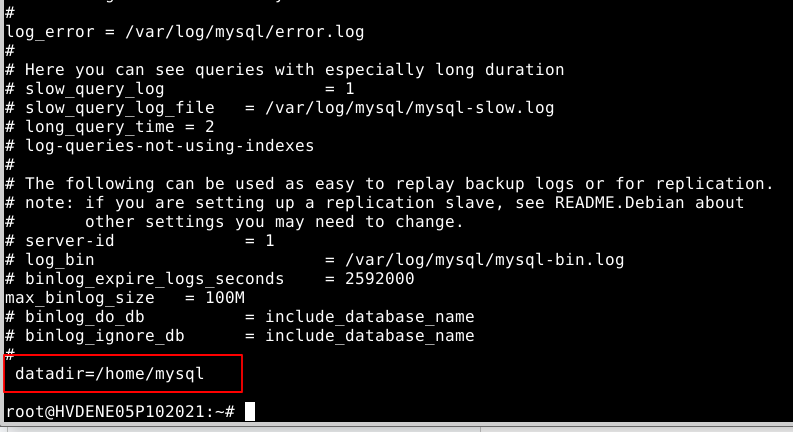
Step 7: You will need to relink the socket file to the /tmp.
# rm -rf /tmp/mysql.sock
# ln -sf /home/mysql/mysql.sock /tmp/mysql.sock
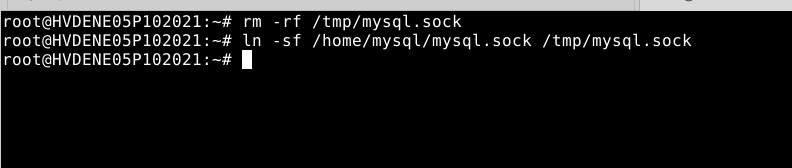
Step 8: To run the MariaDB Service from /home, you need to modify the mariadb.service file at the /usr/lib/systemd/system/mariadb.service location.
Open the MariaDB systemd unit file:
# vi /usr/lib/systemd/system/mariadb.service
Find the line: ProtectHome=true
Change it to: ProtectHome=false
Step 9: Start the MariaDB service
# systemctl start mariadb
Step 10: If you encounter this warning:
MariaDB cannot start after update: [Warning] Need to run systemctl daemon-reload
Run the following:
# systemctl daemon-reexec
# reboot
After reboot, verify the service again:
# systemctl status mariadb
Step 11: To verify the functionality, we will need to create a database from cPanel, which should be created inside /home/mysql.
# cd /home/mysql
You should see a new folder with the database name. If yes, the configuration is successful.
Step 12: If everything is working fine, you can remove the old data directory from /var/lib/mysql.
# rm -rf /var/lib/mysql
Conclusion:
Moving the MySQL/MariaDB data directory is a safe and effective solution when storage constraints arise on default partitions like /var. By syncing data, reconfiguring the datadir, and adjusting service parameters properly, you can avoid service downtime and maintain full database functionality. Just ensure thorough backups and proper verification before deleting the original data directory.


