
phpMyAdmin is a popular, web-based tool that provides an intuitive interface for managing MariaDB or MySQL databases. It allows database administrators and developers to perform operations such as creating, browsing, editing, and deleting databases, tables, and columns — all from a browser.
Some key features of phpMyAdmin include:
- Creating, copying, renaming, and deleting databases, tables, and columns.
- Executing SQL queries and managing stored procedures.
- Importing and exporting data in multiple formats.
- Managing users and permissions.
- Performing server and database maintenance tasks.
In this guide, we will install and configure phpMyAdmin on an AlmaLinux server.
Prerequisites:
- You have root or sudo access to the AlmaLinux server.
- Apache, PHP, and MariaDB are installed and running.
If these are not already installed, follow the steps below:
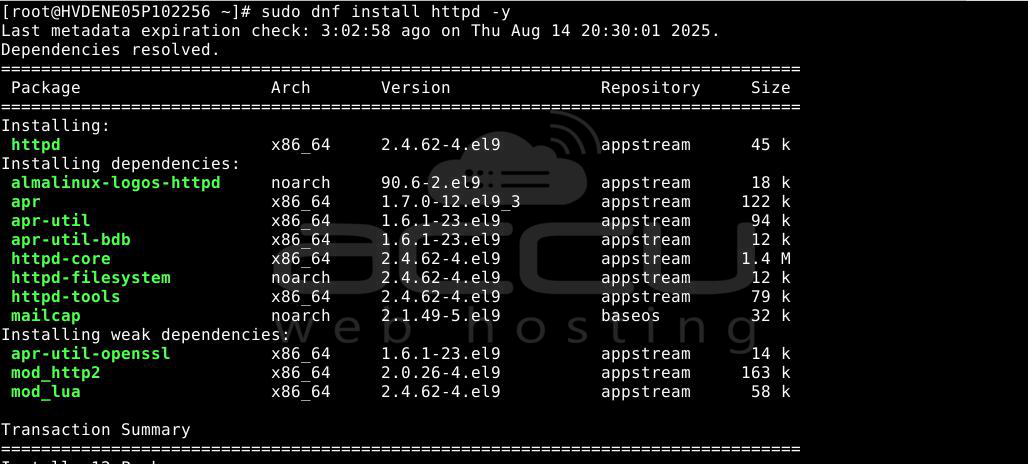
Step 1 – Install Apache
# sudo dnf install httpd -y
Step 2 – Start and enable Apache
# sudo systemctl start httpd
# sudo systemctl enable httpd

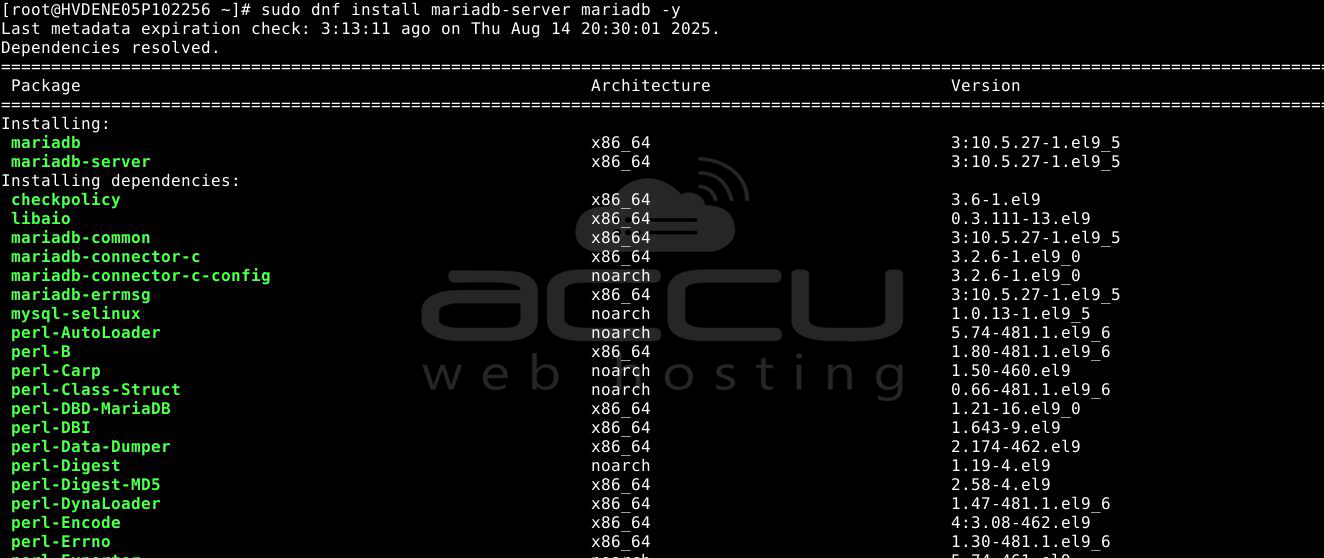
Step 3 – Install MariaDB
# sudo dnf install mariadb-server mariadb -y
Step 4 – Start and enable MariaDB
# sudo systemctl start mariadb
# sudo systemctl enable mariadb

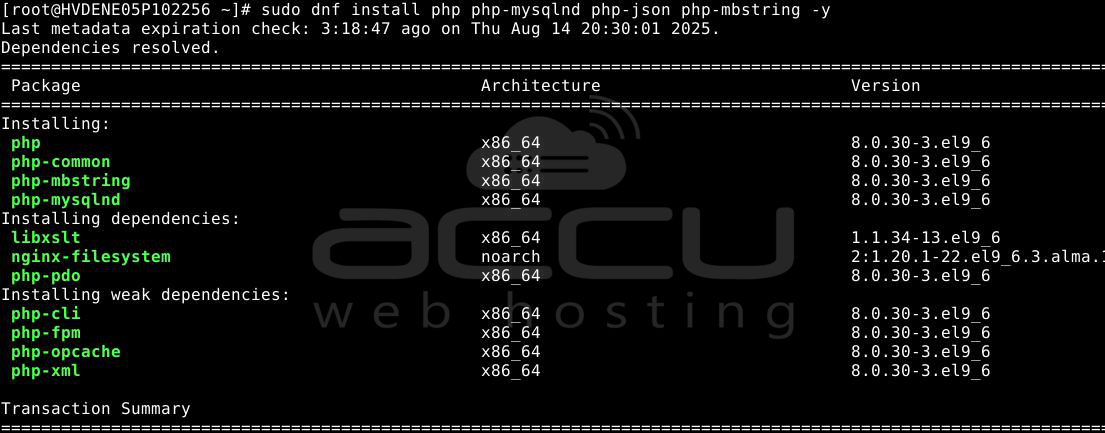
Step 5 – Install PHP and required extensions
# sudo dnf install php php-mysqlnd php-json php-mbstring -y
Steps to Install phpMyAdmin on AlmaLinux
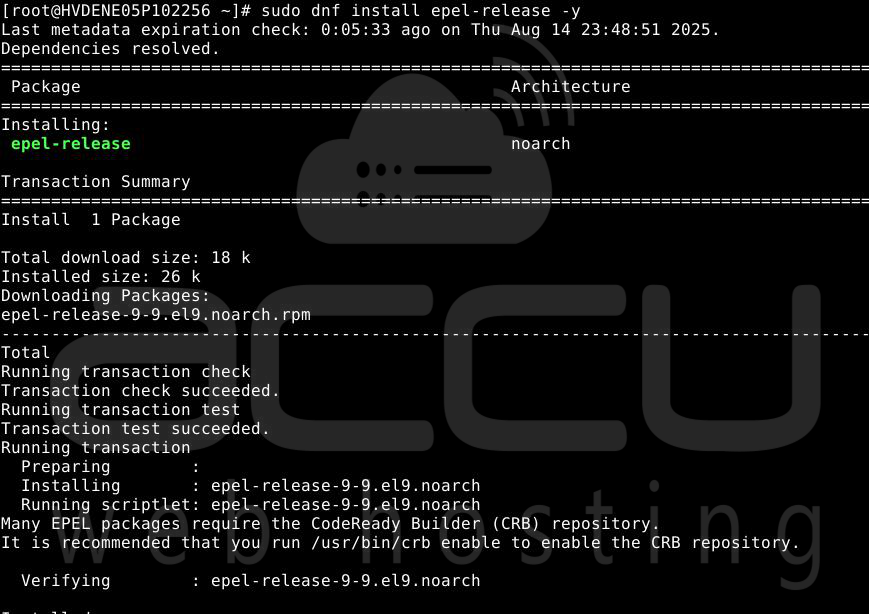
Step 1 – Enable the EPEL repository
phpMyAdmin is available in the EPEL (Extra Packages for Enterprise Linux) repository. Enable it by running:
# sudo dnf install epel-release -y
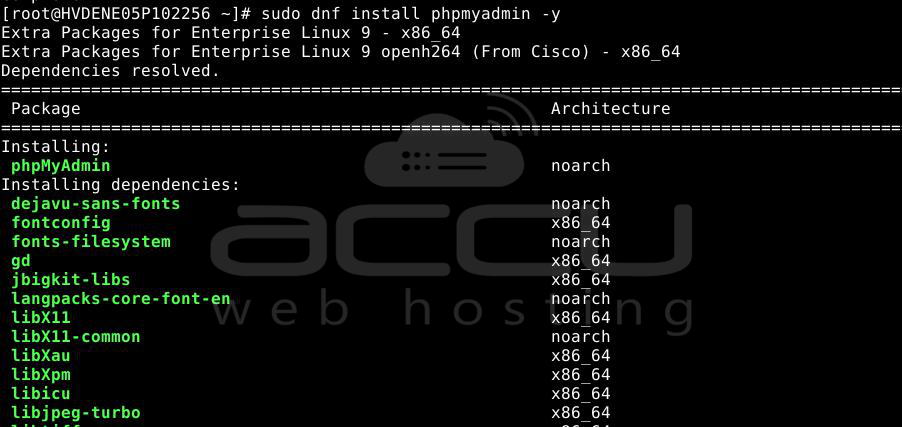
Step 2 – Install phpMyAdmin
# sudo dnf install phpmyadmin -y
Step 3 – Configure Apache for phpMyAdmin Access
Open the phpMyAdmin Apache configuration file:
# sudo nano /etc/httpd/conf.d/phpMyAdmin.conf
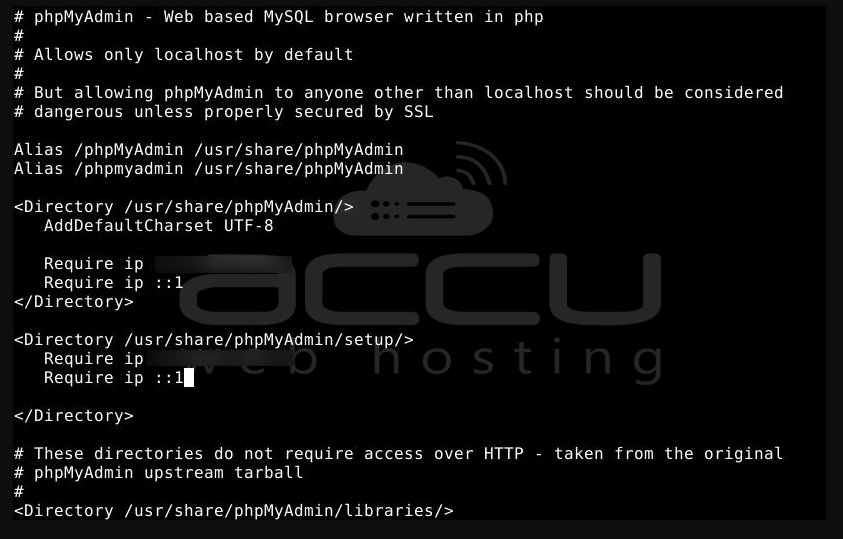
By default, phpMyAdmin only allows access from 127.0.0.1 (localhost). Replace it with the IP address from which you want to access phpMyAdmin. Example:
Step 4 – Restart Apache
# sudo systemctl restart httpd

Accessing phpMyAdmin:
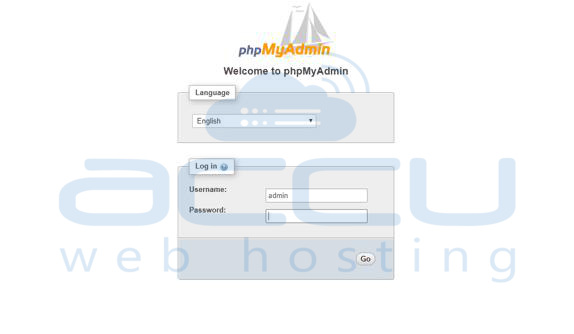
Once the installation and configuration are complete, open your browser and visit:
http://<server-ip>/phpmyadmin
Example: http://192.168.1.50/phpmyadmin
Log in using your MariaDB/MySQL credentials.
Conclusion:
You have successfully installed and configured phpMyAdmin on AlmaLinux. You can now manage your MariaDB databases directly from a web browser. Make sure to secure phpMyAdmin by restricting access to trusted IP addresses and using strong database passwords.


