
EXIM comes with cPanel, which is responsible for email transfer on the Linux server. Users can configure Exim as per their requirements for sending emails. There are lots of settings you can configure on Exim.
Each domain can send emails using its dedicated IP Address, hourly mail-sending policy, etc.
We should take a backup of the Exim Configuration, so if the server finds any issue in the future, we can restore those settings we have backed up previously.
There are two ways to take Exim Backup –
- Download on your local system using Exim Configuration Manager.
- Take a backup on the same server.
The following are the steps to take a backup of the Exim Configuration in WHM.
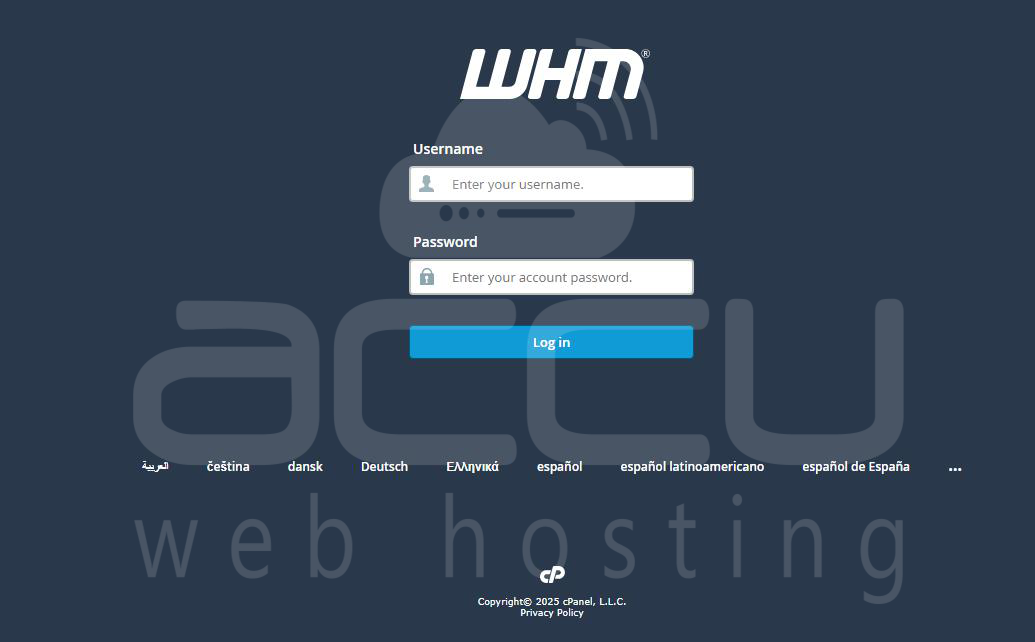
Step 1: Log in to the WHM Panel.
Step 2: Select Service Configuration
Step 3: Click on Exim Configuration Manager.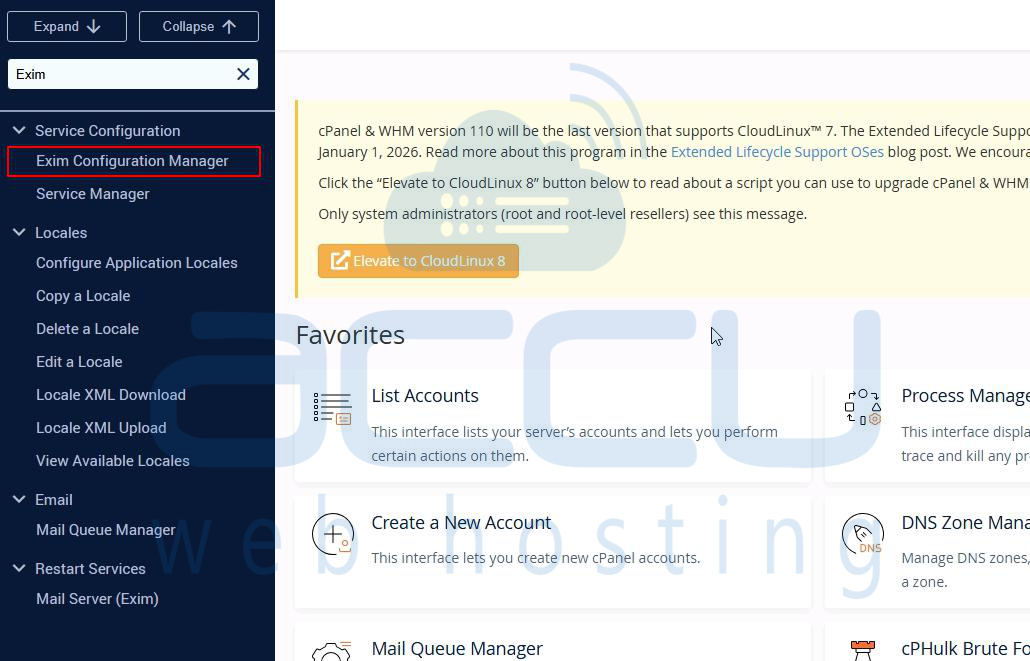
Step 4: Click on the Backup button.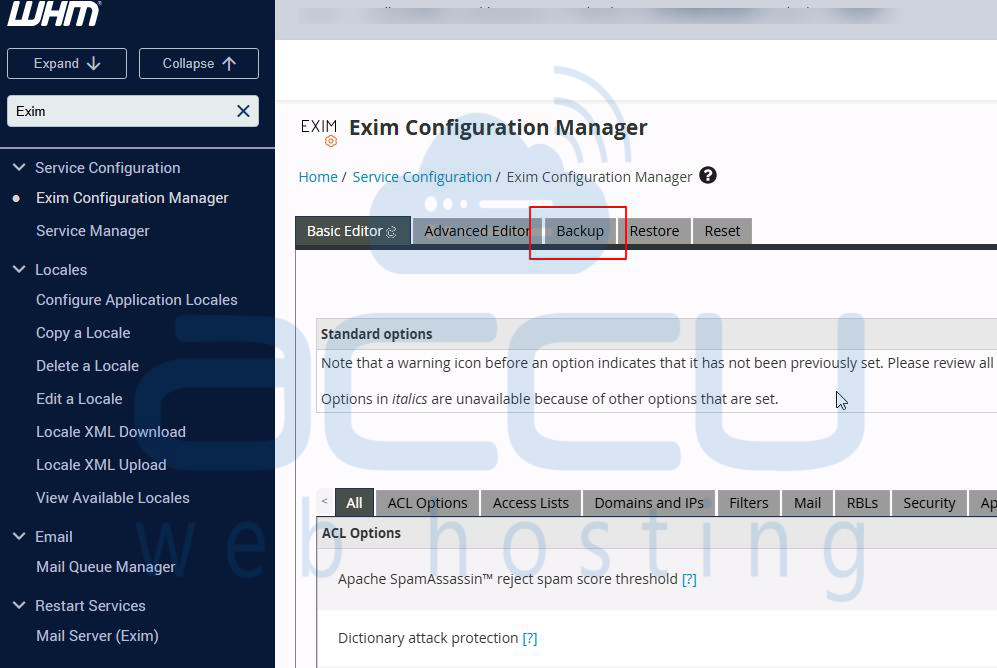
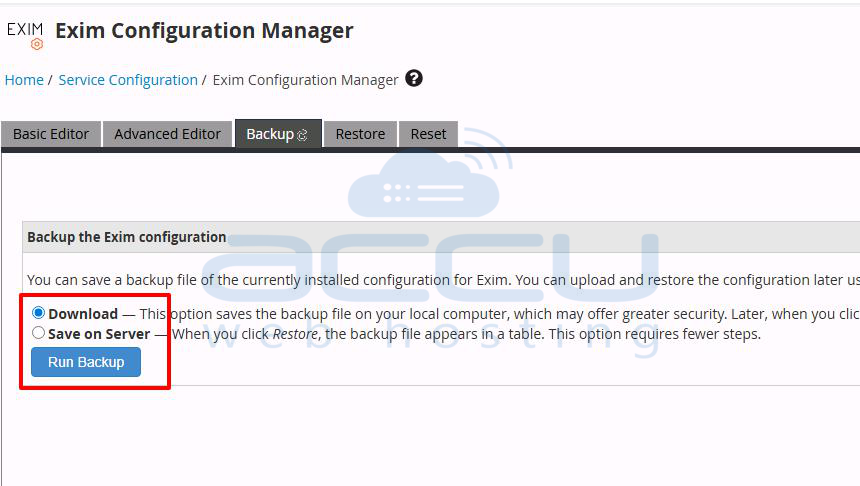
Step 5: As we mentioned above, there are two options to take a backup.
- Download: This option will allow you to take a backup within your local system
- Save on Server: It will generate a backup within the same server in a table format.
Additional Notes
- Keep backups in a secure location to prevent unauthorized access.
- The backup can be restored from the Restore tab within Exim Configuration Manager in WHM.
- For frequent changes, consider scheduling regular backups through automation or WHM’s backup system.
Conclusion:
Backing up your Exim configuration through WHM is a quick and essential process to safeguard your email server settings. Regularly creating and securely storing these backups ensures that you can easily restore configurations in the event of accidental changes, corruption, or migration to a new server. This proactive approach minimizes downtime and maintains the stability of your mail services.
