
In certain situations, you may need to delete an email account from MailEnable (for example, when an email address is no longer required). Please note that deleting an email account will permanently remove all emails associated with that mailbox. Therefore, it is strongly recommended to back up or download all emails using a local email client (such as Outlook or Thunderbird) before proceeding.
Below are the step-by-step instructions to safely delete an email account in MailEnable.
Prerequisites
-
Ensure you have administrator access to the MailEnable server.
-
Confirm that all required emails are backed up, as mailbox data cannot be recovered once deleted.
Steps to Delete an Email Account in MailEnable
1. Log in to the MailEnable Server
2. Open MailEnable Admin
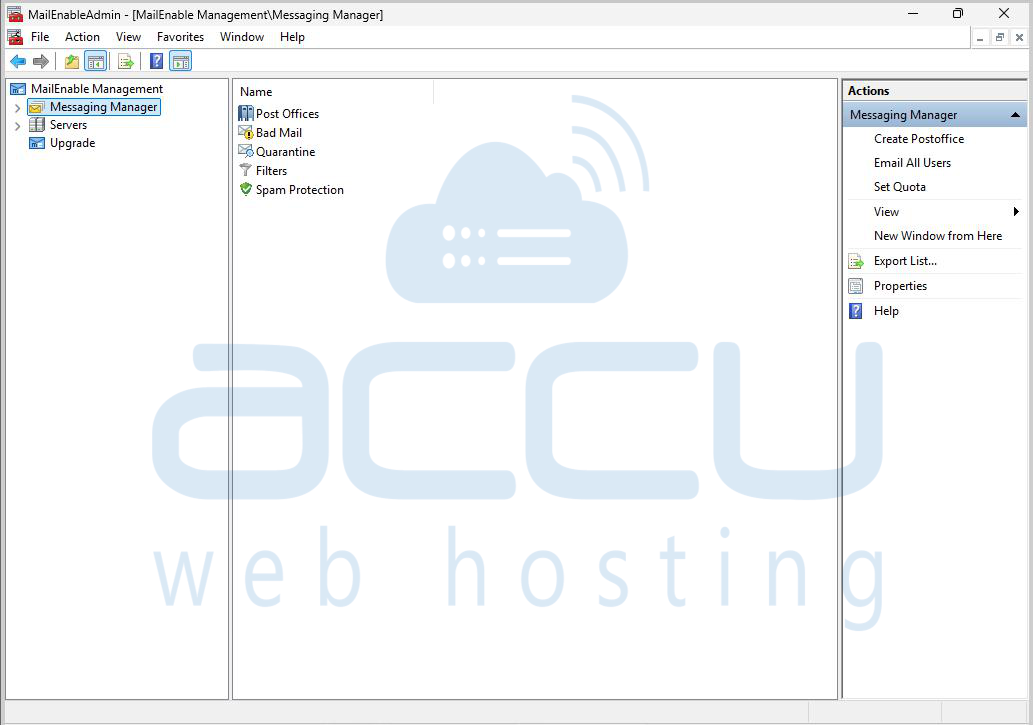
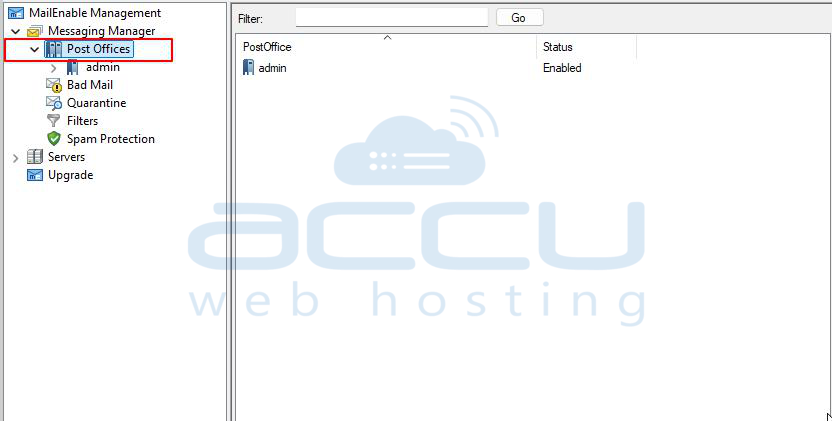
3. Navigate to Mailboxes. In the left-hand pane, expand the following path: MailEnable Management → Messaging Manager → Post Offices
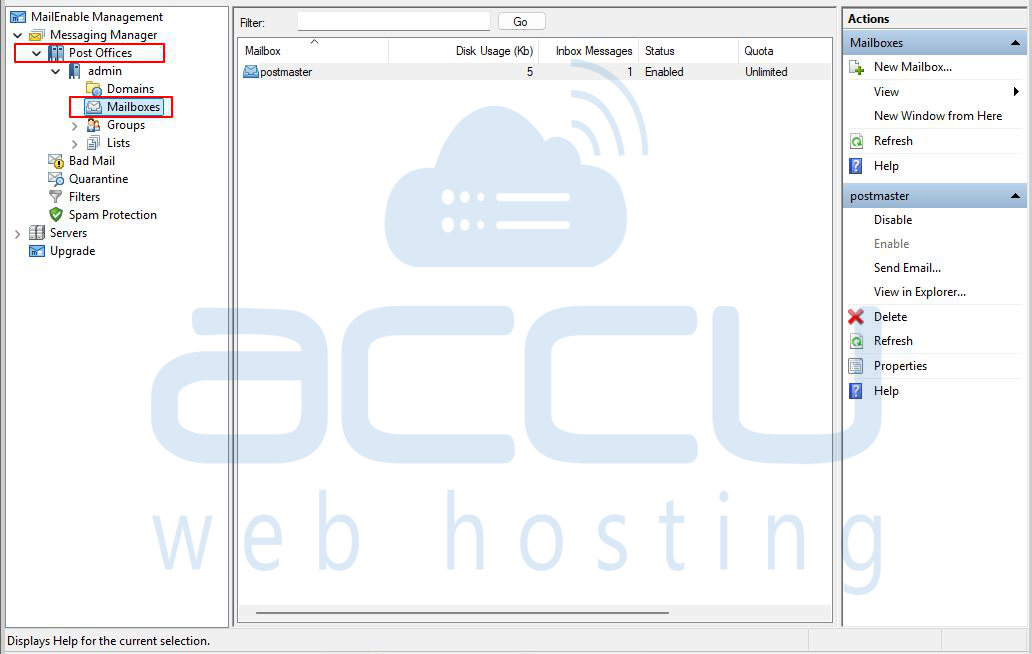
4. View Email Accounts: Click on Mailboxes to display all email accounts associated with the selected domain.
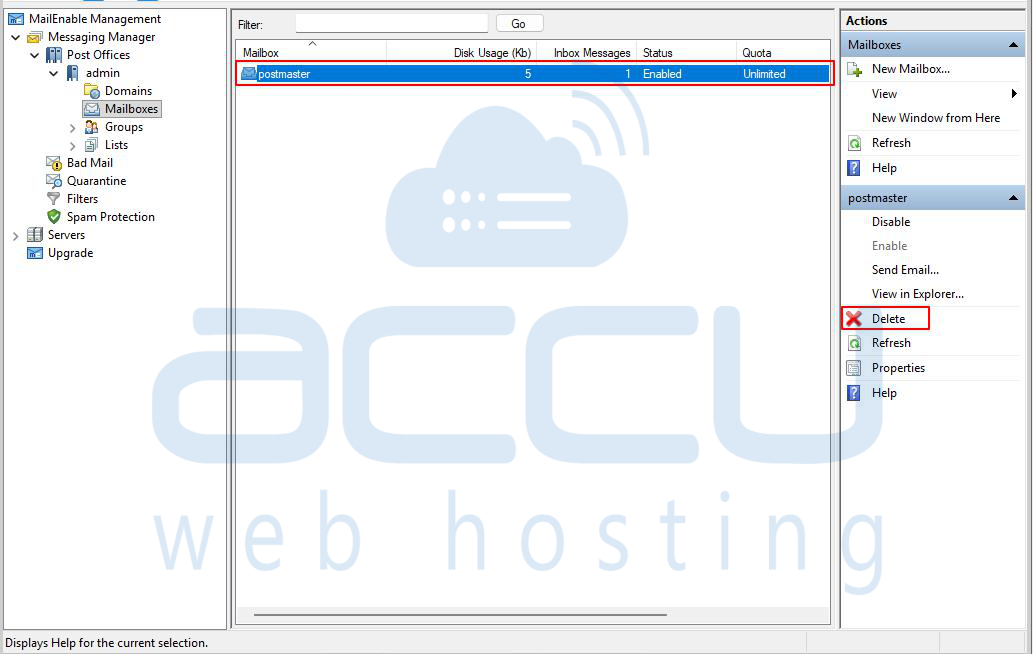
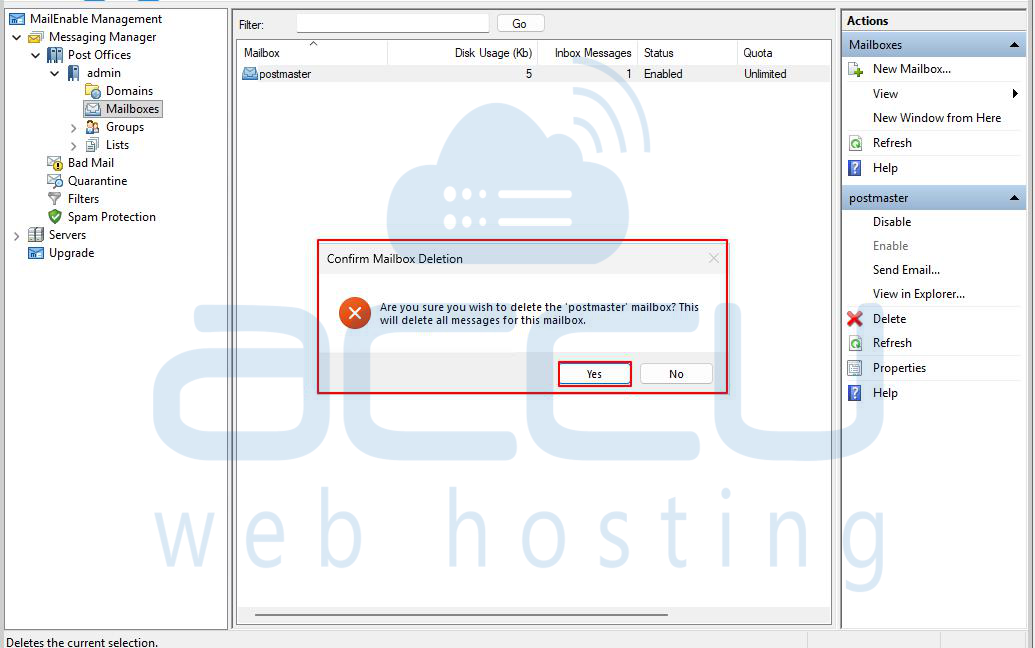
5. Delete the Email Account: Select the email account you wish to remove. In the Actions pane (right-hand side), click on Delete.
6. Confirm Deletion: A confirmation dialog box will appear. Click Yes to confirm the deletion of the email account.
Result
-
The selected email account will be removed from MailEnable.
-
All emails and mailbox data associated with that account will be permanently deleted.


