
Problem:
When you browse popular sites like Gmail, Wikipedia, Facebook, Twitter, YouTube, etc on Chrome browser, you will receive this error: "This website is not available with error code: ERR_SPDY_PROTOCOL_ERROR.
Cause:
The SPDY error is related to SSL/TLS, so when you browse a webpage (secure or non-secure), your browser sends a request using the SPDY protocol. An outdated browser will trigger an old version of SPDY. Since Google only supports the latest version, your request will result in an error. There are also other possible reasons for this error:
- Antivirus Blocking
- Firewall Blocking
Solution:
SPDY (Speedy) is a network protocol of the Chrome browser that was designed to speed up web pages and improve web security. But due to a vulnerability issue, Google stopped supporting the SPDY protocol. These are some easy and quick methods to fix this problem
Update your browser
In 70% of cases, updating the browser will fix this problem. Below are the steps on how to update the browser.
Step 1: Move your pointer to the upper right-hand corner. Click on the three dots. Now select Settings.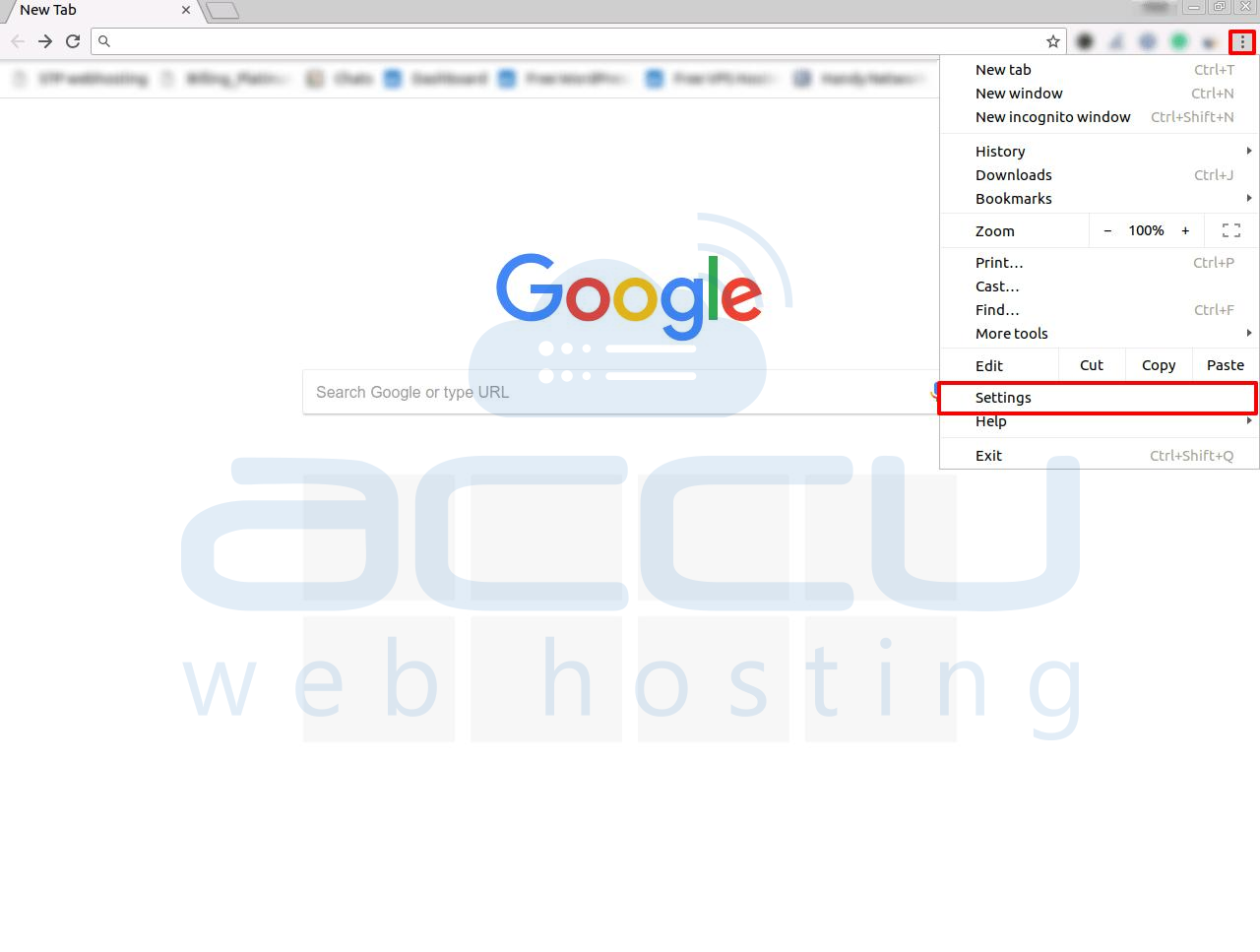
Step 2: In the left sidebar, you will get a settings option. Click on Settings -> About Chrome. A new window will appear. 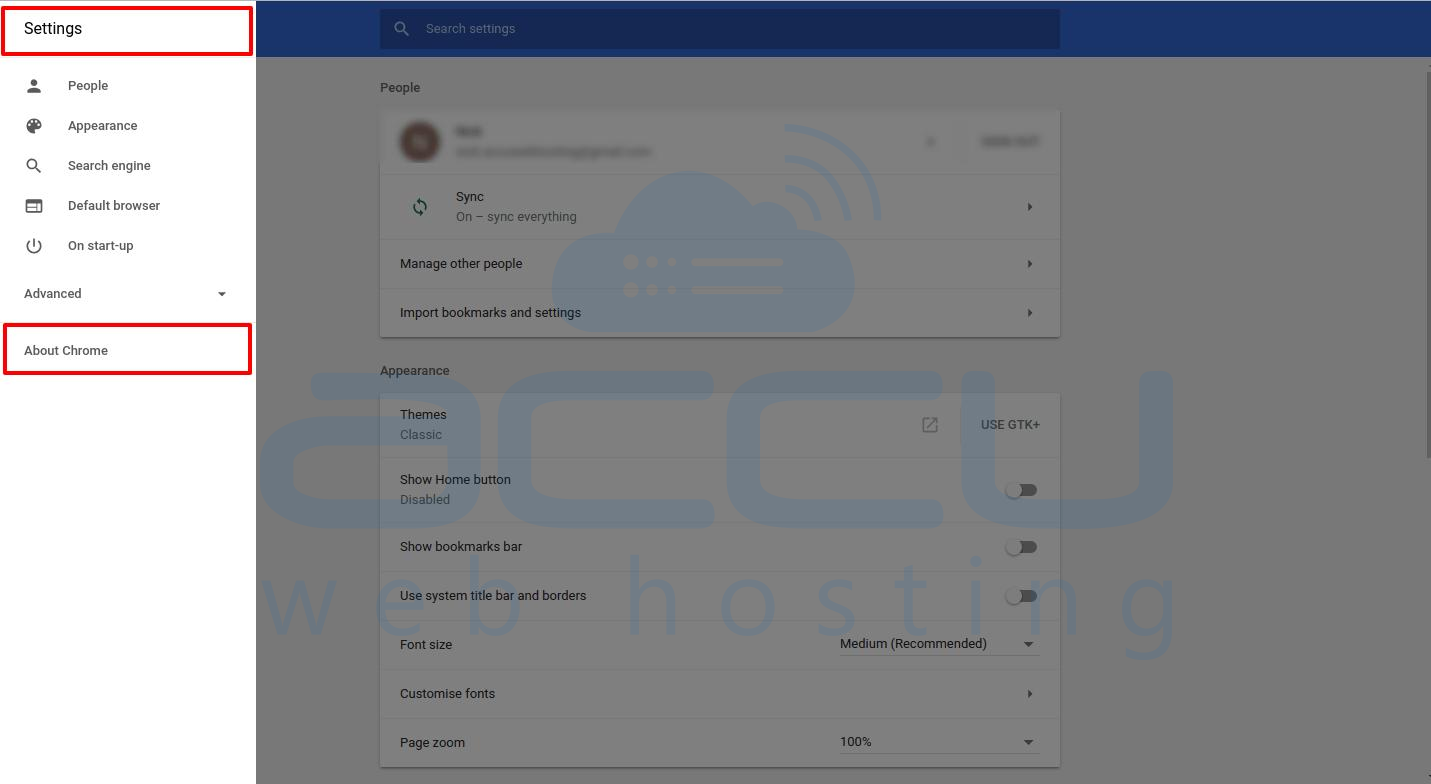
Step 3: In this window, you can see if your browser is up-to-date or not.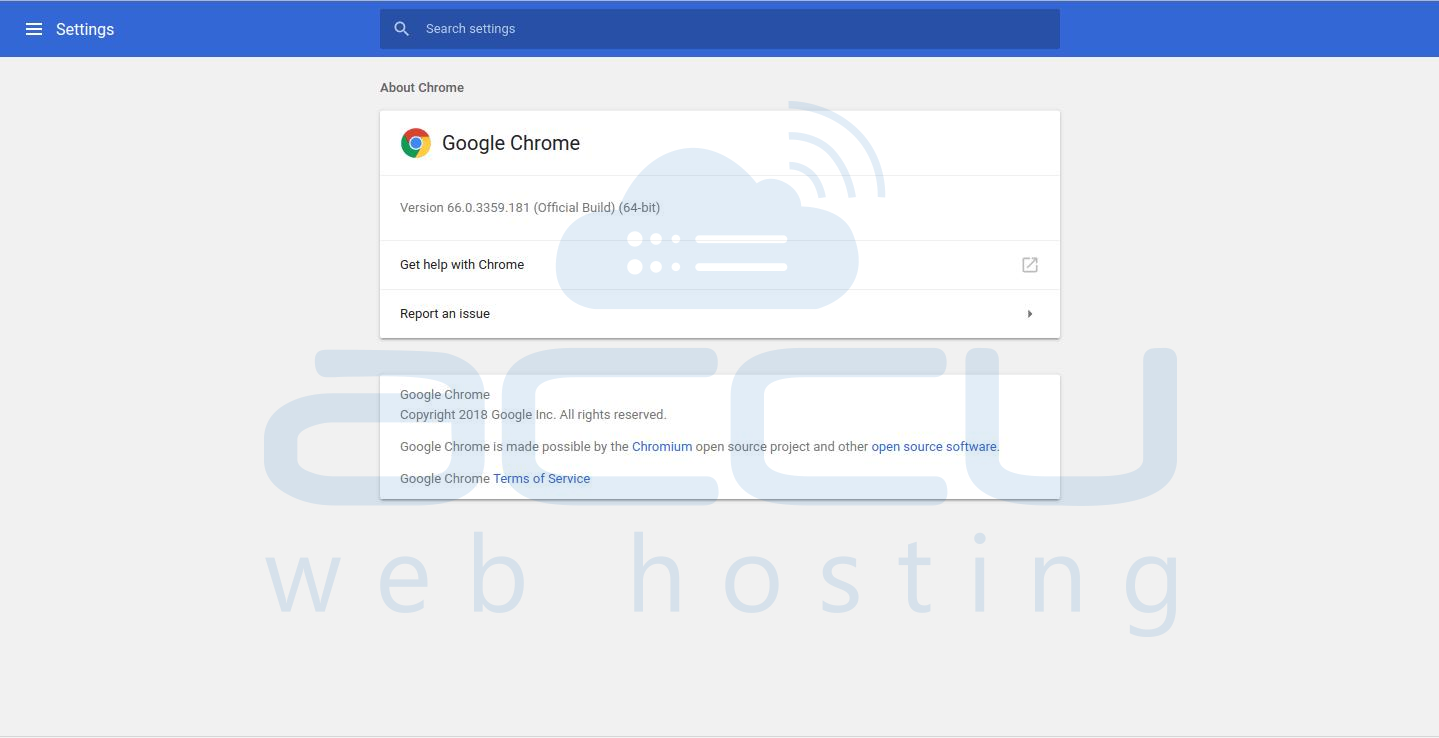
FLUSH SPDY SOCKETS IN GOOGLE CHROME
Sometimes flushing the SPDY sockets can quickly solve this problem. Below are the steps to flush the sockets.
Step 1: Copy the URL below.
chrome://net-internals/#events&q=type:SPDY_SESSION%20is:active
Step 2: Paste it into your Chrome address bar and Hit Enter.
Step 3: Click on the small drop-down arrow on the upper right-hand corner in the RED strip that you see in your browser window. Click on Flush Sockets. 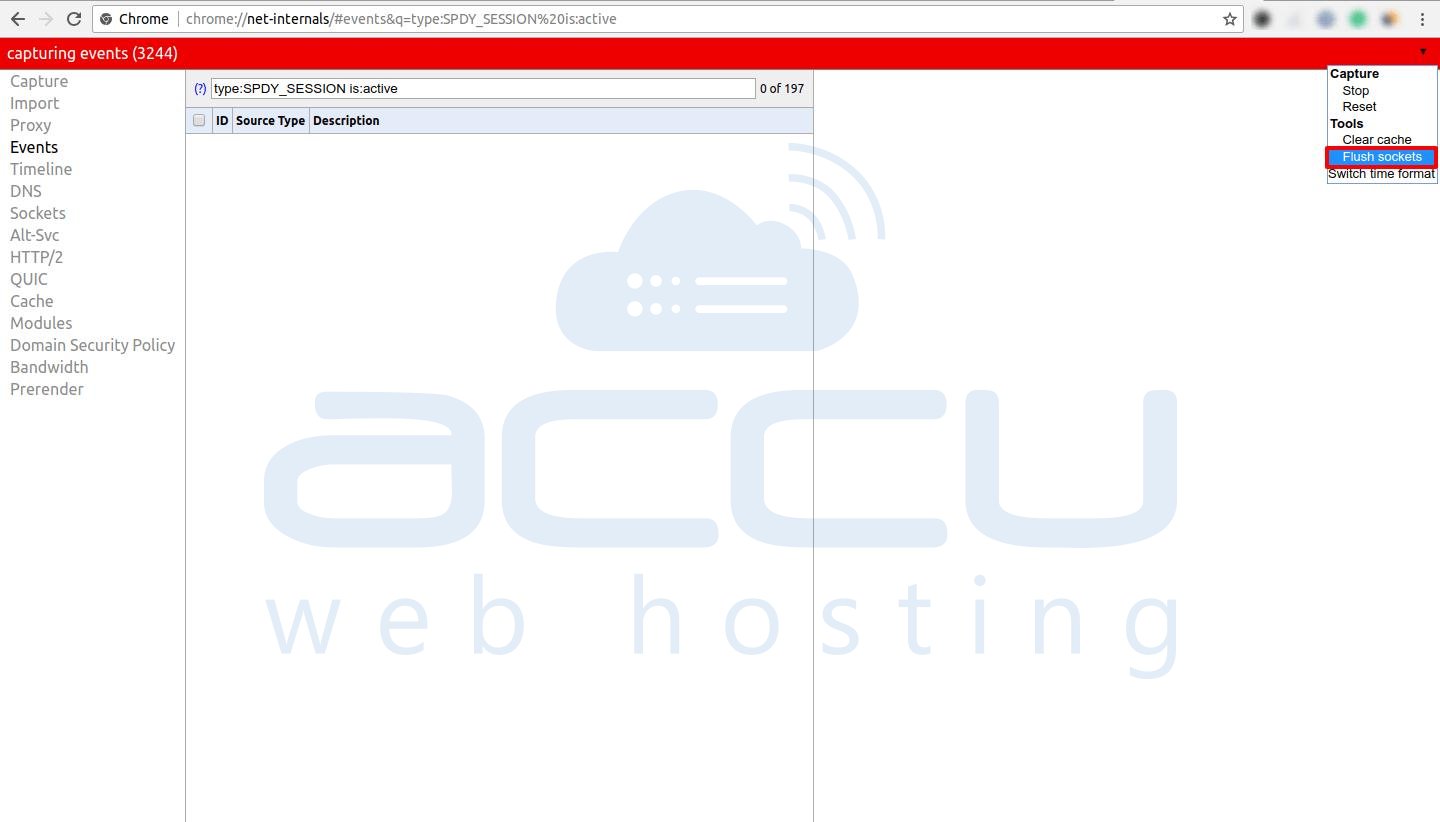
Step 4: Now close your browser. Wait a few seconds and open it again. After a few seconds, you will get a message on your screen.
Congratulations! Now you’ve successfully flushed the SPDY sockets in your browser.
Flushing DNS and Renewing IP
Flushing DNS and Renewing IP can sometimes solve the ERR_SPDY_PROTOCOL_ERROR.
To flush DNS
Step 1: Open Command Prompt.
Step 2: Type ipconfig /flushdns and press Enter. 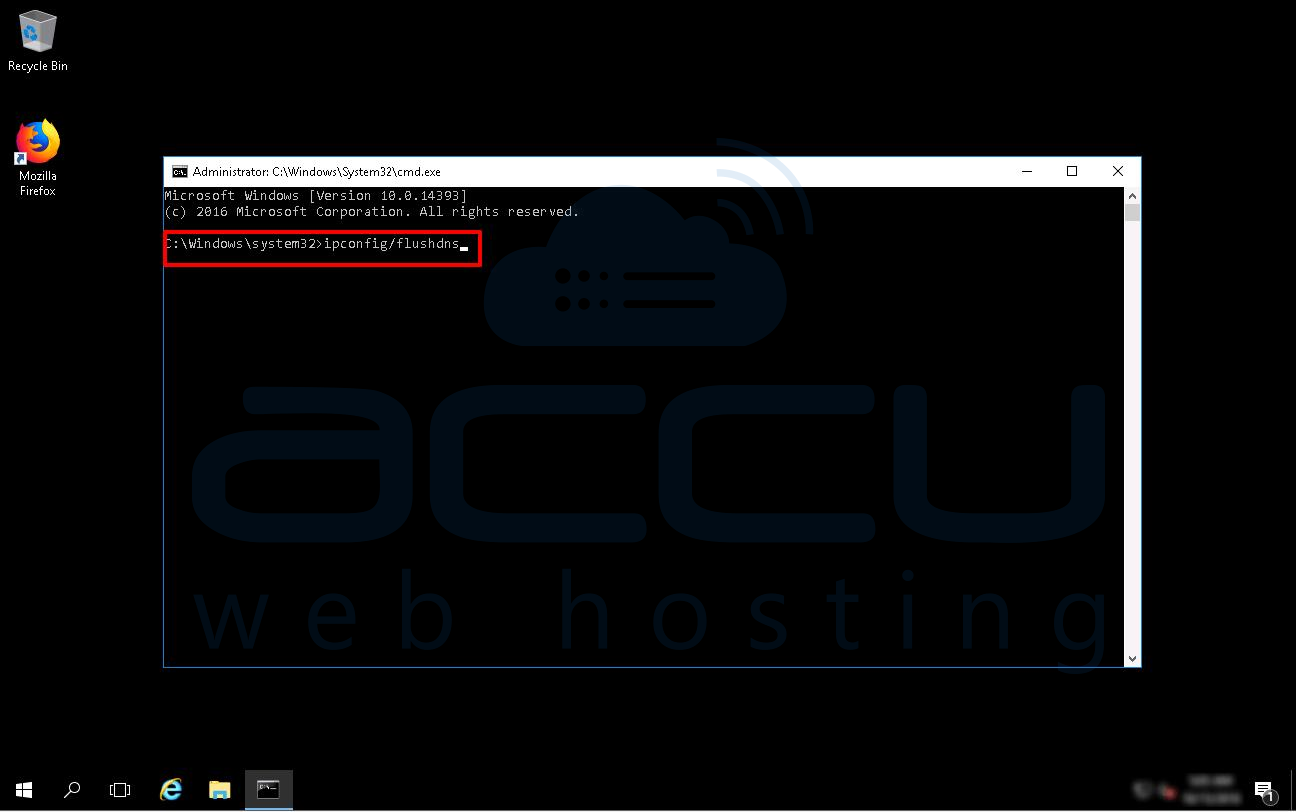
To Renew IP:
Step 1: Open Command Prompt.
Step 2: Type ipconfig /release and press Enter.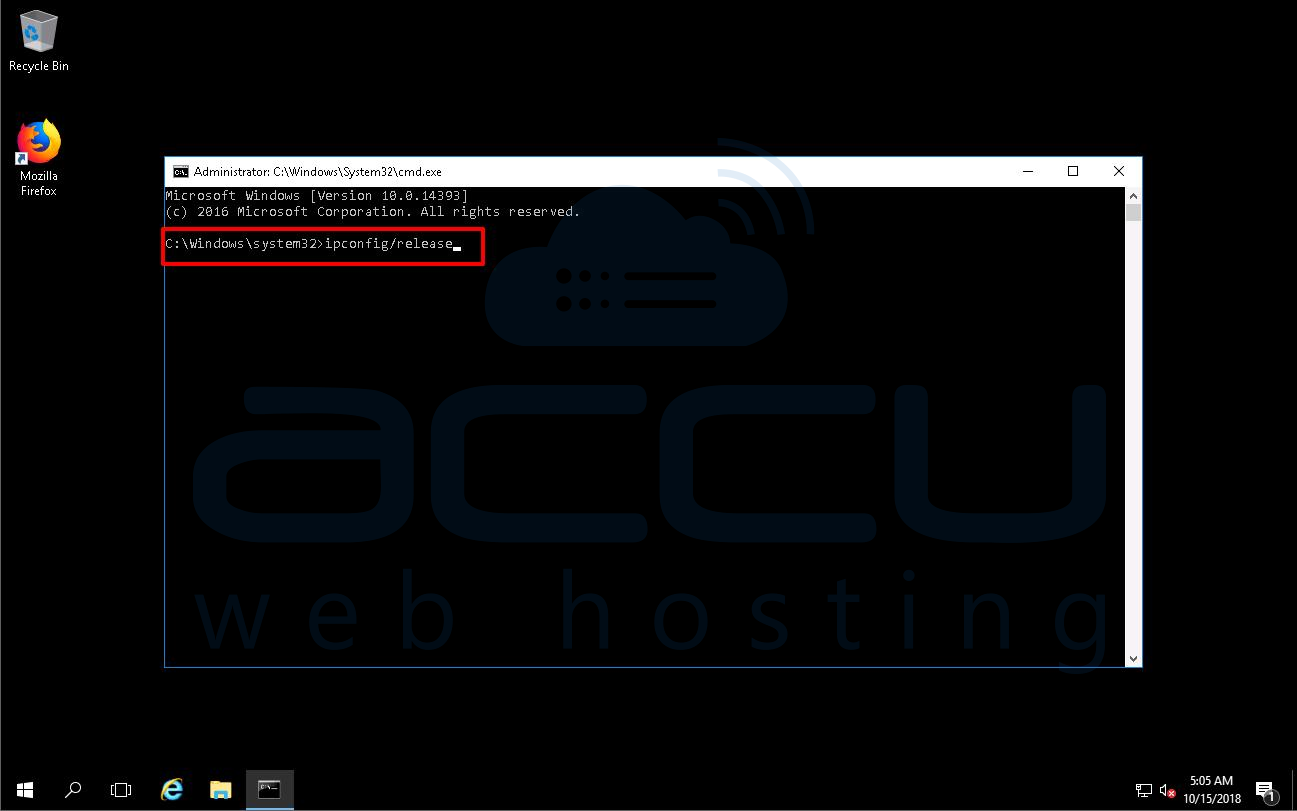
Step 3: Again, type ipconfig /renew and press Enter. 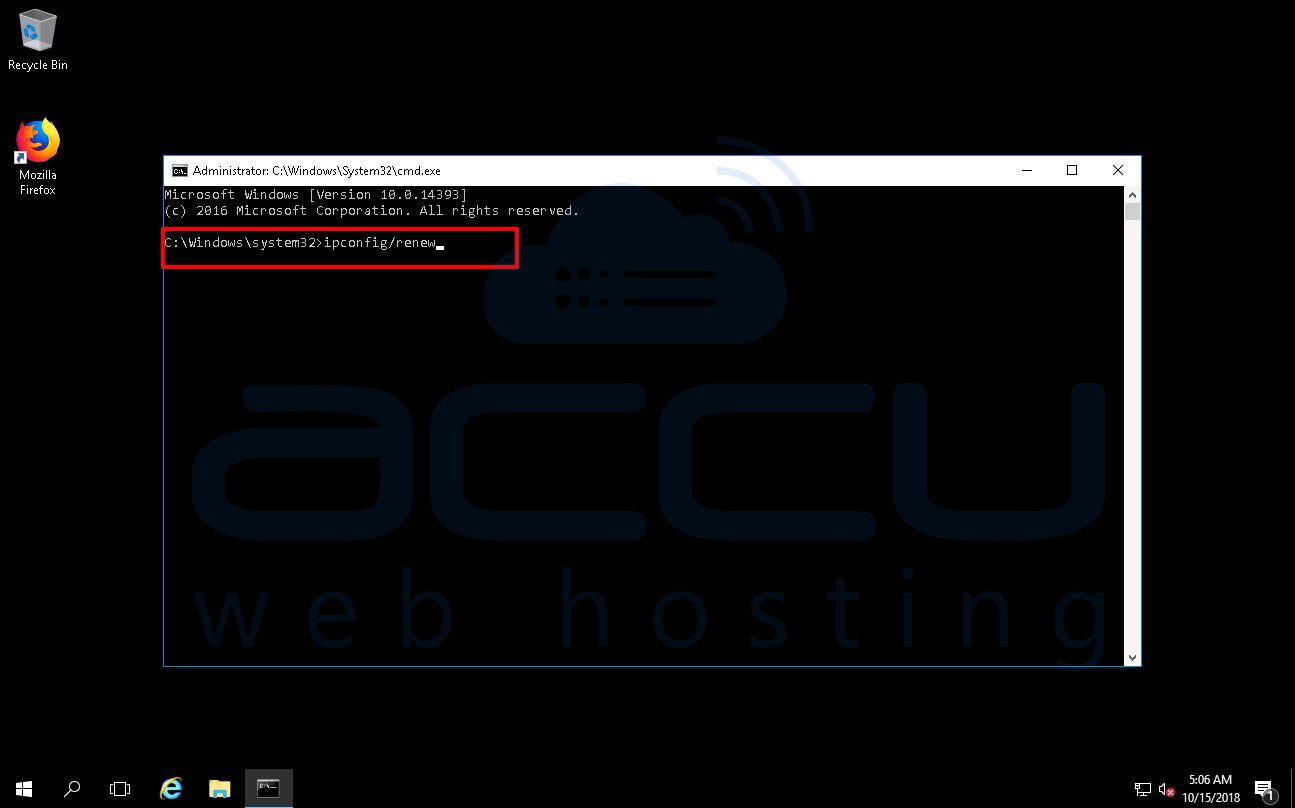
Note: You may also need to configure your internet connection.
CLEAR TEMPORARY FILES, COOKIES, AND CACHES
Step 1: Press Windows+R. Type %temp%. Click on the Ok button. 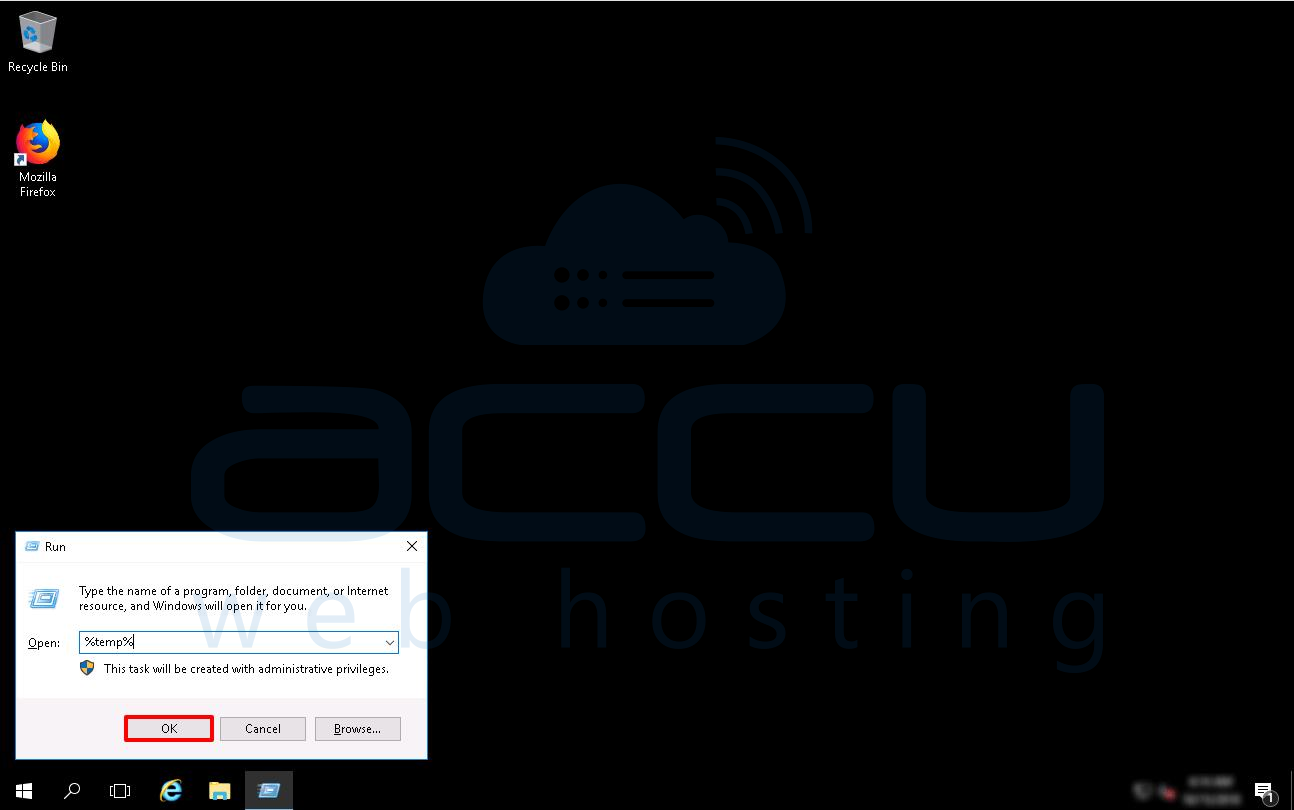
Step 2: A window will open with lots of small files and folders. Select all and press Shift+Delete. In this image, there is no file in the temp folder. 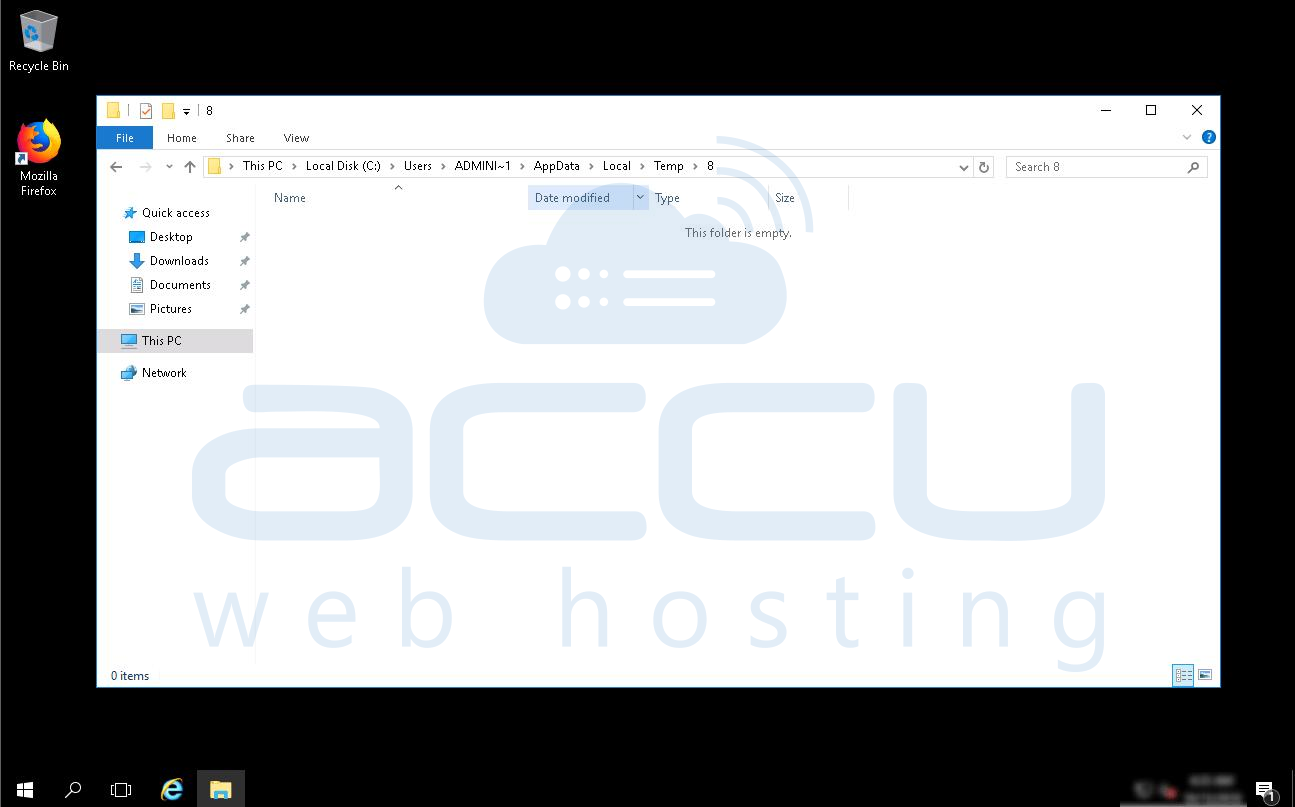
Step 3: Now, for clearing cookies and caches. Open Google Chrome. Go to History in the menu in the upper right-hand corner. 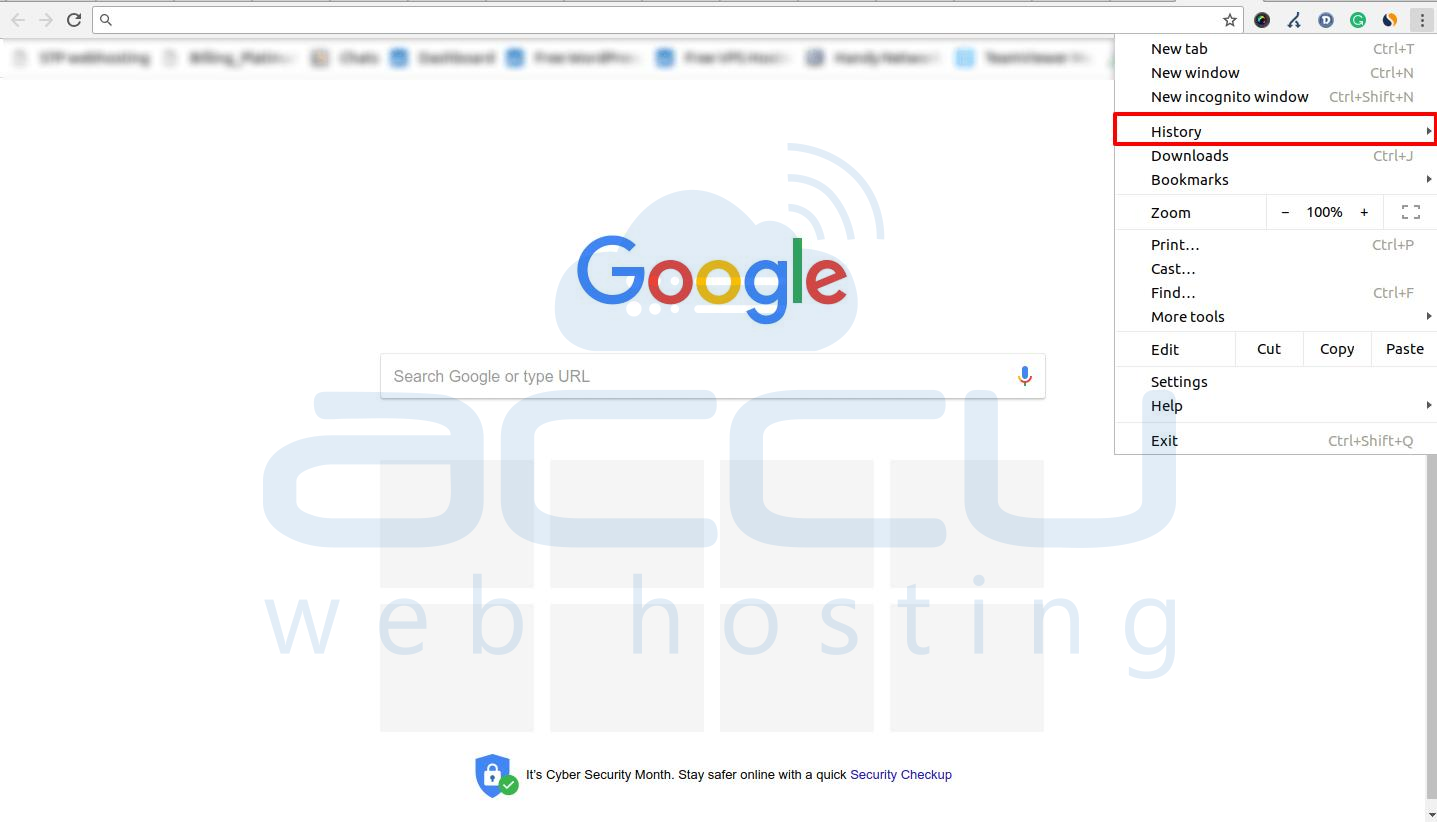
Step 4: Go to Clear Browsing Data. Select the Options as shown in the pictures below. Finally, click on the Clear Browsing Data button. 
Use Chrome’s Incognito Mode
If you face ERR_SPDY_PROTOCOL_ERROR for any specific website, you can try to access that website in incognito mode. Below are the steps to start Incognito Mode.
Step 1: Start Google Chrome.
Step 2: Click on the three dots.
Step 3: Click on New Incognito window. 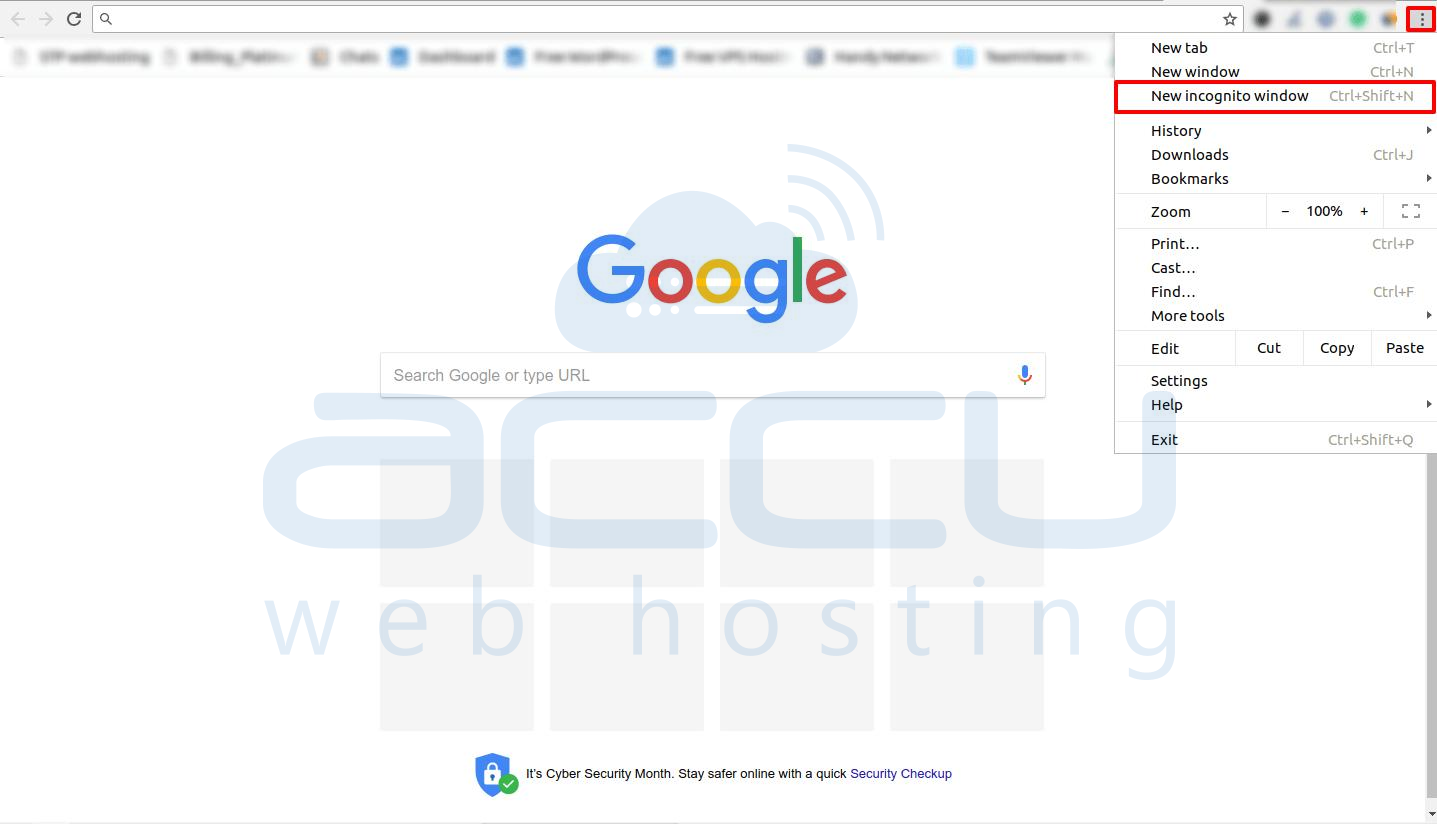
You can also open any website in incognito mode using this shortcut key - Ctrl+Shift+N.
Check your Antivirus Settings
If you have installed anti-virus in your VPS, before you do anything else, it would be worth checking if the anti-virus is causing the problem.
Sometimes, anti-virus programs block specific sites. So, if you keep experiencing this error when visiting the same website and you have an anti-virus program installed, the problem may lie there. All the above methods will help you to FIX this error.


