
The SSH File Transfer Protocol (SFTP), also known as the Secure File Transfer Protocol, enables secure file transfer capabilities between networked hosts. Unlike the Secure Copy Protocol (SCP), SFTP also provides remote file system management functionality, allowing applications to resume interrupted file transfers, list the contents of remote directories, and delete remote files.
The command-line secure file transfer program (SFTP) and graphical SFTP clients, such as FileZilla, WinSCP, and Fetch, use SSH2 encryption to authenticate and establish secure channels between networked hosts.
Although SFTP clients are functionally similar to FTP clients, they employ different protocols. Consequently, you cannot use a standard FTP client to connect to an SFTP server.
Note: You can only have a single SFTP account in one cPanel and not multiple accounts.
Steps to generate an SSH key from your VPS control panel:
Step 1: Log in to WHM with the root user and access the cPanel account from WHM.
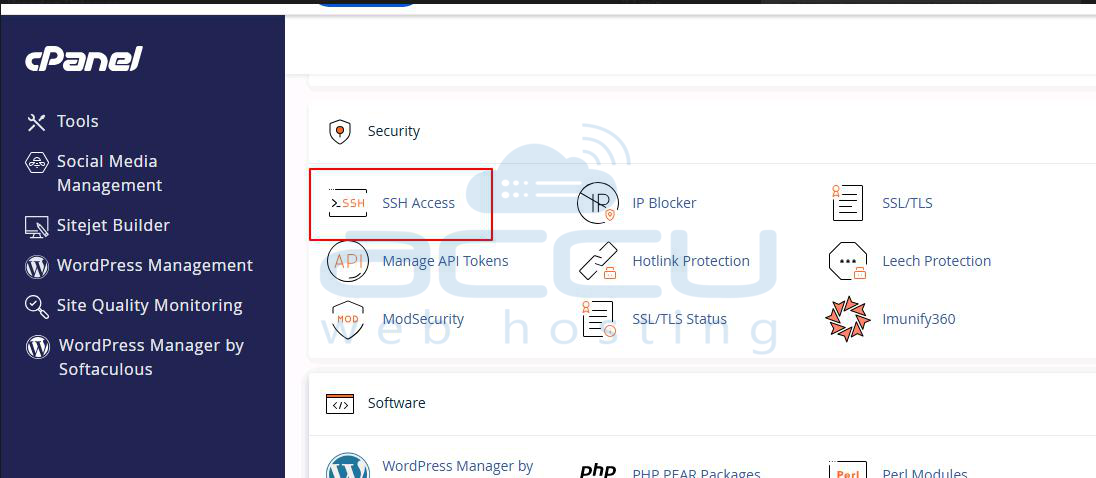
Step 2: Once in the cPanel account, go to Security >> SSH Access.
Step 3: Click on the Manage SSH Keys button on the new page.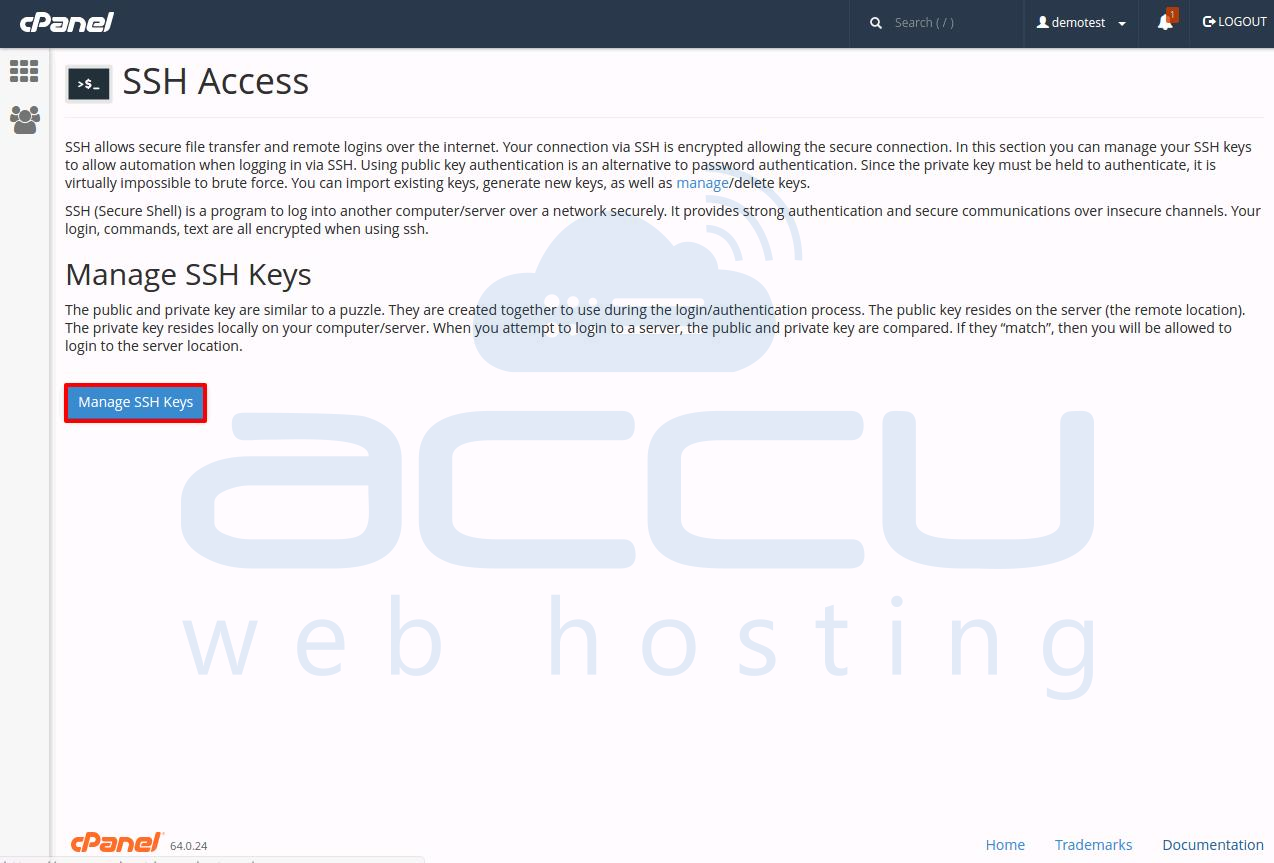
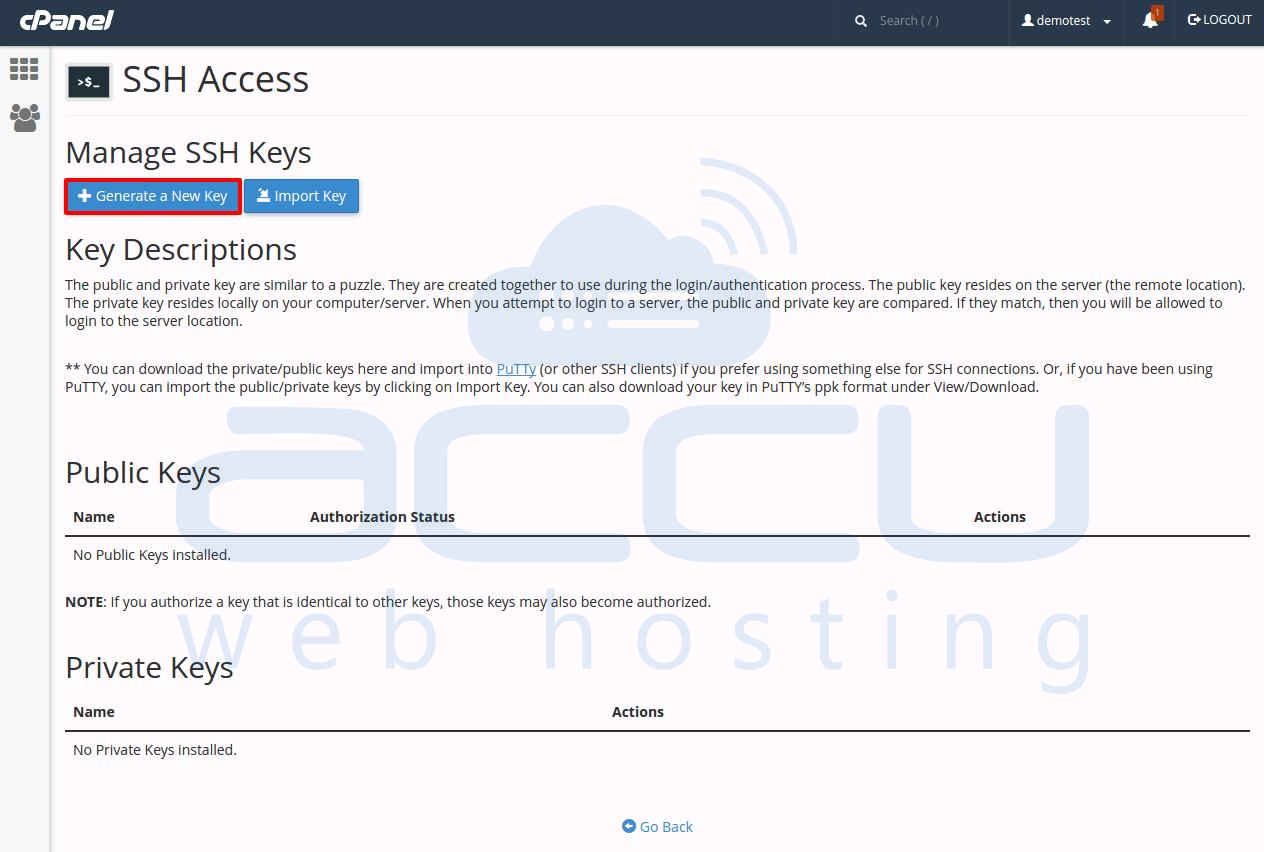
Step 4: Click the Generate a New Key button at the top of the window.
Step 5: Fill in the requested information to generate the key.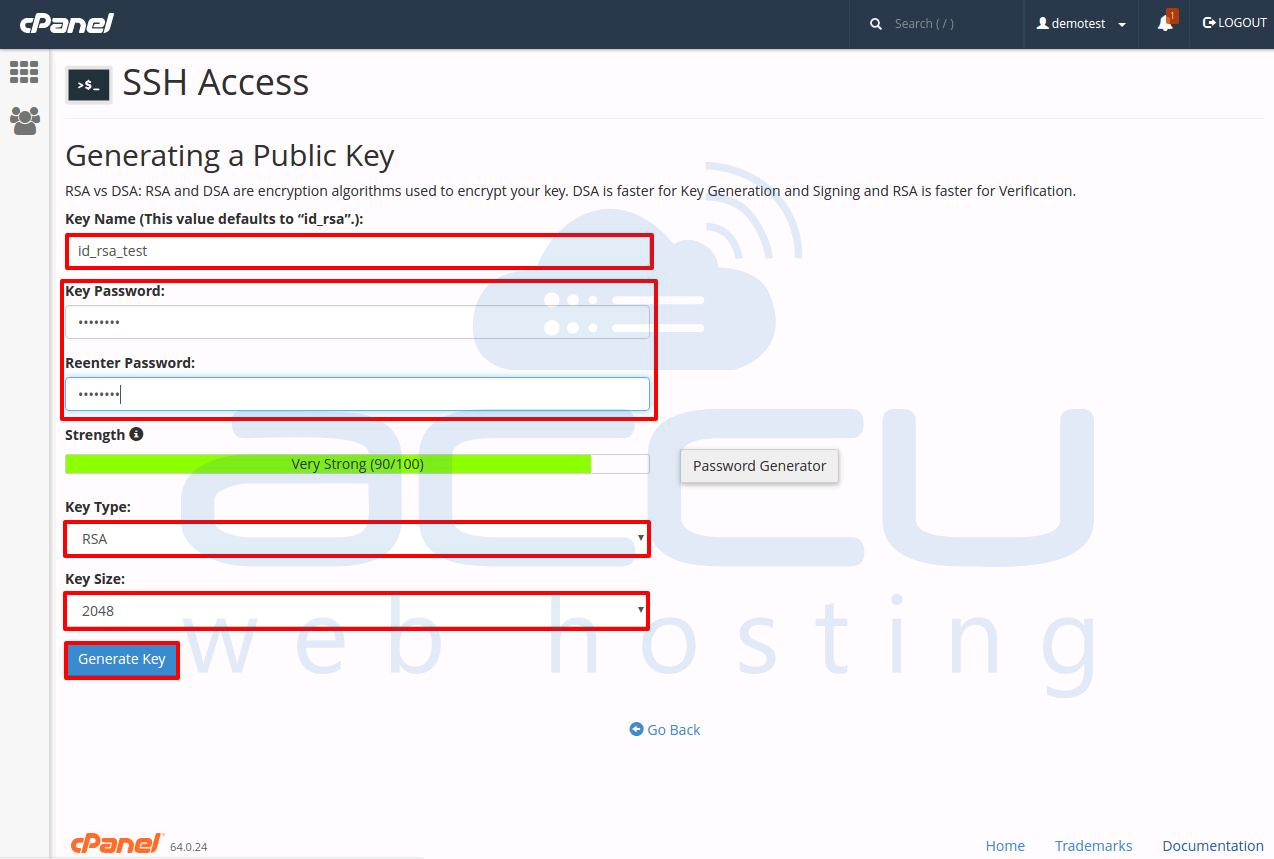
Step 6: You should now have both Public and Private keys generated. You can find the keys in the .ssh folder; save them on your local computer.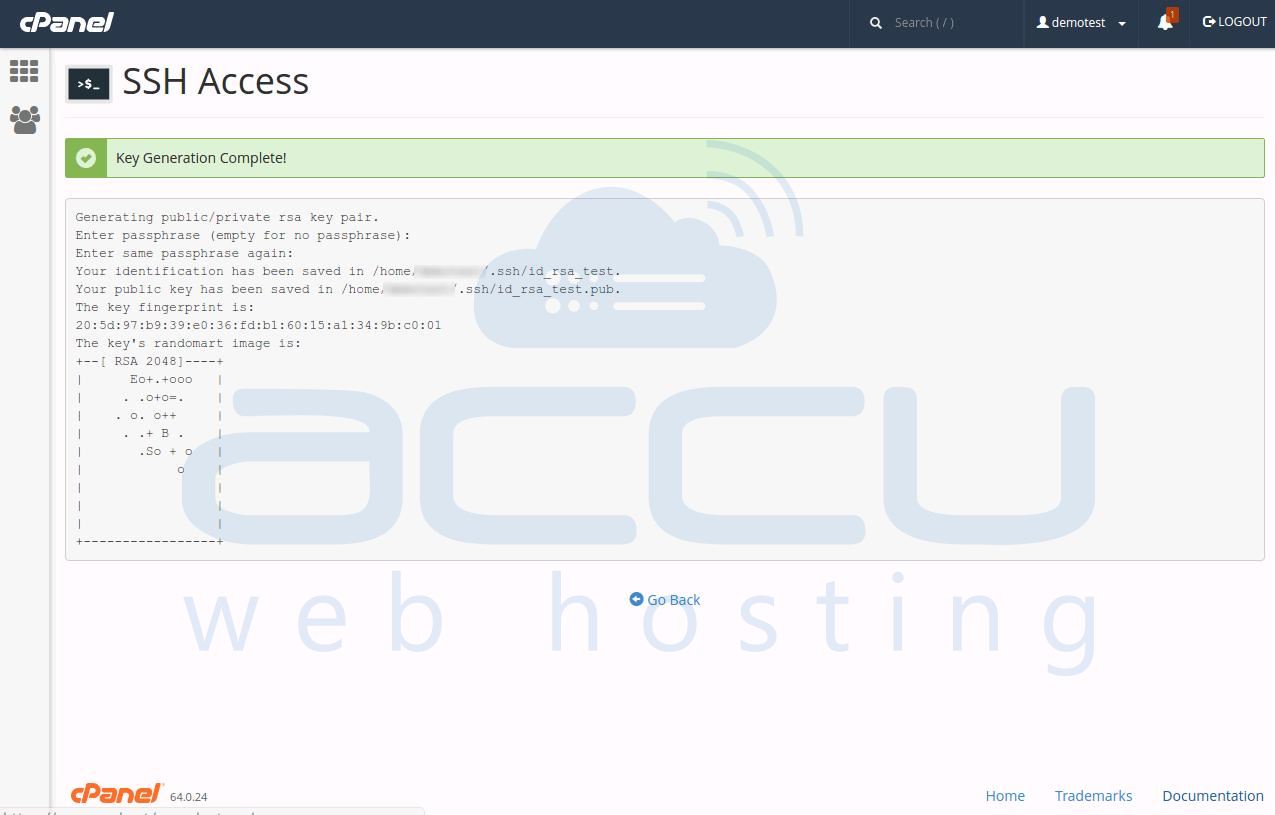
Steps to set up the FTP client to use SFTP:
Please follow the steps given below to configure SFTP in FileZilla.
Step 1: Open FileZilla and go to Edit >> Settings.
Step 2: In the Settings menu, select the SFTP option and click on Add key file.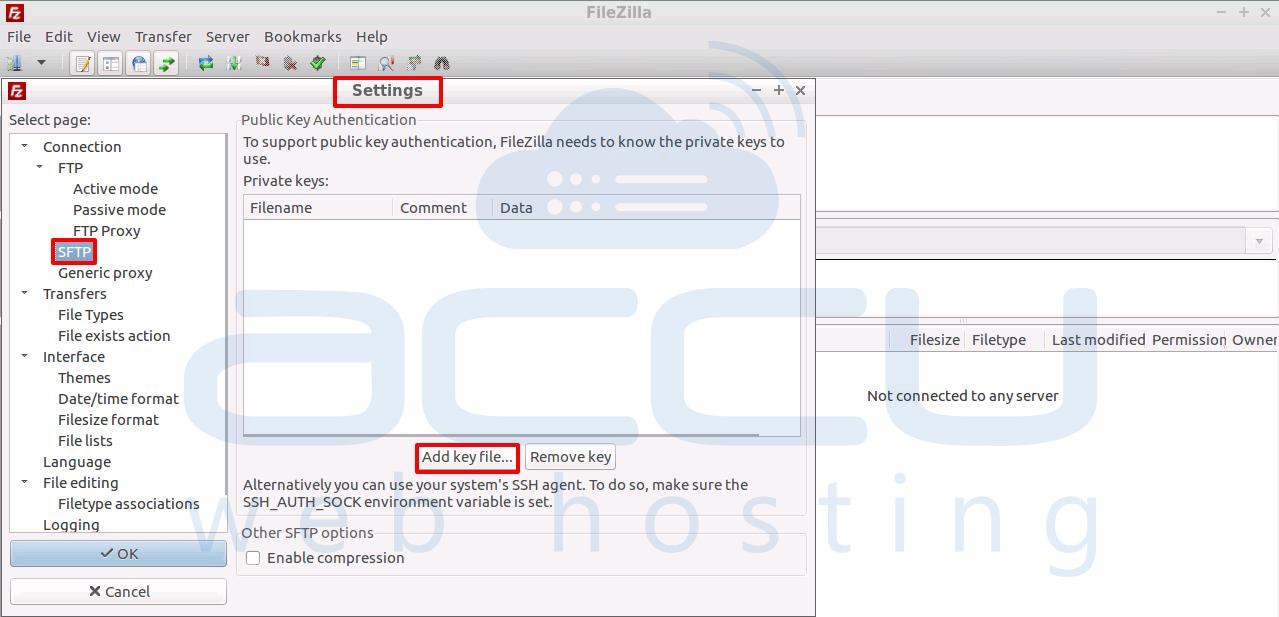
Step 3: Now, browse the Key file you recently downloaded from cPanel.
Note: If your key is already a .ppk file, you should be fine; if not, FileZilla will ask to convert it. Click on Yes to convert.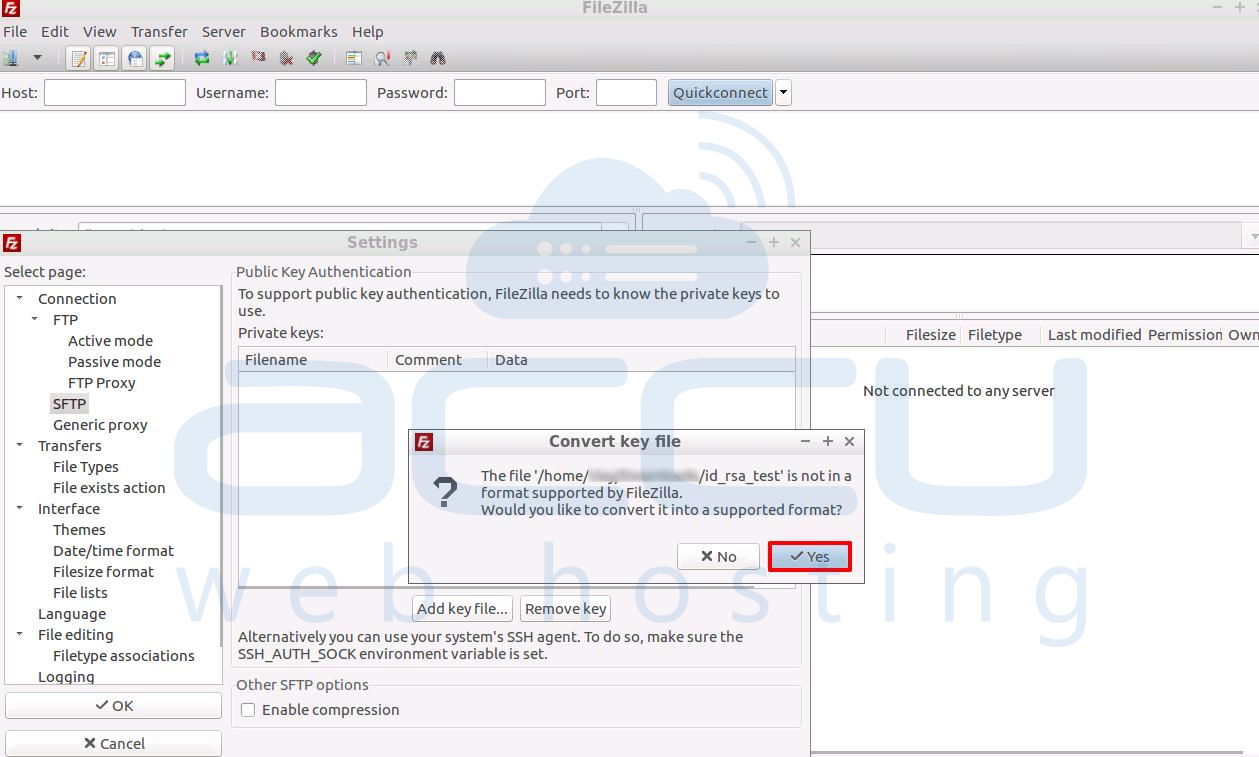
Step 4: Once you click Yes to convert the file, it will ask for the password. You need to provide the same password used while creating the key and click on Ok.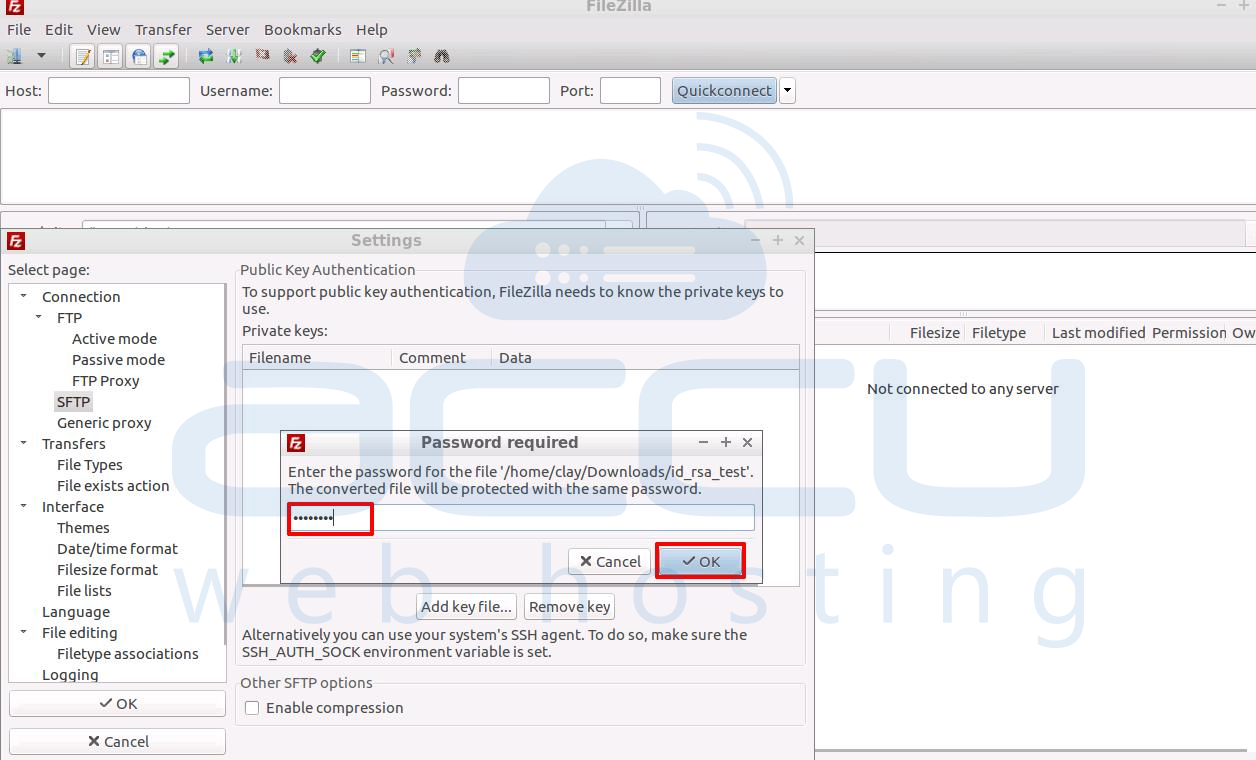
Step 5: Now, provide the converted key's filename and click on Save. You will see the key has been added. Click on Ok to save settings.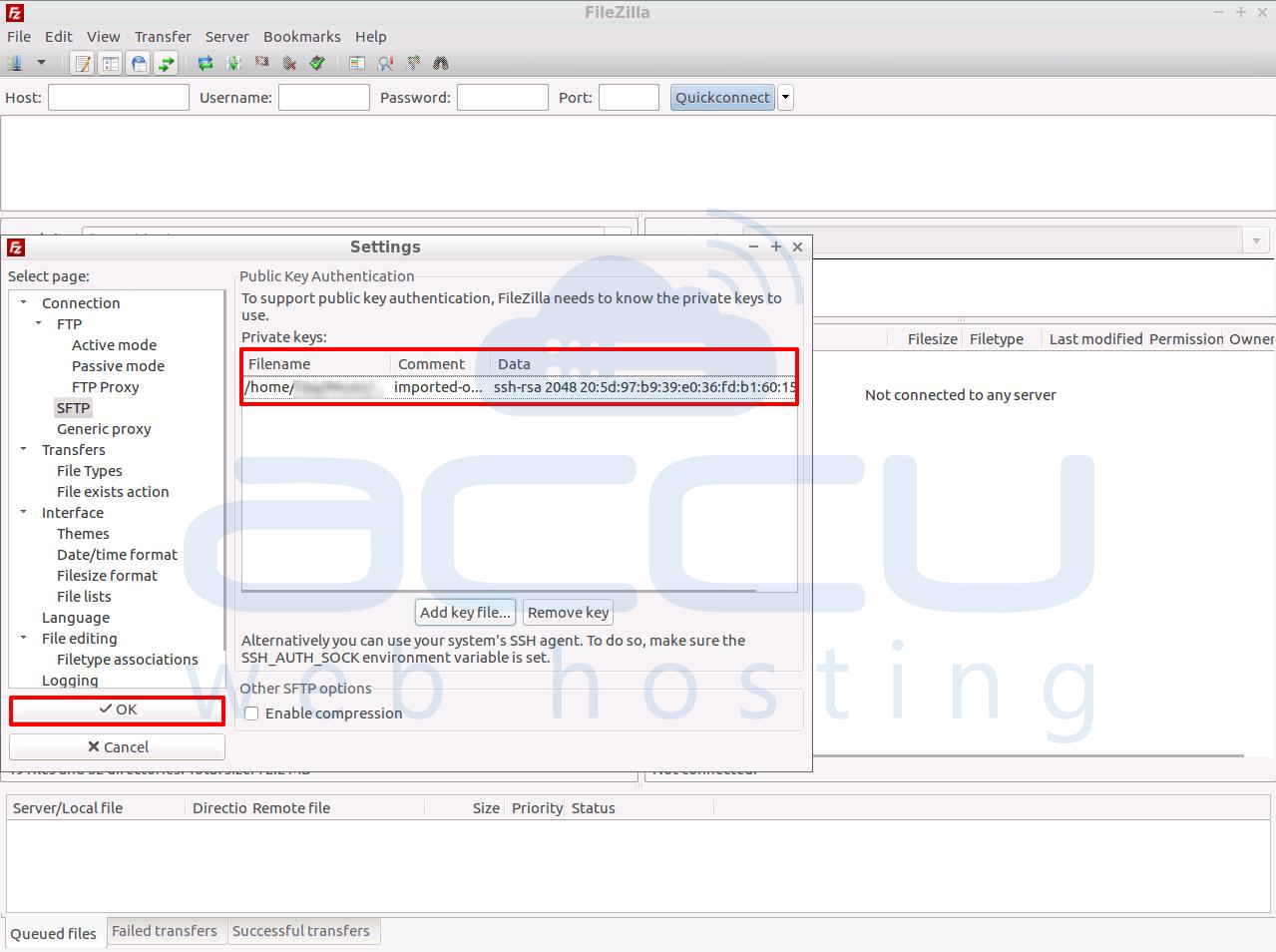
Conclusion:
Enabling SFTP on your Linux VPS enhances the security of your file transfers by leveraging SSH encryption. By ensuring the SSH service is installed, active, and correctly configured to support SFTP connections, you protect sensitive data from interception during transmission. Whether you're managing websites, applications, or backups, enabling SFTP is a best practice for maintaining secure server operations.


