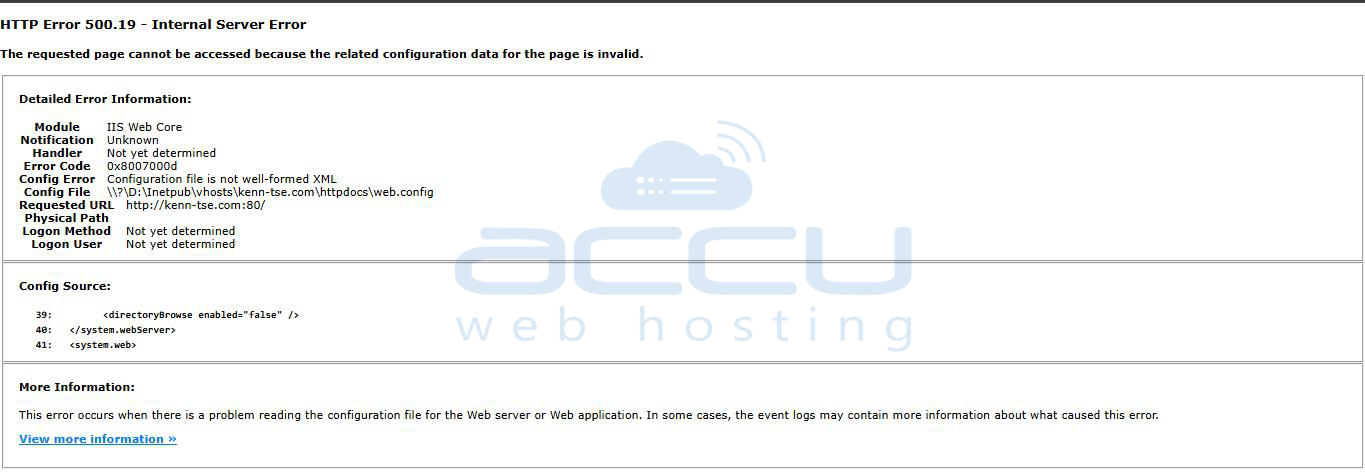
The IIS web server, by default, will hide detailed error information to prevent exposing more information about your web application. Though sometimes your web application throws a generic error, and you want to see the actual error to fix it. To enable detailed error information, you will have to modify your application's web.config file and set attributes through these steps:
- Locate the web.config file in the wwwroot directory of your web application; edit it with your choice of editor.
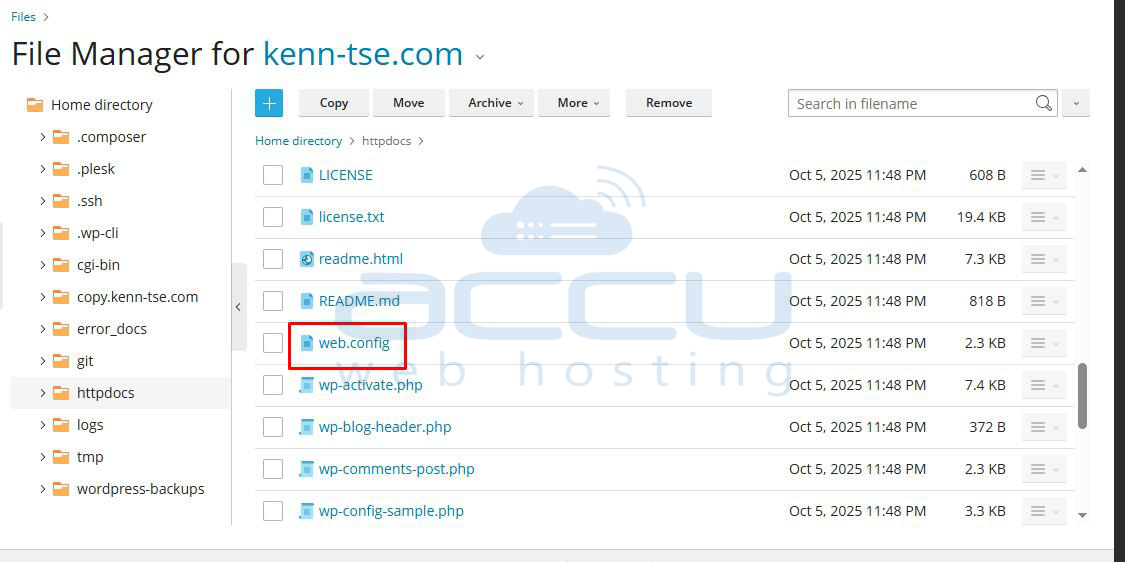
- Add the following entries to your web.config file to disable generic errors and save the file.
If these entries already exist, set their values as shown below -
<configuration>
<system.web>
<customErrors mode="Off" />
</system.web>
<system.webServer>
<httpErrors errorMode="Detailed" />
</system.webServer>
</configuration>
- If your web.config already contains a <system.web> or <system.webServer> section, do not add a new section. Instead, insert or modify the following lines inside the existing section:
- For <system.web>, ensure <customErrors mode="Off" /> is present.
- For <system.webServer>, ensure <httpErrors errorMode="Detailed" /> is present.
- Save the web.config file and refresh your application. Detailed error messages should now appear when an error occurs, making debugging easier.
After enabling detailed error information in the web.config file, errors will be displayed like this: