
When attempting to connect via RDP:
The Remote Desktop can't connect to the remote computer for one of the following reasons:
- Remote access to the server is not enabled
- The remote computer is turned off
- The remote computer is not available on the network
When starting the Remote Desktop service locally:
- Error 126: The specified module could not be found.
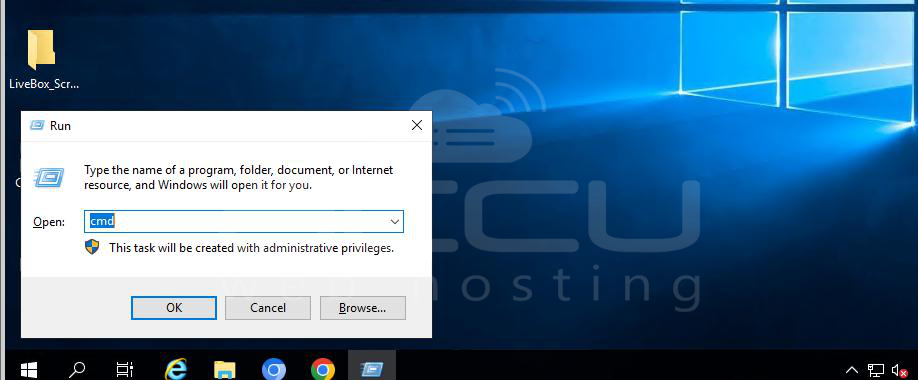
Step 1: Open Command Prompt
Press Windows + R. Type: cmd and Press Enter.
Step 2: Repair System Files
Run the System File Checker tool:
# sfc /scannow
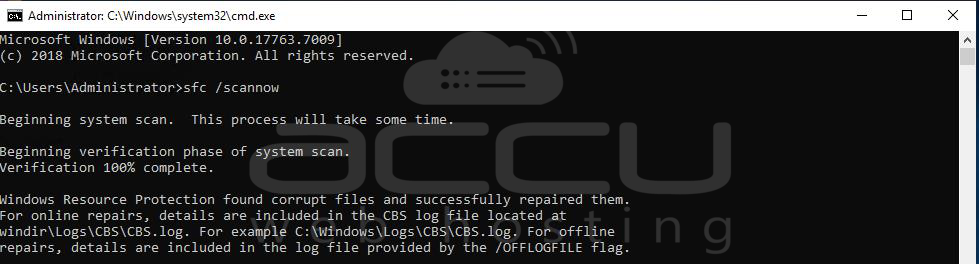
This command scans all protected system files and replaces corrupted or missing ones. The scan may take several minutes to complete.
Step 3: Restart Remote Desktop Services
Once the scan is complete, try starting the Remote Desktop Services again:
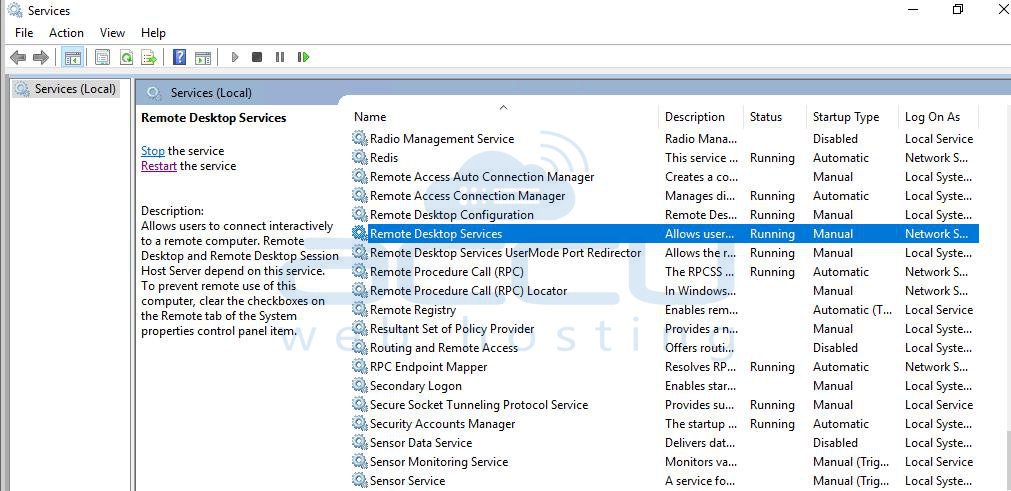
Press Windows + R, type: Services.msc
Locate Remote Desktop Services. Right-click and select Start (or Restart if running).
Step 4: Test RDP Connection
From your local computer, try connecting to the VPS again using Remote Desktop.
Conclusion:
Error 126 while starting the Remote Desktop service typically points to missing or corrupted system files. Running sfc /scannow repairs these files, allowing the Remote Desktop service to start successfully.


