
You can restrict the access of a website for any specific IP address by adding it to the IP/ Domain restriction in the IIS Web Server; even then, the other websites will be accessed from this IP address.
Please note that the following steps only apply to Windows VPS Hosting customers. But Windows shared Hosting customers can submit a ticket from the client area to restrict an IP address.
Steps to Block an IP Address in IIS
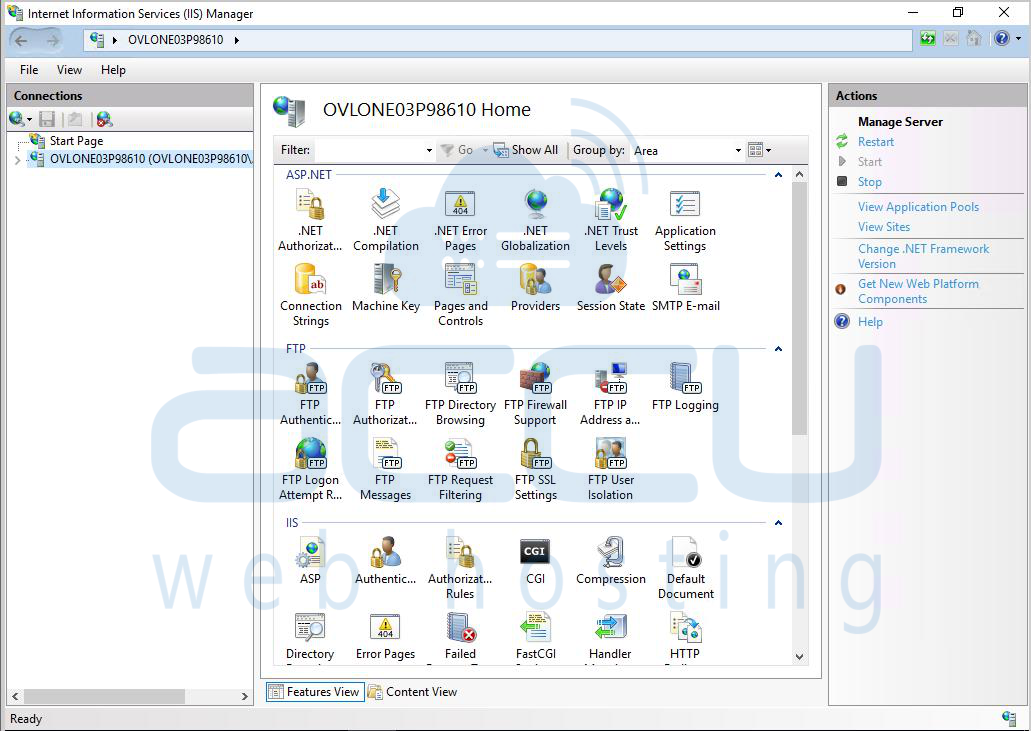
Step 1: Open IIS Manager
Go to Start -> Administrative Tools -> Internet Information Services (IIS) Manager.
Step 2: Expand Your Website in IIS
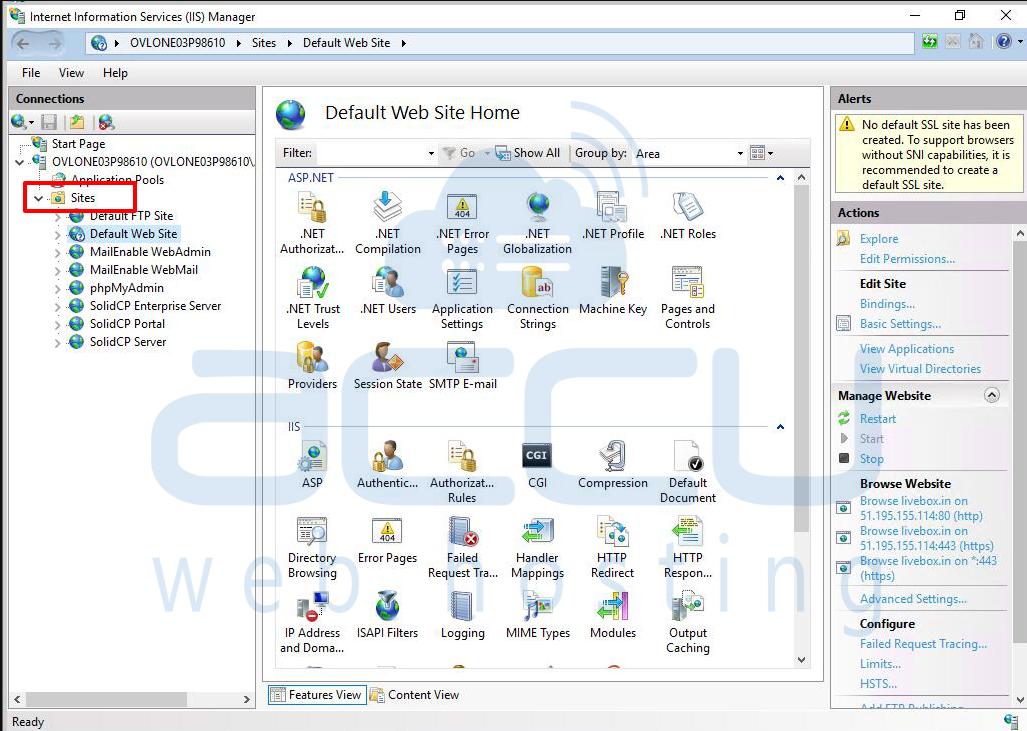
In the Connections Panel, expand your Server Name -> Sites -> Your Website.
Step 3: Open IP Address and Domain Restrictions
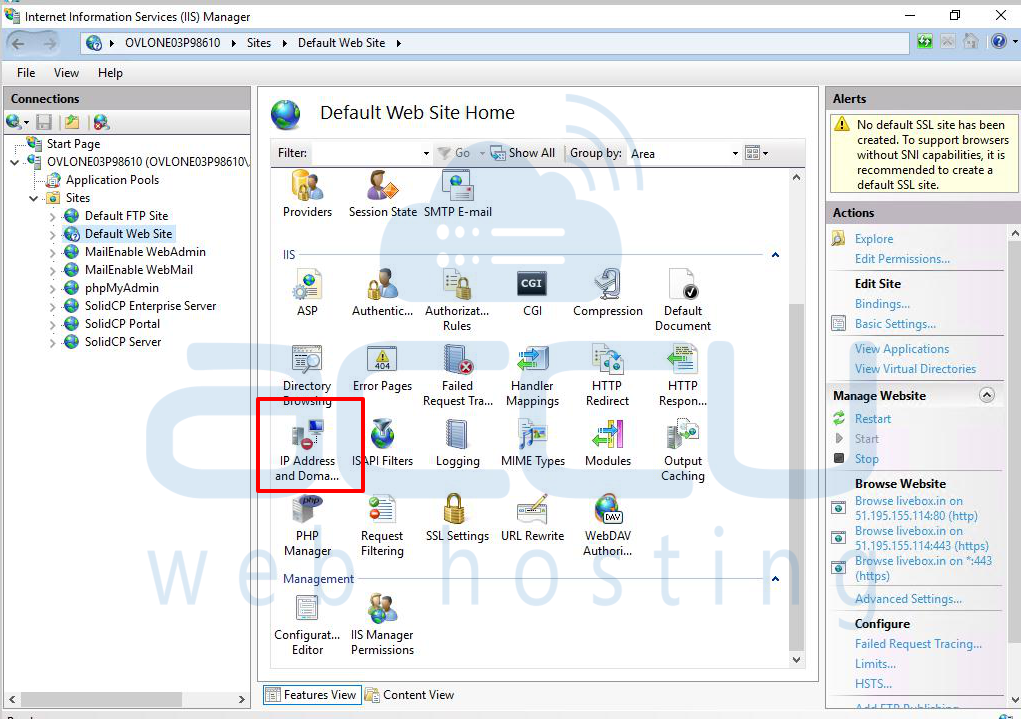
In the Home pane, double-click IP Address and Domain Restrictions.
Step 4: Add Deny Entry
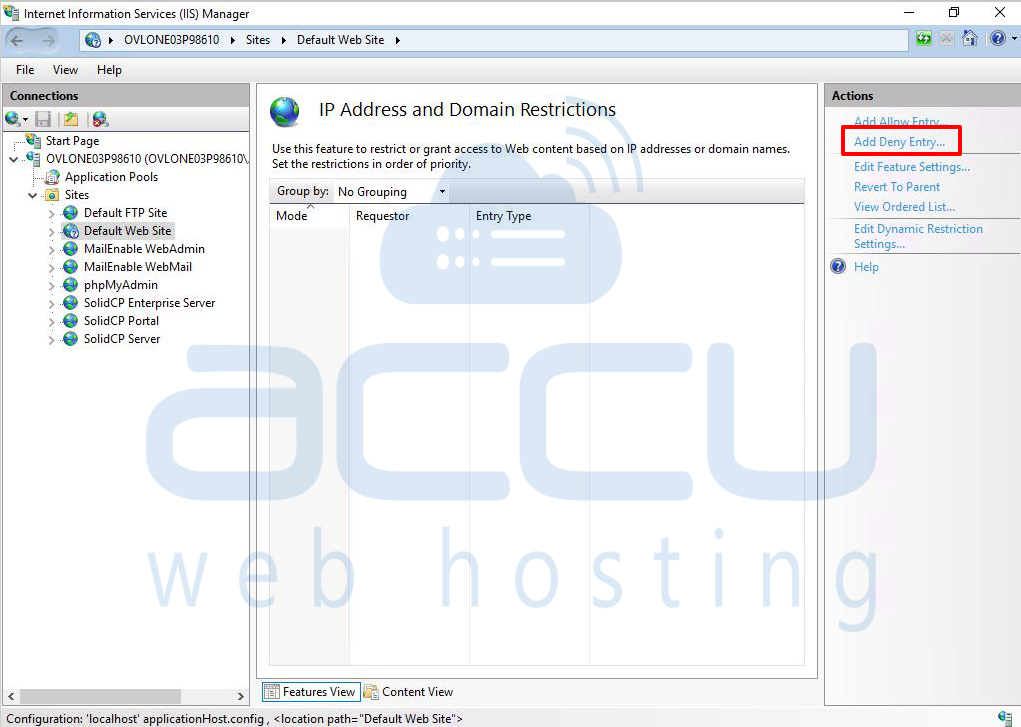
In the Actions pane (right side), click Add Deny Entry.
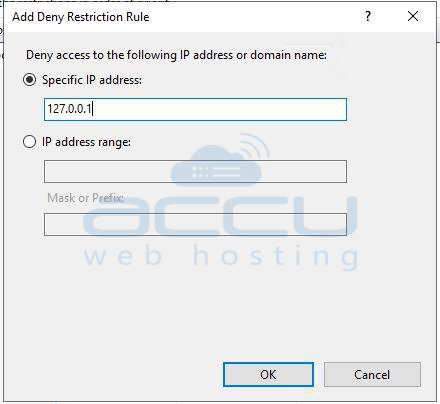
Step 5: Enter the IP Address to Block
Type the IP address you want to restrict and click OK.
Conclusion:
By following these steps, you can easily block specific IP addresses from accessing your website in IIS. This helps enhance the security of your Windows VPS by preventing unwanted or malicious traffic.


