
This article explains how to connect to your Windows VPS from an Android mobile device using the Microsoft Remote Desktop application.
Prerequisites
-
An active Windows VPS
-
Public IP address of the VPS
-
RDP username and password
-
Stable internet connection on your Android device
Step 1: Download the Microsoft Remote Desktop app from the APP Store:
Google Play: https://play.google.com/store/apps/details?id=com.microsoft.rdc.androidx&hl=en_IN
App Store: https://apps.apple.com/us/app/windows-app-mobile/id714464092
Step 2: Launch the Microsoft Remote Desktop app on your Android device and tap the PC connection icon, then select PC connection.
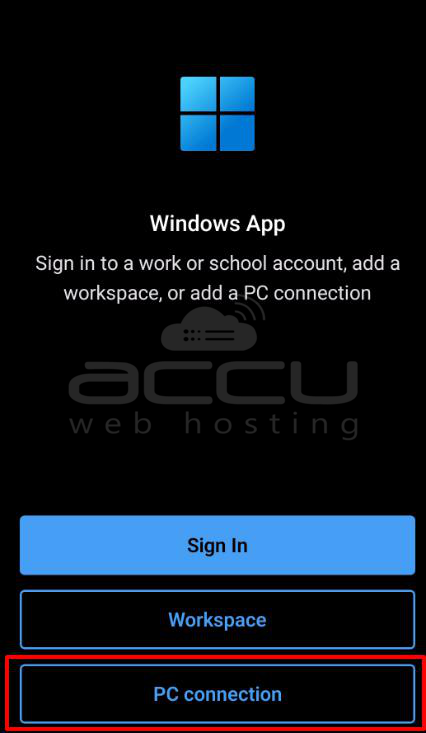
Step 3: You will see the Add Desktop screen. Enter the following details:
-
Desktop Configuration
-
PC Name: Enter your VPS public IP address.
-
If RDP is running on a non-default port (other than 3389), use the format: IP_Address: Port. Example: 127.0.0.1:2978
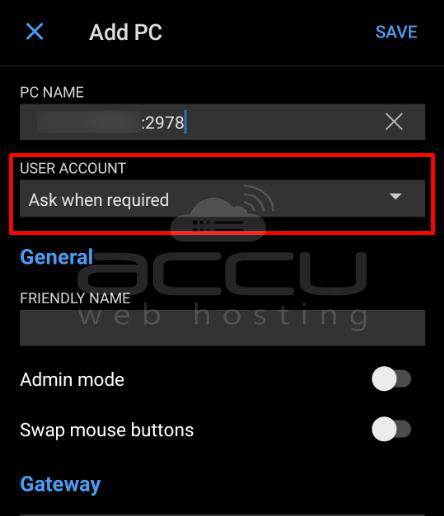
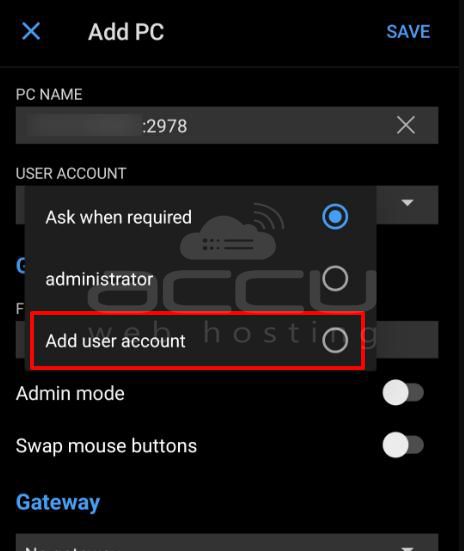
Step 4: User Account select Add user account (Recommended for better security)
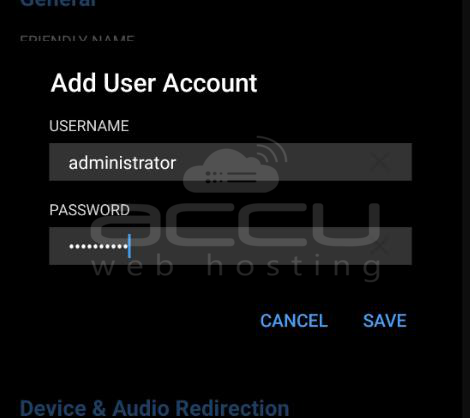
Step 5: Add User Account Credentials and tap Save to store the credentials securely.
-
Username: Your Windows VPS username
-
Password: Your Windows VPS password
Step 6: Tap on the newly added desktop profile.
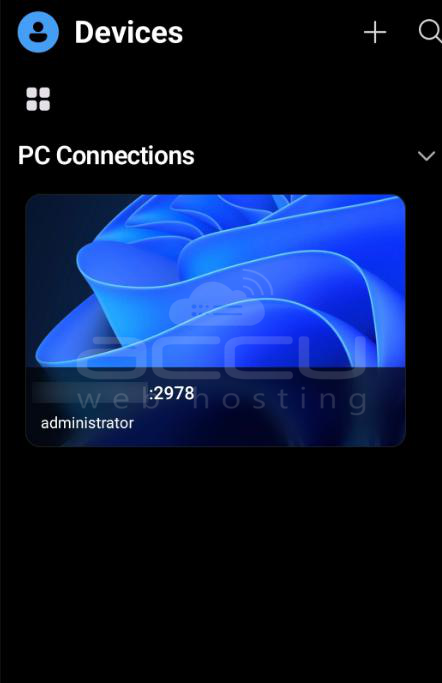
The app will initiate the connection and load your Windows environment.
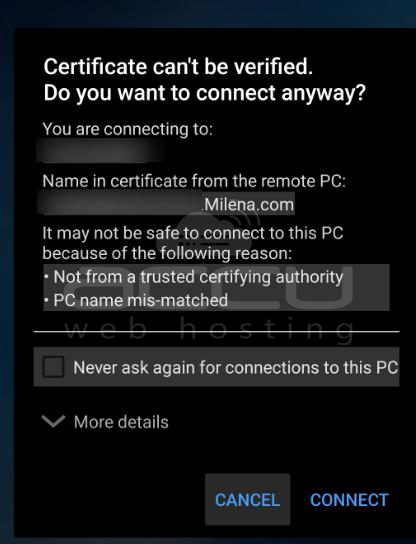
If prompted with a certificate warning, tap Connect to proceed.
Step 7: You can see a successful connection
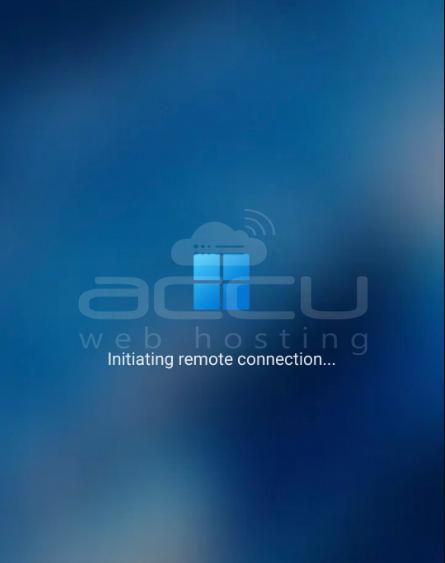
You are now successfully connected to your Windows VPS using Remote Desktop on Android. You can manage your server just like a regular desktop, directly from your mobile device.


