
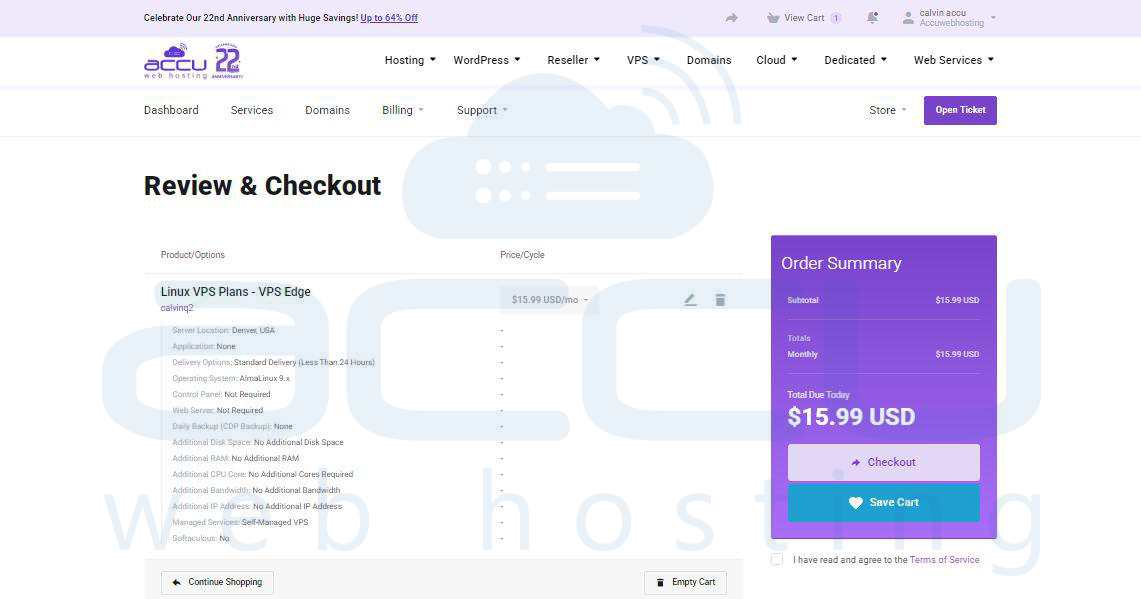
- Review and Checkout: Here, you can review the purchased product, its description, price, and subtotal. Make sure you have chosen the correct product and that the product price is also correct.
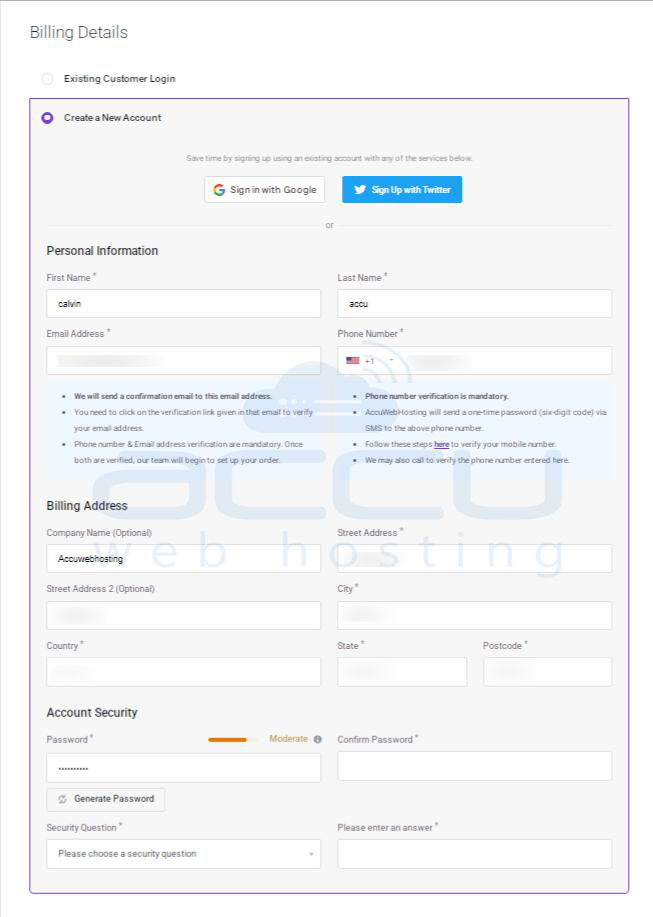
- At the Billing Details section, if you are a new customer, select New Customer and fill up the required details. If you are an Existing Customer, select Existing Customer Login and enter your admin Email address and Password.
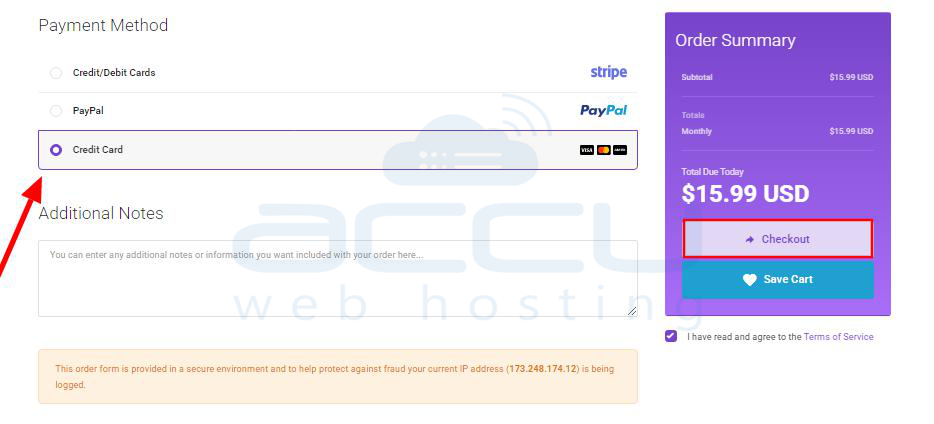
- Now, go to the Payment Method section, select the 3rd option, Credit Card, and hit the Checkout button to proceed further.
- On the next page, you will be asked for two options:
- Create Automated Recurring Subscription
- Make One Off Payment
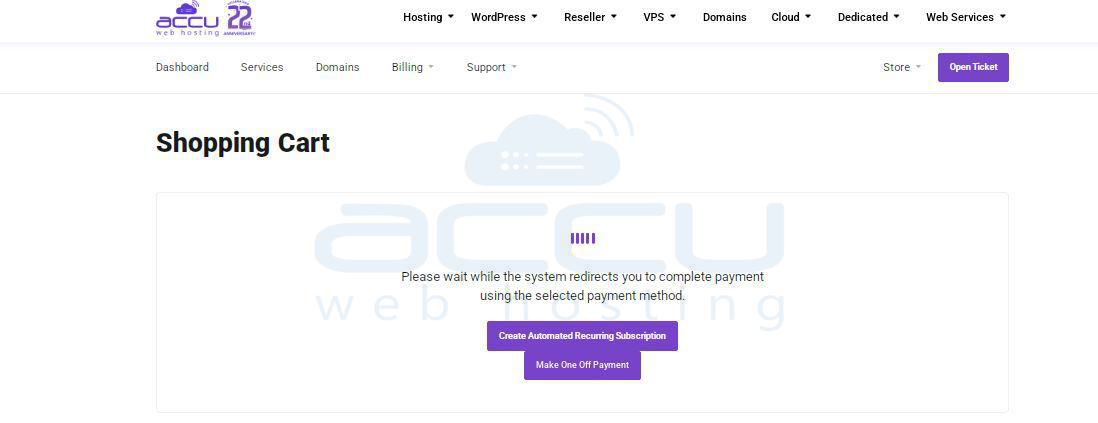
Select your desired option, and it will redirect you to the final checkout page.
- Now, if you have selected the Make One Off Payment, you will see the below page:
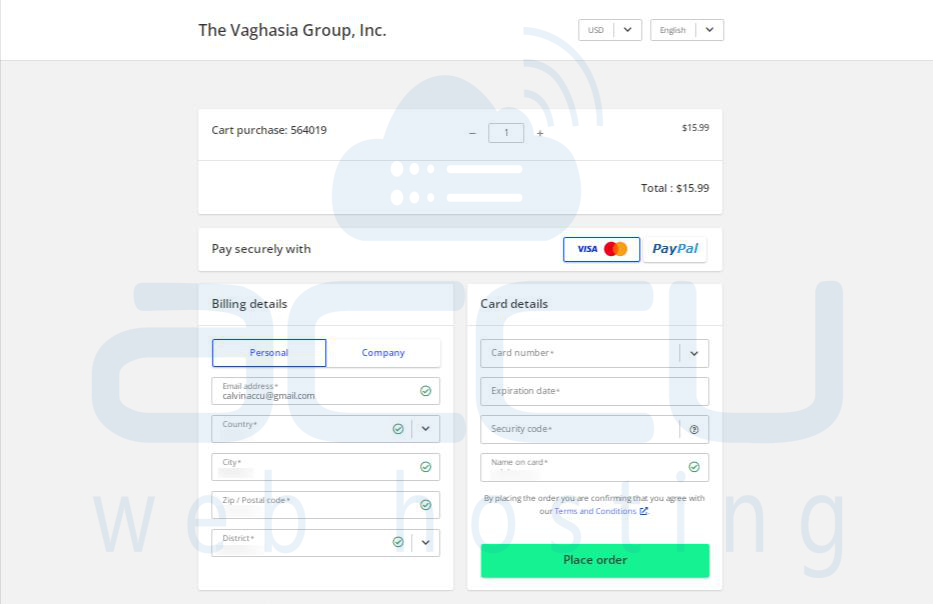
If you have selected the Create Automated Recurring Subscription, you will see the below page: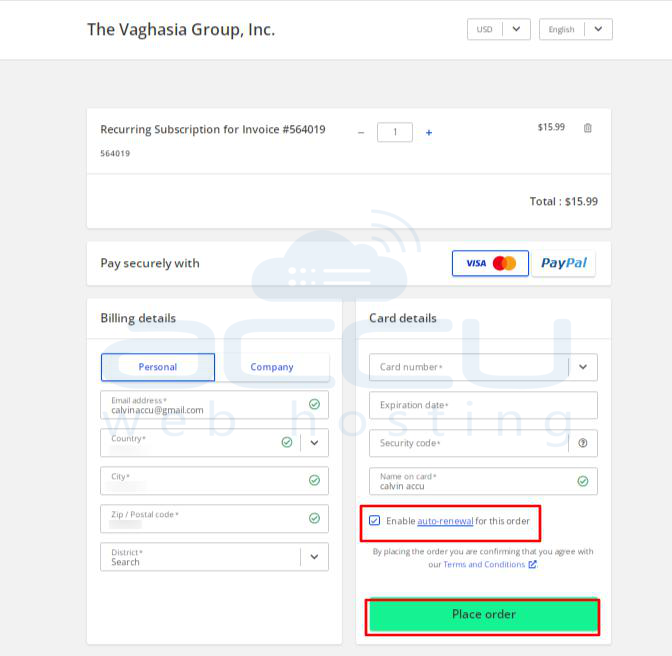
If you have selected the Recurring subscription, you will see the checkbox of Enable Auto-Renewal for this order - check it if it is not checked. - Enter the following details to complete the order.
- Billing Details: Add your Billing Details like Email, Country, City, etc (if not filled automatically).
- Card Number: Enter your Credit Card number. (Note: We are not storing Credit Card information of our clients.)
- Expiration Date: Select the expiry date of your Credit Card.
- Security Code: Enter the CVV code of your card.
- Name on Card: Add the cardholder's name, which you can see on your credit card.
- Once you fill in all the required details, hit the Place Order button, and you will see a payment progress bar. Please do not close the browser tab or refresh the page while payment is being processed.
- Once payment is successfully processed, you will receive the order confirmation and order number details in your window.
Important:
When you make a payment using PayPal or Stripe, your Credit card or PayPal account is automatically enabled for auto-capture. This means future invoices on your account will be charged automatically by default.
Automatic Payments (Default Behavior):
- If you pay using PayPal or Stripe, the system will automatically store the payment method and enable auto-charge for all upcoming renewals/invoices.
- Your card or PayPal account will be billed automatically whenever a new invoice is generated.
If You Prefer One-Time Payments Only:
If you do not want your credit card or PayPal account to be charged automatically, please contact our Billing Team.
- Simply submit a support ticket requesting to disable auto-capture for your entire account.
- Once disabled, you will need to manually pay each invoice when it is due.
Please refer to this article on how you can submit the support ticket:
https://manage.accuwebhosting.com/knowledgebase/191/How-to-create-and-manage-support-tickets-from-client-area.html
Can I set a Recurring Subscription after the due date? Please click this link for more details.
Looking to cancel a recurring payment? Please click this link for more details.
Looking for payment terms at Accuwebhosting? Please refer to Payment Terms for more details.


