
It's quite often when we face problems of Random Service Crash in Windows VPS. You may come across situations wherein;
- Some of the VPS services, like MS SQL, MySQL, SmarterMail, and WebsitePanel stop automatically.
- Random service crash occurs, and it reappears after some hours/days.
- Your applications failed to connect to the MS SQL database; you go ahead and check the MS SQL service and find that the MS SQL service is in a stopped status. After restarting the MS SQL service manually, the application database connection becomes normal.
- You cannot connect to the SmarterMail web interface due to the SmarterMail service crash.
- Your web pages with a MySQL database backend throw database connectivity errors.
- After loading for a long time, the WebsitePanel URL ends in error.
Check CPU and RAM Usage of VPS through Windows Task Manager >> Performance
Right-click on Task Bar and Select Start Task Manager.
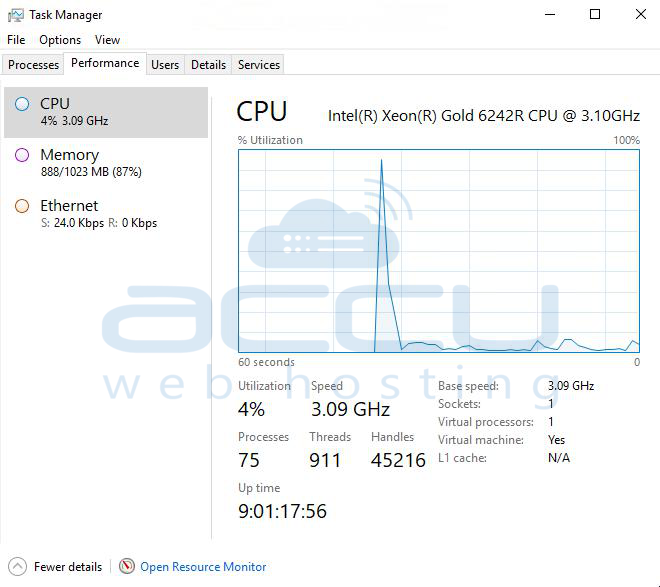
You will see the current RAM and CPU usage of your VPS. Some of your VPS services won't function as expectedly if your RAM and CPU usage is above 90%.
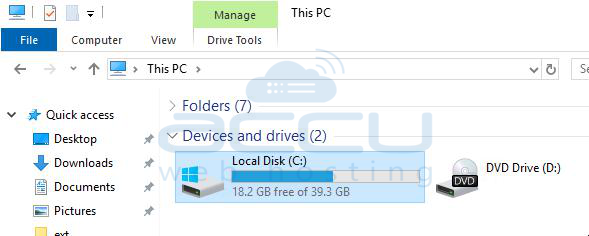
Check Disk Space Usage of VPS
Go to Start → Click Computer.
Configure Service Recovery Properties
Services can also be configured to recover automatically after a crash. Follow the steps mentioned below:
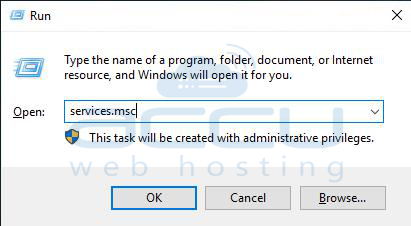
Step 1: Go to Start → Run → Type services.msc Click OK.
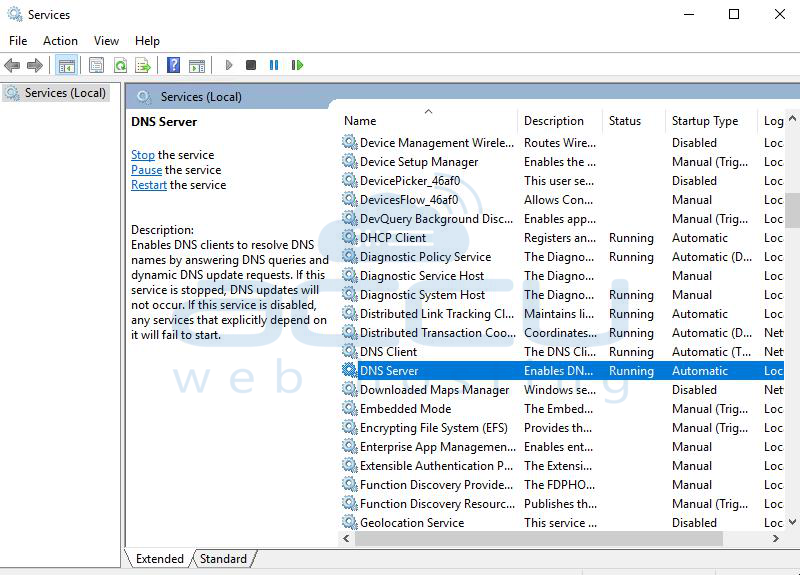
Step 2: In the Services Window, locate the service you want to configure, right-click on the service name, and click on Properties.
Step 3: In the Service Properties Window, click on the Recovery tab.
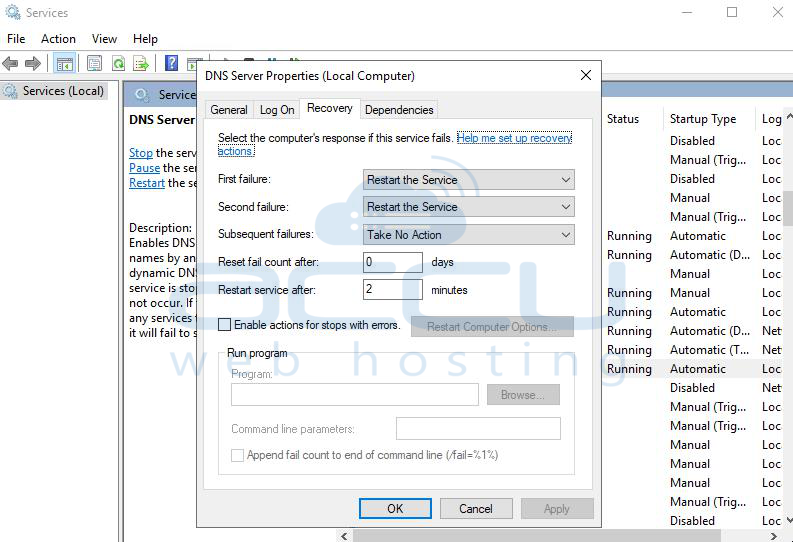
- Select the option Restart the Service in the First Failure dropdown.
- Select the option Restart the Service in the Second failure Dropdown.
- Select the option Restart the Service in the Third failure Dropdown.
- Click on Apply and then OK.
You can also set several other properties, like Reset Failure Counter after x days and Restart the service after 1 minute since the crash. Repeat the above steps for each service you want to configure for automatic recovery.
Determine the Root Cause of Service Crash Through Event Viewer
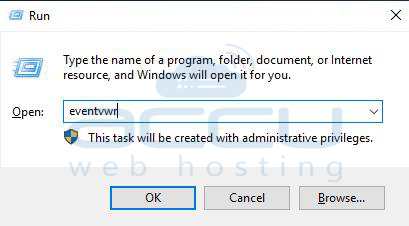
Step 1: Go to Start → Run → Type eventvwr, and click OK.
Step 2: In the Event Viewer Window, under Windows Logs, check Application and System logs.
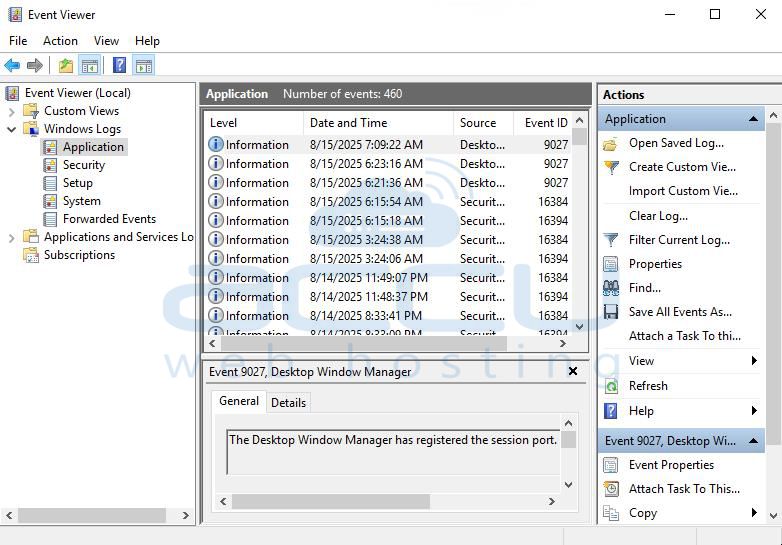
Step 3: Locate the Error logs recently registered for the service in question.
Step 4: Click on the Log entry.
Conclusion:
By monitoring system resources, freeing disk space, configuring service recovery, and investigating logs, you can significantly reduce downtime from random service crashes in your Windows VPS. For persistent issues, consider upgrading VPS specifications or optimizing hosted applications to reduce resource usage.


