
To create and manage support tickets, log in to your client area. If you are doing this first time, you can follow these instructions. Once you are logged in, follow these steps:
To create a Support Ticket
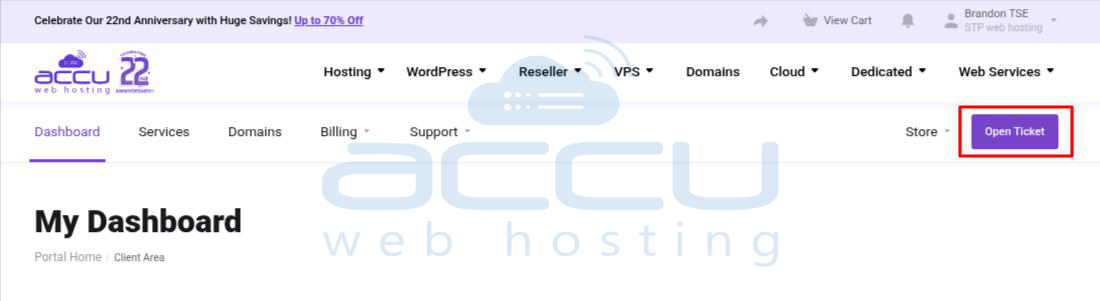
Step 1: Click on the Open Ticket menu
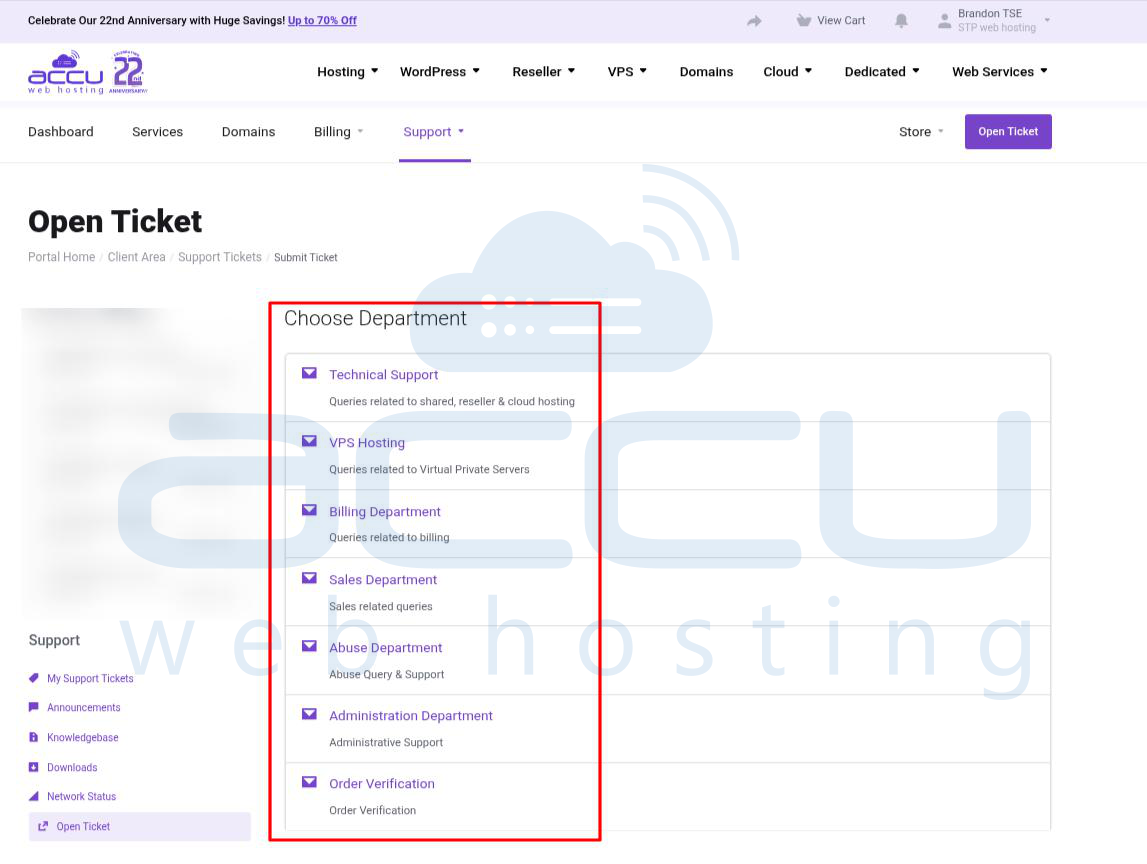
Step 2: Now, select the appropriate department related to your query
- Technical Support: Queries related to Technical Support.
- VPS Hosting: Queries related to Virtual Private Servers.
- Billing Department: Queries related to billing.
- Administration Department: Queries that need the Administration Department's attention.
- Abuse Department: Queries related to abuse of services.
- Sales Department: Queries related to the Sales department.
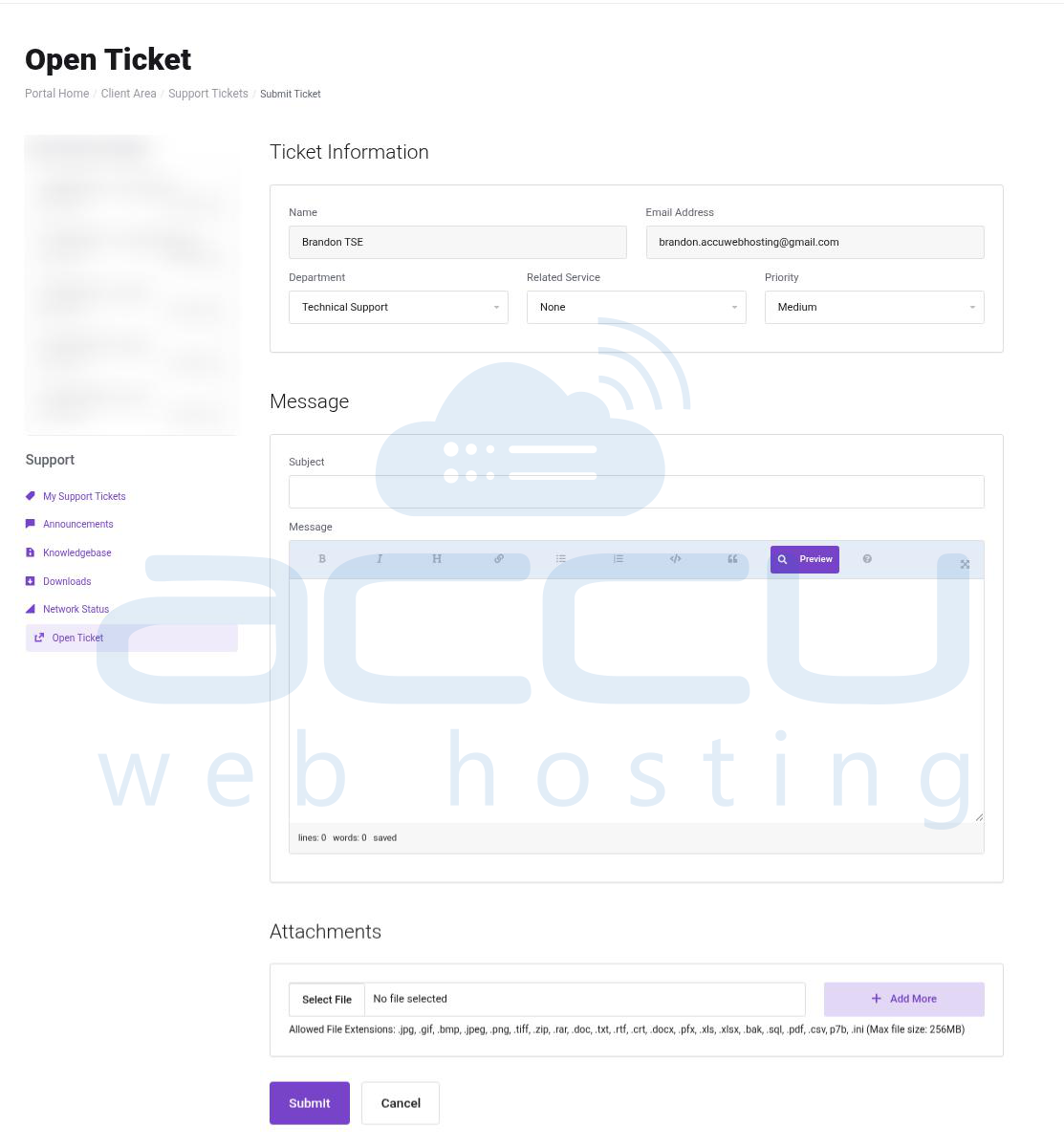
Step 3: After selecting an appropriate department, the following screen will appear. Enter the requested details on this page to submit a support ticket.
- Your Name and Email Address are filled OUT automatically.
- Enter the appropriate Subject related to your query.
- If you have not chosen the appropriate Department for your query in the previous screen, you can also choose that here.
- From the Related Service drop-down box, choose a service for which you are raising a support ticket.
- From the Priority, you can choose the priority of your support ticket
- In the Message, write your actual query in detail
- If you want to send us files or images related to your issue, you can attach them here (Allowed File Extensions: .jpg, .gif, .bmp, .jpeg, .png, .tiff, .zip, .doc, .docx, .txt, .rtf, .crt, .pfx, .xls, .xlsx, .bak, .sql, .pdf, .csv, .p7b). The maximum attachment file size limit is 256 MB.
- When you are ready, click on the Submit button. You have now successfully submitted a support ticket, and a confirmation e-mail with the ticket number and details has been sent to you
Viewing and Replying to Support Tickets
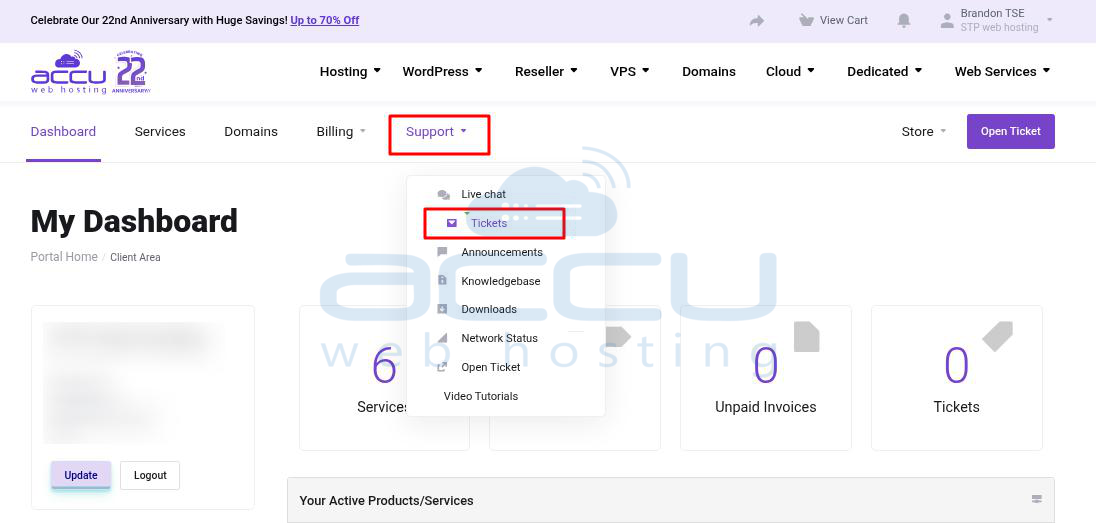
Step 1: To view an already submitted ticket, go to the Support menu and click on the Tickets
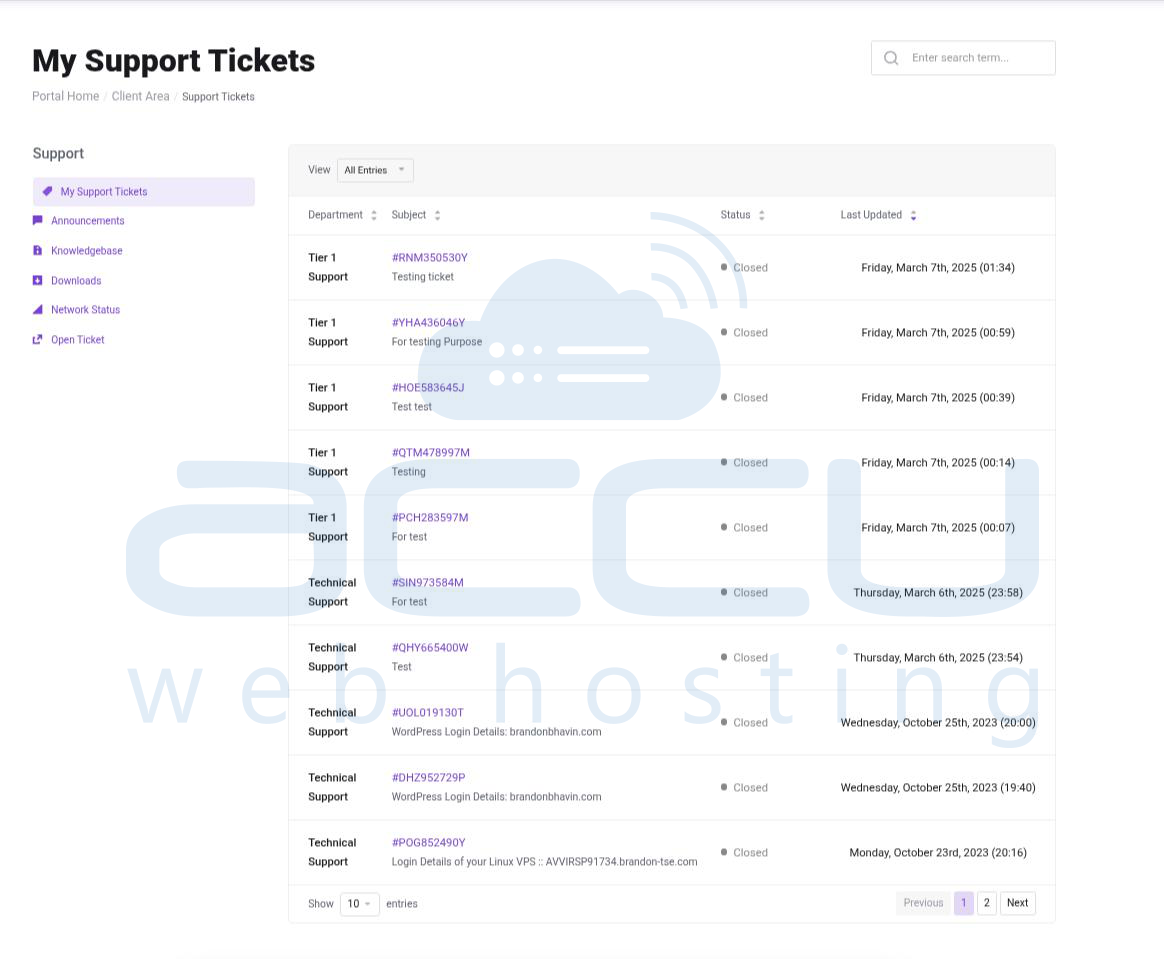
Step 2: You will see a list of tickets that you have submitted/received to date. In this page, you can see the date & time when you raised the support tickets, department, subject, status, and last update time of the support tickets
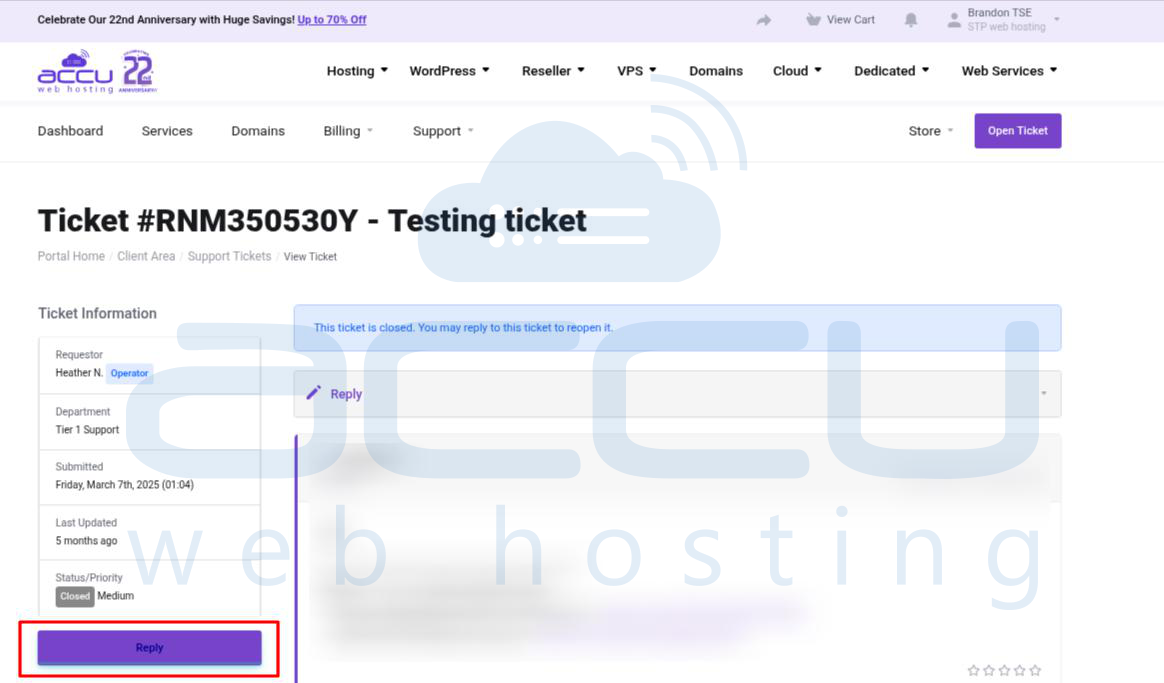
Step 3: To view a particular ticket, click on it. To reply, click on the Reply button and write a message. You can also attach any files or images, if necessary. Click the Submit button to submit your reply.
Looking to cancel the service? Please refer to cancel your service for more details.
Looking to change the nameserver of your domain from the client area? Please refer to Change Nameserver from Client Area for more details.


