
When setting or changing a password in Windows Server, you may encounter an error message related to password complexity requirements. This happens because, by default, Windows Server enforces a password policy that requires a minimum length and complexity (uppercase, lowercase, numbers, special characters).
If you want to set a simpler password, you can either disable the password complexity requirement or adjust the minimum password length in the server's security policy.
This article explains step-by-step how to modify the password policy in Windows Server.
Step 1: Open the Local Security Policy Console
Click Start → Administrative Tools → Local Security Policy.

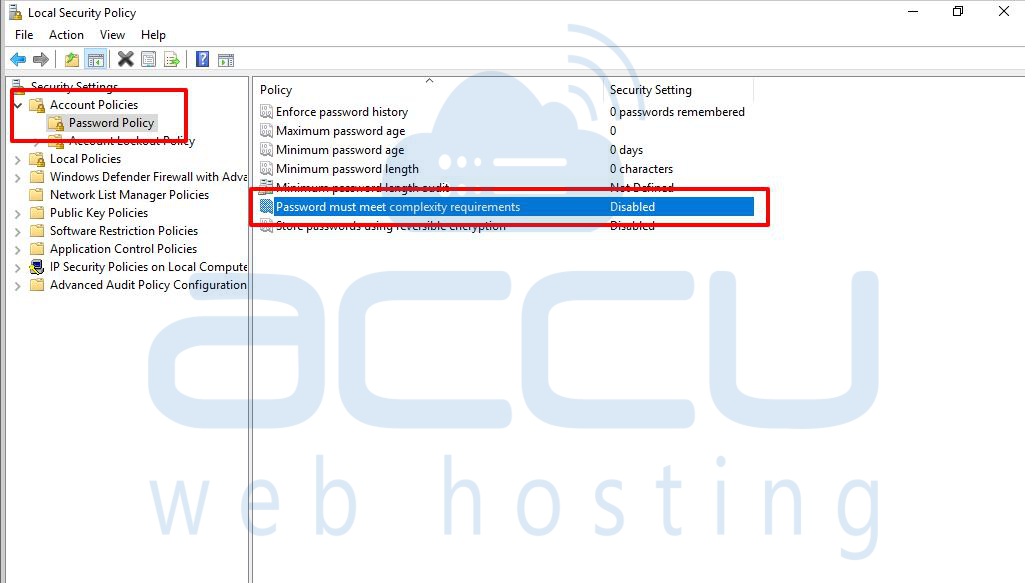
In the left pane, expand Account Policies → select Password Policy.
Step 2: Modify the Complexity Requirement
In the right pane, locate the option Password must meet complexity requirements.
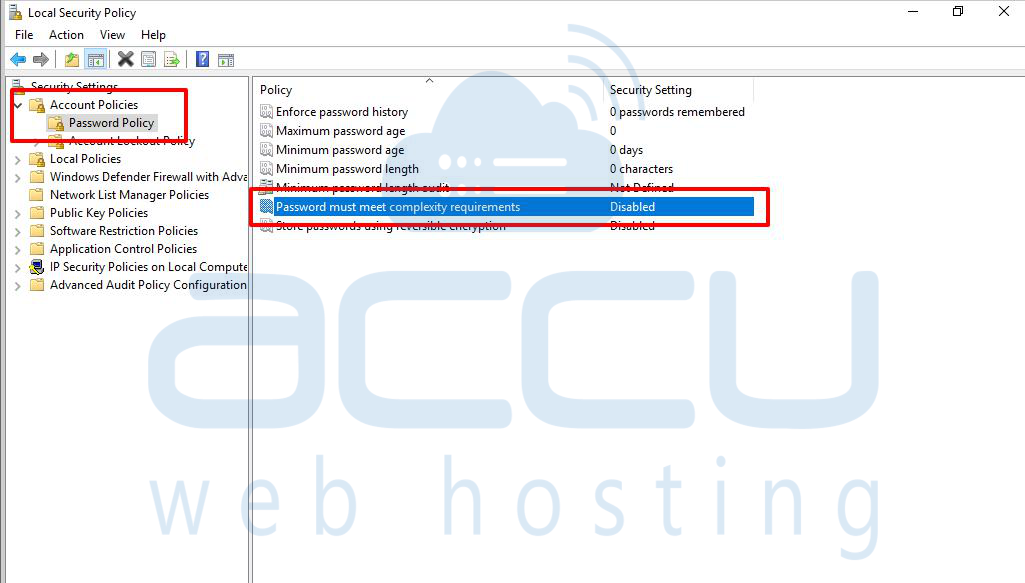
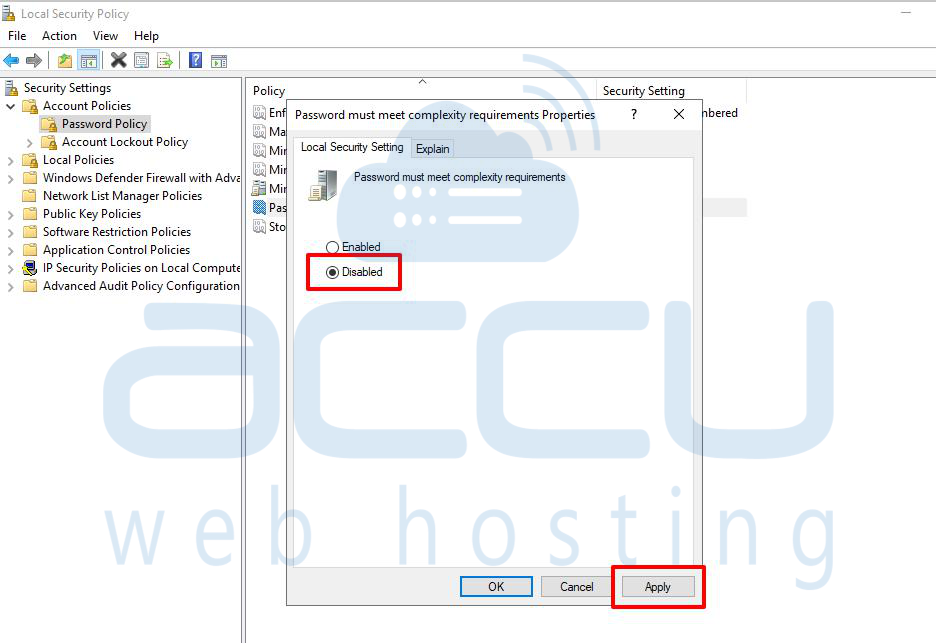
Right-click it and select Properties.
In the properties window, select Disabled to turn off the complexity requirement.
Step 3: Update Group Policy
Now, to update the policy, we need to run a command utility 'gpupdate' in the path: Click on Start → Run → gpupdate.
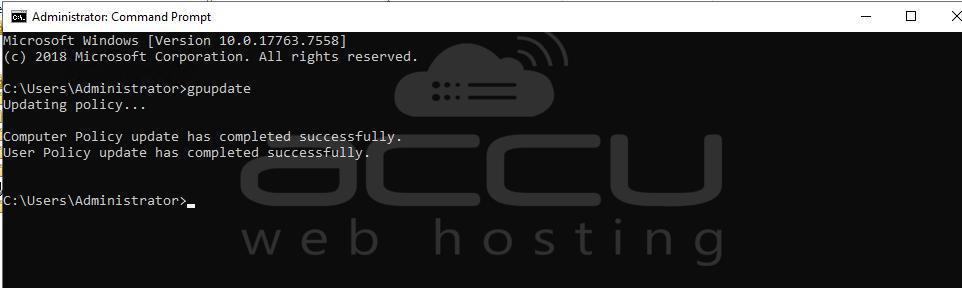
Press Enter to apply the new policy settings immediately.
By following these steps, you can easily customize the password policy on Windows Server to meet your requirements. Disabling complexity requirements or reducing the minimum length allows you to set simpler passwords. However, for better security, it is always recommended to use strong passwords containing a mix of uppercase, lowercase, numbers, and special characters.


