
Sometimes, Windows VPS/Dedicated server clients may accidentally shut down their system from the Start menu. After the shutdown, clients cannot restart the server from their end, which may cause unnecessary downtime. To avoid such situations, you can disable the Shut Down, Restart, Sleep, and Hibernate options in the Start menu through Group Policy.
Step 1: Open Group Policy Editor
Click on Start -> Run, type gpedit.msc, and click OK.
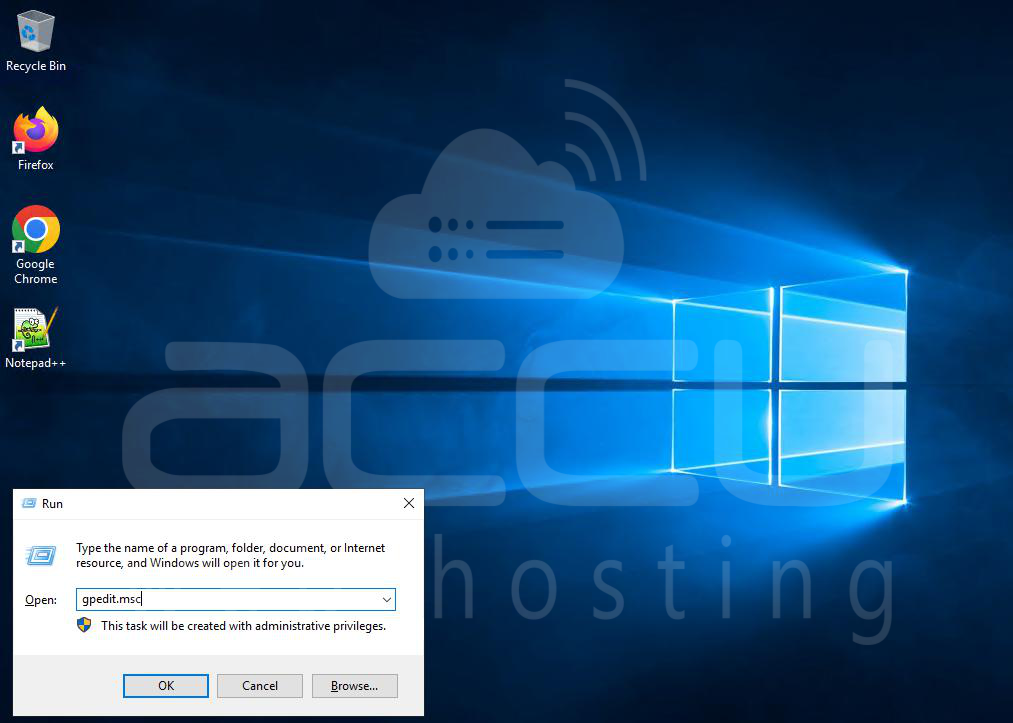
This will open the Local Group Policy Editor window.
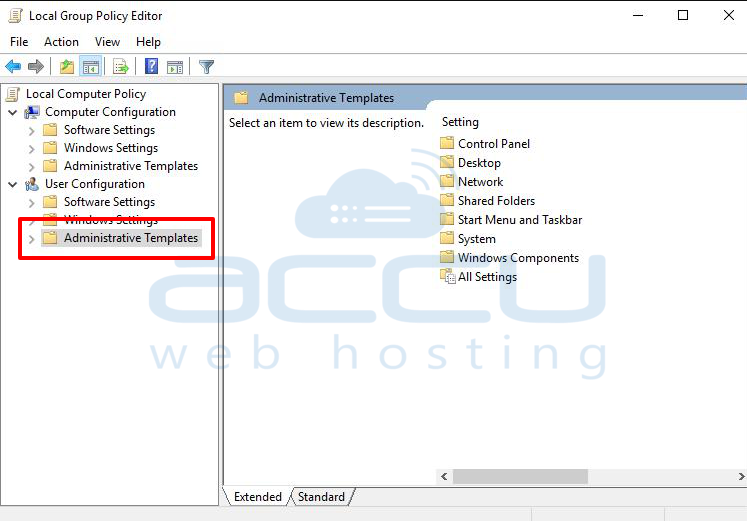
Step 2: Navigate to Administrative Templates
In the left pane, expand User Configuration -> Administrative Templates.
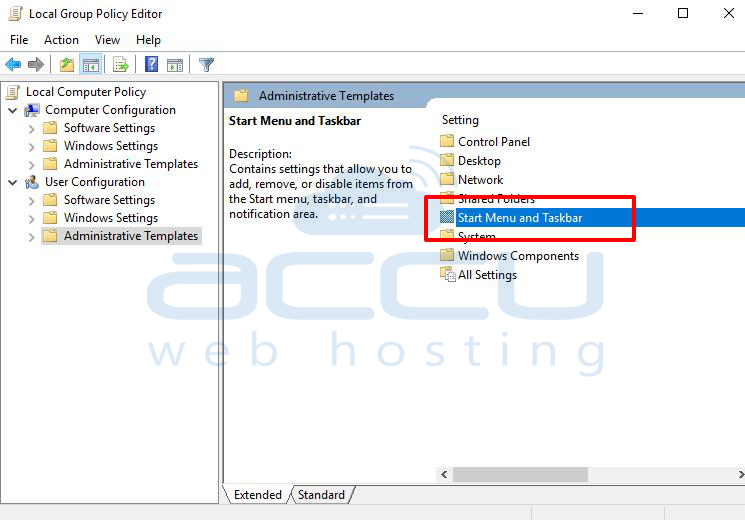
Step 3: Open Start Menu and Taskbar Options
From the right pane, double-click on Start Menu and Taskbar.
Step 4: Edit Shutdown Policy
Locate the setting, remove, and prevent access to the Shut Down, Restart, Sleep, and Hibernate commands.

Right-click on it and select Properties.
Step 5: Enable the Setting
In the settings window, select Enabled.
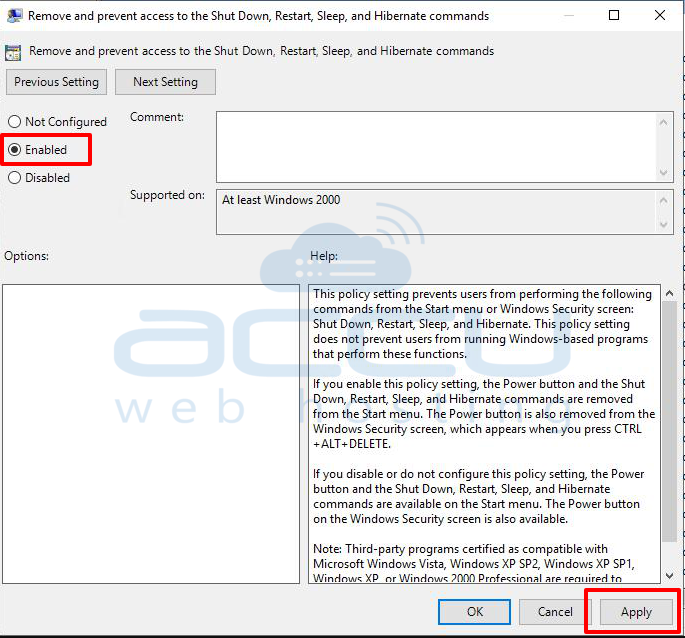
Click on Apply -> OK to save changes.
Conclusion:
Once this policy is applied, users will no longer see the Shut Down, Restart, Sleep, or Hibernate options in the Start menu. This helps prevent accidental shutdowns and ensures that your server continues running without interruption.


