
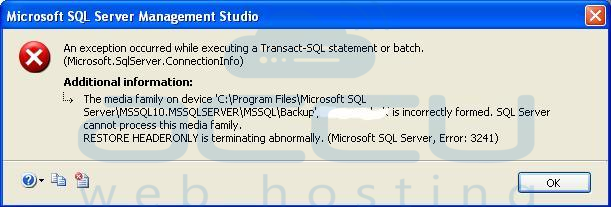
When restoring a database from a backup file in SQL Server Management Studio (SSMS), you may sometimes encounter the following error message:
The media family on the device 'Backupfile.bak' is incorrectly formed; the SQL Server cannot process this media family.
RESTORE HEADERONLY is terminating abnormally. (Microsoft SQL Server, Error: 3241)
This issue generally occurs when the backup file becomes corrupted during the upload process to the server.
The most common cause of this error is that the backup file was uploaded to the server using FTP in Text Mode (ASCII) instead of Binary Mode.
Text Mode (ASCII) modifies file contents during the transfer, which can corrupt binary files like SQL Server backups.
Binary Mode preserves the file exactly as it is, ensuring the backup file's integrity.
Follow the steps below to re-upload the backup file correctly and restore it successfully:
Step 1: Delete the Corrupted Backup File
Connect to your Windows VPS using Remote Desktop (RDP).
Open File Explorer and navigate to the location where you uploaded the .bak file.
Delete the corrupted .bak file.
Step 2: Upload the Backup File Using FTP Binary Mode
Open your FTP Client (e.g., FileZilla).
Connect to your server using your FTP credentials.
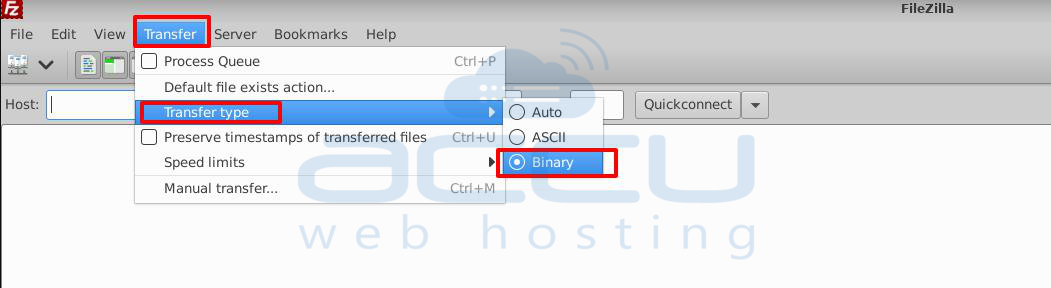
Before uploading, set the Transfer Type to Binary:
In FileZilla, go to Transfer → Transfer Type → Binary.
Upload the .bak file again to the desired location on your server.
Step 3: Restore the Database in SQL Server Management Studio
Open SQL Server Management Studio on your Windows VPS.
Right-click Databases → Restore Database.
Select Device → Browse to choose the re-uploaded .bak file.
Complete the restore process.
Conclusion:
To avoid SQL Server Error 3241, always upload database backup files using FTP Binary Mode. This ensures that the file remains intact and can be restored without corruption issues.


