
Verify PHP Installation Path
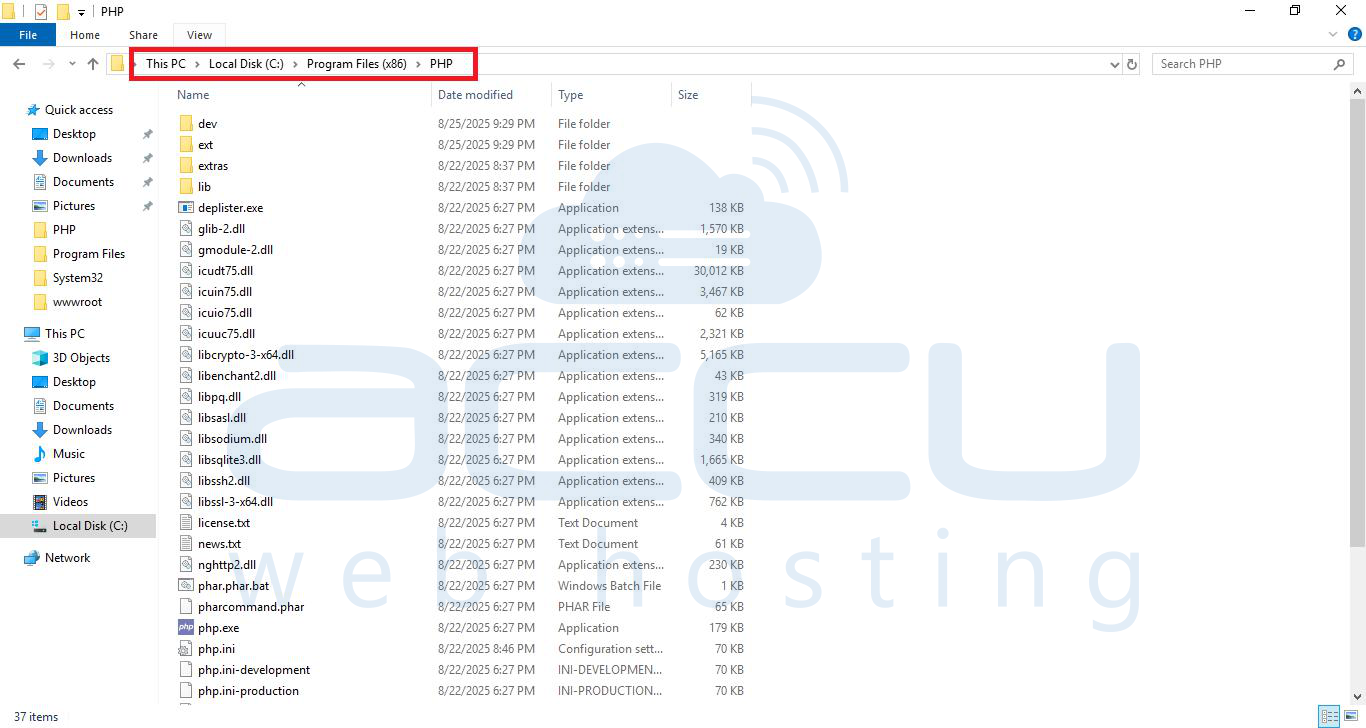
Ensure that PHP is installed on your server. By default, it may be installed in: C:\Program Files (x86)\PHP\v5.6\ or C:\Program Files (x86)\PHP\
Note: If you have a different version of PHP, adjust the path accordingly.
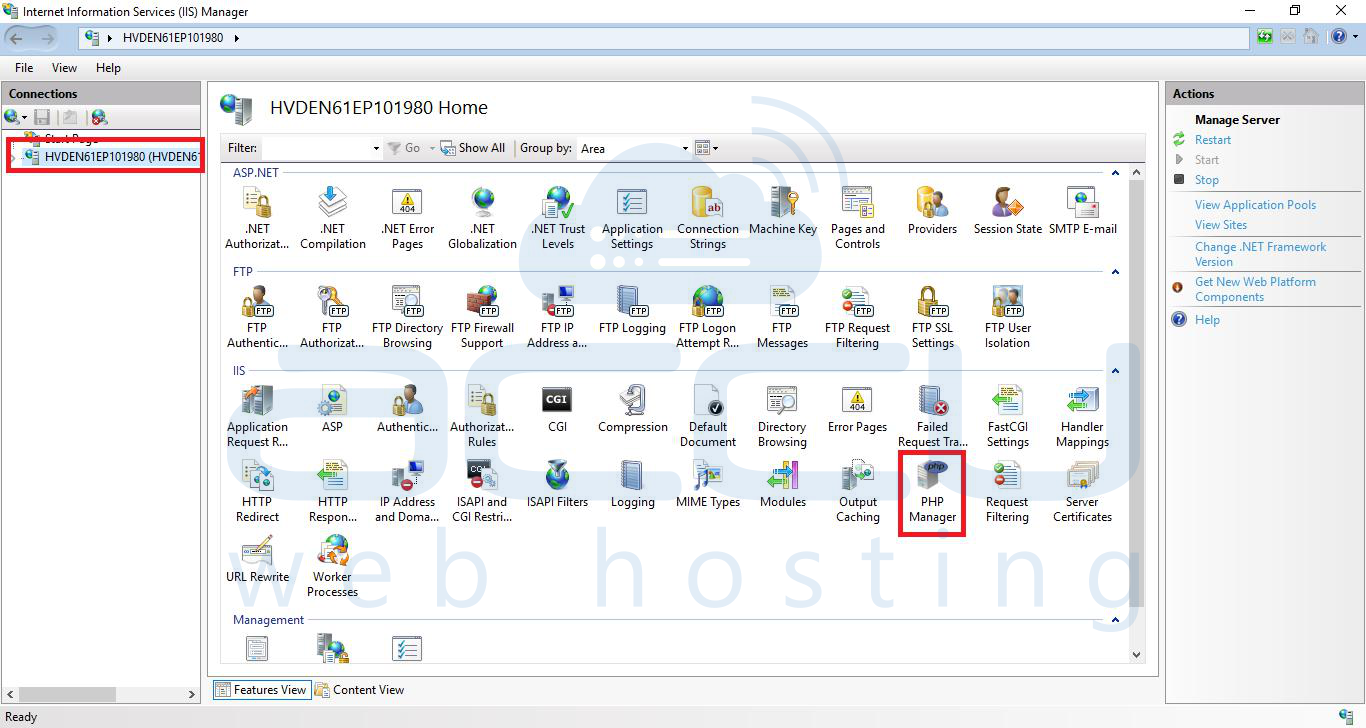
IIS
Go to "IIS".
Click on servername. Now, search for PHP Manager and double-click on it.
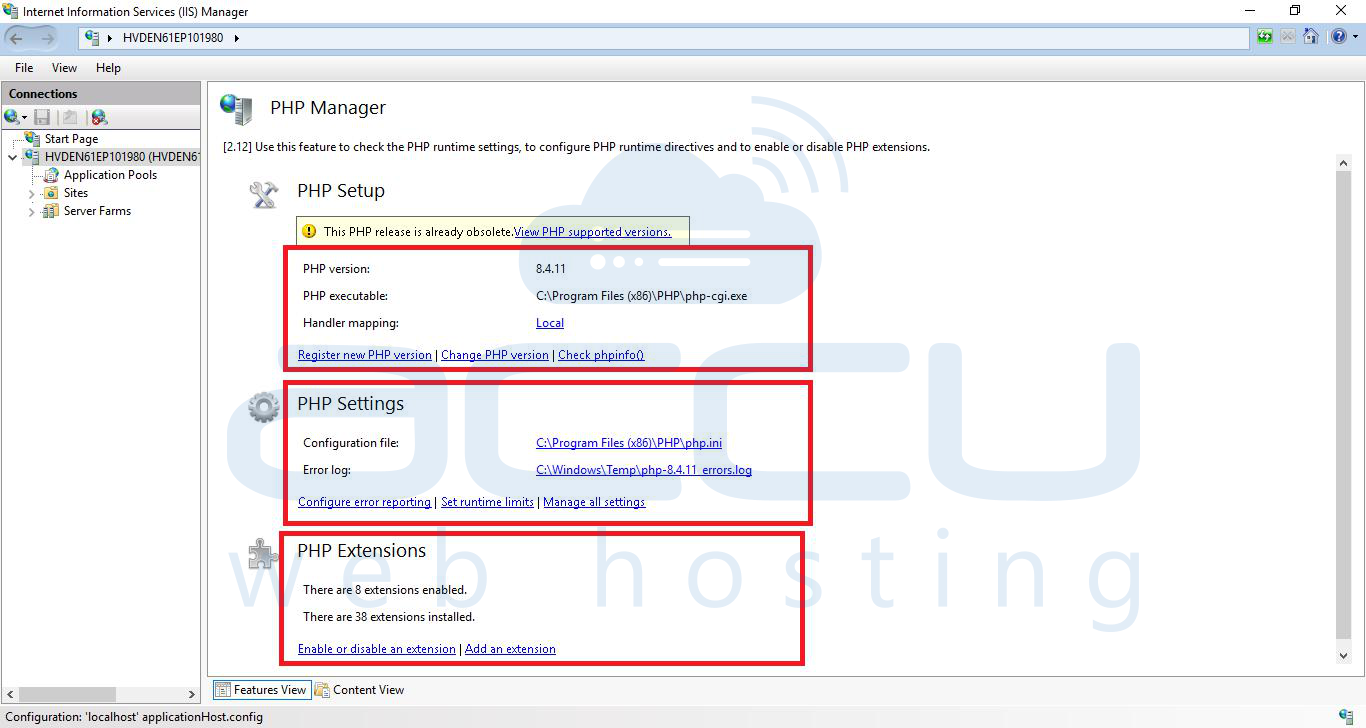
Under PHP setup, "PHP executable" should have path as: "C:\Program Files (x86)\PHP\v5.6\php-cgi.exe or C:\Program Files (x86)\PHP\php-cgi.exe "
If it does not show the path, you can click on "Register new PHP version" and add the path for php-cgi.exe
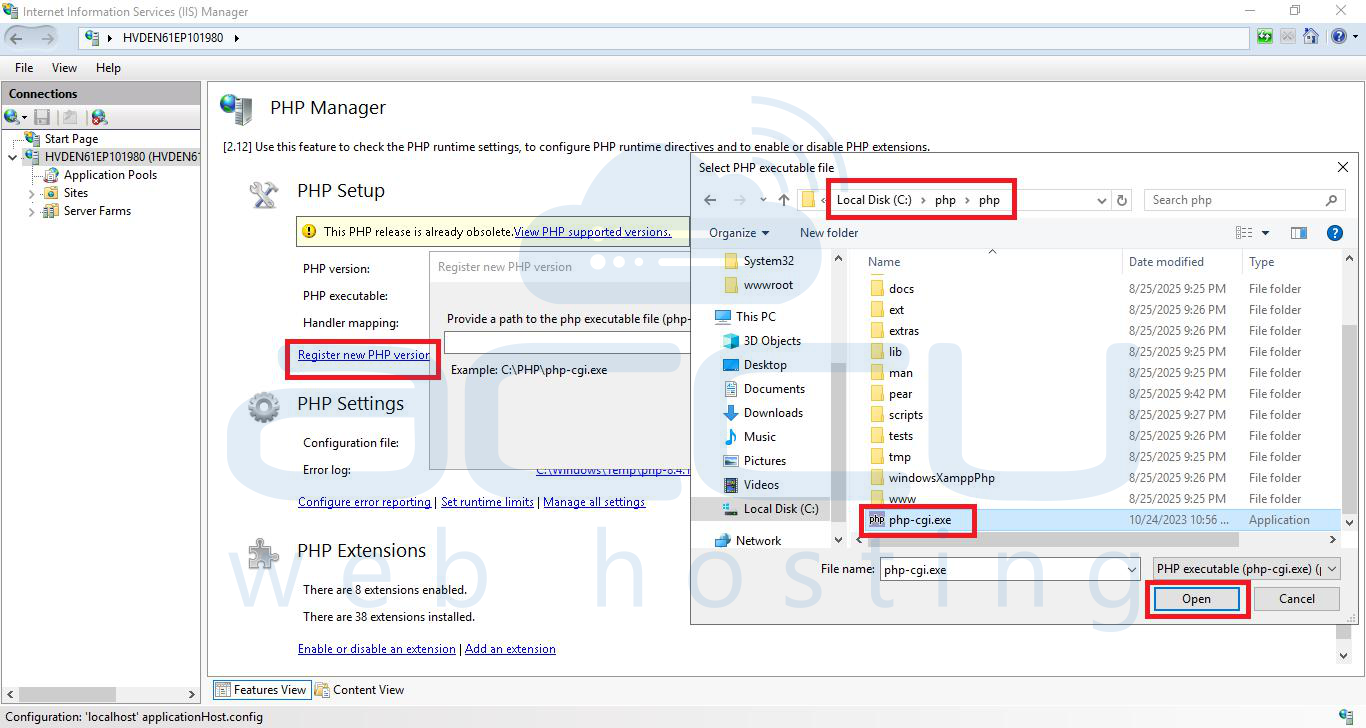
NOTE: We consider that you have custom PHP installed at C:\Program Files (x86)\PHP\ location. You will have to change it based on your installation path.
Test PHP Configuration
Create a file called info.php in your website root:
<?php phpinfo(); ?>
Open your browser and navigate to: http://yourdomain.com/info.php
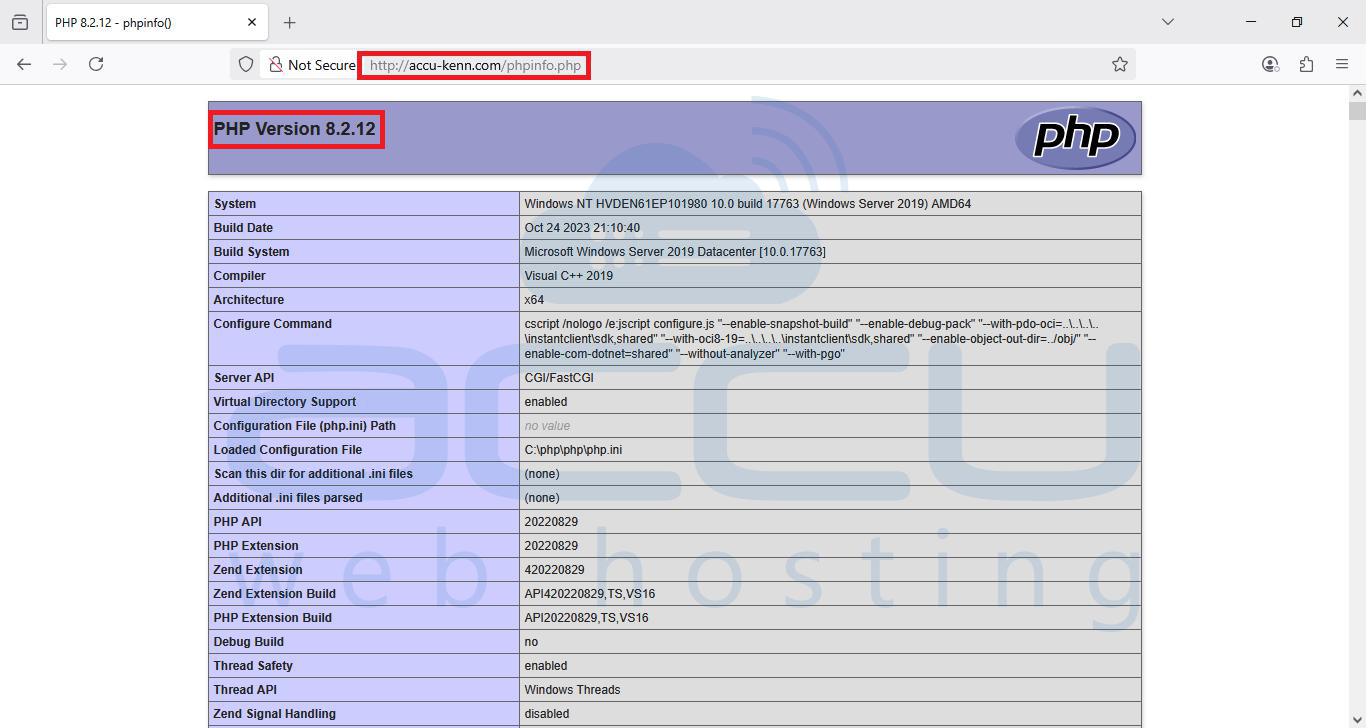
Confirm that the PHP information page loads successfully.
Conclusion:
Incorrect PHP extension paths in IIS are a common reason for PHP not working on a domain. By verifying the PHP installation path and correctly configuring it in IIS (using either Application Extensions in IIS6 or PHP Manager in IIS7/8), your PHP applications should start working immediately. Always test using a simple phpinfo() file to confirm the configuration.


