
Managing SQL Server transaction log growth is a critical part of maintaining database performance, stability, and disk space on Windows Server environments. If not properly handled, the transaction log can grow unexpectedly and consume all available storage, leading to application downtime or database suspension.
This article explains how SQL Server transaction logs behave under FULL and SIMPLE recovery models, and provides step-by-step methods to manage and control log growth effectively.
Understanding SQL Server Transaction Log
The transaction log (.ldf file) records every change made to the database. It ensures:
Data recovery after crashes
Transaction rollback capability
Point-in-time recovery (FULL recovery model)
If the log is not maintained properly, it keeps growing until disk space runs out.
Recovery Models and Their Impact on Log Growth
1. SIMPLE Recovery Model
In SIMPLE recovery mode:
Transaction log is automatically truncated after checkpoints
No need for log backups
Point-in-time recovery is NOT possible
Log growth is usually controlled automatically
Best for:
Development environments
Test databases
Non-critical systems
Limitation:
You cannot restore to a specific point in time
2. FULL Recovery Model
In FULL recovery mode:
All transactions are fully logged
Log file does NOT truncate automatically
You MUST take regular transaction log backups
Enables point-in-time recovery
Best for:
Production systems
Critical business databases
Financial or transactional systems
Risk:
Log file grows indefinitely if backups are not taken
How to Check Current Recovery Model
Step 1: Using SQL Query
SELECT name, recovery_model_desc
FROM sys.databases
WHERE name = 'YourDatabaseName';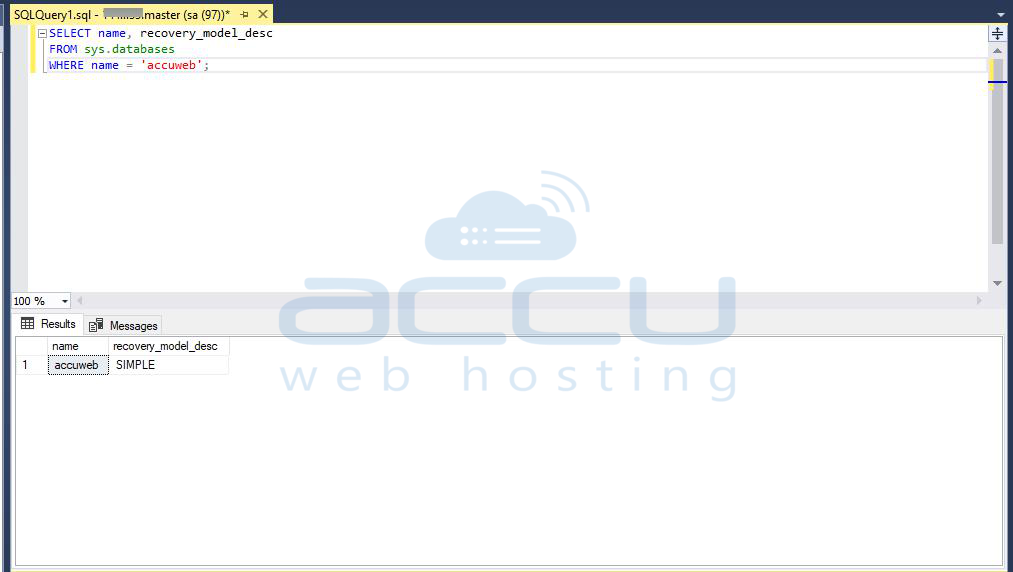
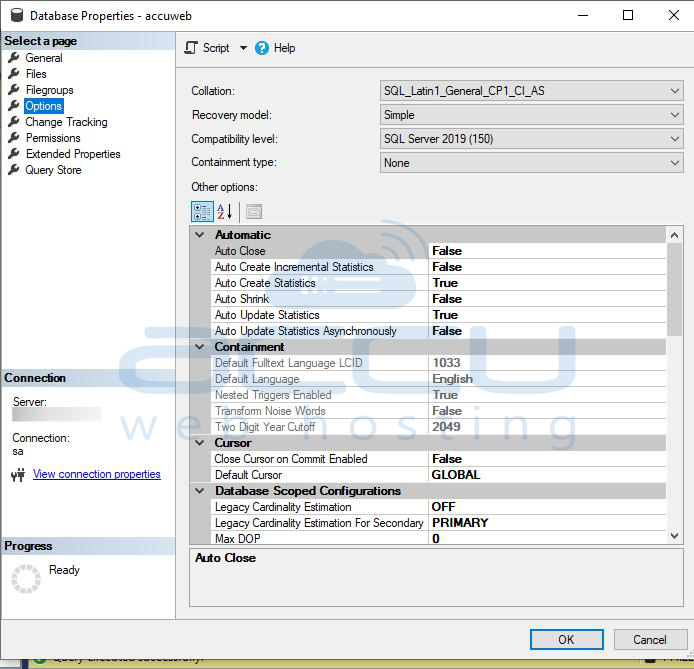
Step 2: Using SSMS
Right-click database
Properties → Options
Check Recovery Model
Managing Log Growth in SIMPLE Recovery Model
Even in SIMPLE mode, log files can grow due to:
Long-running transactions
Large bulk operations
Delayed checkpoints
✔ Step 1: Force a checkpoint
CHECKPOINT;
✔ Step 2: Shrink log file (if needed)
DBCC SHRINKFILE (YourDatabaseLogFile, 1);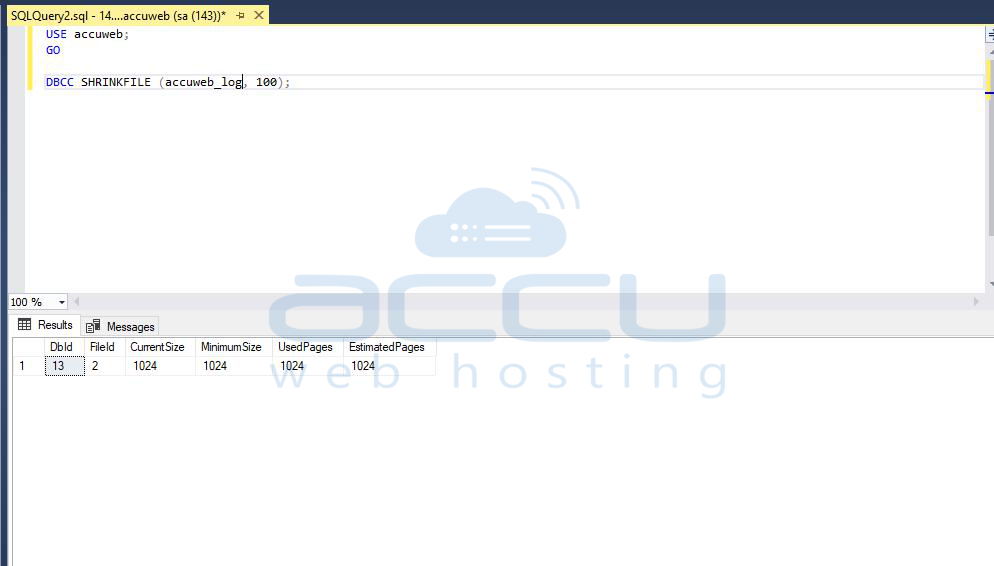
Use shrink only when necessary. Frequent shrinking causes fragmentation.
Managing Log Growth in FULL Recovery Model
FULL recovery requires proper backup strategy.
✔ Step 1: Take Regular Transaction Log Backups
This is the MOST important step.
BACKUP LOG YourDatabaseName
TO DISK = 'D:\Backups\YourDatabase_LogBackup.trn';
Recommended frequency:
Every 5–15 minutes for high transaction systems
Every 30–60 minutes for moderate systems
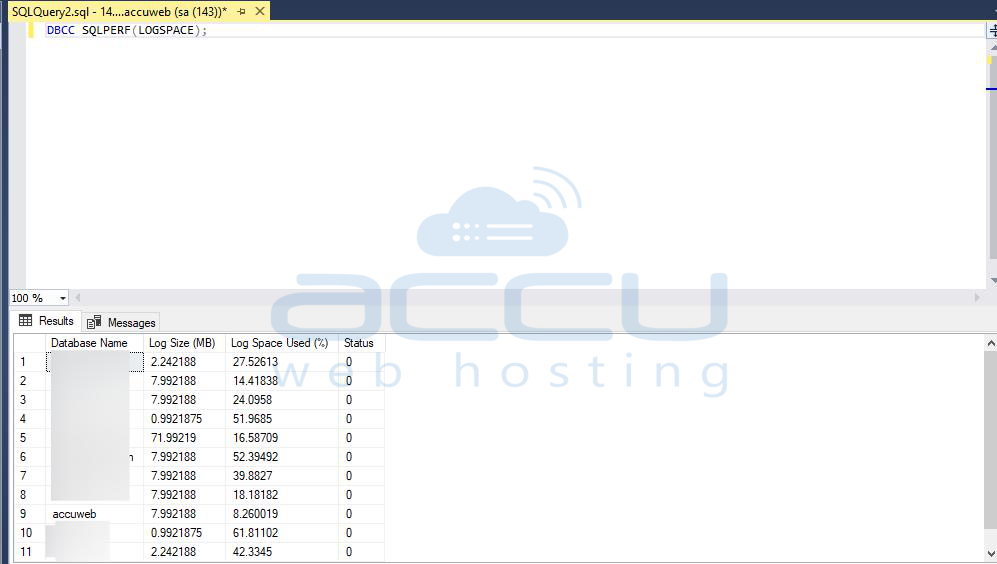
✔ Step 2: Verify Log Chain is Not Broken
If log backups are missing, SQL Server cannot truncate the log.
Check:
DBCC SQLPERF(LOGSPACE);
✔ Step 3: Identify Log Usage
SELECT
name,
log_reuse_wait_desc
FROM sys.databases;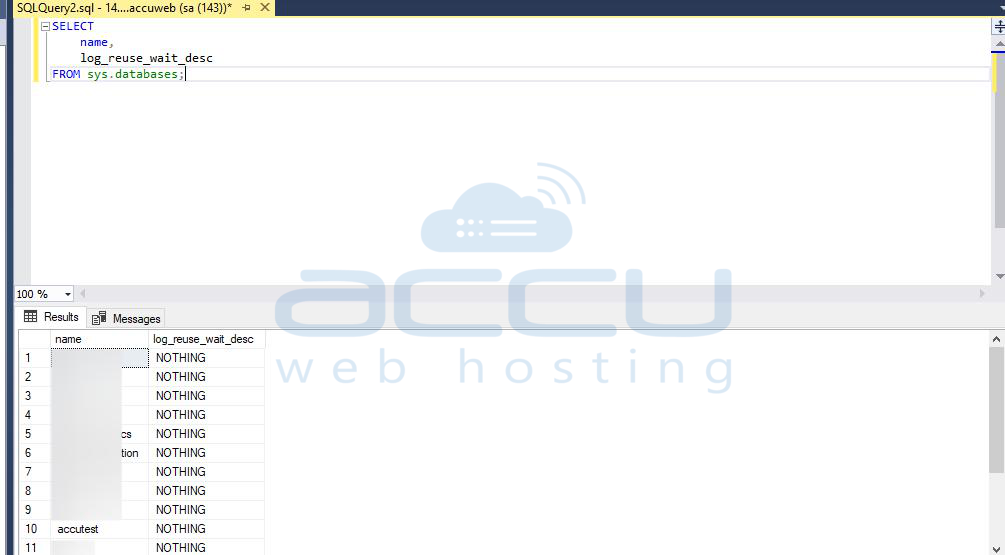
Common values:
LOG_BACKUP → missing log backup
ACTIVE_TRANSACTION → long-running query
REPLICATION → replication delay
✔ Step 4: Free Log Space (Proper Method)
After backup:
CHECKPOINT;
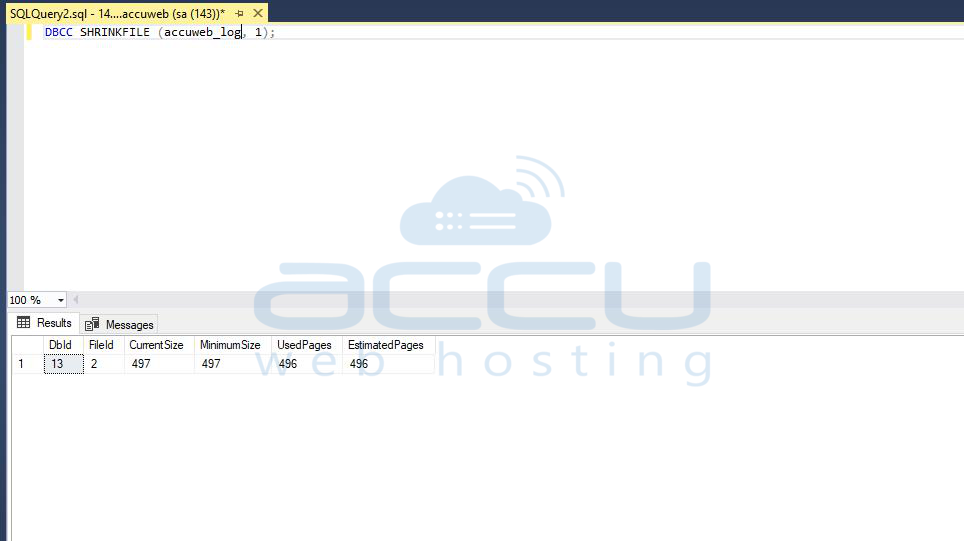
Then shrink if absolutely required:
DBCC SHRINKFILE (YourDatabaseLogFile, 1);
Common Causes of Transaction Log Growth
1. Missing Log Backups (FULL model)
2. Long-running transactions
3. Bulk insert operations
4. Replication delay
5. Always-on / mirroring delays
6. No checkpoint activity (SIMPLE model)
Best Practices to Control Log Growth
✔ 1. Choose Correct Recovery Model
SIMPLE → non-critical systems
FULL → production systems
✔ 2. Schedule Log Backups (FULL Model)
Automate using SQL Server Agent:
Every 15 minutes (recommended baseline)
Store backups on separate drive
✔ 3. Avoid Frequent Shrinking
Shrinking causes:
Index fragmentation
Performance degradation
Re-growth spikes
✔ 4. Monitor Log Size Regularly
Use:
DBCC SQLPERF(LOGSPACE);
✔ 5. Break Large Transactions
Instead of large batch updates:
Process in chunks
Commit periodically
✔ 6. Ensure Disk Space Monitoring
Set alerts for:
70% log usage
Low disk space thresholds
✔ 7. Regular Maintenance Plan
Include:
Log backups (FULL)
Index maintenance
DBCC CHECKDB
When Log File Grows Unexpectedly (Troubleshooting)
Step 1: Check reason
SELECT name, log_reuse_wait_desc
FROM sys.databases;
Step 2: Fix based on reason
Reason Fix
LOG_BACKUP Take log backup
ACTIVE_TRANSACTION Find long transaction
REPLICATION Fix replication backlog
Safe Log Shrinking Procedure (Recommended)
Only when log is already backed up:
Take full log backup
Run checkpoint
Shrink log file once
Set proper initial size to prevent regrowth
Conclusion
Managing SQL Server transaction log growth is not achieved by repeatedly shrinking the log file. Instead, it requires selecting the appropriate recovery model and implementing a proper backup strategy.
* **SIMPLE Recovery Model:** Automatically manages transaction log space but does not support point-in-time recovery.
* **FULL Recovery Model:** Supports point-in-time recovery but requires regular transaction log backups to prevent excessive log growth.
A well-designed maintenance plan helps ensure:
* Consistent database performance
* Efficient disk space utilization
* Reduced risk of unexpected outages and recovery issues


